
1. Wprowadzenie
The Vantec CB-M2SAT-U3 Multi-Function Storage Adapter is designed to provide versatile connectivity and data management solutions for various storage devices. This adapter allows you to connect M.2 NVMe, M.2 SATA, 2.5-inch, or 3.5-inch SATA SSDs/HDDs to your computer system via a fast USB 3.2 Gen2x1 USB-C interface. It supports standalone cloning, data recovery, data transfer, and acts as a convenient dock or adapter for your storage needs. This manual provides detailed instructions for setup, operation, and troubleshooting to ensure optimal use of your device.

Image 1.1: The Vantec CB-M2SAT-U3 Multi-Function Storage Adapter, a versatile device for connecting and cloning various storage drives.
2. Zawartość opakowania
Sprawdź, czy w przesyłce znajdują się wszystkie elementy:
- Vantec Multi-Function Storage Adapter (CB-M2SAT-U3)
- Uchwyt
- Zasilacz sieciowy
- USB-C to C/A Cable
- Szybki przewodnik instalacji
3. Funkcje produktu
The Vantec CB-M2SAT-U3 offers a comprehensive set of features for data management:
- Uniwersalna kompatybilność: Access data on M.2 NVMe, M.2 SATA, 2.5-inch, or 3.5-inch SATA devices.
- M.2 Drive Support: Compatible with M.2 NVMe/SATA drives of sizes 2242, 2260, 2280, 22110, 2580, and 25110.
- Łączność o dużej prędkości: Utilizes USB 3.2 Gen2x1 (10Gbps) with native USB-C and included USB-C to C/A cable.
- Projektowanie bez użycia narzędzi: No drivers needed; hot-swappable, plug-and-play functionality.
- Multi-Clone Function: Supports standalone cloning or software-based cloning for various drive combinations:
- Clone M.2 NVMe to M.2 SATA
- Clone M.2 NVMe to 2.5-inch SATA
- Clone M.2 NVMe to 3.5-inch SATA
- Clone M.2 SATA to M.2 NVMe
- Clone 2.5-inch SATA to M.2 NVMe
- Clone 3.5-inch SATA to M.2 NVMe
- Multi-Storage Function: Mount two drives simultaneously with individual drive letters.
- Data Recovery & Transfer: Ideal for data recovery, transferring data between drives, and accessing storage like a dock.
- OS Upgrade Support: Facilitates upgrading SATA OS drives to M.2 NVMe OS drives.
- Szeroka kompatybilność z systemami operacyjnymi: Designed for Windows 10/11, Mac OS X 10.10 or higher, and Linux OS, with UASP, BOT, and TRIM support.
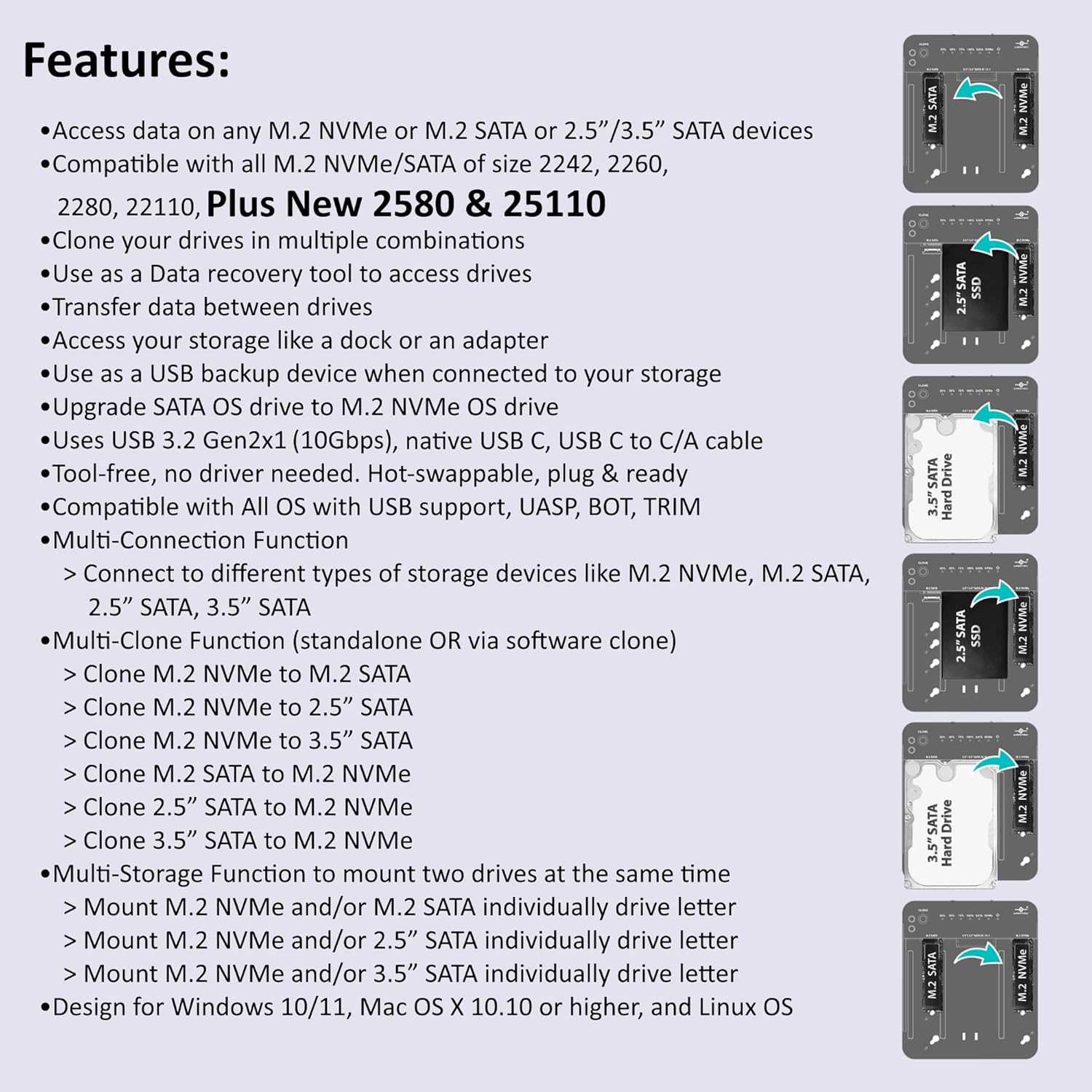
Image 3.1: Visual representation of the Vantec adapter's key features, including multi-drive support and cloning capabilities.
4. Przewodnik konfiguracji
Follow these steps to set up your Vantec Multi-Function Storage Adapter:
4.1 Podłączanie urządzeń pamięci masowej
- Podłączenie zasilania: Connect the included AC adapter to the "DC 12V" power input connector on the adapter and then to a power outlet.
- Połączenie USB: Connect the USB-C to C/A cable from the adapter's USB-C Upstream Port to an available USB port on your computer.
- Insert M.2 NVMe SSD: Carefully insert your M.2 NVMe SSD into the M.2 NVMe slot (typically labeled on the right side). Secure it with the provided rubber stop.
- Insert M.2 SATA SSD: Carefully insert your M.2 SATA SSD into the M.2 SATA slot (typically labeled on the left side). Secure it with the provided rubber stop.
- Insert 2.5"/3.5" SATA SSD/HDD: For 2.5-inch or 3.5-inch SATA drives, align the drive with the central SATA III/II/I connector and gently push it down until it connects securely.

Obraz 4.1: Tył view of the adapter showing the USB-C upstream port, power switch, and DC 12V power input connector.

Image 4.2: The adapter demonstrating compatibility with various M.2 NVMe/SATA sizes, 2.5-inch SATA SSDs, and 3.5-inch SATA HDDs.
4.2 Włączanie
Once all desired drives are connected, press the Power Switch to turn on the adapter. The LED indicators will illuminate, signifying power and drive activity.
5. Instrukcja obsługi
5.1 Data Access and Transfer
When connected to your computer, the adapter will mount the inserted drives as individual drive letters. You can then access, manage, and transfer data between these drives using your operating system's file odkrywca.
5.2 Standalone Cloning Function
The adapter supports standalone cloning, meaning it can clone drives without being connected to a computer. This is ideal for upgrading drives or creating backups.
- Przygotuj dyski: Ensure both the source drive (containing data to be copied) and the target drive (where data will be copied) are properly inserted into their respective slots. The target drive must be equal to or larger in capacity than the source drive.
- Ustaw kierunek klonowania: Use the "Clone Direction Switch" to select the desired cloning path. For example, to clone from M.2 SATA to M.2 NVMe, ensure the switch is set accordingly. Refer to the diagram below for specific combinations.
- Zainicjuj klonowanie: Press and hold the "Clone" button for approximately 3-5 seconds until the cloning progress LEDs (25%, 50%, 75%, 100%) begin to flash.
- Monitoruj postęp: The LEDs will indicate the cloning progress. Once the 100% LED is solid, the cloning process is complete.
- Wyłączone: Safely power off the adapter and remove the drives.
Ważny: Ensure the clone direction is correctly set to prevent accidental data loss on your source drive. All data on the target drive will be overwritten during the cloning process.

Image 5.1: Detailed diagram illustrating the correct clone switch settings for various source and target drive combinations.
6. Specyfikacje
| Interfejs sprzętowy | USB 3.2 pierwszej generacji |
| Marka | Vantec |
| Kolor | Czarny |
| Wymiary produktu (dł. x szer. x wys.) | 6.5" x 5.5" x 0.6" (164 mm x 140 mm x 16 mm) |
| Platforma sprzętowa | Linux PC, Mac OS X, Windows PC |
| Pojemność pamięci masowej | Do 32 TB |
| Kompatybilne urządzenia | M.2 NVMe, M.2 SATA, 2.5" SATA SSD/HDD, 3.5" SATA SSD/HDD |
| Współczynnik kształtu dysku twardego | 2.5 Inches (for SATA drives) |
| Supported Devices Quantity | 2 (simultaneously) |
| Szybkość przesyłu danych | 10 gigabitów na sekundę |
| Materiał obudowy | Metal, Plastik |
| Waga przedmiotu | 6.9 uncji |
| Producent | Technologie termiczne Vantec |
| UPC | 844767023724 |

Image 6.1: The adapter with its physical dimensions indicated in millimeters.
7. Rozwiązywanie Problemów
If you encounter issues with your Vantec Multi-Function Storage Adapter, please refer to the following common solutions:
- Urządzenie nie zostało wykryte:
- Ensure the power adapter is securely connected and the power switch is ON.
- Verify the USB cable is firmly connected to both the adapter and your computer. Try a different USB port or cable.
- Check if the storage drive is properly seated in its slot.
- For new drives, they may need to be initialized and formatted in your operating system's Disk Management (Windows) or Disk Utility (Mac) before they appear.
- Cloning Failure:
- Confirm the target drive's capacity is equal to or larger than the source drive's capacity.
- Ensure the "Clone Direction Switch" is set correctly for your desired cloning path.
- Verify both source and target drives are securely connected and detected by the adapter (indicated by LEDs).
- Disconnect the adapter from the computer during standalone cloning.
- Niska prędkość transferu:
- Ensure you are connected to a USB 3.2 Gen2x1 (10Gbps) compatible port on your computer. Older USB ports will result in slower speeds.
- The performance of the drives themselves can affect transfer speeds.
- Połączenie przerywane:
- Sprawdź wszystkie połączenia kablowe pod kątem luzu.
- Upewnij się, że zasilacz zapewnia stabilne zasilanie.
- Spróbuj podłączyć adapter do innego portu USB w komputerze.
8. Gwarancja i wsparcie
The Vantec CB-M2SAT-U3 Multi-Function Storage Adapter comes with a 1-letnia gwarancja na części i robociznę od daty zakupu. Niniejsza gwarancja obejmuje wady produkcyjne i zapewnia, że produkt działa zgodnie z przeznaczeniem przy normalnym użytkowaniu.
For technical support, warranty claims, or further assistance, please visit the official Vantec website or contact their customer service department. Please have your product model number (CB-M2SAT-U3) and proof of purchase ready when contacting support.