
1. Wprowadzenie
Thank you for choosing the Maxcom FW36 Aurum SE Smartwatch. This manual provides detailed instructions to help you set up, operate, and maintain your device, ensuring optimal performance and longevity. Please read this manual carefully before using your smartwatch.

Rycina 1: Przód view of the Maxcom FW36 Aurum SE Smartwatch, displaying time and health metrics.
2. Konfiguracja
2.1 Rozpakowanie i wstępna inspekcja
Upon opening the package, verify that all components are present: Maxcom FW36 Aurum SE Smartwatch, charging cable, and this user manual. Inspect the device for any visible damage.
2.2 Ładowanie smartwatcha
Before first use, fully charge your smartwatch. Connect the charging cable to the charging port on the back of the watch and to a standard USB power adapter (not included). The battery icon on the screen will indicate charging status. A full charge typically takes approximately 2 hours.
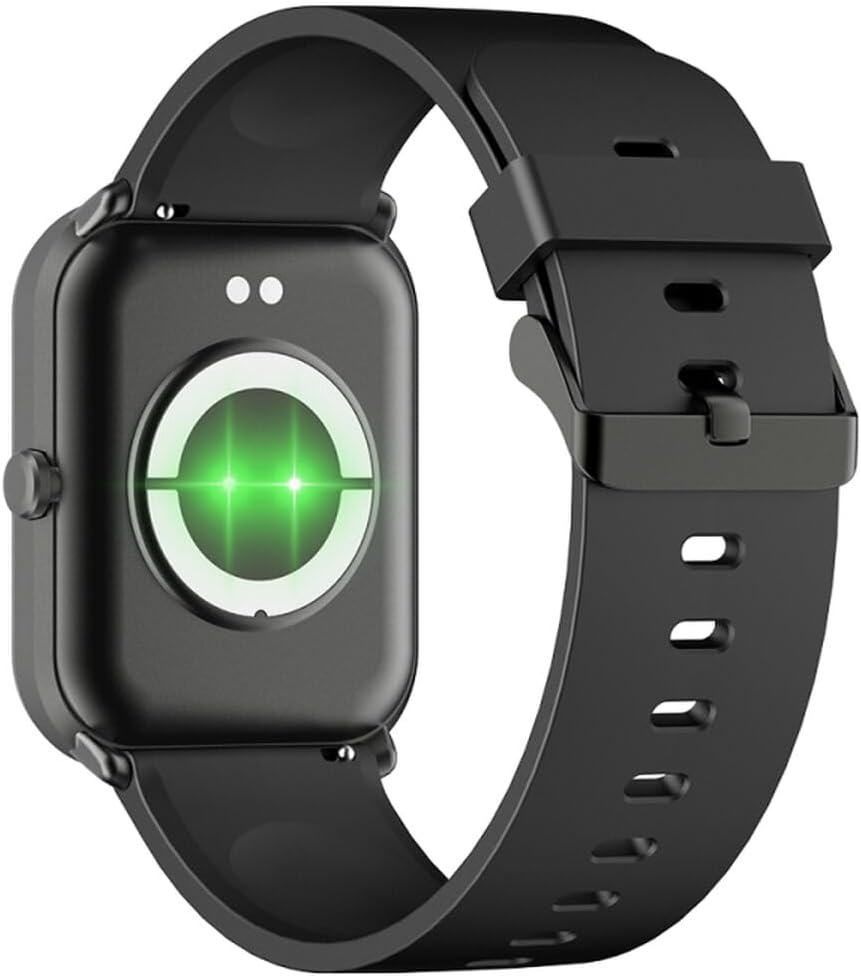
Rysunek 2: Tył view of the smartwatch, highlighting the charging contacts and health sensors.
2.3 Włączanie/wyłączanie zasilania
- Włączanie: Naciśnij i przytrzymaj przycisk boczny przez kilka sekund, aż ekran się zaświeci.
- Wyłączone: From the watch face, swipe down to access quick settings, then tap the power icon, or navigate to "Settings" > "System" > "Power Off". Confirm your selection.
2.4 Instalacja i parowanie aplikacji
- Pobierz aplikację: Scan the QR code in the manual (if provided) or search for "GLORY FIT" in your smartphone's app store (Google Play Store for Android, Apple App Store for iOS).
- Zarejestruj się/Zaloguj: Open the GLORY FIT app and follow the on-screen instructions to create an account or log in.
- Łączenie w pary:
- Upewnij się, że Bluetooth jest włączony w Twoim smartfonie.
- Open the GLORY FIT app, go to "Device" or "My Device", and tap "Add Device".
- The app will search for nearby devices. Select "FW36 Aurum SE" from the list.
- Potwierdź prośbę o sparowanie na smartfonie i smartwatchu.
Once paired, the smartwatch will synchronize data with your phone, including time and date settings.
3. Instrukcja obsługi
3.1 Podstawowa nawigacja
- Ekran dotykowy: Swipe left/right to navigate between main functions (e.g., activity, heart rate). Swipe up to view notifications. Swipe down to access quick settings.
- Przycisk boczny: Press once to return to the watch face or wake the screen. Press and hold for power options.

Rysunek 3: Strona view of the smartwatch, illustrating the physical button and strap design.
3.2 Monitorowanie stanu zdrowia
The Maxcom FW36 Aurum SE Smartwatch features several health monitoring functions:
- Monitor pracy serca: Swipe to the heart rate interface and wait for the measurement to complete. Ensure the watch is snug on your wrist.
- Czujnik tlenu we krwi: Similar to heart rate, navigate to the SpO2 interface for measurement.
- Monitor ciśnienia krwi: Access this function from the main menu or by swiping to its dedicated screen.
- Monitorowanie jakości snu: Zegarek automatycznie śledzi wzorzec Twojego snu, gdy masz go na sobie podczas snu. View detailed reports in the GLORY FIT app.
- Krokomierz: Tracks your daily steps, distance, and calories burned automatically.
Ważny: The health data provided by this device is for reference only and should not be used for medical diagnosis or treatment.
3.3 Tryb Multi-Sport
Access the multi-sport mode from the main menu to select various activities such as running, walking, cycling, etc. The watch will track specific metrics relevant to your chosen activity.
3.4 Powiadomienia
Once paired with your smartphone and notification permissions are granted in the GLORY FIT app, your smartwatch will display incoming calls, messages, and app notifications. Swipe up from the watch face to view historia powiadomień.
4. Konserwacja
4.1 Czyszczenie
Regularnie czyść smartwatch i pasek miękką, suchą ściereczką. W przypadku uporczywych zabrudzeń użyj lekko wilgotnej ściereczki.amp Wytrzyj szmatką i dokładnie osusz. Unikaj stosowania silnych środków chemicznych i materiałów ściernych.
4.2 Odporność na wodę i kurz
The Maxcom FW36 Aurum SE Smartwatch is designed to be dust resistant and water resistant. This means it can withstand splashes, rain, and brief immersion in shallow water. However, it is not suitable for hot showers, saunas, diving, or high-speed water sports. Avoid pressing buttons underwater.
4.3 Pielęgnacja baterii
Aby przedłużyć żywotność baterii, unikaj częstego całkowitego rozładowywania baterii. Regularnie ładuj urządzenie, nawet jeśli nie jest używane przez dłuższy czas. Przechowuj urządzenie w chłodnym, suchym miejscu.
5. Rozwiązywanie Problemów
- Smartwatch się nie włącza: Ensure the device is fully charged. Press and hold the side button for an extended period (10-15 seconds).
- Nie można sparować ze smartfonem:
- Ensure Bluetooth is enabled on your phone and the smartwatch is within range.
- Uruchom ponownie smartfon i smartwatch.
- Check if the GLORY FIT app has necessary permissions.
- Jeśli urządzenie zostało wcześniej sparowane, spróbuj rozparować je i sparować ponownie.
- Niedokładne odczyty stanu zdrowia: Upewnij się, że zegarek ściśle przylega do nadgarstka, nie jest za ciasny ani za luźny. Wyczyść czujniki z tyłu zegarka. Unikaj nadmiernego ruchu podczas pomiaru.
- Powiadomienia nie zostały odebrane: Verify that notification permissions are enabled for the GLORY FIT app in your phone's settings. Ensure the app is running in the background.
6. Specyfikacje
| Model | FW36 Aurum SE |
| Marka | Maxcom |
| System operacyjny | Android |
| Wyświetlacz | 1.69" (4.29 cm) Color Touchscreen, 240 x 280 pixels, Digital, Rounded Corners |
| Pojemność baterii | 220 mAh Li-ion |
| Łączność | Bluetooth |
| Czujniki | Heart Rate Monitor, Blood Oxygen Sensor, Blood Pressure Monitor, Pedometer |
| Ochrona | Dust Resistant, Water Resistant |
| Kompatybilna aplikacja | GLORY FIT |
| Dimensions (W x T x D) | 44.6 mm x 1.04 cm x 35 mm |
| Funkcjonalność GPS | Niedostępne |
7. Gwarancja i wsparcie
The Maxcom FW36 Aurum SE Smartwatch comes with a dwuletnia gwarancja against factory defects. Please retain your proof of purchase for warranty claims.
For technical support, troubleshooting assistance, or warranty inquiries, please contact Maxcom customer service through their official webstronę lub dane kontaktowe podane w dokumentacji zakupu.