Lenovo ThinkVision P24q-30 24-inch WQHD LED Monitor User Manual
Model: P24q-30
Wstęp
This manual provides detailed instructions for setting up, operating, maintaining, and troubleshooting your Lenovo ThinkVision P24q-30 24-inch WQHD LED Monitor. Please read this manual thoroughly before using your monitor to ensure proper and safe operation.
Co jest w pudełku
Sprawdź, czy w opakowaniu znajdują się wszystkie elementy:
ThinkVision P24q-30 Widescreen LED Monitor
DP Cable (DisplayPort Cable)
Kabel USB typu A do typu B
Kabel zasilający
Dokumentacja (skrócony przewodnik, informacje dotyczące bezpieczeństwa)
Organizować coś
1. Montaż podstawy monitora
Carefully remove the monitor and stand components from the packaging. Attach the stand base to the stand column, then attach the assembled stand to the back of the monitor. Ensure all connections are secure.
Obraz: Przód view of the Lenovo ThinkVision P24q-30 monitor, showing the display and the attached stand.
2. Podłączanie kabli
Connect the necessary cables to the monitor and your computer. The monitor supports DisplayPort and HDMI for video input, and USB for the integrated hub.
Kabel wideo: Connect one end of the provided DisplayPort (DP) cable to the DP port on your computer and the other end to the DP input on the monitor. Alternatively, use an HDMI cable if your computer supports it.
Kabel USB do przesyłania danych: Connect the USB Type-A end of the provided USB cable to your computer and the USB Type-B end to the upstream USB port on the monitor. This enables the monitor's USB hub.
Przewód zasilający: Podłącz kabel zasilający do wejścia zasilania monitora, a następnie do uziemionego gniazdka elektrycznego.
Obraz: Tył view of the monitor, highlighting the input ports for DisplayPort, HDMI, USB, and power connection.
3. Pierwsze włączenie zasilania
Press the power button on the monitor to turn it on. Ensure your computer is also powered on. The monitor should automatically detect the input signal. If not, you may need to select the input source using the monitor's OSD (On-Screen Display) menu.
Obsługa monitora
1. Włączanie/wyłączanie zasilania
Press the power button, usually located on the front or side of the monitor, to turn the display on or off.
2. Regulacja ustawień wyświetlania (menu OSD)
The monitor features an On-Screen Display (OSD) menu for adjusting various settings. The physical menu buttons are located on the back-right of the monitor. Use these buttons to navigate and select options.
Jasność/Kontrast: Dostosuj ogólną jasność i różnicę między obszarami jasnymi i ciemnymi.
Ustawienia kolorów: Modify color temperature, gamma, and color space (sRGB). The monitor features factory calibrated color accuracy and HDR10 support.
Wybór wejścia: Ręczne przełączanie między wejściami DisplayPort i HDMI.
Picture Quality Enhancement: Utilize features like Eye Comfort Technology, Natural Low Blue Light, and Flicker-Free to reduce eye strain.
Rezolucja: The native resolution is 2560 x 1440 (WQHD). Ensure your computer's display settings match this for optimal clarity.
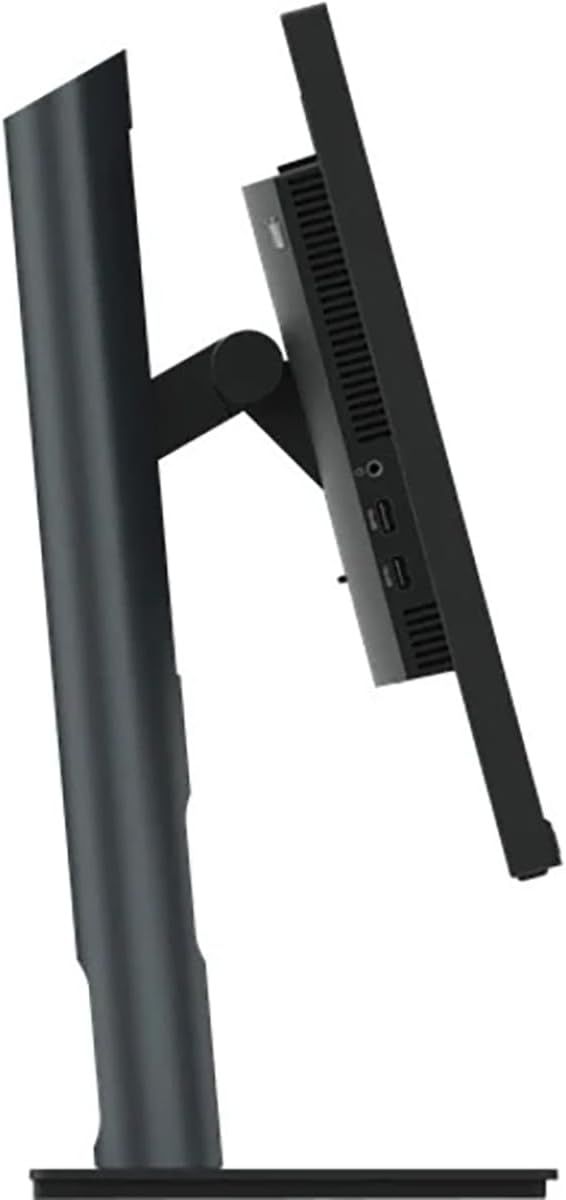
Obraz: Bok view of the monitor, illustrating its thin profile and the stand's connection point, where OSD buttons are typically located on the rear.
3. Regulacja podstawy monitora
Podstawka pod monitor umożliwia ergonomiczne dopasowanie:
Regulacja wysokości: Gently push or pull the monitor up or down to your desired viewwysokość.
Regulacja nachylenia: Przechyl ekran monitora do przodu lub do tyłu, aby znaleźć optymalną pozycję. viewkąt.
Regulacja obrotu: Obróć monitor na podstawie w lewo lub w prawo.
Obraz: Bok view demonstrating the monitor's tilt capability on its stand.
4. Using the USB Hub
With the USB upstream cable connected to your computer, the monitor's integrated USB hub becomes active. You can connect up to 4 USB devices (e.g., keyboard, mouse, USB drive) to the downstream USB ports on the monitor.
Konserwacja
Właściwa konserwacja gwarantuje długowieczność i optymalną wydajność monitora.
Czyszczenie ekranu: Delikatnie przetrzyj ekran miękką, niepozostawiającą włókien ściereczką. W przypadku uporczywych zabrudzeń delikatnie przetrzyjampPrzetrzyj ściereczkę wodą lub nieściernym, bezpiecznym dla monitora środkiem czyszczącym. Nie rozpylaj płynu bezpośrednio na ekran.
Czyszczenie Casing: Do czyszczenia monitora należy używać miękkiej, suchej ściereczki.asing. Unikaj stosowania silnych detergentów i środków czyszczących o właściwościach ściernych.
Wentylacja: Aby zapobiec przegrzaniu, upewnij się, że otwory wentylacyjne monitora nie są zablokowane.
Wyłączone: Zawsze wyłączaj monitor, jeśli nie używasz go przez dłuższy czas.
Rozwiązywanie problemów
Jeśli masz problemy z monitorem, zapoznaj się z poniższymi typowymi procedurami rozwiązywania problemów:
Problem
Możliwe rozwiązanie
Brak obrazu na ekranie
Sprawdź, czy kabel zasilający jest prawidłowo podłączony do monitora i gniazdka elektrycznego.
Verify the video cable (DP or HDMI) is firmly connected to both the monitor and your computer.
Sprawdź, czy monitor jest włączony.
Wybierz właściwe źródło sygnału wejściowego za pomocą menu OSD.
Image is dim or washed out
Adjust the brightness and contrast settings via the OSD menu.
Ensure the monitor's display resolution is set to its native 2560 x 1440 in your computer's display settings.
Check color settings in the OSD menu.
Migotanie lub niestabilny obraz
Sprawdź, czy kabel wideo jest podłączony prawidłowo.
Wypróbuj inny kabel wideo.
Verify the refresh rate is set to 60 Hz in your computer's display settings.
Porty USB nie działają
Ensure the USB Type-A to Type-B upstream cable is connected from the monitor to your computer.
Check if the computer's USB drivers are up to date.
Specyfikacje
Funkcja
Szczegół
Marka
Lenovo
Numer modelu
P24q-30
Rozmiar ekranu
23.8 cali
Rezolucja
QHD Wide 1440p (2560 x 1440 Pixels)
Proporcje obrazu
16:9
Typ wyświetlacza
LED, In-plane Switching (IPS) Technology
Częstotliwość odświeżania
60 Hz
Czas reakcji
4 milisekund
Jasność
300 nitów
Współczynnik kontrastu
3,000,000:1
Viewing kąt
178 stopni
Gama kolorów
99% sRGB
Łączność
1x HDMI, 1x DisplayPort, 5x USB (1 upstream, 4 downstream)
Cechy specjalne
Eye Comfort Technology, Natural Low Blue Light, Flicker-Free, Height Adjustment, Tilt Adjustment, Swivel Adjustment, HDR10 Support, Factory Calibrated Color Accuracy, USB Hub
Pobór mocy
25 watów
Wymiary przedmiotu (gł. x szer. x wys.)
1.8" gł. x 21.2" szer. x 12.7" wys.
Waga przedmiotu
18 funtów
Informacje o gwarancji
The Lenovo ThinkVision P24q-30 monitor comes with a 3-letnia gwarancja producenta. For detailed terms and conditions, please refer to the warranty documentation included with your product or visit the official Lenovo support webstrona.
Wsparcie
For further assistance, technical support, or service inquiries, please contact Lenovo customer support. You can find contact information and additional resources on the official Lenovo webstrona.
Ask about setup, troubleshooting, compatibility, parts, safety, or missing instructions. Manuals+ will review the question and use this page’s manual context to help answer it.