
Wstęp
This manual provides comprehensive instructions for the setup, operation, maintenance, and troubleshooting of your HP LaserJet M110w Monochrome Laser Printer. Designed for efficiency and compact spaces, this printer delivers professional-quality monochrome prints.
The HP LaserJet M110w is engineered to work exclusively with cartridges containing new or reused HP chips. Dynamic security measures are in place to block cartridges with non-HP chips. Regular firmware updates ensure the continued effectiveness of these measures, blocking cartridges that may have previously functioned. Reused HP chips enable the use of reused, remanufactured, or recycled cartridges.

Rycina 1: Przód view of the HP LaserJet M110w Monochrome Laser Printer.
Główne cechy:
- Compact Design: One of the smallest laser printers in its category, ideal for limited spaces.
- High-Speed Printing: Up to 20 pages per minute (ppm) for monochrome documents.
- High Resolution: Print resolution up to 600 x 600 dpi.
- Paper Capacity: Equipped with a 150-sheet input tray.
- Mobile Connectivity: Seamless printing and scanning capabilities via the HP Smart app.
- Connectivity Options: Includes 1 high-speed USB port and wireless (Wi-Fi) connectivity.
Organizować coś
1. Rozpakowanie drukarki
Carefully remove the printer from its packaging. Ensure all packing materials, tapes, and protective films are removed from the exterior and interior of the printer. Verify that all components listed below are present:
- Drukarka HP LaserJet M110w
- Kabel zasilający
- HP Black LaserJet Toner Cartridge (initial yield: 300 pages)
- Installation Poster
- Podręcznik referencyjny
- Informacje o gwarancji
- Ulotki
2. Podłączanie kabla zasilającego
Connect the power cable to the printer's power port and then to a grounded electrical outlet. Do not connect the USB cable until instructed by the software installation process.
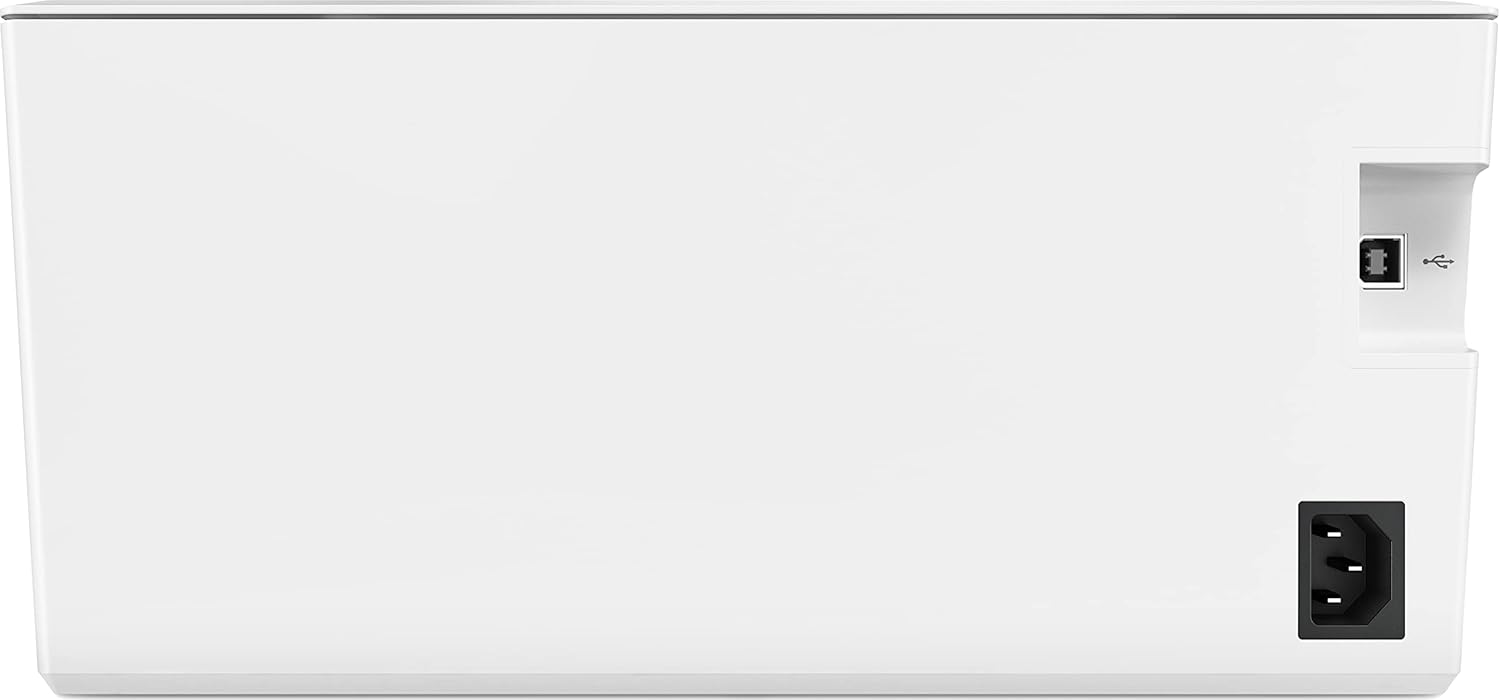
Rysunek 2: Tył view of the printer, highlighting the power input and USB port.
3. Instalacja wkładu z tonerem
Open the toner access door. Remove the new toner cartridge from its packaging and gently shake it to distribute the toner. Insert the cartridge into the designated slot until it clicks into place. Close the access door.
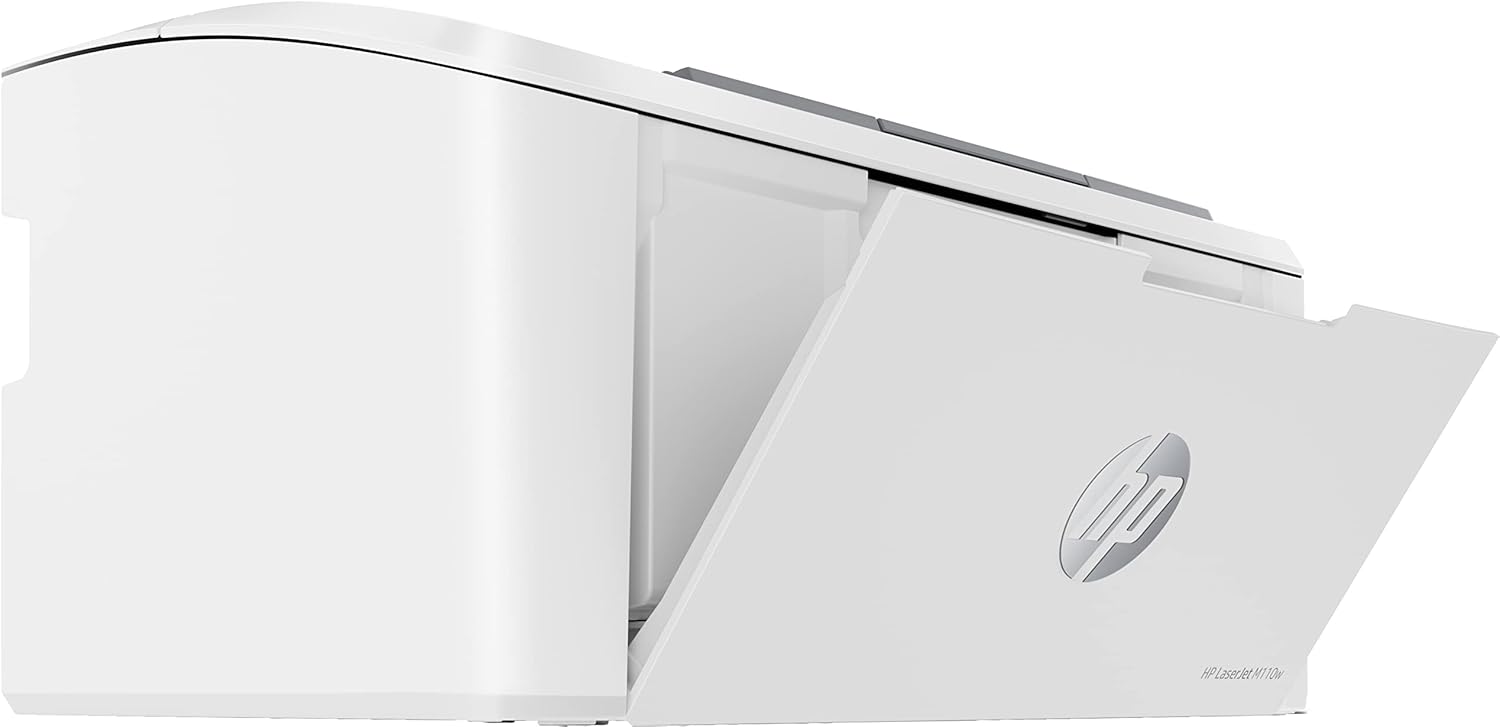
Rysunek 3: Strona view of the printer with the toner access panel open.
4. Instalacja oprogramowania i łączność
For initial setup and full functionality, it is recommended to download and install the HP Smart app on your computer or mobile device. The app will guide you through the network setup (Wi-Fi) or USB connection process.
- Konfiguracja sieci bezprzewodowej: Follow the instructions in the HP Smart app to connect your printer to your Wi-Fi network. This enables wireless printing from multiple devices.
- Konfiguracja USB: If connecting via USB, connect the USB cable (not included) from the printer to your computer only when prompted by the HP Smart app or driver installation.
Obsługa drukarki
1. Ładowanie papieru
Open the input tray and extend the paper guides. Load up to 150 sheets of standard A4 paper into the tray. Adjust the paper guides to fit the paper stack snugly without bending the paper. The printer supports various media types, including envelopes.

Figure 4: Printer with the paper input tray extended and paper loaded.
2. Drukowanie dokumentów
Once the printer is connected and drivers are installed, you can print documents from your computer or mobile device. For mobile printing and scanning, use the HP Smart app.
- Z komputera: Open the document you wish to print, select "Print" from the application's menu, choose the HP LaserJet M110w, and adjust print settings as needed (e.g., number of copies, paper size, duplex printing).
- Z urządzenia mobilnego: Use the HP Smart app to select documents or photos from your device's storage or cloud services, then send them to the printer.
The printer supports automatic duplex (two-sided) printing, which can be enabled through your print settings.
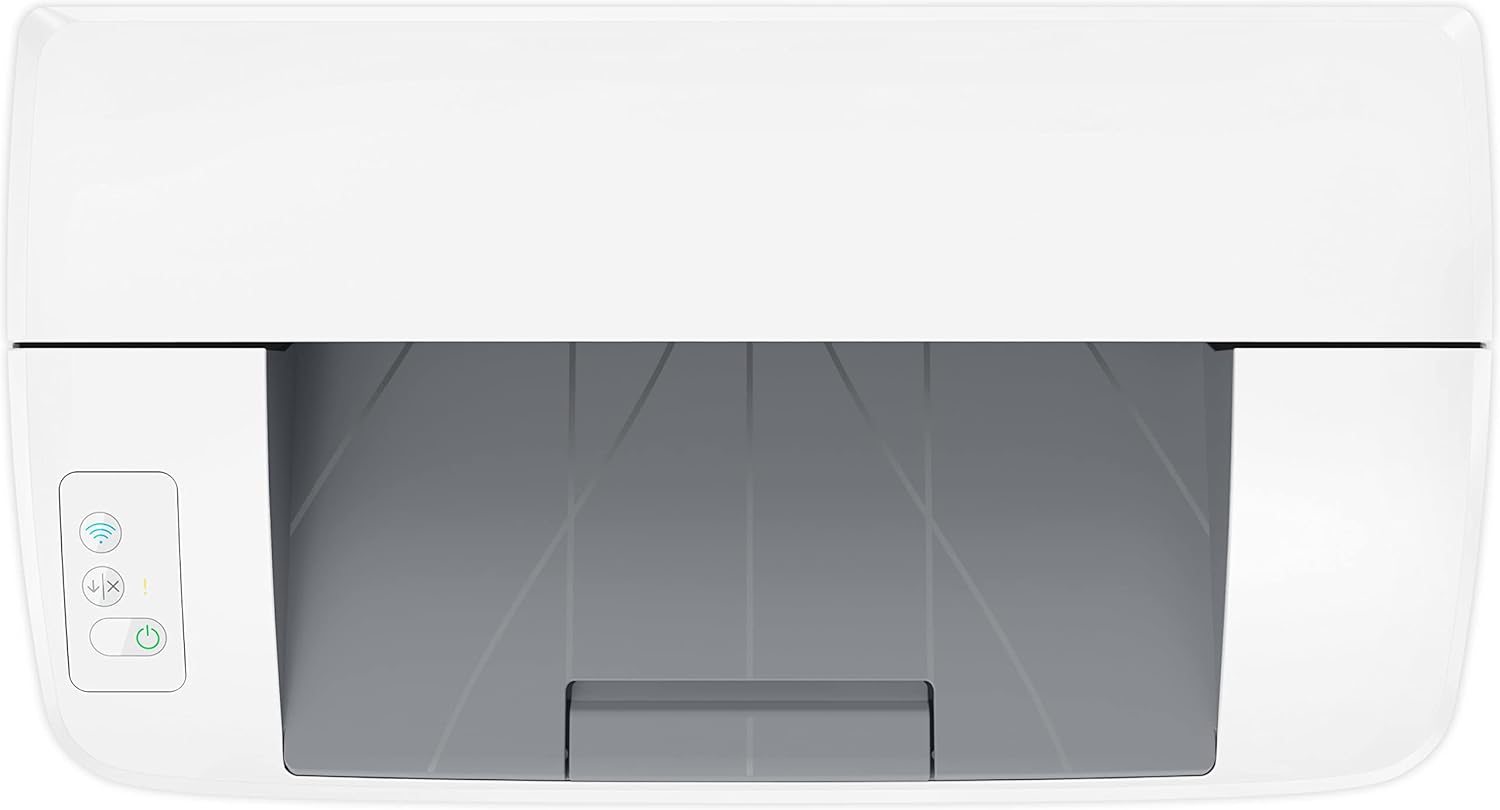
Rysunek 5: Góra view of the printer, showing the control panel with power and wireless indicator buttons.
Konserwacja
1. Wymiana wkładu z tonerem
When the toner level is low, the printer's status lights or the HP Smart app will indicate that the cartridge needs replacement. To replace the cartridge:
- Otwórz drzwiczki dostępu do tonera.
- Ostrożnie wyjmij stary wkład z tonerem.
- Unpack the new HP original toner cartridge and gently shake it side-to-side to distribute the toner.
- Włóż nowy wkład do drukarki, aż zatrzaśnie się na miejscu.
- Zamknij drzwiczki dostępu do tonera.
Consider enrolling in HP Instant Ink for Toner service to automatically receive new toner cartridges when yours run low, potentially saving up to 50% on toner costs. This service includes recycling of used cartridges.
2. Czyszczenie drukarki
Regularne czyszczenie pomaga zachować jakość druku i wydłuża żywotność drukarki.
- Zewnętrzny: Wipe the exterior surfaces of the printer with a soft, lint-free cloth dampspłukać wodą. Nie stosować środków czyszczących o działaniu ściernym ani rozpuszczalników.
- Wnętrze: Refer to the HP Smart app or the online support documentation for specific instructions on cleaning internal components if print quality issues persist. Avoid touching the transfer roller or other sensitive internal parts.
Rozwiązywanie problemów
This section provides solutions to common issues you might encounter with your HP LaserJet M110w printer.
Typowe problemy i rozwiązania:
- Drukarka nie odpowiada:
- Sprawdź, czy drukarka jest włączona i czy kabel zasilający jest dobrze podłączony.
- Check the USB cable connection (if applicable) or verify the Wi-Fi connection status.
- Uruchom ponownie drukarkę i komputer/urządzenie.
- Zacięcia papieru:
- Wyłącz drukarkę.
- Carefully open all access doors and remove any jammed paper, pulling in the direction of the paper path.
- Sprawdź, czy papier jest prawidłowo załadowany do podajnika wejściowego i czy nie jest przepełniony.
- Słaba jakość druku:
- Sprawdź poziom tonera w pojemniku i wymień go, jeśli jest niski.
- Upewnij się, że używasz oryginalnych wkładów z tonerem HP.
- Clean the printer as described in the Maintenance section.
- Sprawdź, czy ustawienie typu papieru w sterowniku drukarki odpowiada rodzajowi załadowanego papieru.
- Problemy z połączeniem bezprzewodowym:
- Sprawdź, czy router Wi-Fi jest włączony i działa.
- Check the printer's wireless indicator light. If it's off or blinking, re-run the wireless setup using the HP Smart app.
- Move the printer closer to the wireless router if possible.
For more detailed troubleshooting steps and support, visit the official HP support webodwiedź witrynę lub skorzystaj z aplikacji HP Smart.
Specyfikacje
| Funkcja | Specyfikacja |
|---|---|
| Nazwa modelu | LaserJet M110w |
| Numer modelu | 7MD66F#B19 |
| Typ drukarki | Monochromatyczna drukarka laserowa |
| Prędkość drukowania (monochromatyczna) | Do 20 stron na minutę (str./min) |
| Rozdzielczość druku (czarny) | Up to 600 x 600 dpi (effective 1200 dpi) |
| Drukowanie dwustronne | Automatyczny (tak) |
| Pojemność tacy wejściowej | 150 arkuszy |
| Maksymalny rozmiar nośnika | A4 |
| Obsługiwane typy mediów | Plain paper, Envelopes |
| Łączność | USB 2.0, Wi-Fi (WLAN) |
| Wymiary produktu (szer. x gł. x wys.) | 360 mm x 346 mm x 280 mm (ok. 14.2 x 13.6 x 11 cala) |
| Waga produktu | 3.8 kg (ok. 8.4 funta) |
| Pobór mocy | 361 watów (drukowanie) |
| Kompatybilne systemy operacyjne | Windows, macOS (e.g., Mac OS 10.15 Catalina and later) |
Gwarancja i wsparcie
Informacje o gwarancji:
Your HP LaserJet M110w printer comes with a limited warranty. Please refer to the warranty information included in the product packaging for specific terms and conditions.
- Rodzaj gwarancji: Ograniczona gwarancja
- Dostępność części zamiennych: Gwarancja 2 lat
- Aktualizacje oprogramowania: Guaranteed until April 13, 2030
Obsługa klienta:
For technical assistance, product registration, or to access the latest drivers and software, please visit the official HP support website. You can also find extensive FAQs and troubleshooting guides online.
Wsparcie HP Webstrona: www.hp.com/support