
Wstęp
This instruction manual provides comprehensive guidance for the 8Bitdo Media Remote (White Short Edition), designed for seamless media control on your Xbox One, Xbox Series X, and Xbox Series S consoles. This remote offers dedicated media playback buttons, Xbox system navigation, and motion-activated backlighting for enhanced usability.
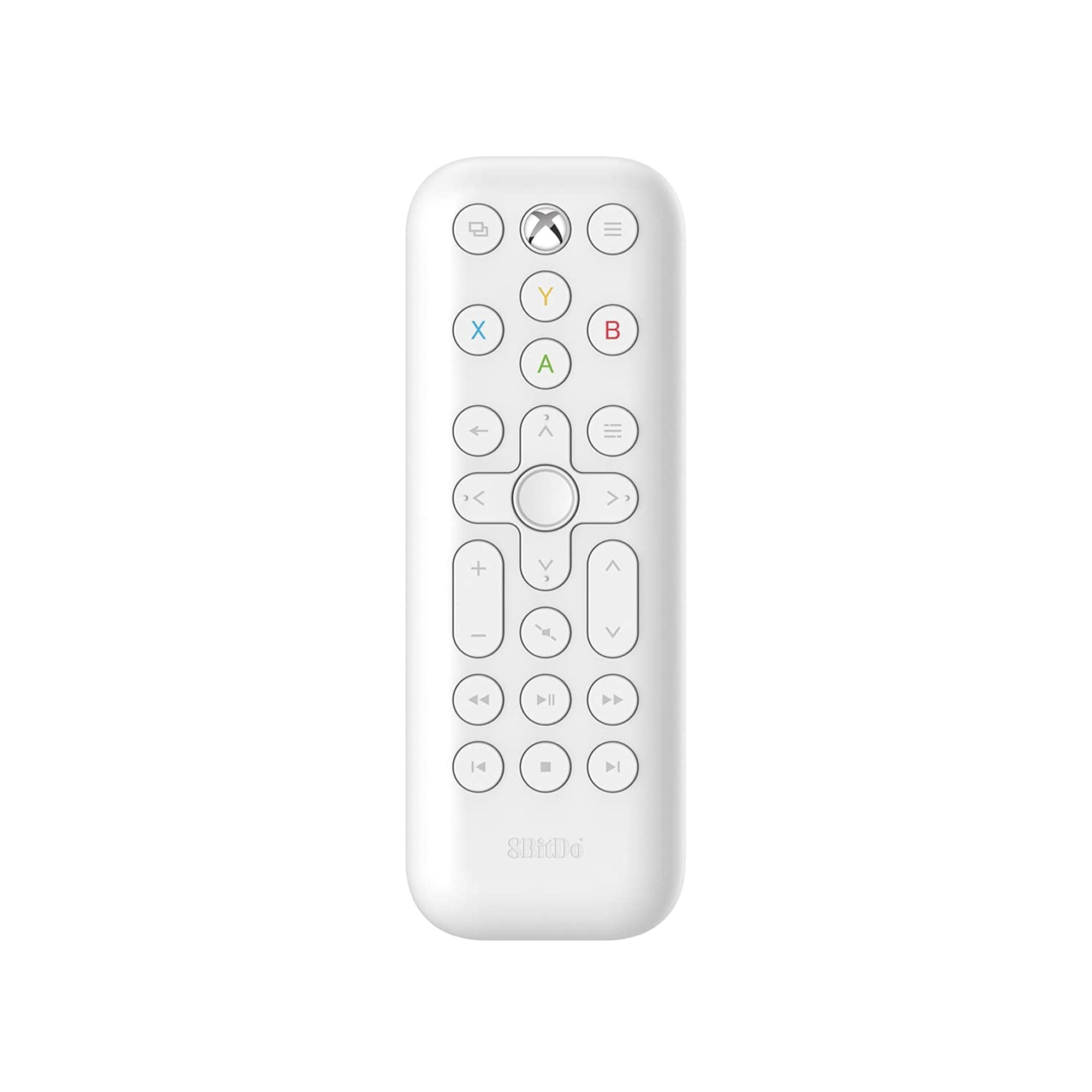
Image: The 8Bitdo Media Remote in White, Short Edition, showcasinze względu na kompaktową konstrukcję i układ przycisków.
Organizować coś
1. Instalacja baterii
The 8Bitdo Media Remote requires two AAA batteries for operation. These are typically included with your purchase.
- Znajdź pokrywę komory baterii z tyłu pilota.
- Aby otworzyć komorę, przesuń pokrywę w dół.
- Włóż dwie baterie AAA, zwracając uwagę na prawidłową biegunowość (+ i -).
- Przesuń pokrywę komory baterii z powrotem na miejsce, aż zatrzaśnie się pewnie.

Image: A hand demonstrating how to open the battery compartment and insert AAA batteries into the remote.
2. Połączenie początkowe
The 8Bitdo Media Remote uses infrared (IR) technology. No manual pairing is required. Simply ensure a clear line of sight between the remote's IR emitter (located at the top) and your Xbox console's IR receiver.

Image: A user holding the 8Bitdo Media Remote, pointing it towards an Xbox Series S console, illustrating the line-of-sight requirement for infrared communication.
Instrukcja obsługi
1. Powering On/Off and Navigation
- Dedicated Home Button: Press the Xbox Home button (located at the top center) to instantly wake your Xbox console.
- Klawisz kierunkowy (D-Pad): Use the circular D-Pad for navigating menus and selecting items.
- Przyciski A/B/X/Y: These colored buttons correspond to standard Xbox controller functions for menu selection and interaction.

Image: The 8Bitdo Media Remote being used to wake an Xbox console, highlighting the dedicated Home button functionality.
2. Sterowanie odtwarzaniem multimediów
The remote features a full suite of media playback buttons:
- Odtwórz/Pauza: Rozpocznij lub wstrzymaj odtwarzanie multimediów.
- Szybkie przewijanie do przodu/do tyłu: Skip forward or backward through content.
- Zwiększanie/zmniejszanie głośności: Adjust the volume of your media.
- Niemy: Wycisz lub wyłącz wyciszenie dźwięku.
3. Motion-Activated Backlight
The buttons on the remote are motion-activated and will illuminate when the remote is picked up or moved, making it easy to use in low-light conditions.
4. OneGuide Button Customization
The OneGuide button (three horizontal lines icon) can be customized to launch a specific application on your Xbox. To configure this:
- On your Xbox, go to Ustawienia.
- Przejdź do Devices & connections, następnie wybierz Pilot multimedialny.
- Choose the desired action or app to launch when the OneGuide button is pressed.
5. TV Volume Control (HDMI-CEC)
Your Xbox can control your TV's volume if your TV supports HDMI-CEC (Consumer Electronics Control). To enable this:
- Press the Xbox button on your controller to open the guide.
- Idź do Ustawienia > Ogólny > TV & display options.
- Wybierać Kontrola urządzenia > HDMI-CEC and enable all options.
- Consult your TV manufacturer's manual for specific HDMI-CEC settings.
Konserwacja
1. Wymiana baterii
Replace the AAA batteries when the remote's performance diminishes or the backlight becomes dim. Refer to the 'Battery Installation' steps in the Setup section.
2. Czyszczenie
Wipe the remote with a soft, dry cloth. Avoid using harsh chemicals or abrasive materials that could damage the finish or buttons.
Rozwiązywanie problemów
- Pilot nie odpowiada:
- Sprawdź, czy nowe baterie są prawidłowo zainstalowane.
- Verify a clear line of sight between the remote and your Xbox console. Obstructions can block the infrared signal.
- Confirm your Xbox console is powered on and not in a deep sleep mode that disables IR reception.
- Backlight constantly active:
- The backlight is motion-activated. Any movement will trigger it. This is normal operation.
- If battery life is a concern due to frequent backlighting, consider using rechargeable AAA batteries.
- TV volume control not working:
- Ensure your TV supports HDMI-CEC and that it is enabled in your TV's settings.
- Verify HDMI-CEC settings are correctly configured on your Xbox console (Settings > General > TV & display options > Device control > HDMI-CEC).
Specyfikacje
| Model | 6922621501848 (White Short Edition) |
| Marka | 8Bitdo |
| Łączność | Podczerwieni (IR) |
| Zgodność | Xbox Series X, Xbox Series S, Xbox One |
| Źródło zasilania | 2 x baterie AAA (w zestawie) |
| Dimensions (Short Edition) | Wymiary: 134.25 x 48 x 18.8 mm |
| Waga przedmiotu | 2.88 uncji |

Image: A visual comparison of the 8Bitdo Media Remote in both short and long editions, detailing their respective dimensions.

Image: An illustration showing the 8Bitdo Media Remote's compatibility with Xbox One, Xbox Series X, and Xbox Series S consoles.
Gwarancja i wsparcie
8Bitdo is committed to producing high-quality gaming hardware. For specific warranty information, product support, or to access the latest firmware updates, please visit the official 8Bitdo webOdwiedź stronę internetową lub skontaktuj się bezpośrednio z działem obsługi klienta. Zachowaj dowód zakupu na wypadek reklamacji.
Aby uzyskać dodatkowe zasoby i informacje o produkcie, odwiedź stronę Sklep 8Bitdo na Amazonie.
Produkt ponadview Wideo
Wideo: Oficjalnyview of the 8Bitdo Media Remote for Xbox One and Xbox Series X|S, demonstrating its features and functionality.