
Wstęp
This manual provides essential information for setting up, operating, maintaining, and troubleshooting your HP 2022 14-inch HD Laptop. Please read this guide thoroughly to ensure proper use and to maximize the performance and longevity of your device.
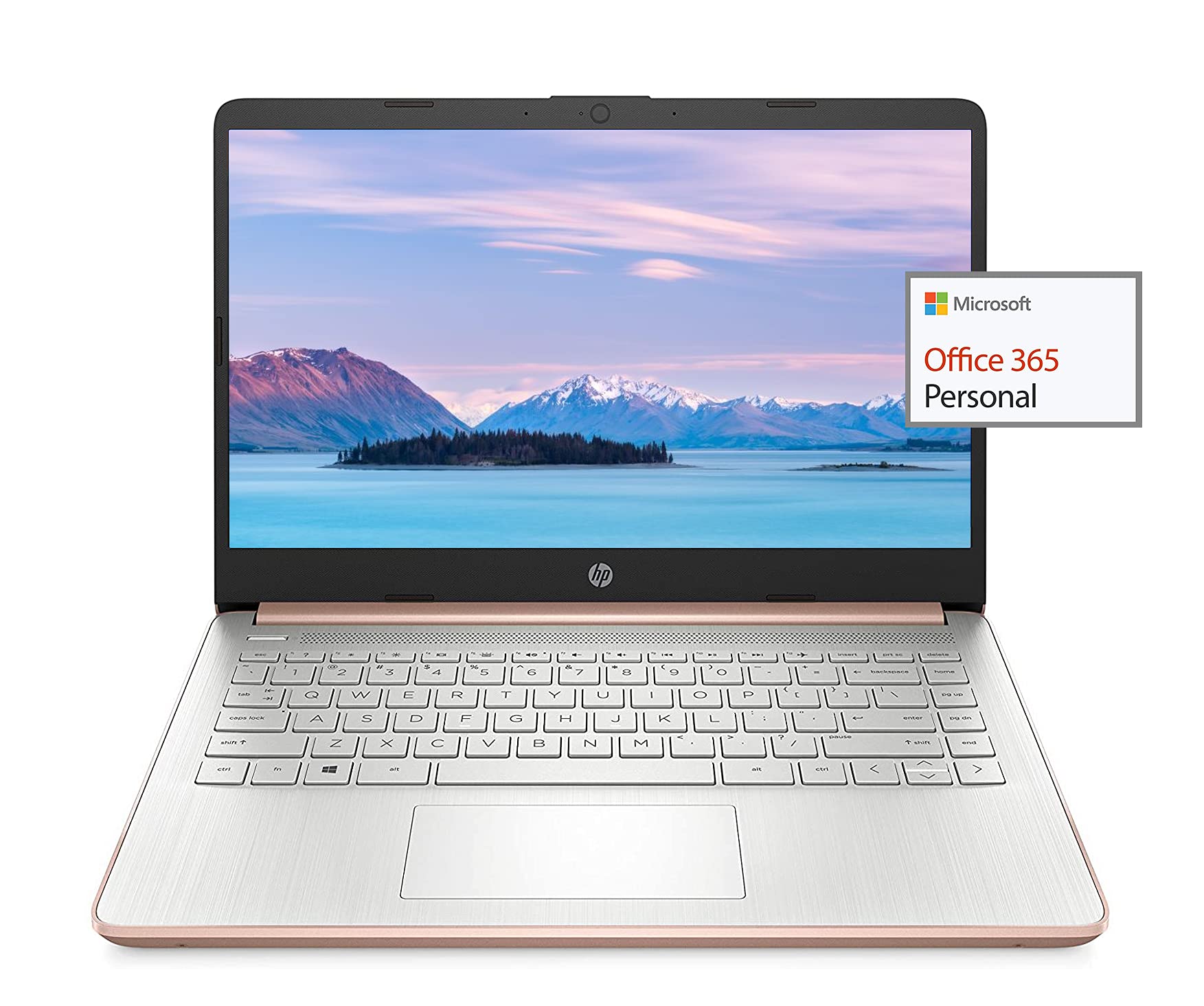
Image: The HP 14-inch HD Laptop, showcasinze względu na jego elegancki wygląd.
Organizować coś
1. Pierwsze włączenie zasilania
Connect the power adapter to the laptop and a power outlet. Open the laptop lid. The laptop should power on automatically or by pressing the power button, typically located on the keyboard deck.
2. Konfiguracja systemu operacyjnego
Follow the on-screen prompts to complete the Windows 10 setup. This includes selecting your region, connecting to a Wi-Fi network, and creating a user account.
3. Activating Microsoft Office 365
Your laptop includes a 1-year subscription to Microsoft Office 365. To activate:
- Launch any Office application (e.g., Word, Excel).
- Sign in with your Microsoft account. If you do not have one, create a new account.
- Click "Activate Office" and follow the subsequent prompts.
- Complete steps 1, 2, and 3 as instructed.
- Click "Refresh" once Office is ready.
- Open a document and accept the license agreement to finalize activation.

Image: The HP laptop displaying Microsoft Office 365 applications.
4. Switching Out of Windows 10 S Mode
Windows 10 in S mode is designed for security and performance, exclusively running apps from the Microsoft Store. If you need to install apps from outside the Microsoft Store, you can switch out of S mode. This is a one-way switch and cannot be undone.
- Idź do Ustawienia > Aktualizacja i bezpieczeństwo > Aktywacja.
- W sekcji „Przełącz na system Windows 10 Home” lub „Przełącz na system Windows 10 Pro” wybierz Idź do sklepu.
- Na Switch out of S mode (or similar) page that appears in the Microsoft Store, click the Dostawać przycisk.
- After confirming, you will be able to install apps from outside the Microsoft Store.
5. Podłączanie urządzeń peryferyjnych
Twój laptop jest wyposażony w różne porty umożliwiające podłączanie urządzeń zewnętrznych:
- USB Type-A & Type-C: For connecting USB devices like external drives, mice, and keyboards.
- HDMI: Do podłączania zewnętrznych wyświetlaczy lub projektorów.
- Gniazdo słuchawkowe/mikrofonowe: Do wejścia/wyjścia audio.
- Czytnik kart multimedialnych: Do wkładania kart SD.

Obraz: Bok view of the HP laptop, highlighting the SuperSpeed USB Type-A, USB Type-C, HDMI 1.4b, and headphone/microphone combo ports.

Obraz: Strona przeciwna view of the HP laptop, showing the media card reader slot.
Instrukcja obsługi
1. Zarządzanie energią
- Włączanie: Naciśnij przycisk zasilania.
- Tryb uśpienia: Zamknij pokrywę lub naciśnij krótko przycisk zasilania.
- Zamknięcie: Go to Start > Power > Shut down.
- Uruchom ponownie: Go to Start > Power > Restart.
2. Wykorzystanie wyświetlacza
The laptop features a 14-inch HD (1366 x 768) display with a micro-edge bezel design and WLED-backlit BrightView technology. Adjust brightness using the function keys (F2/F3) or through Windows display settings.

Image: The HP laptop display showcasing its micro-edge bezel and HD resolution.
3. Klawiatura i touchpad
The standard keyboard provides comfortable typing. The integrated touchpad supports multi-touch gestures for navigation. Refer to Windows settings for customizing touchpad sensitivity and gestures.
4. Webkamera i dźwięk
The HP True Vision 720p HD camera with integrated dual array digital microphones is suitable for video calls. The laptop features HP custom-tuned dual speakers for clear audio output.

Image: The HP laptop showing the webcam in use and highlighting the dual speaker setup.
5. Łączność bezprzewodowa
- Wi-Fi 5 (1x1): Connect to wireless networks for internet access. Manage Wi-Fi connections via the network icon in the taskbar.
- Bluetooth 5.0: Pair with Bluetooth-enabled devices such as headphones, speakers, or mice. Access Bluetooth settings via Windows Settings > Devices > Bluetooth & other devices.
Konserwacja
1. Pielęgnacja baterii
The laptop's battery provides up to 10.5 hours of video playback and up to 9 hours of wireless streaming. To prolong battery life:
- Unikaj ekstremalnych temperatur.
- Nie należy zbyt często całkowicie rozładowywać akumulatora.
- Utilize HP Fast Charge for quick recharging.
- Dostosuj ustawienia zasilania w systemie Windows, aby zoptymalizować zużycie baterii.
2. Zarządzanie magazynem
Your laptop is equipped with 256GB SSD and 64GB eMMC storage. Regularly manage your files to ensure sufficient free space. Use Disk Cleanup and Storage Sense features in Windows to remove unnecessary files.
3. Czyszczenie laptopa
- Użyj miękkiej, niestrzępiącej się ściereczki, lekko wyczyśćampPrzetrzeć wodą lub środkiem do czyszczenia ekranów.
- Do czyszczenia klawiatury i obudowy należy używać miękkiej ściereczki. Unikać silnych środków chemicznych.
- Przed czyszczeniem upewnij się, że laptop jest wyłączony i odłączony od zasilania.
4. Aktualizacje oprogramowania
Keep your operating system and drivers updated. Windows Update automatically handles system updates. Check the HP support webwitryna z aktualizacjami sterowników przeznaczonych dla Twojego modelu.
Rozwiązywanie problemów
Typowe problemy i rozwiązania:
- Laptop się nie włącza: Upewnij się, że zasilacz jest prawidłowo podłączony, a bateria jest wystarczająco naładowana. Spróbuj użyć innego gniazdka elektrycznego.
- Problemy z wyświetlaniem: Check display cable connections if using an external monitor. Adjust brightness settings.
- Brak dźwięku: Verify volume levels, check audio output device settings in Windows, and ensure headphones are properly connected.
- Problemy z łącznością Wi-Fi: Restart your router and laptop. Check Wi-Fi settings and ensure airplane mode is off.
- Niska wydajność: Zamknij niepotrzebne aplikacje. Sprawdź procesy działające w tle. Zapewnij wystarczającą ilość wolnego miejsca na dysku.
For more detailed troubleshooting or persistent issues, refer to the HP support webodwiedź witrynę lub skontaktuj się z działem obsługi klienta HP.
Specyfikacje
| Funkcja | Specyfikacja |
|---|---|
| Marka | HP |
| Nazwa modelu | HP2022 |
| Rozmiar ekranu | 14 cali |
| Edytor | AMD 3020e (2 Cores, 4 Threads, 1.2GHz Base, 2.6GHz Max Boost) |
| BARAN | 8 GB DDR4 |
| Składowanie | 256GB SSD + 64GB eMMC (Total 320 GB) |
| Grafika | Zintegrowana karta graficzna AMD Radeon |
| System operacyjny | Windows 10 Home in S mode (upgradeable) |
| Łączność | Wi-Fi 5 (1x1), Bluetooth 5.0 |
| Porty | USB Type-A, USB Type-C, HDMI 1.4b, Headphone/Microphone Combo, Media Card Reader |
| Webkrzywka | Kamera HP True Vision 720p HD |
| Żywotność baterii (tryb gotowości) | Do 10.5 godzin (odtwarzanie wideo) |
| Waga | 3.24 funtów |
| Wymiary (dł. x szer. x gł.) | 8.86" dł. x 12.76" szer. x 0.71" gł. |

Obraz: Ponadview of the HP 14 laptop's key features including AMD 3020e processor, battery life, Windows 10 S mode, HP Fast Charge, and Wi-Fi 5 & Bluetooth 5.0.
Gwarancja i wsparcie
Your HP laptop comes with a standard manufacturer's warranty. Please refer to the warranty documentation included with your purchase for specific terms and conditions. For technical support, driver downloads, and service information, visit the official HP support webodwiedź witrynę lub skontaktuj się bezpośrednio z działem obsługi klienta HP.
Aby uzyskać dodatkową ochronę, rozważ zakupasing extended protection plans from your retailer.