
1. Wprowadzenie
This user manual provides essential information for the safe and efficient operation of your SAMSUNG Business WM75A 75-inch 4K UHD LED Display. Please read this manual thoroughly before using the product and retain it for future reference. The WM75A is designed for business environments, offering a 75-inch interactive display with 4K UHD resolution (3840 x 2160 pixels) for clear and engaging visuals.

Rycina 1.1: Przód view of the SAMSUNG Business WM75A 75-inch 4K UHD LED Display. This image shows the large display with a minimalist black bezel, indicating its primary function as an interactive screen.
2. Informacje dotyczące bezpieczeństwa
Aby zapobiec uszkodzeniu produktu lub obrażeniom ciała u siebie i innych, należy przestrzegać następujących środków ostrożności:
- Nie blokuj otworów wentylacyjnych.
- Nie wystawiaj wyświetlacza na działanie deszczu i wilgoci.
- Zapewnij właściwe uziemienie połączeń elektrycznych.
- Handle the display with care due to its size and weight (approximately 128.5 pounds).
- Należy używać wyłącznie akcesoriów wskazanych przez producenta.
3. Zawartość opakowania
Sprawdź, czy w opakowaniu znajdują się wszystkie komponenty:
- SAMSUNG Business WM75A 75-inch LED Display
- Kabel zasilający
- Pilot (z bateriami)
- Długopis typu Stylus
- Przewodnik szybkiej instalacji
- Karta gwarancyjna
4. Konfiguracja
4.1 Fizyczna instalacja
Due to the display's size and weight, a minimum of two people is recommended for installation. Ensure the mounting surface or stand can support the display's weight of 128.5 pounds (58.3 kg).

Rysunek 4.1: Profesjonalizm bocznyfile of the SAMSUNG Business WM75A display. This image highlights the slim design of the display, measuring 2.96 inches in depth.
4.2 Podłączanie urządzeń
The WM75A offers versatile connectivity options. Locate the input ports on the rear of the display.

Rysunek 4.2: Tył view of the SAMSUNG Business WM75A display, illustrating the location of various input and output ports for connectivity.
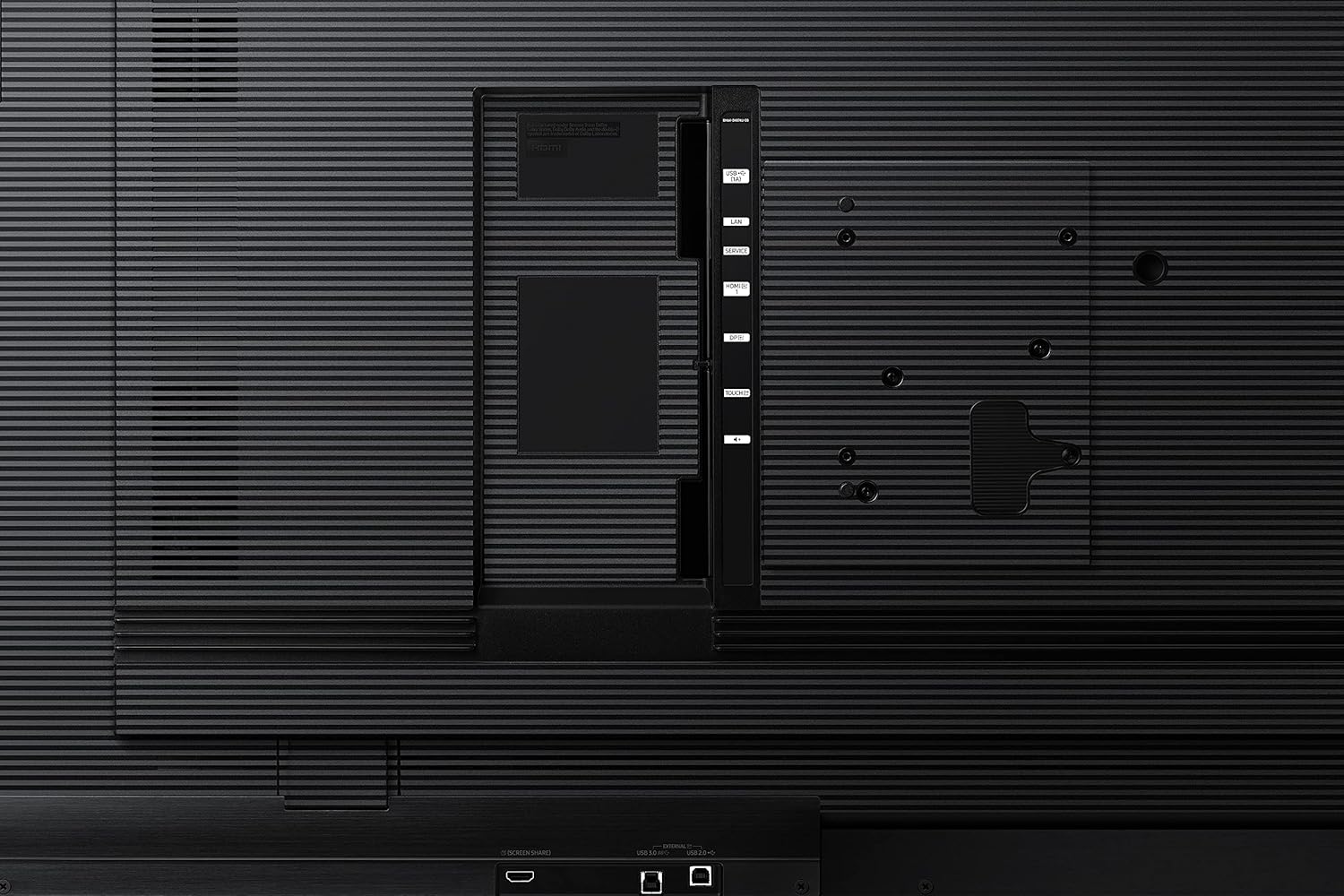
Rysunek 4.3: Zbliżenie view of the connectivity panel on the SAMSUNG Business WM75A, detailing ports such as HDMI, USB, and the OPS slot.
- HDMI: Connect external video sources such as laptops or media players.
- USB: Connect USB devices for media playback or touch functionality. The display features 2 USB ports.
- DisplayPort (DP): Another option for video input.
- NFC: For quick device pairing.
- Gniazdo OPS: An Open Pluggable Specification slot allows for the integration of an optional PC module, enhancing computing power and functionality.
- Wi-Fi: Connect to a wireless network for internet access and screen sharing.

Figure 4.4: Visual representation of the versatile connectivity options including HDMI, USB, DisplayPort, NFC, OPS slot, and screen sharing capabilities.

Figure 4.5: Illustration of the Open Pluggable Specification (OPS) slot, which allows for the integration of an optional PC to enhance the display's computing capabilities.
4.3 Pierwsze włączenie zasilania
- Podłącz kabel zasilający do wyświetlacza i gniazdka elektrycznego.
- Press the power button located on the display or the remote control.
- Postępuj zgodnie z instrukcjami wyświetlanymi na ekranie, aby przeprowadzić początkową konfigurację, obejmującą m.in. wybór języka i konfigurację sieci.
5. Instrukcja obsługi
5.1 Basic Functions and User Interface
The display features an intuitive user interface designed for ease of use. Navigate through menus using touch gestures or the remote control.

Figure 5.1: The intuitive user interface of the Samsung Interactive Display, showing easy navigation and quick access tools for content management.
5.2 Funkcje interaktywne
The WM75A offers advanced touch and writing capabilities for dynamic interaction.
- Immersive Touch Technology: Experience smooth, natural writing with a low latency of 34ms and 2,048 levels of pressure sensitivity.
- Natural Drawing: Distinguish between thin and thick objects to simulate on-screen writing or highlighting. Erase content with your finger or palm.
- Adnotacja: Annotate directly onto photos, documents, web browsers, and applications.
- Wielodotyk: Supports up to 20 simultaneous touches, enabling multiple users to write or edit at the same time.
- Narzędzia kreatywne: Utilize various brush and color medium options, including water painting, oil painting, and color mixing.

Figure 5.2: This image highlights the display's immersive touch technology, featuring 34ms latency and 2,048 levels of pressure sensing for precise and responsive interaction.

Figure 5.3: Demonstrates the intuitive and natural drawing capabilities, including passive pen input, highlighting, and flexible erasing with a finger or palm.

Rysunek 5.4: Byłyample of the display's annotation feature, allowing users to take notes and highlight details directly on various content types.

Figure 5.5: Multiple users engaging with the display simultaneously, demonstrating its multi-touch capabilities for collaborative work.

Figure 5.6: An artistic representation of the display's creative tools, including water painting, oil painting, brush recognition, and color mixing options.
5.3 Funkcje oprogramowania
- Dokument Vieweee: Open Microsoft Word, PowerPoint, Excel, and Adobe PDF files bezpośrednio.
- Web Przeglądarka: Access the internet directly from the display for on-the-spot collaboration and research.
- Edycja obrazu: Quickly move, crop, capture, and edit images within your notes.

Figure 5.7: The intuitive document viewer, capable of opening various file formats including DOC, PPT, PDF, and XLSX directly on the display.

Rysunek 5.8: Zintegrowany web browser feature, allowing users to access and annotate web content directly on the display for collaborative browsing.

Figure 5.9: Demonstrates the image editing capabilities, allowing users to easily move, crop, capture, and erase elements within images on the display.
5.4 Collaboration Features
- Multi-Device Casting: Simultaneously mirror up to 4 devices regardless of operating system (Chromebook, iPhone, iPad, MacBooks, Android, Windows PC).
- Zdalne sterowanie: Control and annotate lessons from your own device, allowing freedom of movement.
- Integracja kamery: Seamlessly integrate cameras for hybrid learning environments.
- Note Distribution: Easily distribute meeting recaps and notes via email, printer, USB, network storage, or Wi-Fi direct.

Figure 5.10: Multi-device casting feature, showing content from various devices mirrored onto the display for enhanced collaboration.

Figure 5.11: Illustrates the ability to control and annotate content on the display remotely from a personal device, providing flexibility for presenters.

Figure 5.12: Demonstrates plug-and-play camera integration, facilitating hybrid learning by connecting remote students to the classroom.

Figure 5.13: Options for effortlessly recapping and distributing notes, including email, printer, USB, network storage, and Wi-Fi direct.
5.5 Security and Remote Management
- Content Protection: Secure confidential information with a reinforced 6-digit lock and file funkcje bezpieczeństwa.
- Zarządzanie zdalne: Control display settings, power, network, and USB ports remotely. Automatic firmware updates are also managed remotely.

Figure 5.14: Illustrates the secure content protection features, including a 6-digit lock and file security to safeguard sensitive information.

Figure 5.15: Remote management options, allowing administrators to control display settings and manage firmware updates from a central location.
6. Konserwacja
6.1 Czyszczenie wyświetlacza
To clean the display, gently wipe the screen with a soft, lint-free cloth. For stubborn marks, use a screen-cleaning solution specifically designed for LED displays. Avoid abrasive cleaners or solvents.
The screen surface features an antimicrobial coating to protect the panel from degradation and shatter-resistant glass for durability.

Figure 6.1: Visual representation of the antimicrobial coating and shatter-resistant glass, enhancing the display's durability and hygiene.
6.2 aktualizacji oprogramowania sprzętowego
Ensure your display's firmware is up to date for optimal performance and security. Firmware updates can be managed remotely or manually through the display's settings menu.
7. Rozwiązywanie Problemów
Jeśli masz problemy z wyświetlaczem, zapoznaj się z poniższymi typowymi procedurami rozwiązywania problemów:
- Brak zasilania: Sprawdź podłączenie kabla zasilającego i upewnij się, że gniazdko elektryczne działa prawidłowo.
- Brak obrazka: Verify that the input source is correctly connected and selected. Try a different HDMI or DP cable.
- Brak reakcji ekranu dotykowego: Restart the display. Ensure no foreign objects are on the screen.
- Problemy z połączeniem Wi-Fi: Check network settings and ensure the display is within range of the Wi-Fi router.
- Problemy z jakością obrazu: Ensure the resolution of the input source matches the display's native resolution (3840 x 2160).
For further assistance, contact Samsung customer support.
8. Specyfikacje
| Funkcja | Specyfikacja |
|---|---|
| Numer modelu | LH75WMAWLGCXZA |
| Rozmiar ekranu | 75 cali |
| Rezolucja | 3840 x 2160 pikseli (4K UHD) |
| Proporcje obrazu | 16:9 |
| Jasność obrazu | 350 cd/m² |
| Wymiary produktu (szer. X wys. X gł.) | 67.75 x 40.12 x 2.96 cala |
| Waga przedmiotu | 128.5 funta |
| Łączna liczba portów USB | 2 |
| Opis powierzchni ekranu | Płaski |
| Łączność | HDMI, USB, DisplayPort, NFC, Wi-Fi, OPS Slot |
| Kraj pochodzenia | Wietnam |
9. Gwarancja i wsparcie
Aby uzyskać informacje o gwarancji i pomocy technicznej, zapoznaj się z kartą gwarancyjną dołączoną do produktu lub odwiedź oficjalną stronę pomocy technicznej firmy Samsung webstrona. Zachowaj dowód zakupu na potrzeby roszczeń gwarancyjnych.