
1. Wprowadzenie
This manual provides essential information for the installation, operation, and maintenance of your PowerColor Fighter AMD Radeon RX 6700 XT Gaming Graphics Card. Please read these instructions carefully before proceeding with installation to ensure proper functionality and to prevent damage to your system components.

Image 1.1: PowerColor Fighter AMD Radeon RX 6700 XT Graphics Card and its retail packaging.
2. Funkcje produktu
- Pamięć wideo: 12 GB pamięci GDDR6
- Procesory strumieniowe: 2560
- Zegar gry: 2424MHz
- Zegar Boost: 2581MHz
- Zegar pamięci: 16 Gb/s
- Interfejs pamięci: 192-bit
- Maksymalna rozdzielczość cyfrowa: 7680x4320
- Powered by AMD RDNA 2 Architecture
- Supports Raytracing technology
- Interfejs PCI Express 4.0
- HDMI 2.1 Connectivity
- Features AMD Infinity Cache
3. Zawartość opakowania
Sprawdź, czy w opakowaniu znajdują się wszystkie elementy:
- PowerColor Fighter AMD Radeon RX 6700 XT Graphics Card
- Krótki przewodnik instalacji (ten dokument)
Note: Additional accessories such as driver CDs or power cables may vary by region or retailer. Drivers are typically downloaded from the official AMD webstrona.
4. Specyfikacje
| Funkcja | Specyfikacja |
|---|---|
| Procesor graficzny | Karta graficzna AMD Radeon RX 6700 XT |
| Pamięć wideo | 12 GB pamięci GDDR6 |
| Prędkość pamięci | 16 Gb/s |
| Maksymalna rozdzielczość ekranu | 7680x4320 |
| Interfejs | PCI Express 4.0 |
| Interfejs wyjścia wideo | DisplayPort, HDMI |
| Numer modelu przedmiotu | AXRX 6700XT 12GBD6-3DH |
| Waga przedmiotu | 1.44 funta |
| Wymiary produktu (dł. x szer. x wys.) | 9.49 x 5.08 x 1.54 cala |
5. Konfiguracja i instalacja
5.1 Lista kontrolna przed instalacją
- Jednostka zasilająca (PSU): Upewnij się, że Twój zasilacz ma wystarczającą moctage (minimum 650W recommended) and the necessary 8-pin and 6-pin PCIe power connectors.
- Płyta główna: Verify your motherboard has an available PCI Express x16 slot (preferably PCIe 4.0 for optimal performance).
- Oczyszczanie sprawy: Check your PC case for adequate space to accommodate the card's dimensions (9.49 x 5.08 x 1.54 inches).
- Kierowcy: Pobierz najnowsze sterowniki AMD Radeon z oficjalnej strony AMD webwitrynę przed instalacją.
5.2 Fizyczna instalacja
- Wyłączone: Wyłącz całkowicie komputer i odłącz przewód zasilający od gniazdka ściennego.
- Otwarta sprawa: Zdejmij boczny panel obudowy komputera.
- Zlokalizuj gniazdo PCIe: Znajdź dostępne gniazdo PCI Express x16 na płycie głównej.
- Zdejmij osłony gniazd: Remove the necessary expansion slot covers from the back of your PC case.
- Włóż kartę graficzną: Ostrożnie dopasuj kartę graficzną do gniazda PCIe i mocno dociśnij, aż zostanie pewnie osadzona. Powinieneś usłyszeć kliknięcie zatrzasku gniazda.
- Karta bezpieczna: Fasten the graphics card to the case with screws or the case's locking mechanism.
- Podłącz zasilanie: Connect the 8-pin and 6-pin PCIe power connectors from your PSU to the corresponding ports on the graphics card. Ensure a snug fit.
- Zamknij sprawę: Wymień boczny panel obudowy komputera.

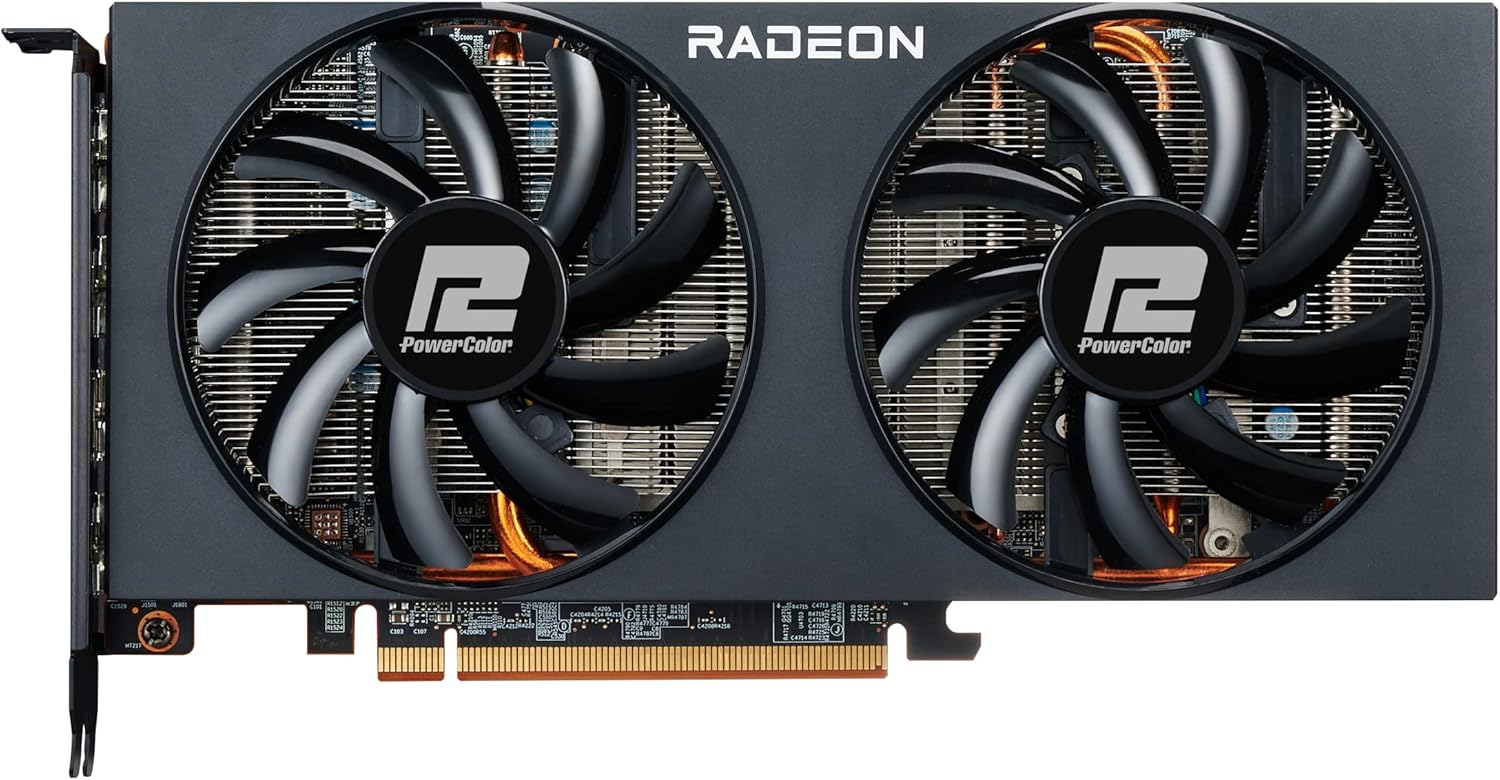
Obraz 5.1: Przód view of the PowerColor Fighter RX 6700 XT, showing the dual fan design.
Obraz 5.2: Góra view of the graphics card, highlighting the PCIe power connectors.
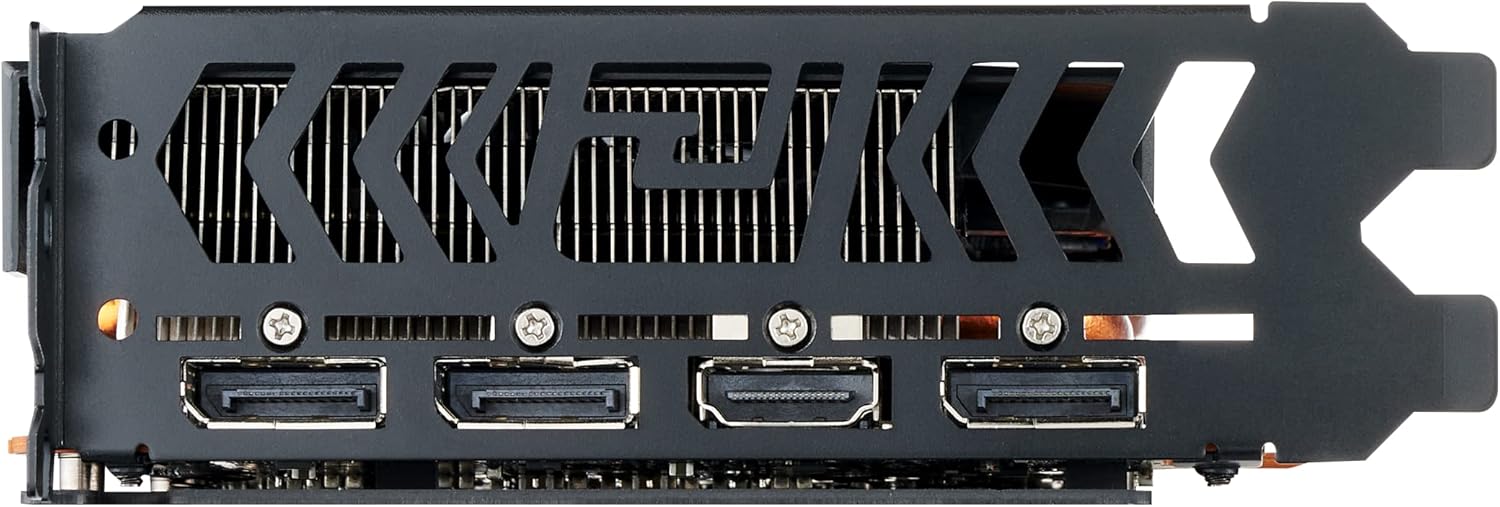
Obraz 5.3: Tył view of the graphics card, showing the DisplayPort and HDMI output interfaces.
5.3 Connecting to Display
Podłącz monitor(y) do karty graficznej za pomocą kabli DisplayPort lub HDMI. Karta obsługuje wiele wyświetlaczy.
6. Instrukcja obsługi
6.1 Instalacja sterownika
- Włączanie: Podłącz ponownie przewód zasilający i włącz komputer.
- Początkowy rozruch: Your system may boot into a low-resolution display. This is normal before drivers are installed.
- Zainstaluj sterowniki: Run the AMD Radeon Software installer you downloaded earlier. Follow the on-screen prompts to complete the installation.
- Uruchom ponownie: Po zakończeniu instalacji sterownika uruchom ponownie komputer.
6.2 Oprogramowanie AMD Radeon
The AMD Radeon Software provides a comprehensive interface for managing your graphics card settings. Here you can:
- Adjust display resolution and refresh rates.
- Configure game-specific graphics settings.
- Monitor GPU performance and temperatures.
- Zaktualizuj sterowniki.
- Access features like Radeon Anti-Lag, Radeon Boost, and FidelityFX Super Resolution (FSR).
7. Konserwacja
7.1 Czyszczenie
Regularne czyszczenie pomaga zachować optymalną wydajność i żywotność karty graficznej.
- Wyłączone: Always power off your computer and unplug it before cleaning.
- Usuwanie kurzu: Use compressed air to gently blow dust from the heatsink fins and fan blades. Hold the fans in place to prevent over-spinning.
- Zewnętrzny: Wytrzyj zewnętrzną powierzchnię karty miękką, suchą, antystatyczną szmatką.
7.2 Aktualizacje oprogramowania
Keep your graphics drivers updated to ensure compatibility with new games and applications, and to benefit from performance improvements and bug fixes. Check the AMD webOdwiedzaj naszą witrynę regularnie, aby być na bieżąco z najnowszymi wersjami sterowników.
8. Rozwiązywanie Problemów
8.1 Brak wyjścia wyświetlacza
- Upewnij się, że kabel monitora jest solidnie podłączony zarówno do karty graficznej, jak i do monitora.
- Sprawdź, czy karta graficzna jest całkowicie osadzona w gnieździe PCIe.
- Check that all PCIe power connectors are properly attached to the graphics card.
- Sprawdź, czy na monitorze wybrane jest właściwe źródło sygnału wejściowego.
- If using an integrated GPU, ensure your BIOS is configured to use the dedicated graphics card.
8.2 Performance Issues / Low FPS
- Sprawdź, czy zainstalowane są najnowsze sterowniki graficzne.
- Check GPU temperatures using monitoring software (e.g., AMD Radeon Software). High temperatures can lead to thermal throttling. Ensure adequate case airflow.
- Verify that your system meets the minimum requirements for the game or application.
- Adjust in-game graphics settings to a lower preset.
- Confirm that your power supply unit (PSU) is providing stable and sufficient power.
8.3 Nadmierny hałas wentylatora
While some fan noise is normal under heavy load, excessive or unusual noise can indicate an issue.
- Nagromadzenie kurzu: Clean the fans and heatsink as described in the Maintenance section.
- Fan Profile: Adjust the fan curve settings in the AMD Radeon Software or a third-party utility (e.g., MSI Afterburner) to find a balance between cooling and noise.
- Przepływ powietrza w obudowie: Improve overall case airflow to reduce the need for aggressive fan speeds.
- Przeszkoda fizyczna: Ensure no cables or other components are interfering with the fan blades.
8.4 Driver Crashes / Instability
- Perform a clean installation of the graphics drivers. Use AMD's cleanup utility to remove old drivers before installing new ones.
- Upewnij się, że Twój system operacyjny jest w pełni zaktualizowany.
- Sprawdź, czy nie występuje konflikt oprogramowania lub aplikacji działających w tle.
9. Gwarancja i wsparcie
For warranty information and technical support, please refer to the official PowerColor webOdwiedź witrynę lub skontaktuj się ze sprzedawcą. Zachowaj dowód zakupu na wypadek reklamacji.
For the latest drivers and additional support resources, visit the official AMD webstrona: www.amd.com/en/support