
Zaufaj 24115
Instrukcja obsługi myszy bezprzewodowej Trust
Model: 24115
Marka: Trust
1. Wprowadzenie
Dziękujemy za zakupasing the Trust Wireless Mouse. This manual provides detailed instructions for setting up, operating, maintaining, and troubleshooting your new wireless mouse. Please read this manual thoroughly before using the product to ensure optimal performance and longevity.

Obraz 1.1: Góra view of the Trust Wireless Mouse, showcasinze względu na ergonomiczną konstrukcję i układ przycisków.
2. Informacje dotyczące bezpieczeństwa
Aby zapobiec uszkodzeniu urządzenia lub obrażeniom ciała, należy przestrzegać poniższych wskazówek bezpieczeństwa:
- Nie wystawiaj myszy na działanie wody ani nadmiernej wilgoci.
- Unikaj upuszczania myszy i narażania jej na silne uderzenia.
- Nie próbuj samodzielnie demontować ani naprawiać myszy. Skontaktuj się z wykwalifikowanym personelem serwisowym.
- Zutylizuj baterie zgodnie z lokalnymi przepisami.
3. Zawartość opakowania
Sprawdź, czy w opakowaniu znajdują się wszystkie elementy:
- 1x Trust Wireless Comfort Mouse
- 1x Mikroodbiornik USB
- 1x bateria AA
- 1x Instrukcja obsługi (ten dokument)

Image 3.1: The retail packaging of the Trust Wireless Mouse, showing the mouse and included accessories.
4. Konfiguracja
4.1. Instalowanie baterii
- Znajdź komorę baterii na spodzie myszy.
- Otwórz pokrywę komory baterii.
- Włóż dostarczoną baterię AA, upewniając się, że bieguny dodatni (+) i ujemny (-) są prawidłowo ustawione względem oznaczeń wewnątrz komory.
- Dokładnie zamknij pokrywę komory baterii.

Image 4.1: Underside of the mouse with the battery compartment open, showing the insertion of an AA battery.

Obraz 4.2: Dół view of the Trust Wireless Mouse, illustrating the battery compartment and the storage slot for the USB micro receiver.
4.2. Podłączanie mikroodbiornika USB
- Locate the USB micro receiver, which is typically stored inside the mouse's battery compartment for transport.
- Wyjmij mikroodbiornik USB z gniazda pamięci.
- Plug the USB micro receiver into an available USB port on your computer (laptop or PC).
- The mouse should automatically connect to your computer. No additional drivers are typically required for Windows 10, 8, 7, or Mac OS X 10.15 (Catalina) or higher.
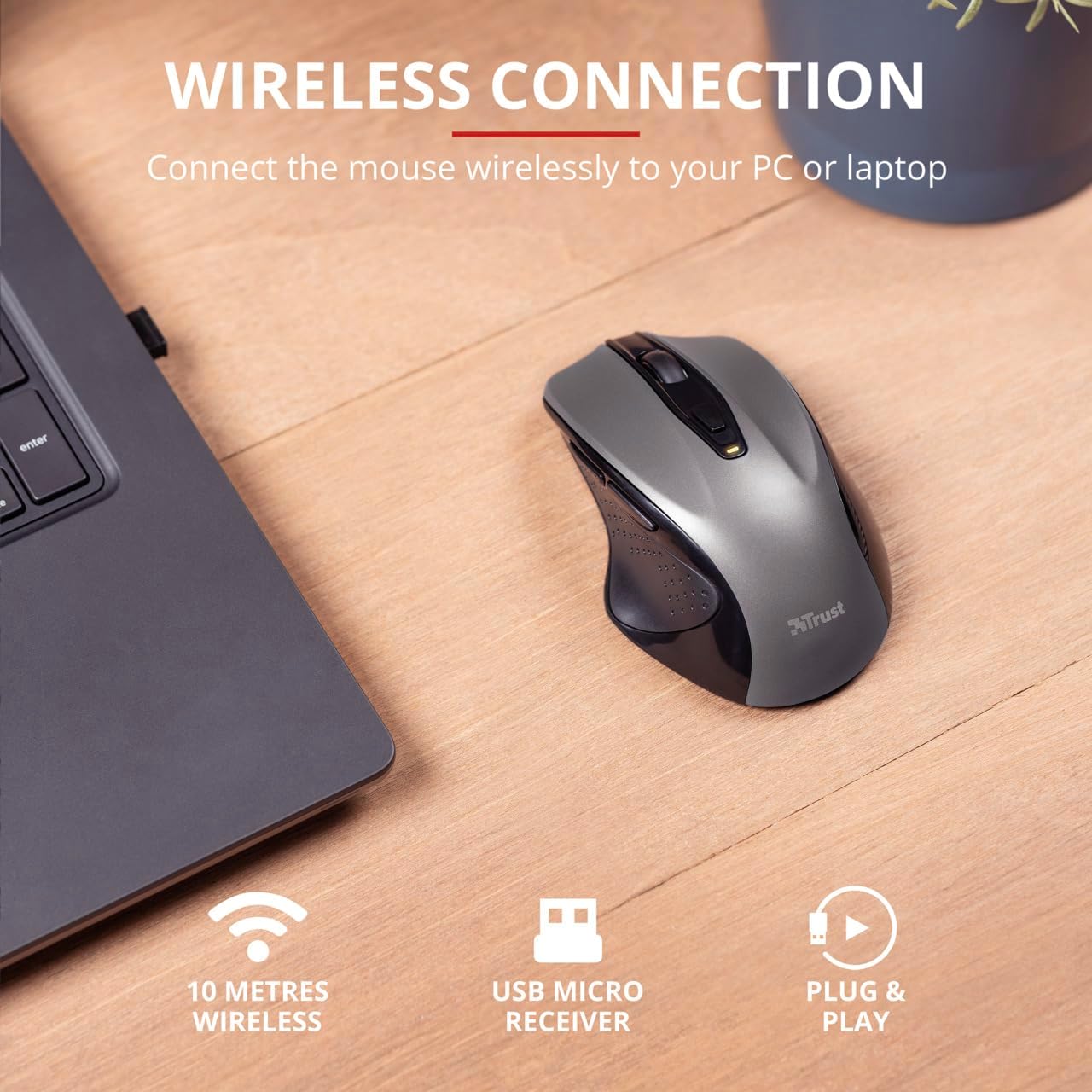
Image 4.3: The Trust Wireless Mouse positioned next to a laptop, demonstrating the wireless connection via the USB micro receiver plugged into the laptop's USB port.
5. Korzystanie z myszy
5.1. Funkcje podstawowe
- Lewy przycisk myszy: Główny przycisk służący do wybierania elementów i interakcji z oprogramowaniem.
- Kliknij prawym przyciskiem myszy: Dodatkowy przycisk do menu kontekstowego i dodatkowych opcji.
- Kółko przewijania: Przewiń w górę lub w dół, aby przewijać dokumenty i web pages. Press the scroll wheel for middle-click functionality.
5.2. Regulacja DPI
The Trust Wireless Mouse features an adjustable DPI (Dots Per Inch) setting, allowing you to control the cursor speed. There are 5 different speeds available: 800, 1200, 1600, 1800, and 2200 DPI.
- Locate the DPI button, usually positioned behind the scroll wheel.
- Naciśnij przycisk DPI, aby przełączać dostępne ustawienia DPI.
- An LED indicator on the mouse will briefly show the current DPI setting.

Obraz 5.1: Bok view of the Trust Wireless Mouse highlighting its comfortable shape, thumb rest with extra grip, and the adjustable speed (DPI) feature.
5.3. Thumb Buttons
The mouse is equipped with two conveniently placed thumb buttons (forward and backward) on the left side. These buttons facilitate easy navigation, such as browsing through files lub web stron.
- Naciśnij Do przodu button to move to the next page or item.
- Naciśnij Wstecz button to return to the previous page or item.
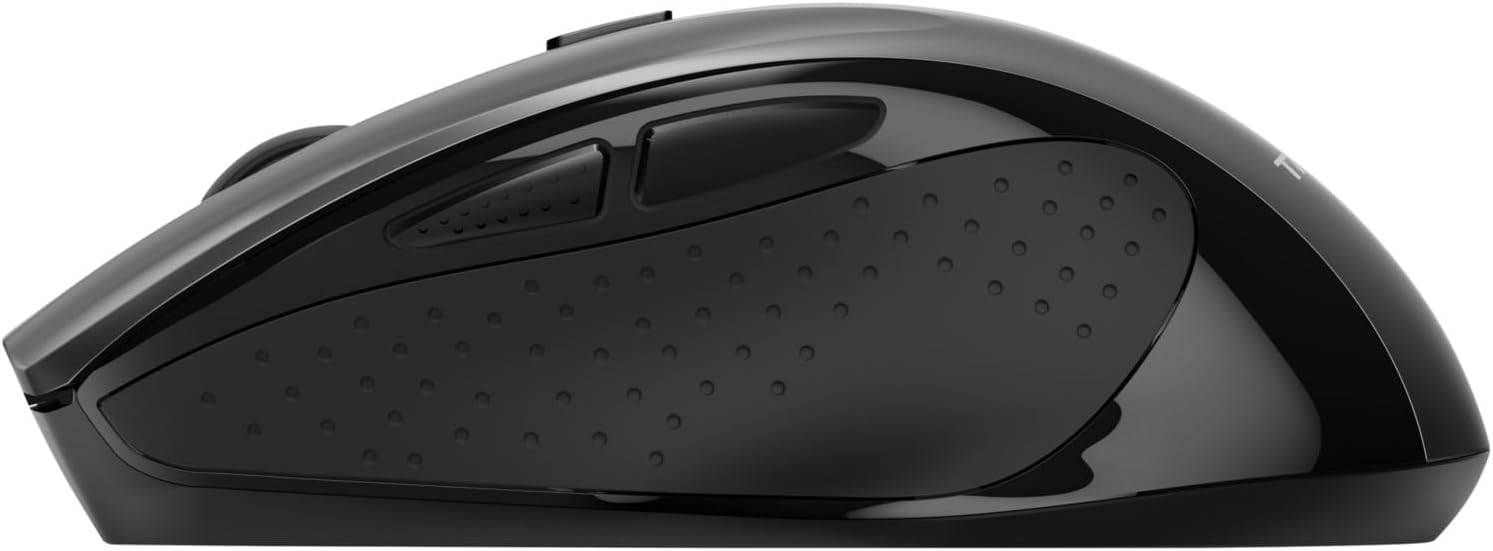
Obraz 5.2: Bok view of the Trust Wireless Mouse, clearly showing the placement of the two thumb buttons for forward and backward navigation.
Note: Functionality of side buttons may vary between operating systems.
5.4. Funkcje oszczędzania energii
To conserve battery life, the mouse includes a power-saving mode and an on/off switch.
- Przełącznik włączania/wyłączania: Located on the underside of the mouse. Turn the mouse off when not in use for extended periods to maximize battery life.
- Wskaźnik LED baterii: An LED indicator will light up when the battery level is low, signaling that it's time to replace the AA battery.
6. Konserwacja
6.1. Czyszczenie
Aby zachować optymalną wydajność, czyść mysz regularnie:
- Do czyszczenia powierzchni myszy należy używać miękkiej, suchej ściereczki.
- W przypadku uporczywych zabrudzeń, delikatnieampPrzetrzyj ściereczkę wodą lub delikatnym środkiem czyszczącym. Unikaj silnych środków chemicznych.
- Nie dopuść do przedostania się płynów do wewnętrznych podzespołów myszy.
6.2. Wymiana baterii
When the battery indicator lights up, replace the AA battery promptly to ensure uninterrupted use. Refer to section 4.1 for battery installation instructions.
7. Rozwiązywanie Problemów
| Problem | Możliwa przyczyna | Rozwiązanie |
|---|---|---|
| Mysz nie reaguje. | Niski poziom naładowania akumulatora lub jego rozładowanie. | Wymień baterię AA. |
| Mysz nie reaguje. | Odbiornik USB nie jest prawidłowo podłączony. | Upewnij się, że odbiornik USB jest prawidłowo podłączony do działającego portu USB. Spróbuj użyć innego portu USB. |
| Mysz nie reaguje. | Mysz jest wyłączona. | Turn on the mouse using the on/off switch on the underside. |
| Ruch kursora jest chaotyczny lub powolny. | Low DPI setting. | Press the DPI button to increase cursor speed. |
| Ruch kursora jest chaotyczny lub powolny. | Dirty sensor or unsuitable surface. | Clean the optical sensor on the underside of the mouse. Use the mouse on a clean, non-reflective surface. |
| Problemy z połączeniem bezprzewodowym. | Zakłócenia lub odległość od odbiornika. | Ensure the mouse is within 10 meters of the receiver. Remove any large metal objects between the mouse and receiver. |
8. Specyfikacje
| Funkcja | Szczegół |
|---|---|
| Numer modelu | 24115 |
| Łączność | Wireless (RF 2.4GHz) |
| Zasięg bezprzewodowej | 10 metrów |
| Ustawienia DPI | 800, 1200, 1600, 1800, 2200 DPI (adjustable) |
| Liczba przycisków | 6 (Left, Right, Mid, Forward, Backward, DPI loop) |
| Typ czujnika | Optyczny |
| Ergonomia | Ergonomic design with thumb rest and rubber inlay |
| Źródło zasilania | 1 bateria AA (w zestawie) |
| Wymiary (dł. x szer. x wys.) | 113 mm x 74 mm x 41 mm (4.45 x 2.91 x 0.04 cala) |
| Waga | 100 g (2.65 uncji) |
| Kompatybilne systemy operacyjne | Windows 10, 8, 7; Mac OS X 10.15 (Catalina) or higher |
9. Gwarancja i wsparcie
The Trust Wireless Mouse comes with a 1-letnia gwarancja od daty zakupu. Niniejsza gwarancja obejmuje wady materiałowe i wykonawcze przy normalnym użytkowaniu.
Gwarancja nie obejmuje:
- Uszkodzeń spowodowanych wypadkiem, nadużyciem, niewłaściwym użytkowaniem, powodzią, pożarem, trzęsieniem ziemi lub innymi przyczynami zewnętrznymi.
- Damage caused by operating the product outside the permitted or intended uses described by Trust.
- Damage caused by service (including upgrades and expansions) performed by anyone who is not a representative of Trust or a Trust Authorized Service Provider.
For technical support or warranty claims, please visit the official Trust website or contact their customer service department. Refer to the product packaging or Trust's official webstrona zawierająca najbardziej aktualne dane kontaktowe.
Zasoby internetowe: www.trust.com
Ask a question about this manual
Ask about setup, troubleshooting, compatibility, parts, safety, or missing instructions. Manuals+ will review the question and use this page’s manual context to help answer it.