
Wstęp
This manual provides comprehensive instructions for the Attoe Bluetooth Wireless Mouse, Model XYH20. This device offers versatile connectivity options, customizable RGB lighting, and an ergonomic design for extended use. Please read this manual thoroughly to ensure proper setup and operation of your new mouse.
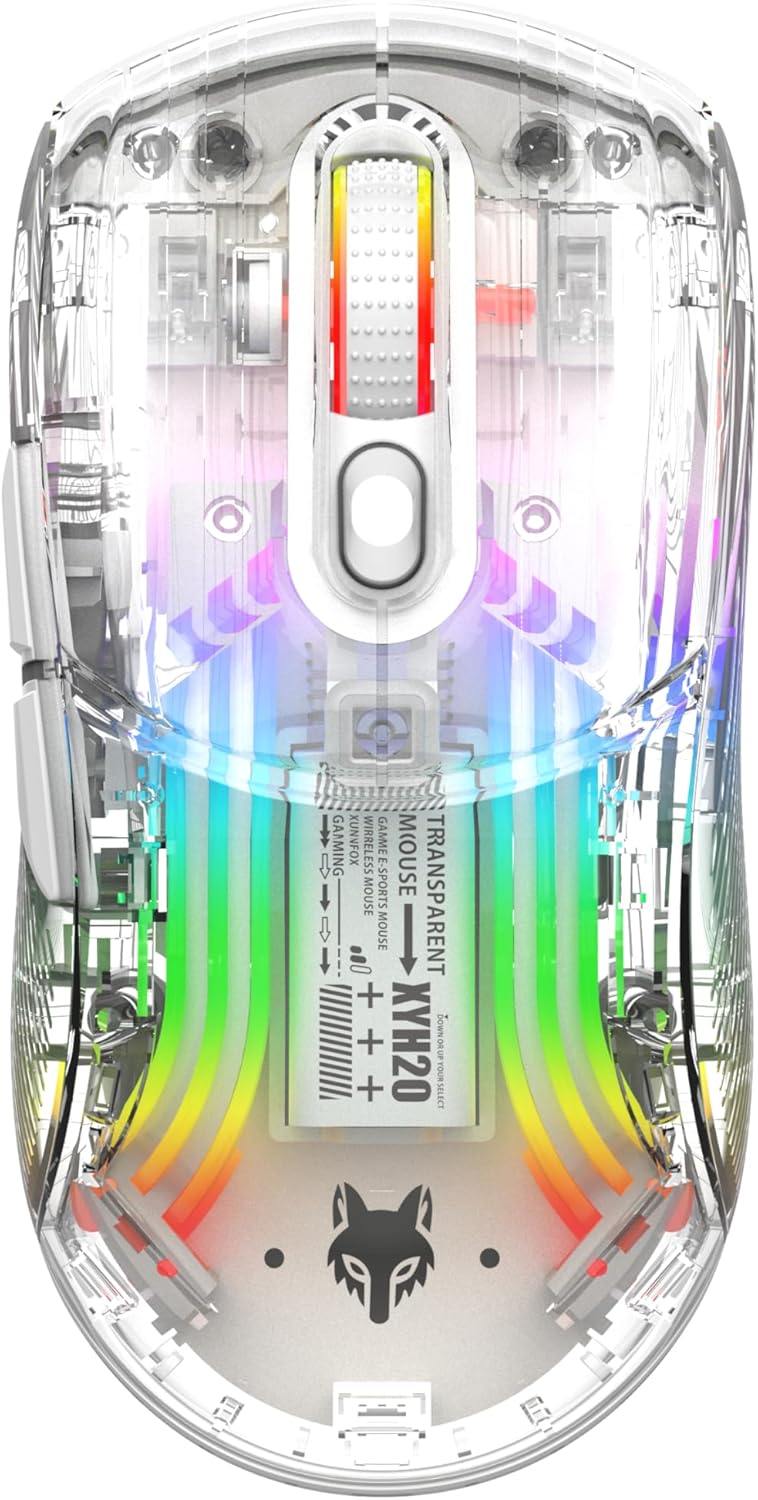
Obraz: Góra view of the Attoe Bluetooth Wireless Mouse, showcasing jego przezroczyste casing and vibrant internal RGB lighting.
Cechy produktu
- Przezroczysta konstrukcja powłoki: Unique transparent casing with internal components visible.
- Łączność w dwóch trybach: Supports 2.4GHz wireless via USB receiver and Bluetooth connection.
- Podświetlenie RGB: Multiple adjustable RGB lighting effects.
- Ergonomiczna konstrukcja: Shaped for comfortable grip during prolonged use.
- Przyciski cichego klikania: Zaprojektowany do cichej pracy.
- Regulowane DPI: 5-speed DPI settings (800-1200-1600-2000-2400) for precise control.
- Akumulator: Built-in 500mAh large capacity rechargeable battery with Type-C charging.
- Szeroka kompatybilność: Compatible with Windows 7/8/10/XP, Vista 7/8, Linux, and Mac OS. (Note: Two left side buttons are not available in Mac OS).
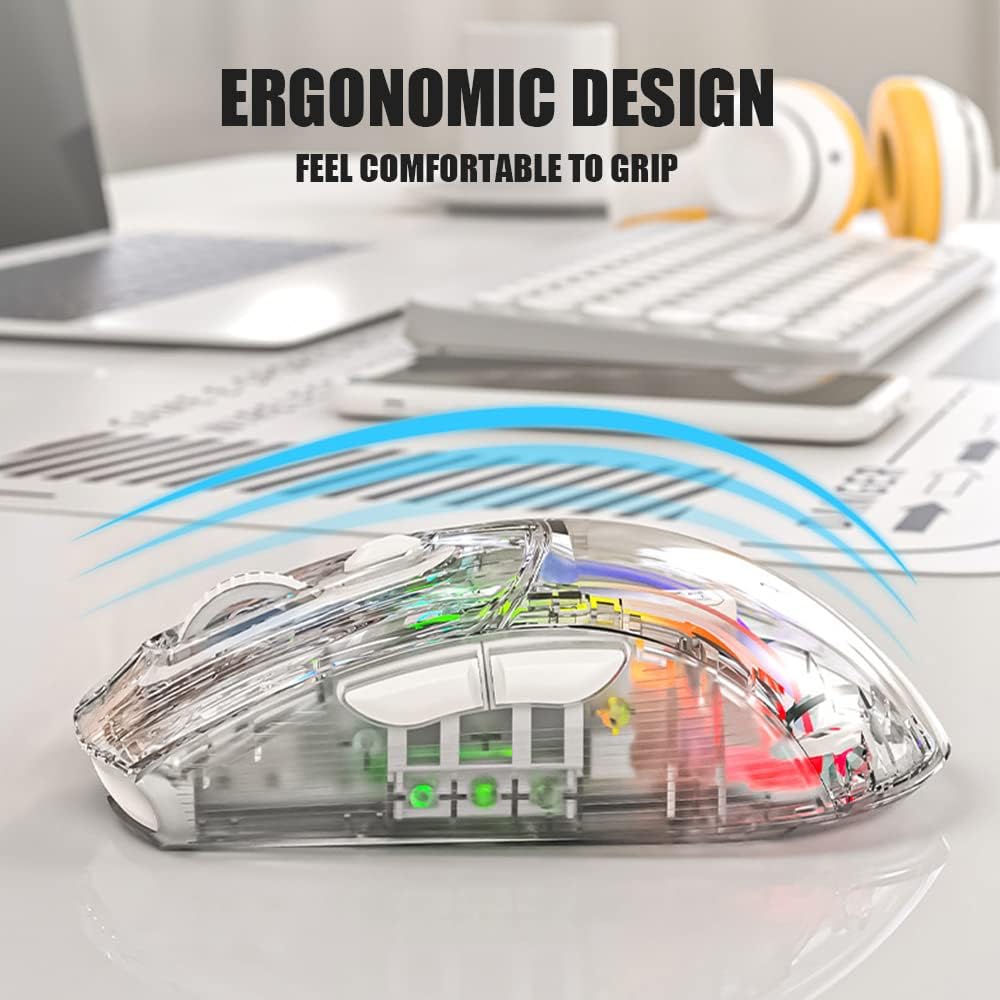
Obraz: Bok view of the Attoe Bluetooth Wireless Mouse, illustrating its ergonomic contour for comfortable handling.
Co jest w pudełku
- Attoe Bluetooth Wireless Gaming Mouse
- Kabel do ładowania USB typu C.
- Instrukcja obsługi (ten dokument)
Organizować coś
The Attoe Bluetooth Wireless Mouse offers three connection modes: 2.4GHz wireless, Bluetooth, and wired via USB-C cable.
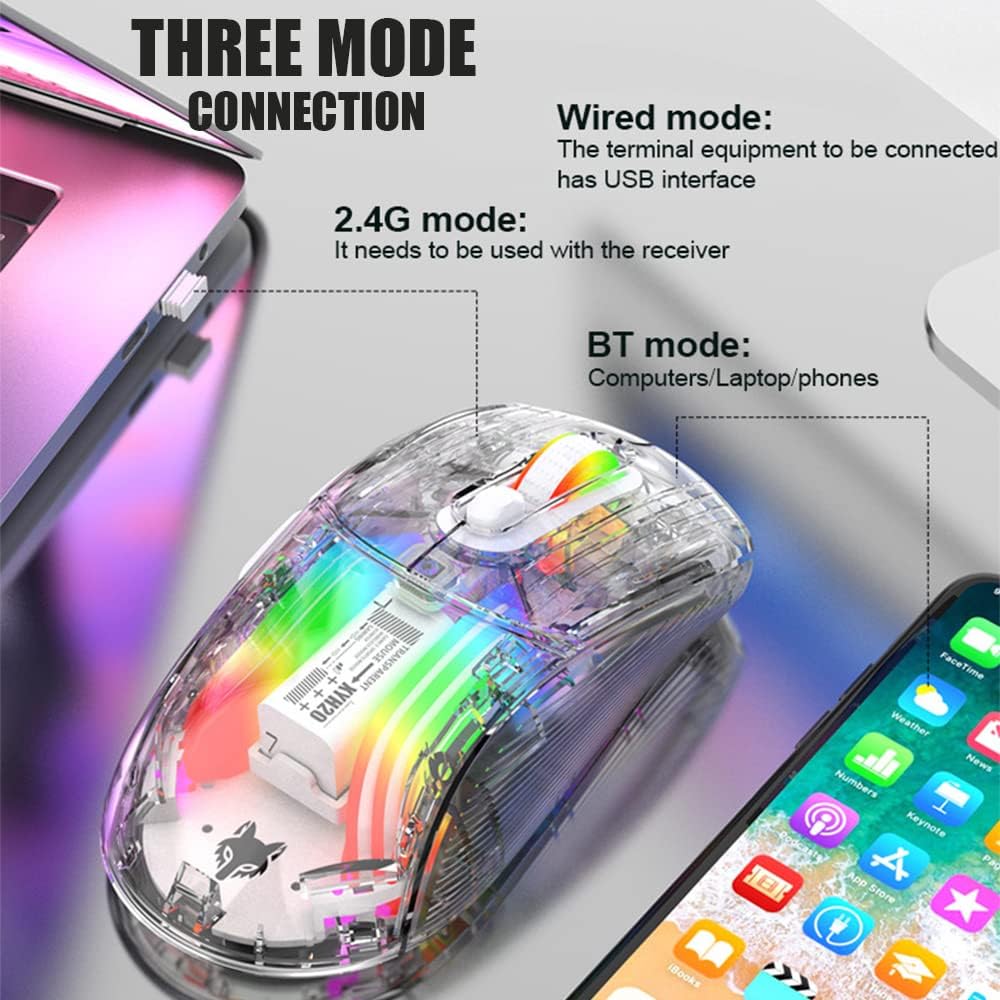
Image: Diagram illustrating the three connection modes: 2.4G wireless, Bluetooth, and wired USB, with exampmniej urządzeń.
Połączenie bezprzewodowe 2.4GHz
- Locate the USB receiver stored in the bottom compartment of the mouse.
- Podłącz odbiornik USB do dostępnego portu USB w komputerze.
- Set the mode switch on the bottom of the mouse to the 2.4G position.
- Mysz powinna połączyć się automatycznie.
Połączenie Bluetooth
- Set the mode switch on the bottom of the mouse to the Bluetooth position.
- Long press the Left, Middle (scroll wheel), and Right buttons simultaneously for 4 seconds to enter pairing mode. The mouse's indicator light will flash.
- Na komputerze lub urządzeniu otwórz ustawienia Bluetooth i wyszukaj nowe urządzenia.
- Select "Attoe Mouse" (or similar name) from the list of available devices to pair.
- Po sparowaniu kontrolka przestanie migać.
Połączenie przewodowe
You can also use the mouse in wired mode while charging or as an alternative connection. Simply connect the provided USB Type-C cable from the mouse to a USB port on your computer.
Instrukcja obsługi

Image: Detailed diagram of the Attoe mouse, labeling its buttons, receiver storage, charging port, and switches.
Funkcje przycisków
- Lewy przycisk (1): Standardowa funkcja lewego kliknięcia.
- Prawy przycisk (2): Standardowa funkcja prawego przycisku myszy.
- Scroll Button (3): Scroll wheel for vertical navigation; also functions as a middle-click button.
- Przycisk DPI (4): Przełącza między ustawieniami DPI.
- Przycisk „Do przodu” (5): Nawiguje do przodu w web przeglądarki lub file odkrywcy.
- Przycisk Wstecz (6): Porusza się wstecz web przeglądarki lub file odkrywcy.
Regulacja DPI
The mouse features 5 adjustable DPI (Dots Per Inch) settings to control cursor sensitivity and speed. Press the Przycisk DPI (4) located below the scroll wheel to cycle through the following settings:
- 800 DPI
- 1200 DPI
- 1600 DPI
- 2000 DPI
- 2400 DPI

Image: The Attoe mouse highlighting the DPI button and its 5-speed adjustment range from 800 to 2400.
Sterowanie oświetleniem RGB
The mouse features various RGB lighting effects. To adjust or turn off the lighting, use the Light Switch (10) located on the bottom of the mouse.

Image: The Attoe mouse displaying its vibrant RGB lighting effects, with an inset showing the location of the light switch on the shell bottom.
Funkcja cichego klikania
The mouse is designed with mute buttons, providing a quiet clicking experience suitable for environments where noise reduction is desired.

Image: The Attoe mouse with an overlay indicating its quiet click functionality, designed not to disturb others.
Ładowanie i bateria
The Attoe Bluetooth Wireless Mouse is equipped with a 500mAh rechargeable battery. Use the provided USB Type-C cable to charge the mouse.
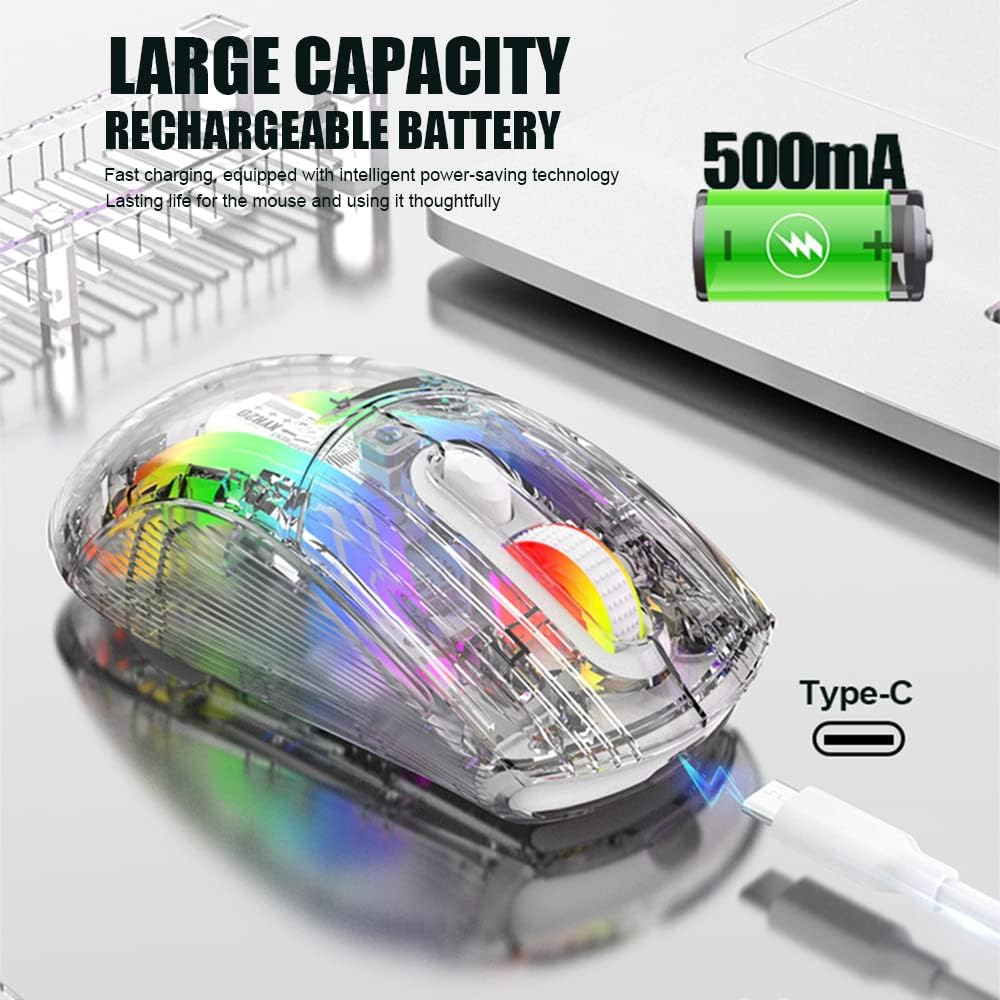
Image: The Attoe mouse connected via a Type-C cable for charging, with an icon indicating its 500mAh rechargeable battery capacity.
- Connect the Type-C end of the charging cable to the Charging Port (11) on the front of the mouse.
- Podłącz koniec USB-A kabla ładującego do źródła zasilania USB (np. portu USB komputera, zasilacza ściennego USB).
- The mouse can be used while charging in wired mode.
Konserwacja
To ensure the longevity and optimal performance of your Attoe Bluetooth Wireless Mouse, follow these maintenance guidelines:
- Czyszczenie: Do przecierania powierzchni myszy użyj miękkiej, suchej ściereczki. W przypadku uporczywych zabrudzeń delikatnie przetrzyjampPrzetrzyj ściereczkę wodą lub delikatnym środkiem czyszczącym. Unikaj stosowania silnych środków chemicznych i materiałów ściernych.
- Pielęgnacja czujnika: Utrzymuj czujnik optyczny znajdujący się na spodzie myszy w czystości i zapobiegaj jego zakurzeniu lub zanieczyszczeniom, aby zapewnić precyzyjne śledzenie ruchów.
- Składowanie: Jeśli mysz nie będzie używana przez dłuższy czas, należy ją przechowywać w chłodnym i suchym miejscu.
- Pielęgnacja baterii: Avoid fully discharging the battery frequently. Charge the mouse when the battery level is low.
Rozwiązywanie problemów
| Problem | Możliwa przyczyna | Rozwiązanie |
|---|---|---|
| Mouse not connecting (2.4GHz) | USB receiver not properly inserted; mouse not in 2.4G mode; low battery. | Ensure receiver is fully inserted. Set mode switch to 2.4G. Charge the mouse. Try a different USB port. |
| Mysz nie łączy się (Bluetooth) | Mouse not in pairing mode; Bluetooth disabled on device; low battery; device incompatibility. | Set mode switch to Bluetooth. Long press Left/Middle/Right buttons for 4s to enter pairing. Ensure device Bluetooth is on. Charge the mouse. Check device compatibility (Mac OS side buttons not supported). |
| Światła RGB nie działają | Światła zgaszone, bateria słaba. | Press the Light Switch on the bottom of the mouse to cycle through modes or turn on. Charge the mouse. |
| Ruch kursora jest nieregularny lub nie reaguje | Zabrudzony czujnik optyczny, nieodpowiednia powierzchnia, słaba bateria. | Clean the optical sensor. Use a mouse pad or a smooth, non-reflective surface. Charge the mouse. |
| Przyciski boczne nie działają w systemie Mac OS | Operating system limitation. | This is a known limitation; the two left side buttons are not available in Mac OS. |
Specyfikacje
| Funkcja | Szczegół |
|---|---|
| Model | XYH20 |
| Wymiary produktu | 4.8 x 2.8 x 0.04 cala (12.6 x 6.2 x 3.85 cm) |
| Waga przedmiotu | 3.52 uncji (110 g) |
| Technologia łączności | Bluetooth, łączność bezprzewodowa 2.4 GHz, przewodowa (USB typu C) |
| Technologia wykrywania ruchu | Optyczny |
| Ustawienia DPI | 800, 1200, 1600, 2000, 2400 |
| Cechy specjalne | Ergonomic Design, LED Lights (RGB), Portable, Rechargeable, Soundless (Quiet Click), Wireless |
| Pojemność baterii | 500mAh |
| Port ładowania | USB typu C |
| Zgodność | Windows 7/8/10/XP, Vista 7/8, Linux, Mac OS (Note: Left side buttons not available in Mac OS) |
Gwarancja i wsparcie
Attoe products are designed for reliability and performance. For any issues or questions regarding your Attoe Bluetooth Wireless Mouse, please contact our customer support. We are committed to providing assistance and ensuring your satisfaction.
Please refer to your purchase documentation for specific warranty details. If you encounter problems, you can contact us at any time; we provide 24-hour after-sales service.