
PD 61 Key RGB Gateron Switch Wireless Bluetooth Mechanical Gaming Keyboard
Instrukcja obsługi
FEKER 61 Key RGB Gateron Switch Wireless Bluetooth Mechanical Gaming Keyboard
Model: 61 Key RGB Gateron Switch | Brand: PD
Wstęp
Dziękujemy za zakupasing the FEKER 61 Key RGB Gateron Switch Wireless Bluetooth Mechanical Gaming Keyboard. This manual provides detailed instructions on how to set up, operate, maintain, and troubleshoot your new keyboard. Please read this manual thoroughly before using the product to ensure optimal performance and longevity.
Zawartość opakowania

Image: The FEKER 61 Key RGB Gateron Switch Wireless Bluetooth Mechanical Gaming Keyboard, its retail box, a USB-C cable, a keycap puller, and a switch puller.
- FEKER 61 Key RGB Mechanical Keyboard
- Kabel USB-C do USB-A
- Ściągacz nasadek klawiszy
- Przełącznik ściągacza
- Instrukcja obsługi (ten dokument)
Główne cechy

Image: A diagram highlighting the key features of the FEKER 01 keyboard, including fully programmable keys, compact layout, Bluetooth 5.0, 1550mAh battery, customizable RGB backlight, and Outemu mechanical switches.
- Full RGB Backlight: Each key features independent RGB backlighting, allowing for extensive customization.
- Nakładki na klawisze PBT: Equipped with durable double-shot PBT keycaps, which are more resistant to shine and wear compared to ABS keycaps.
- Dual FN Keys: Includes FN1 and FN2 keys, providing enhanced possibilities for layer function customization.
- Long Endurance Time: Features a 1900mAh large capacity battery with a built-in protection circuit to prevent battery damage.
- Połączenie w dwóch trybach: Supports both Bluetooth 4.0 and Type-C USB-C wired connections for wide compatibility.
- Szeroka kompatybilność: Compatible with multiple operating systems including iOS, Windows, Linux, and Android.
- NKRO Support: Supports N-Key Rollover (NKRO) in wired mode for precise input.

Image: An illustration displaying the four available switch options: Blue Switch, Brown Switch, Red Switch, and Black Switch, indicating the variety of mechanical switches this keyboard can be equipped with.
Specyfikacje
| Atrybut | Wartość |
|---|---|
| Marka | PD |
| Model | 61 Key RGB Mechanical Keyboard |
| Technologia łączności | Bluetooth 4.0, USB-C |
| Zgodność z systemem operacyjnym | Androida, iOSa, Linuksa, Windowsa |
| Cechy specjalne | Backlit (Full RGB), Programmable Keys, PBT Keycaps |
| Pojemność baterii | 1900 mAh (litowo-jonowy) |
| Tomtage | 5 V (prąd stały) |
| Waga przedmiotu | 3 kilogramów |
| Kolor | Czarny |
Organizować coś
1. Ładowanie klawiatury
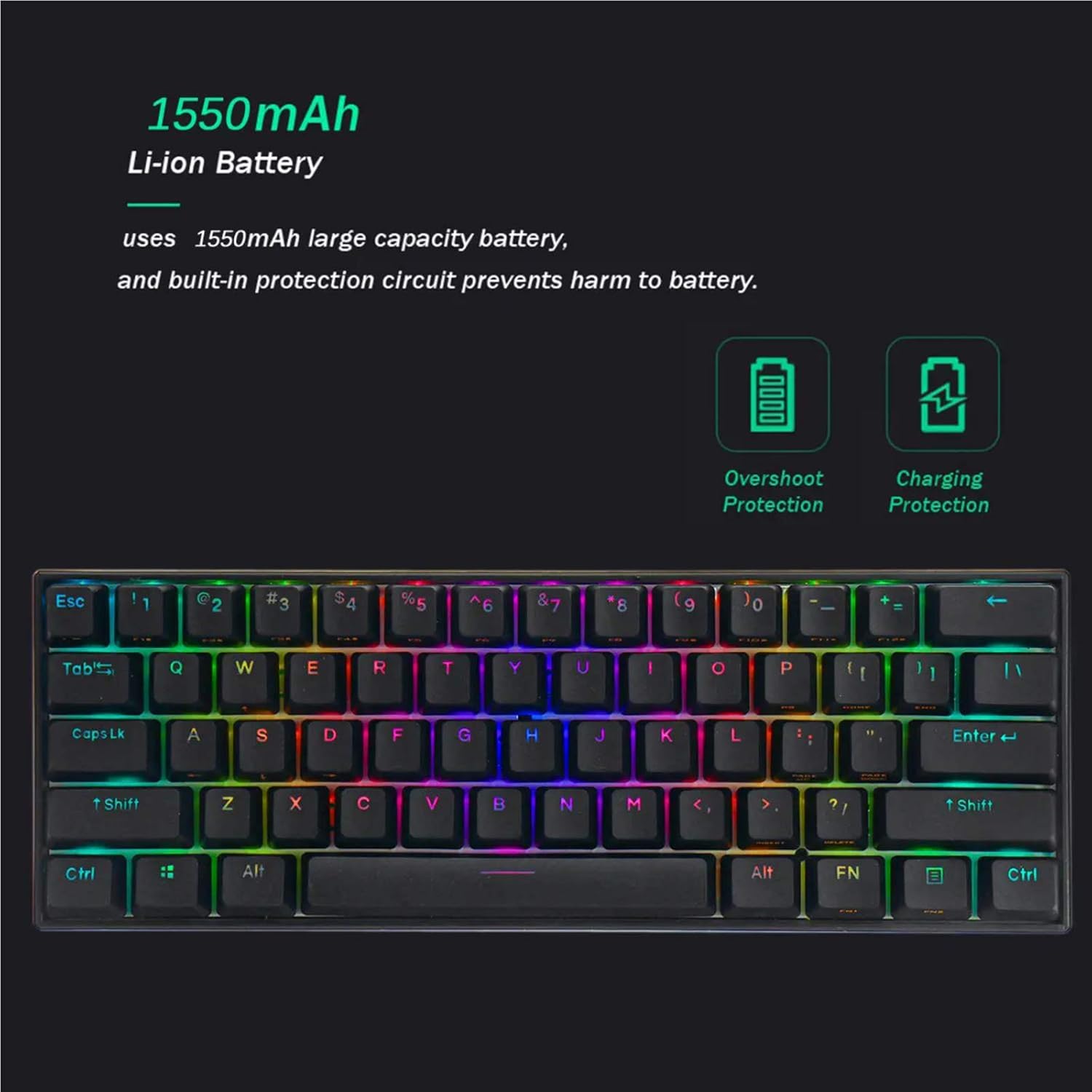
Image: A visual representation of the keyboard's 1550mAh Li-ion battery, highlighting its overshoot protection and charging protection features.
Przed pierwszym użyciem zaleca się pełne naładowanie klawiatury.
- Podłącz dołączony kabel USB-C do portu USB-C klawiatury.
- Podłącz drugi koniec kabla do źródła zasilania USB (np. portu USB komputera, zasilacza ściennego USB).
- The keyboard's indicator light will show charging status (refer to LED indicator section for details). A full charge typically takes a few hours.
2. Tryby połączenia
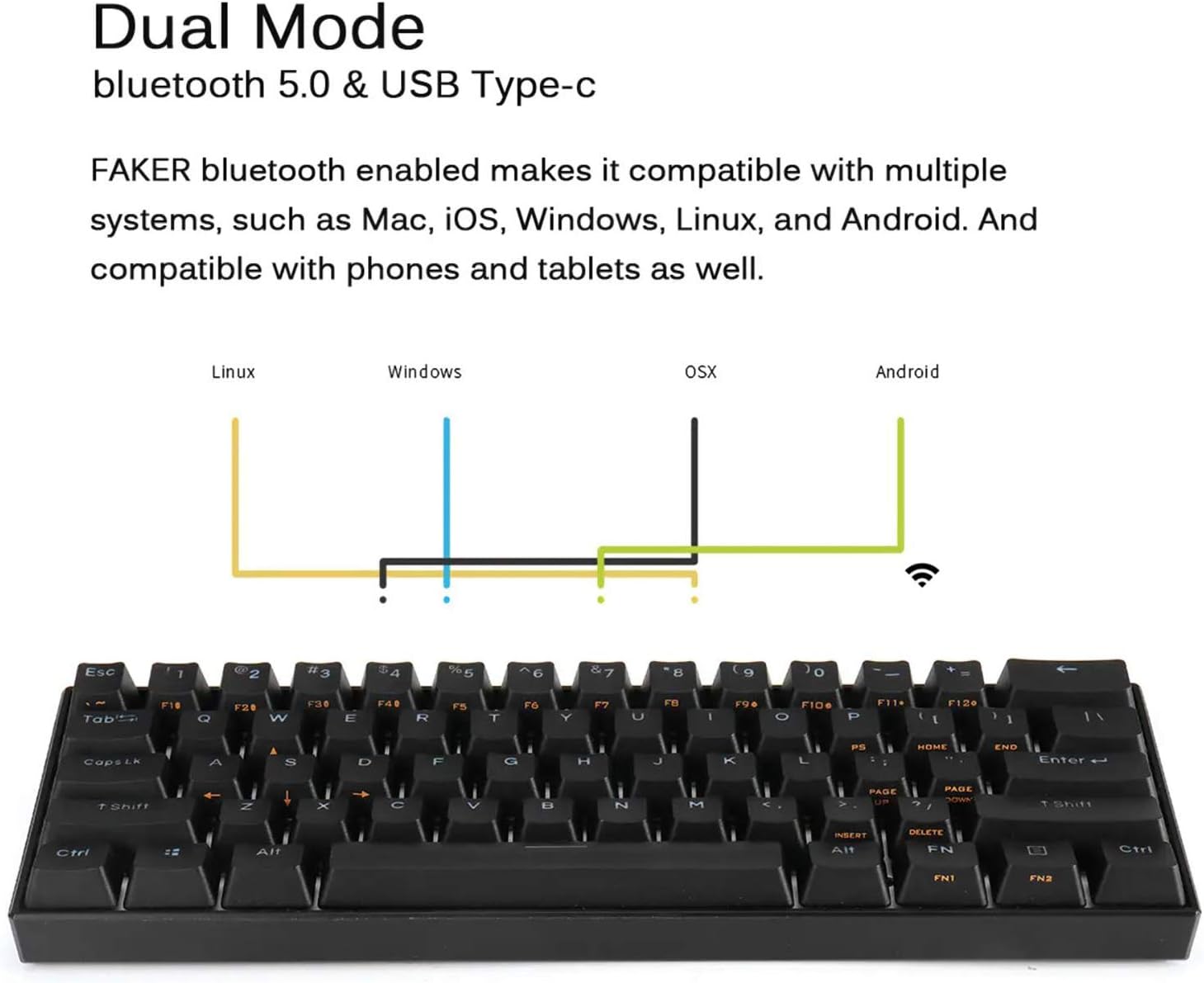
Image: A diagram showing the dual mode connection capabilities (Bluetooth 5.0 & USB Type-C) of the FEKER keyboard, along with its compatibility across Linux, Windows, OSX, and Android operating systems.
Tryb przewodowy (USB-C)
- Podłącz kabel USB-C do klawiatury i komputera.
- The keyboard will automatically switch to wired mode. This mode supports NKRO.
Bluetooth Mode (Wireless)
- Sprawdź, czy klawiatura jest naładowana.
- Turn on the Bluetooth switch located on the bottom of the keyboard.
- Na swoim urządzeniu (komputerze, tablecie, telefonie) włącz Bluetooth i wyszukaj nowe urządzenia.
- Select "FEKER Keyboard" (or similar name) from the list of available devices to pair.
- Jeśli zostaniesz o to poproszony, wprowadź wyświetlony na ekranie kod parowania za pomocą klawiatury i naciśnij Enter.
- Klawiatura może przechowywać wiele urządzeń Bluetoothfiles. Refer to the keyboard's specific key combinations (often FN + Q/W/E/R/T) for switching between paired devices.
Działanie
1. Podstawowe funkcje klawiatury
The FEKER 61 Key keyboard features a compact layout. Many functions are accessed via the FN (Function) keys.
FN Key Combinations (Examppliki):
- FN + [Klawisz]: Accesses secondary functions printed on keycaps (e.g., F1-F12, multimedia controls, arrow keys).
- FN1 / FN2: The keyboard features two FN keys (FN1 and FN2) which can be programmed to access different layers of functions, offering greater customization. Consult the software section for programming details.
- FN + Backspace: Delete (common for 60% keyboards).
- FN + P: Print Screen (example, check keycap legends).
- FN + ; / ': Home / End (example, check keycap legends).
- FN + , / .: Page Up / Page Down (example, check keycap legends).
2. Sterowanie podświetleniem RGB
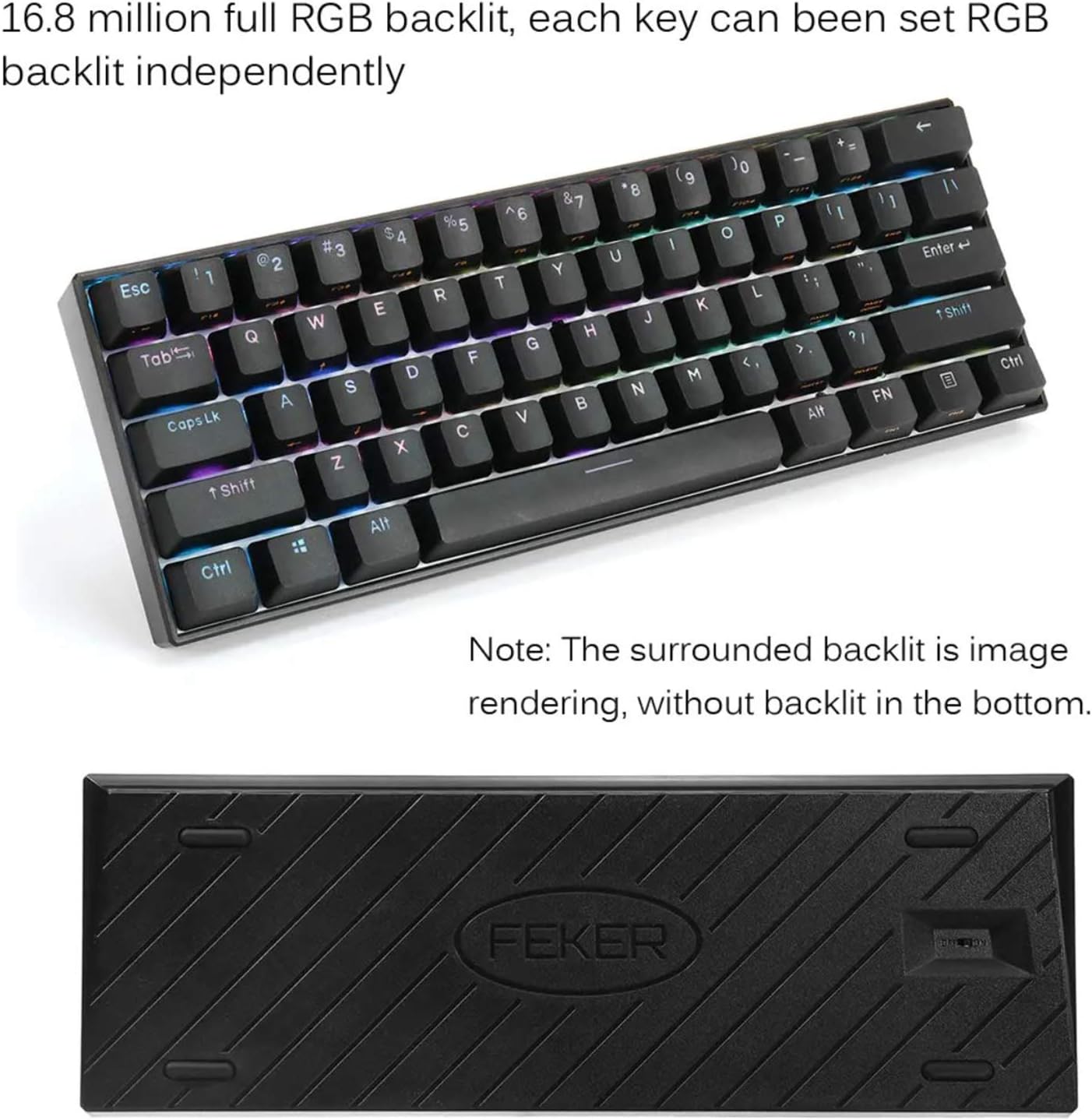
Image: The FEKER 61 Key keyboard displaying its 16.8 million full RGB backlight, with a note clarifying that the surrounding backlight in the image is a rendering and not present on the physical product's bottom.
The keyboard offers extensive RGB backlight customization.
- Zmiana trybów oświetlenia: Use FN + specific keys (often FN + \| or FN + Right Shift) to cycle through various preset lighting effects.
- Regulacja jasności: Use FN + Up/Down Arrow keys (or similar, check keycap legends) to increase or decrease backlight brightness.
- Regulacja prędkości: Use FN + Left/Right Arrow keys (or similar) to change the speed of dynamic lighting effects.
- Dostosowywanie kolorów: For full color customization and per-key lighting, use the dedicated software.
3. Oprogramowanie do personalizacji

Image: A screenshot of the FEKER keyboard's customization software interface, showing options for profile management, customization, lighting, gaming mode, and macros, emphasizing the ability to customize any color for every single key.
The FEKER keyboard comes with dedicated software for advanced customization of key assignments, macros, and RGB lighting.
- Pobieranie oprogramowania: Visit the official PD or FEKER website to download the latest version of the keyboard customization software.
- Instalacja: Follow the on-screen instructions to install the software on your Windows or macOS computer.
- Key Reassignment: Remap any key to a different function, macro, or multimedia control.
- Nagrywanie makro: Create and assign complex macro sequences to any key.
- Personalizacja oświetlenia:

Image: A screenshot of the "CUSTOMIZE" tab within the FEKER keyboard software, illustrating options for remapping keys and setting up profiles.

Image: A screenshot of the "LIGHTING" tab in the FEKER keyboard software, showing controls for color, direction, speed, and brightness of the RGB backlight, including various lighting effects like "Rolling".
- Choose from a wide array of preset effects.
- Create custom per-key lighting profiles.
- Adjust color, speed, and brightness for each effect.
- Zawodowiecfile Kierownictwo: Zapisz i załaduj różne profiledo różnych aplikacji i gier.
Konserwacja
- Czyszczenie:
- Przed czyszczeniem należy odłączyć klawiaturę.
- Użyj miękkiej, niestrzępiącej się ściereczki, lekko wyczyśćampPrzetrzyj klawisze i ramkę wodą lub łagodnym środkiem czyszczącym.
- Do usuwania kurzu i zanieczyszczeń spomiędzy klawiszy należy użyć sprężonego powietrza lub małej szczoteczki.
- The included keycap puller can be used to remove keycaps for deeper cleaning.
- Pielęgnacja baterii:
- Unikaj częstego całkowitego rozładowywania akumulatora.
- Jeśli klawiaturę nie używasz przez dłuższy czas, przechowuj ją w chłodnym i suchym miejscu.
- Nie narażaj klawiatury na działanie ekstremalnych temperatur.
- Składowanie: When not in use, store the keyboard in a clean, dry environment away from direct sunlight and excessive dust.
Rozwiązywanie problemów
- Keyboard Not Responding (Wired Mode):
- Sprawdź, czy kabel USB-C jest prawidłowo podłączony do klawiatury i komputera.
- Wypróbuj inny port USB na swoim komputerze.
- Jeśli to możliwe, przetestuj przy użyciu innego kabla USB-C.
- Uruchom ponownie komputer.
- Keyboard Not Connecting (Bluetooth Mode):
- Ensure the keyboard's Bluetooth switch is ON.
- Upewnij się, że klawiatura jest naładowana.
- Upewnij się, że Bluetooth jest włączony w Twoim urządzeniu i że jest ono wykrywalne.
- Spróbuj rozłączyć i ponownie sparować klawiaturę w ustawieniach Bluetooth swojego urządzenia.
- Upewnij się, że żadne inne urządzenia nie zakłócają sygnału Bluetooth.
- If using multiple Bluetooth profiles, ensure you are on the correct profile (e.g., FN + Q/W/E).
- Keys Not Working / Double Typing:
- Check if there's any debris under the keycap. Use the keycap puller to remove and clean.
- If it's a specific switch issue, and the keyboard is hot-swappable, consider replacing the switch using the switch puller.
- Ensure the keyboard firmware is up to date (check the manufacturer's webStrona).
- RGB Backlight Not Working / Flickering:
- Ensure backlight brightness is not set to minimum or off.
- Check lighting settings in the customization software.
- Upewnij się, że klawiatura jest odpowiednio naładowana, ponieważ niski poziom baterii może mieć wpływ na oświetlenie.
- Try resetting the keyboard (refer to software or manufacturer's web(szczegółowe instrukcje dotyczące resetowania znajdują się na stronie).
Gwarancja i wsparcie
For warranty information, technical support, or further assistance, please refer to the warranty card included with your product or visit the official PD/FEKER webstrona.
Webstrona: www.example.com/wsparcie (Placeholder - please refer to actual product documentation for correct URL)
Ask a question about this manual
Ask about setup, troubleshooting, compatibility, parts, safety, or missing instructions. Manuals+ will review the question and use this page’s manual context to help answer it.