
Ważne instrukcje bezpieczeństwa
To ensure safe operation and prolong the life of your monitor, please read and follow these instructions carefully:
- Przed czyszczeniem monitora należy zawsze odłączyć przewód zasilający od gniazdka elektrycznego.
- Aby uniknąć porażenia prądem elektrycznym, nie wystawiaj monitora na działanie deszczu i wilgoci.
- Zapewnij odpowiednią wentylację wokół monitora, aby zapobiec przegrzaniu. Nie blokuj otworów wentylacyjnych.
- Należy używać wyłącznie zasilacza i kabli dostarczonych przez producenta.
- Unikaj umieszczania ciężkich przedmiotów na przewodzie zasilającym lub monitorze.
- If the monitor is damaged or malfunctions, do not attempt to repair it yourself. Contact qualified service personnel.
Zawartość opakowania
Before proceeding with the setup, please check the contents of your package to ensure all items are present:
- Acer CB272U smiiprx LED Monitor
- Stojak na monitor (podstawa i ramię)
- Przewód zasilający
- Kabel HDMI
- Instrukcja szybkiego startu / Karta gwarancyjna
Organizować coś
1. Montaż podstawy monitora
- Carefully remove the monitor from its packaging. Place the monitor face down on a soft, clean cloth or surface to prevent scratches to the screen.
- Attach the stand arm to the back of the monitor panel. Ensure it is securely fastened, typically by sliding it into place until it clicks or by tightening screws.
- Connect the stand base to the bottom of the stand arm. Secure the base by tightening the captive screw located underneath the base.

Rysunek 1: Tył view of the Acer CB272U smiiprx monitor with the stand attached, illustrating the assembly points.
2. Connecting the Monitor to Your Computer
- Connect one end of the provided HDMI cable to the HDMI port on the monitor.
- Connect the other end of the HDMI cable to the HDMI output port on your computer or graphics card.
- Plug the power cord into the monitor's power input, then plug the other end into a grounded electrical outlet.

Rysunek 2: Tył kątowy view showing the input ports of the monitor, including HDMI and power connections.
Obsługa monitora
Włączanie i wyłączanie
Locate the power button on the monitor's bezel. Press it once to turn the monitor on. The power indicator light will illuminate. Press it again to turn the monitor off.
Adjusting Display Settings (OSD Menu)
The On-Screen Display (OSD) menu allows you to customize various monitor settings. Use the control buttons (usually located on the back or bottom right of the monitor) to navigate the OSD menu. Common adjustments include:
- Jasność/Kontrast: Dostosuj ogólną jasność i różnicę między obszarami jasnymi i ciemnymi.
- Ustawienia kolorów: Modyfikuj temperaturę barwową, gamma i poszczególne poziomy RGB.
- Źródło sygnału wejściowego: Manually select the video input (e.g., HDMI).
- Audio: Regulacja głośności wbudowanych głośników.
Ergonomiczne regulacje
The Acer CB272U smiiprx monitor stand offers multiple ergonomic adjustments to optimize your viewkomfort:
- Regulacja wysokości: Podnieś lub opuść monitor do poziomu oczu.
- Przechylenie: Adjust the screen angle forward or backward to reduce glare.
- Obracać: Rotate the monitor horizontally to share your screen or adjust viewkąt.
- Sworzeń: Rotate the screen to a portrait orientation for document viewpisanie lub kodowanie.
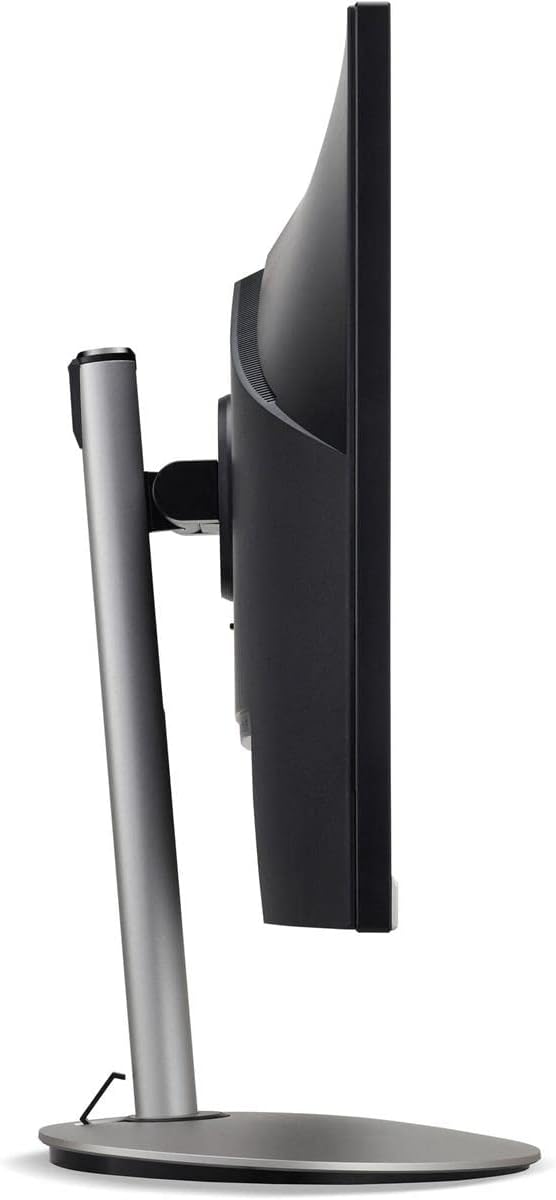
Rysunek 3: Profesjonalizm bocznyfile of the monitor, illustrating its adjustable stand for ergonomic positioning.
Konserwacja
Cleaning the Monitor Screen and Casing
To clean your monitor, first ensure it is turned off and unplugged from the power outlet. Use a soft, lint-free cloth. For stubborn marks, lightly dampen the cloth with water or a specialized non-abrasive screen cleaner. Nie rozpylać płynu bezpośrednio na ekran lubasing. Unikaj stosowania silnych środków chemicznych, ściernych środków czyszczących i rozpuszczalników.
Wytyczne dotyczące przechowywania
If you need to store the monitor for an extended period, it is recommended to use its original packaging to protect it from dust, moisture, and physical damage. Store in a cool, dry environment away from direct sunlight and extreme temperatures.
Rozwiązywanie problemów
Aby zapoznać się z typowymi problemami i ich rozwiązaniami, zapoznaj się z poniższą tabelą:
| Problem | Możliwa przyczyna | Rozwiązanie |
|---|---|---|
| Brak obrazu na ekranie | Odłączony kabel zasilający; Odłączony kabel wideo; Wybrano nieprawidłowe źródło sygnału wejściowego. | Sprawdź podłączenie zasilania i kabla wideo; Upewnij się, że monitor jest włączony; Wybierz odpowiednie źródło sygnału wejściowego za pomocą menu OSD. |
| Obraz jest niewyraźny lub zniekształcony | Nieprawidłowe ustawienie rozdzielczości; wadliwy kabel wideo. | Set the display resolution to 2560 x 1440 at 75 Hz; Try a different HDMI cable. |
| Brak dźwięku z głośników | Monitor volume too low or muted; Incorrect audio output selected on computer. | Adjust monitor volume via OSD; Unmute audio; Select the monitor as the audio output device in your computer's sound settings. |
| Migotanie monitora | Refresh rate mismatch; Interference; Faulty cable. | Ensure refresh rate is set to 75 Hz; Check for nearby electronic devices causing interference; Replace video cable. |
Specyfikacje
Key technical specifications for the Acer CB272U smiiprx LED Monitor:
| Funkcja | Szczegół |
|---|---|
| Nazwa modelu | CB272U smiiprx |
| Rozmiar ekranu | 24.1 cali |
| Rozdzielczość natywna | 2560x1440 (WQHD) |
| Częstotliwość odświeżania | 75 Hz |
| Czas reakcji | 1 Millisecond (VRB) |
| Proporcje obrazu | 16:9 |
| Typ wyświetlacza | LED-backlit LCD / TFT active matrix (IPS) |
| Jasność | 350 cd/m² |
| Współczynnik kontrastu | 1000:1 (statyczny) |
| Łączność | HDMI |
| Adaptacyjna synchronizacja | FreeSync |
| Wbudowane głośniki | Tak |
| Dimensions (WxDxH with stand) | 24.1 cala x 9.2 cala x 20.5 cala |
| Waga (z podstawką) | 18.1 funtów |

Figure 4: Monitor dimensions with stand, indicating width, depth, and height.
Informacje o gwarancji
The Acer CB272U smiiprx LED Monitor comes with a 3-letnia ograniczona gwarancja producenta. This warranty covers defects in materials and workmanship under normal use. For complete details regarding warranty coverage, limitations, and how to make a claim, please refer to the warranty documentation included with your product or visit the official Acer support webstrona.
Please retain your proof of purchase (receipt or invoice) as it will be required for any warranty service.
Obsługa klienta
Should you require further assistance, technical support, or wish to download the latest drivers and firmware updates for your monitor, please visit the official Acer support webstrona:
You can also find contact information for Acer customer service in your region on the support webwitryna oferująca spersonalizowaną pomoc.