
1. Koniec produktuview
The HP t430 Thin Client is designed for desktop virtualization and cloud-based applications, offering a streamlined computing experience. It features an Intel Celeron N4000 dual-core processor, DDR4 memory, solid-state storage, and supports 4K display output. Its compact design includes a built-in VESA mount for flexible placement options, such as mounting behind a display or discreetly on or under a desk. The system comes with a simplified operating system, providing an intuitive user interface.
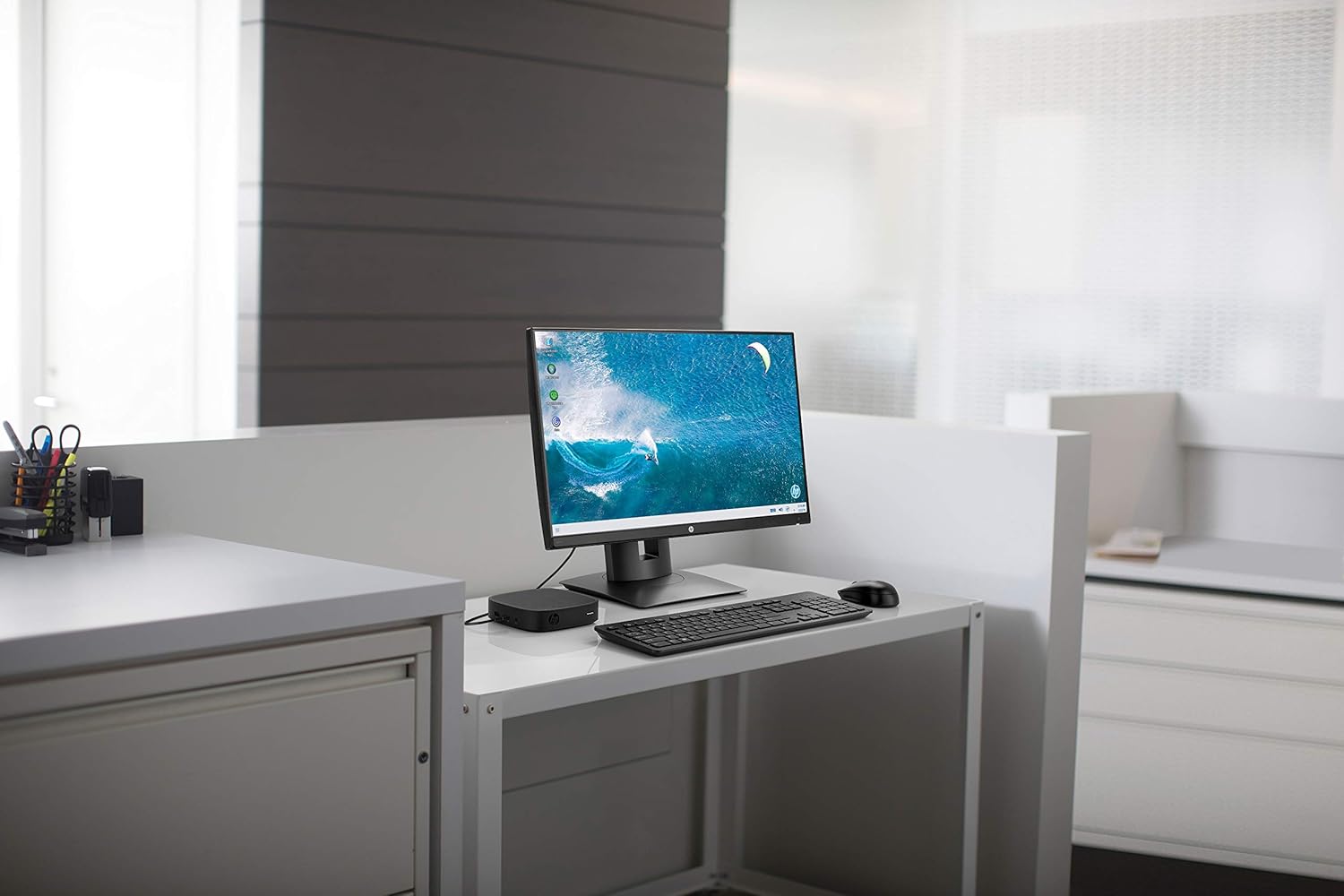
Rysunek 1.1: HP t430 Thin Client in a typical office setup, connected to a display and peripherals.
2. Instrukcje konfiguracji
2.1 Rozpakowanie urządzenia
Carefully remove all components from the packaging. The box should contain the HP t430 Thin Client unit. Ensure no components are damaged during unpacking.
2.2 Podłączanie urządzeń peryferyjnych
- Podłącz wyświetlacz: Use an HDMI or DisplayPort cable to connect your monitor to the corresponding port on the HP t430 Thin Client. The device supports up to 4K resolution.
- Podłącz klawiaturę i mysz: Plug your USB keyboard and mouse into the available USB ports on the thin client.
- Połącz sieć (opcjonalnie): For a wired network connection, connect an Ethernet cable from your router or network switch to the RJ-45 port on the thin client. For wireless connectivity, ensure your Wi-Fi network is available during initial setup.
- Podłącz zasilanie: Plug the power adapter into the thin client's power input, then connect the adapter to a power outlet.
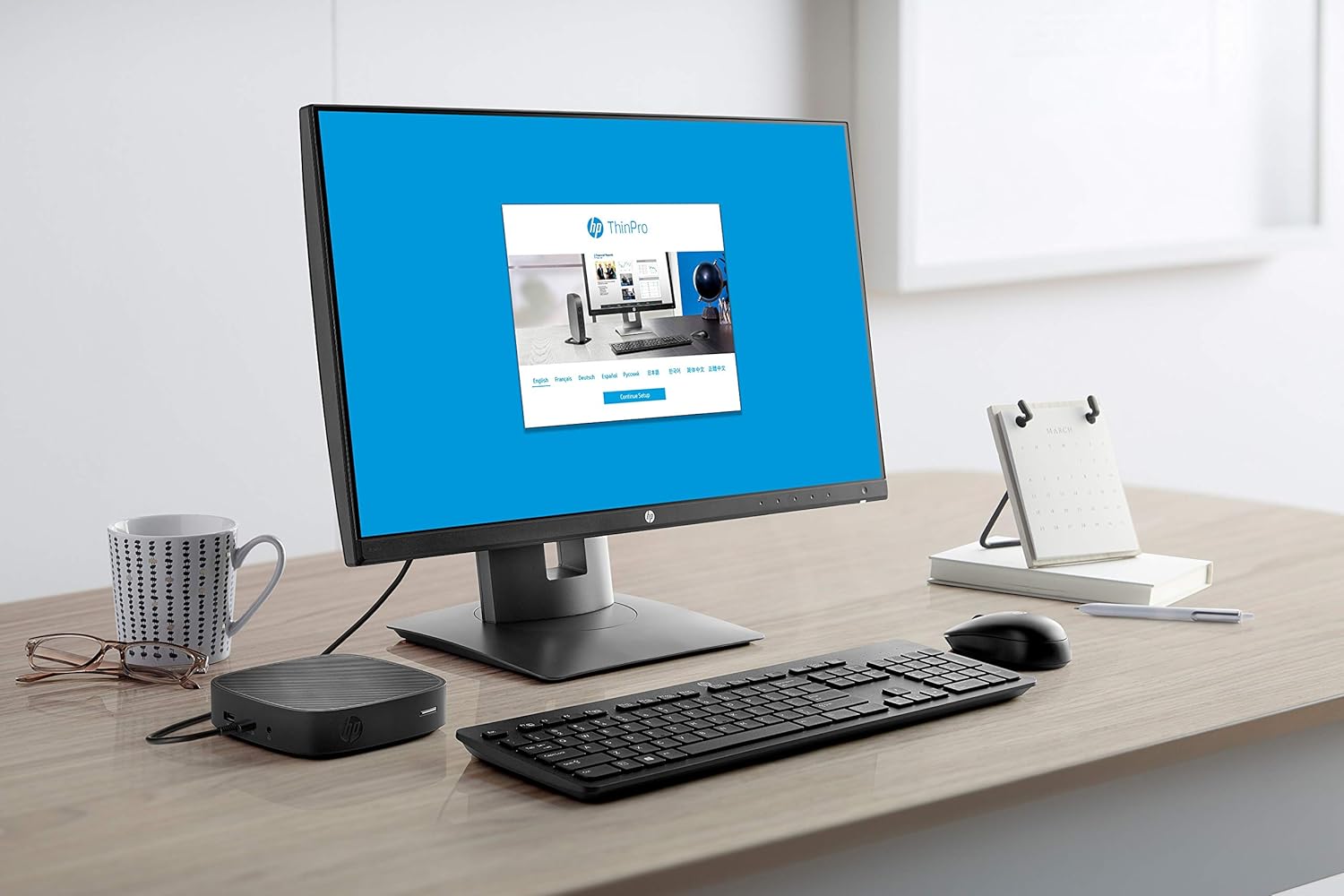
Rysunek 2.1: HP t430 Thin Client with HP ThinPro login screen, demonstrating a ready-to-use state.
2.3 Pierwsze włączenie zasilania
After connecting all necessary peripherals and power, press the power button on the HP t430 Thin Client. The device will boot up, and the operating system (HP Smart Zero Core) will load. Follow any on-screen prompts for initial configuration, such as network setup or user login.
3. Instrukcja obsługi
3.1 Włączanie/wyłączanie zasilania
- Włączanie: Press the power button located on the front of the thin client.
- Aby wyłączyć: Use the shutdown option within the operating system's menu. Alternatively, press and hold the power button for several seconds for a forced shutdown (use only when necessary).
3.2 Operating System Navigation
The HP t430 Thin Client runs on HP Smart Zero Core, designed for simplicity and ease of use. Navigate the interface using the connected keyboard and mouse. Access applications and settings through the main menu or desktop icons.
3.3 Łączność sieciowa
- Sieci przewodowej: If an Ethernet cable is connected, the device should automatically establish a wired network connection.
- Sieć bezprzewodowa: To connect to a Wi-Fi network, access the network settings within the operating system. Select your desired Wi-Fi network and enter the password if prompted.
3.4 Wykorzystanie portu USB
The thin client is equipped with USB ports for connecting various devices such as external storage, printers, or other peripherals. Simply plug the USB device into an available port.
4. Konserwacja
4.1 Czyszczenie urządzenia
- Przed czyszczeniem upewnij się, że urządzenie jest wyłączone i odłączone od zasilania.
- Delikatnie użyj miękkiej, niestrzępiącej się szmatki dampzwilż wodą lub łagodnym roztworem czyszczącym i wytrzyj powierzchnie zewnętrzne.
- Unikaj stosowania silnych środków chemicznych, ściernych środków czyszczących lub spryskiwania urządzenia bezpośrednio płynami.
- Utrzymuj otwory wentylacyjne w czystości, bez kurzu i zanieczyszczeń.
4.2 Aktualizacje oprogramowania
Regularly check for and apply operating system and firmware updates as recommended by HP. These updates often include security patches and performance improvements. Refer to the HP support website for specific instructions on updating your HP t430 Thin Client.
5. Rozwiązywanie Problemów
5.1 Typowe problemy i rozwiązania
| Wydanie | Możliwe rozwiązanie |
|---|---|
| Brak zasilania |
|
| Brak sygnału wyjściowego |
|
| Problemy z łącznością sieciową |
|
| Peripheral Not Responding |
|
If you encounter issues not listed here or if the suggested solutions do not resolve the problem, please refer to the HP support website or contact HP customer service for further assistance.
6. Specyfikacje techniczne
| Funkcja | Specyfikacja |
|---|---|
| Nazwa modelu | t430 |
| Numer modelu | 3VQ03AT#ABA |
| Edytor | Intel Celeron N4000 Dual-core (2 Core) |
| Prędkość procesora | 1.10 GHz (up to 2.6 GHz burst) |
| Pamięć RAM | 2 GB pamięci DDR4 SDRAM |
| Składowanie | Dysk SSD 16 GB |
| System operacyjny | HP Smart Zero Core |
| Grafika | Integrated Intel Graphics (Dedicated Graphics Card Description) |
| Wyjście wideo | HDMI, DisplayPort |
| Maksymalna rozdzielczość wyświetlacza | 3840 × 2160 (4K) |
| Porty USB | Łącznie 2 porty USB |
| Łączność sieciowa | Ethernet (RJ-45), Wi-Fi |
| Dodatkowe funkcje | Mikrofon |
| Wymiary (wys. x szer. x gł.) | 5.3 x 5.3 x 1.3 cala |
| Waga | 1.6 funtów |
| Zawarte komponenty | t430 Cienki klient |
7. Informacje o gwarancji
The HP t430 Thin Client comes with a 3-roczna ograniczona gwarancja. For detailed terms and conditions, including coverage specifics and how to make a warranty claim, please refer to the official HP warranty documentation included with your product or visit the official HP support webZachowaj dowód zakupu w celu potwierdzenia gwarancji.
8. Obsługa klienta
For technical assistance, product information, or to download drivers and software updates, please visit the official HP support webstrona:
https://support.hp.com
You may also find contact information for HP customer service in your region on the support website. When contacting support, please have your product model number (3VQ03AT#ABA) and serial number ready.