
1. Wprowadzenie
Thank you for choosing the X.Cell M100 Wireless Mouse. This manual provides essential information for setting up, operating, and maintaining your new wireless mouse. Please read these instructions carefully before use to ensure optimal performance and longevity of your device.
2. Zawartość opakowania
Sprawdź, czy w przesyłce znajdują się wszystkie elementy:
- X.Cell M100 Wireless Mouse
- Odbiornik USB Nano
- Bateria AA (może być zamontowana fabrycznie lub dołączona osobno)
- Instrukcja obsługi (ten dokument)
3. Konfiguracja
- Włóż baterię: Locate the battery compartment on the underside of the mouse. Open the cover and insert the provided AA battery, ensuring correct polarity (+/-). Close the battery compartment cover.
- Podłącz odbiornik USB: Remove the USB Nano Receiver from its storage slot, usually located inside the battery compartment or near it. Plug the receiver into an available USB port on your computer (PC or Mac).
- Włączanie: Turn on the mouse using the power switch, typically located on the underside. The mouse is designed for plug-and-play functionality, meaning it should automatically connect to your computer within a few seconds.
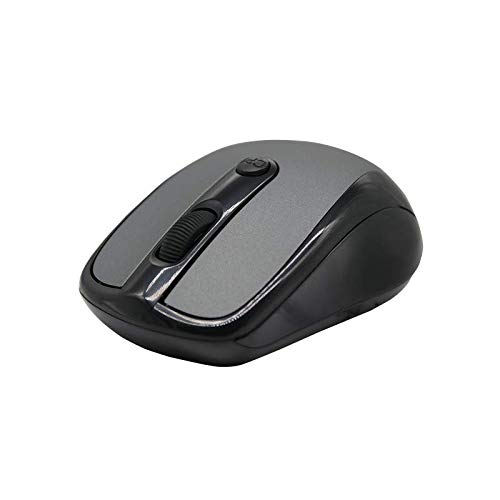
This image shows the X.Cell M100 Wireless Mouse from a top-down perspective, highlighting its ergonomic design and button layout.
4. Instrukcja obsługi
The X.Cell M100 Wireless Mouse utilizes 2.4 GHz wireless technology, providing a stable connection with an operating range of up to 10 meters. It is compatible with both PC and Mac systems.
- Lewy przycisk: Podstawowa funkcja kliknięcia służąca do wybierania elementów i otwierania files, itp.
- Prawy przycisk: Funkcja dodatkowego kliknięcia umożliwiająca dostęp do menu kontekstowych i dodatkowych opcji.
- Kółko przewijania: Roll up or down to navigate documents and web stron. Kółko przewijania pełni również funkcję środkowego przycisku kliknięcia.
- DPI Button (if present): Some models may include a DPI button to adjust cursor sensitivity. Refer to the mouse's physical design for this feature.

A hand demonstrates the comfortable grip and usage of the X.Cell M100 Wireless Mouse during operation.
5. Konserwacja
- Czyszczenie: Do czyszczenia myszy użyj miękkiej, suchej ściereczki. W przypadku uporczywych zabrudzeń delikatnie przetrzyj mysz.ampPrzetrzyj szmatkę wodą. Unikaj stosowania silnych środków chemicznych i materiałów ściernych.
- Wymiana baterii: When the mouse performance degrades or it stops responding, replace the AA battery. Follow the steps in the 'Setup' section for battery insertion. The mouse is designed for approximately 12 months of battery life under typical usage.
- Składowanie: Jeśli nie używasz myszy przez dłuższy czas, wyłącz ją, aby oszczędzać baterię. Przechowuj nanoodbiornik USB w przeznaczonym do tego gnieździe, aby zapobiec jego zgubieniu.
6. Rozwiązywanie Problemów
| Problem | Rozwiązanie |
|---|---|
| Mysz nie reaguje |
|
| Ruch kursora jest nieregularny lub powolny |
|
| Problemy z połączeniem |
|
7. Specyfikacje
- Model: XL-M-100-BLK
- Łączność: Sieć bezprzewodowa 2.4 GHz
- Zasięg działania: Do 10 metrów
- Zgodność: PC & Mac
- Źródło zasilania: 1 bateria AA
- Szacowana żywotność baterii: 12 miesięcy
- Wymiary (dł. x szer. x wys.): Wymiary 2.4 x 6.4 x 4.6 cm
- Waga: 80 gramów
- Kolor: Czarny
8. Gwarancja i wsparcie
Specific warranty details and direct support contact information are not provided in the product description. Please refer to the product packaging or the official X.Cell website for the most current warranty policy and customer support options. Keep your purchase receipt as proof of purchase for any warranty claims.