
ZYXEL LTE3301-M209
Instrukcja obsługi routera bezprzewodowego ZyXEL LTE3301-M209
Model: LTE3301-M209
Wstęp
This user manual provides comprehensive instructions for the setup, operation, maintenance, and troubleshooting of your ZyXEL LTE3301-M209 Wireless Router. Please read this manual thoroughly before using the device to ensure proper functionality and safety.
The ZyXEL LTE3301-M209 is a versatile 4G LTE indoor router designed to provide high-speed internet connectivity via cellular networks, offering a reliable solution for home and small office environments. It supports single-band 2.4 GHz Wi-Fi and Fast Ethernet connections.
Zawartość opakowania
- ZyXEL LTE3301-M209 Wireless Router
- Zasilacz
- Kabel Ethernet
- Szybki przewodnik (nie jest zawarty w tym podręczniku)
- Dwie odłączane anteny
Koniec fizycznyview

Rysunek 1: Kątowy view of the ZyXEL LTE3301-M209 Wireless Router. This image shows the router from a slight angle, highlighting its compact black design and the two external antennas. The top surface features a subtle textured pattern.

Rysunek 2: Przód view of the ZyXEL LTE3301-M209 Wireless Router. This image displays the front panel of the router, which includes several LED indicators for power, internet connectivity, Wi-Fi status, and signal strength.
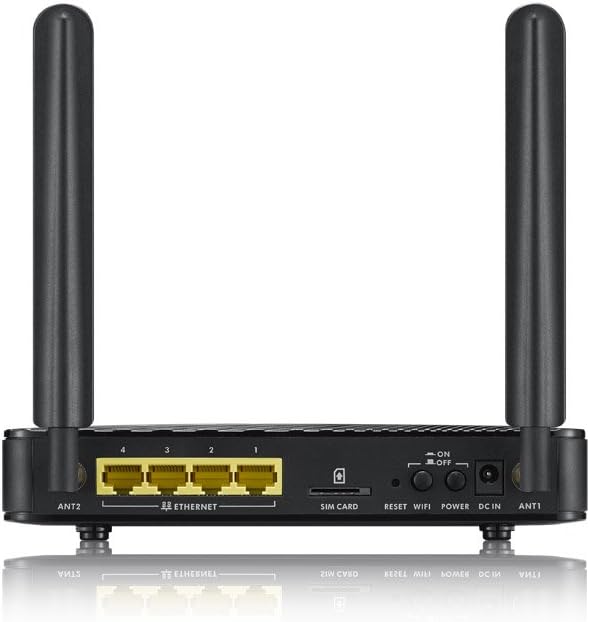
Rysunek 3: Tył view of the ZyXEL LTE3301-M209 Wireless Router. This image illustrates the back panel of the router, featuring four Ethernet LAN ports, a SIM card slot, reset button, Wi-Fi button, power button, and DC power input, along with antenna connectors.
Wskaźniki LED
| Wskaźnik | Status | Opis |
|---|---|---|
| Moc | Jednolity zielony | Urządzenie jest włączone. |
| Internet | Jednolity zielony | Połączony z internetem. |
| Internet | Migające zielone | Transmisja danych. |
| Wi-Fi | Jednolity zielony | Wi-Fi jest włączone. |
| Siła sygnału | Multiple Bars Green | Indicates cellular signal strength (more bars = stronger signal). |
Organizować coś
1. Instalacja sprzętu
- Włóż kartę SIM: Locate the SIM card slot on the rear panel of the router. Gently insert your activated 4G LTE SIM card into the slot until it clicks into place. Ensure the SIM card is correctly oriented as indicated by the diagram near the slot.
- Dołącz anteny: Screw the two provided antennas onto the antenna connectors (ANT1 and ANT2) on the rear of the router. Ensure they are securely tightened. For optimal signal reception, position the antennas vertically.
- Podłącz zasilanie: Connect the power adapter to the DC IN port on the router and then plug the adapter into a power outlet. Press the Power button to turn on the device.
- Pierwsze uruchomienie: Wait for the router to boot up. The Power LED should turn solid green. The Internet and Signal Strength LEDs will illuminate as the router establishes a connection to the cellular network. This may take a few minutes.
2. Połączenie sieciowe
- Połączenie Wi-Fi: On your computer or mobile device, search for available Wi-Fi networks. Select the network name (SSID) printed on the label on the bottom of your router. Enter the Wi-Fi password (WPA2-PSK Key) also found on the label.
- Połączenie Ethernet: Connect one end of an Ethernet cable to any of the LAN ports (1-4) on the rear of the router and the other end to your computer or another network device.
3. Konfiguracja początkowa (Web Berło)
- Dostęp Web Interfejs: Otwórz web browser (e.g., Chrome, Firefox, Edge) and enter the default IP address of the router, typically
192.168.1.1, w pasku adresu. Naciśnij Enter. - Login: When prompted, enter the default username and password. These are usually
adminfor both, or found on the router's label. It is highly recommended to change the default password after your first login for security purposes. - Postępuj zgodnie z instrukcjami kreatora konfiguracji: routera web interface may present a setup wizard to guide you through basic configurations such as changing the Wi-Fi SSID and password, and verifying cellular settings (APN).
- Sprawdź połączenie internetowe: Once configured, check the router's status page to confirm that it has successfully connected to the internet via the 4G LTE network.
Obsługa routera
Zarządzanie Wi-Fi
- Zmiana ustawień Wi-Fi: Zaloguj się do web interface. Navigate to the Wi-Fi or Wireless settings section. Here you can change the Wi-Fi network name (SSID), password, security type (WPA2-PSK is recommended), and channel settings.
- Przycisk włączania/wyłączania Wi-Fi: The router features a dedicated Wi-Fi button on the rear panel. Press this button to quickly enable or disable the Wi-Fi signal.
LAN and WAN Settings
- Adres IP sieci LAN: You can modify the router's LAN IP address and DHCP server settings through the web interface, typically found under Network or LAN settings.
- WAN (Cellular) Settings: The router automatically detects most cellular network settings. However, if you experience connectivity issues, you may need to manually configure the Access Point Name (APN) under the WAN or Cellular settings. Consult your mobile network provider for correct APN details.
Zaawansowane funkcje
- Tryb punktu dostępu: The ZyXEL LTE3301-M209 supports Access Point Mode, allowing it to function as a Wi-Fi access point for an existing wired network. This feature can be enabled via the web interfejs.
- Zapora i bezpieczeństwo: The router includes basic firewall features to protect your network. You can configure port forwarding, DMZ, and parental controls through the security settings.
Konserwacja
- Aktualizacje oprogramowania układowego: Regularly check the ZyXEL support webStrona z aktualizacjami oprogramowania sprzętowego. Aktualizowanie oprogramowania sprzętowego routera zapewnia optymalną wydajność, bezpieczeństwo i dostęp do nowych funkcji. Aktualizacje oprogramowania sprzętowego są zazwyczaj przeprowadzane za pośrednictwem web interfejs.
- Czyszczenie: Keep the router clean and free from dust. Use a soft, dry cloth to wipe the exterior. Do not use liquid cleaners or aerosols. Ensure ventilation holes are not obstructed.
- Umieszczenie: Place the router in a central location, away from obstructions, large metal objects, and other electronic devices that may cause interference. This helps optimize Wi-Fi signal coverage and cellular reception.
- Ponowne uruchomienie routera: If you experience minor network issues, a simple restart can often resolve them. You can do this by pressing the power button off and on, or by unplugging the power adapter, waiting 10 seconds, and plugging it back in.
Rozwiązywanie problemów
- Brak połączenia z internetem:
- Check the Internet LED on the router. If it's off or red, verify your SIM card is properly inserted and activated.
- Check the Signal Strength LEDs. If signal is weak, try repositioning the router or adjusting antennas.
- Zaloguj się do web interface and check the WAN/Cellular status. Ensure the APN settings are correct for your mobile network provider.
- Uruchom ponownie router.
- Sieć Wi-Fi niewidoczna lub nie można nawiązać połączenia:
- Ensure the Wi-Fi LED is solid green. If not, press the Wi-Fi button on the rear panel or enable Wi-Fi via the web interfejs.
- Verify you are entering the correct Wi-Fi password (WPA2-PSK Key).
- Check if Wi-Fi is disabled or if the SSID broadcast is hidden in the router's wireless settings.
- Niska prędkość Internetu:
- Check the Signal Strength LEDs. A weak cellular signal will result in slower speeds.
- Ensure no other devices are heavily utilizing bandwidth (e.g., large downloads, streaming).
- Spróbuj ponownie uruchomić router.
- Consider if your data plan has reached its high-speed limit.
- Nie można uzyskać dostępu Web Interfejs:
- Upewnij się, że urządzenie jest podłączone do routera poprzez Wi-Fi lub Ethernet.
- Verify you are using the correct IP address (default is
192.168.1.1). - Wyczyść pamięć podręczną przeglądarki lub spróbuj użyć innej przeglądarki.
- Jeśli zapomniałeś hasła logowania, może być konieczne przywrócenie ustawień fabrycznych (patrz poniżej).
- Przywrócenie ustawień fabrycznych:
If all else fails, you can perform a factory reset. This will revert all settings to their default values, including Wi-Fi SSID, password, and login credentials. To perform a factory reset:
- With the router powered on, use a paperclip or a thin object to press and hold the Reset button on the rear panel for approximately 10 seconds.
- Release the button when the LEDs start to flash or the router reboots.
- The router will restart with factory default settings. You will need to reconfigure it as per the "Setup" section.
Specyfikacje
| Funkcja | Szczegół |
|---|---|
| Marka | ZYXEL |
| Nazwa modelu | LTE3301-M209 |
| Numer modelu przedmiotu | LTE3301-M209-EU01V1F |
| Technologia łączności | Ethernet, Wi-Fi (4G LTE Cellular) |
| Standard komunikacji bezprzewodowej | 802.11b, 802.11g |
| Klasa pasma częstotliwości | Jednopasmowy (2.4 GHz) |
| Częstotliwość | 2.4 GHz |
| Funkcja specjalna | Tryb punktu dostępu |
| Kompatybilne urządzenia | Laptop, Tablet |
| Kolor | Czarny |
| Wymiary produktu | Wymiary 12 x 18.6 x 3 cm |
| Waga | 350 gramów |
| Zalecane zastosowania | Dom |
Gwarancja i wsparcie
The ZyXEL LTE3301-M209 Wireless Router comes with a two-year warranty against factory defects. Zachowaj dowód zakupu na wypadek roszczeń gwarancyjnych.
For technical support, firmware updates, or further assistance, please visit the official ZyXEL support website or contact their customer service. You can typically find support contact information on the ZyXEL webmiejscu lub w oryginalnym opakowaniu produktu.
Note: Warranty terms and conditions may vary by region. Please refer to the official ZyXEL warranty policy for detailed information.