
1. Wprowadzenie
This manual provides essential information for the safe and efficient use of your Alienware AW3418DW 34.1-inch Curved Gaming Monitor. This monitor features a WQHD (3440x1440) resolution, a 120Hz refresh rate (overclocked), and NVIDIA G-SYNC technology for an immersive gaming experience. Please read this manual thoroughly before operating the device.
2. Informacje dotyczące bezpieczeństwa
- Always disconnect the power cable from the wall outlet before cleaning the monitor.
- Nie wystawiaj monitora na działanie deszczu i wilgoci, aby uniknąć ryzyka pożaru lub porażenia prądem.
- Nie otwierać monitora casing. Wewnątrz nie ma żadnych części, które mogłyby być naprawiane przez użytkownika. Wszelkie prace serwisowe należy zlecać wykwalifikowanemu personelowi serwisowemu.
- Aby zapobiec jego upadkowi, ustaw monitor na stabilnej, płaskiej powierzchni.
- Zapewnij odpowiednią wentylację wokół monitora. Nie blokuj otworów wentylacyjnych.
- Należy używać wyłącznie zasilacza i kabli dostarczonych wraz z monitorem.
3. Zawartość opakowania
Sprawdź, czy w opakowaniu znajdują się wszystkie komponenty:
- Alienware AW3418DW Monitor
- Stojak na monitor (podstawa i podwyższenie)
- Kabel zasilający
- Kabel DisplayPort
- Kabel HDMI
- Kabel przesyłania danych USB 3.0
- Documentation (Quick Setup Guide, Safety Information)
4. Konfiguracja
4.1 Konfiguracja fizyczna
Carefully remove the monitor and its components from the packaging. Place the monitor face down on a soft cloth or cushion to prevent scratches.
Mocowanie stojaka
- Attach the stand riser to the monitor panel until it clicks into place.
- Attach the stand base to the stand riser and tighten the captive screw.

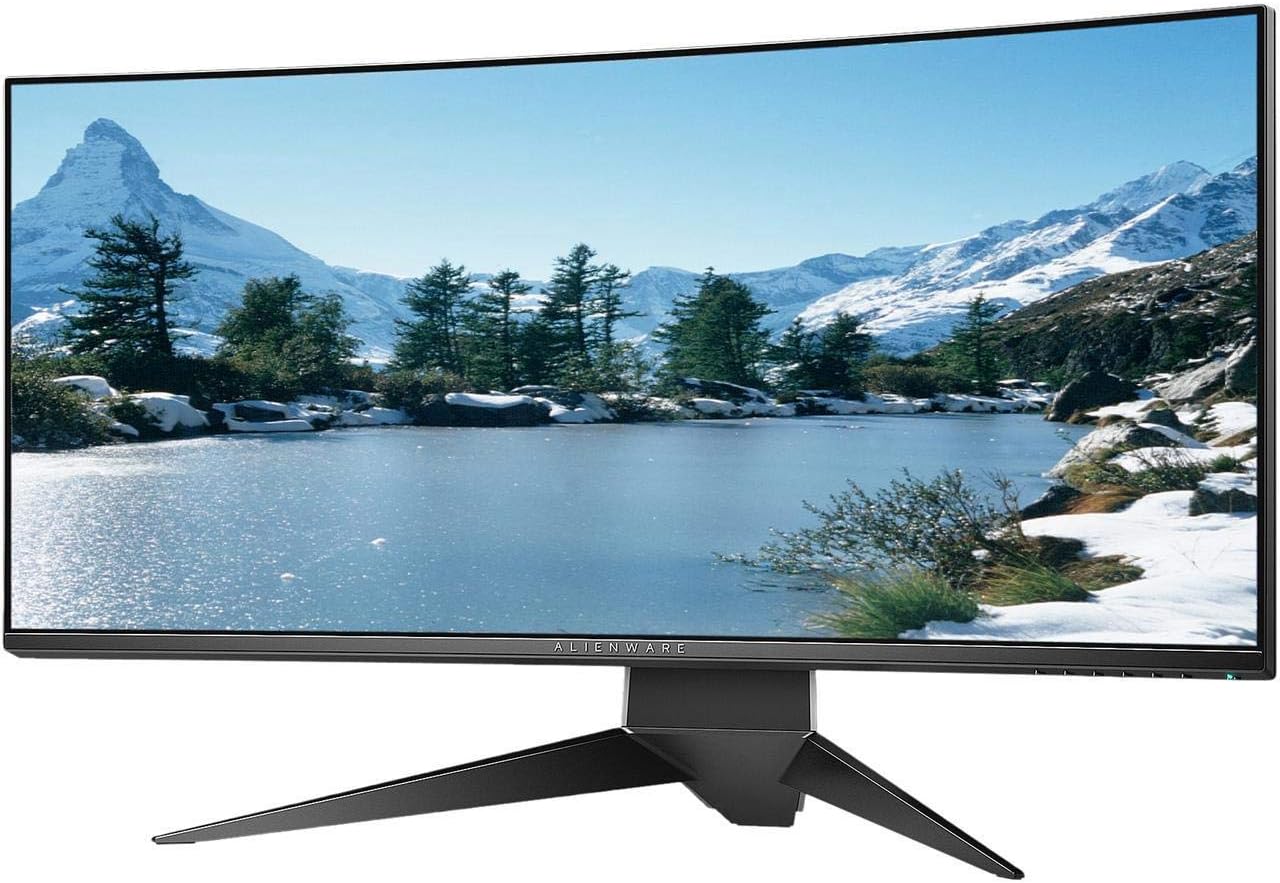
Rycina 4.1: Przód view of the Alienware AW3418DW monitor with its stand attached.

Rysunek 4.2: Strona view of the Alienware AW3418DW monitor with its stand.
Rysunek 4.3: Tył view of the Alienware AW3418DW monitor showing the stand and AlienFX lighting.
Montaż VESA
The monitor supports VESA mounting (100 x 100 mm). Remove the stand riser by pressing the release button and then attach the VESA-compatible mount to the monitor using appropriate screws. Ensure the mount can support the monitor's weight of 26.1 pounds (without stand).

Figure 4.4: Monitor dimensions for VESA mount compatibility.
4.2 Kable połączeniowe
Podłącz niezbędne kable do monitora i komputera.
- Przewód zasilający: Connect the power cable to the monitor's power port and then to a wall outlet.
- Kabel wideo: Connect either the DisplayPort cable or the HDMI cable from your computer's graphics card to the corresponding port on the monitor. For optimal performance, especially for 120Hz refresh rate and G-SYNC, use the DisplayPort connection.
- Kabel USB do przesyłania danych: Connect the USB 3.0 upstream cable from your computer to the monitor's upstream USB port to enable the monitor's USB hub functionality.
- Porty USB Downstream: Connect your USB devices (e.g., keyboard, mouse, webcam) to the four USB 3.0 downstream ports on the monitor.
5. Instrukcja obsługi
5.1 Włączanie/wyłączanie zasilania
Press the power button located on the monitor to turn it on or off. The power LED will indicate the monitor's status.
5.2 Nawigacja na ekranie (OSD)
The On-Screen Display (OSD) menu allows you to adjust various monitor settings. Use the control buttons, typically located on the bottom right or rear of the monitor, to navigate the OSD.
- Press a control button to activate the OSD menu.
- Use the navigation buttons (up/down/left/right) to move through menu options.
- Naciśnij przycisk wyboru, aby potwierdzić wybór lub wejść do podmenu.
- Use the back/exit button to return to the previous menu or exit the OSD.
5.3 Ustawienia wyświetlania
Dostosuj ustawienia wyświetlania do optymalnych viewing and gaming performance.
- Rezolucja: Set your computer's display resolution to 3440x1440 for the native WQHD experience.
- Częstotliwość odświeżania: The monitor supports up to 120Hz refresh rate (overclocked). Ensure your graphics card drivers are updated and the refresh rate is set in your operating system's display settings or graphics control panel.
- NVIDIA G-SYNC: For tear-free and smooth gameplay, enable G-SYNC in your NVIDIA Control Panel. This feature synchronizes the monitor's refresh rate with your GPU's frame rate.
- Jasność/Kontrast: Adjust these settings in the OSD menu to suit your environment and preference.
5.4 AlienFX Lighting
Customize the AlienFX lighting zones on your monitor through the OSD menu or Alienware Command Center software (if installed on your PC). You can select colors, effects, and synchronize lighting with other Alienware devices.
5.5 USB Hub Usage
The monitor acts as a USB 3.0 hub, providing convenient access to four downstream USB ports for connecting peripherals. Ensure the USB upstream cable is connected to your computer for this feature to function.
6. Konserwacja
6.1 Czyszczenie monitora
- Always unplug the monitor from the electrical outlet before cleaning.
- Delikatnie użyj miękkiej, niestrzępiącej się szmatki dampCzyścić wodą lub nieściernym środkiem do czyszczenia ekranów.
- Nie rozpylać środka czyszczącego bezpośrednio na ekran.
- Delikatnie przetrzyj ekran, aby usunąć kurz i smugi.
- Wyczyść zewnętrzną częśćasinmiękką, suchą szmatką.
6.2 Przechowywanie
If storing the monitor for an extended period, disconnect all cables, carefully disassemble the stand (if applicable), and store it in its original packaging in a cool, dry place.
7. Rozwiązywanie Problemów
Jeśli masz problemy z monitorem, zapoznaj się z poniższymi typowymi procedurami rozwiązywania problemów:
- Brak wyświetlacza: Ensure all power and video cables are securely connected. Check if the monitor is powered on and the correct input source is selected in the OSD.
- Flickering/Stuttering: Verify that your graphics drivers are up to date. Ensure G-SYNC is properly configured in the NVIDIA Control Panel. Check for interference from other electronic devices.
- Nieprawidłowa rozdzielczość/częstotliwość odświeżania: Adjust the display settings in your operating system or graphics control panel to the native resolution (3440x1440) and desired refresh rate (up to 120Hz).
- Martwe piksele: The Alienware AW3418DW comes with a Premium Panel Guarantee. Refer to the warranty information for details on pixel policy.
- Porty USB nie działają: Sprawdź, czy kabel USB 3.0 jest podłączony do monitora i komputera.
8. Specyfikacje
| Funkcja | Specyfikacja |
|---|---|
| Marka | Oprogramowanie Alienware |
| Numer modelu | AW3418DW |
| Rozmiar ekranu | 34.1 cali |
| Rezolucja | WQHD (3440 x 1440 pikseli) |
| Proporcje obrazu | 21:9 |
| Częstotliwość odświeżania | 120 Hz (Overclocked) |
| Czas reakcji | 4 milisekund |
| Technologia adaptacyjnej synchronizacji | NVIDIA G-SYNC |
| Typ wyświetlacza | LED IPS |
| Krzywizna | 1900R |
| Jasność | 300 cd/m² |
| Współczynnik kontrastu | 1000:1 |
| Viewing kąt | 178 stopni |
| Łączność | 1x DisplayPort (1.2), 1x HDMI (1.4), 4x USB 3.0 Downstream, 1x USB 3.0 Upstream |
| Waga przedmiotu | 26.1 funta (bez stojaka) |
| Typ montażu | VESA Compatible (100 x 100 mm) |
9. Gwarancja i wsparcie
Your Alienware AW3418DW monitor is covered by a 3 Years Limited Hardware Warranty I 3 Years Advance Exchange Service, w tym Premium Panel Guarantee. The Premium Panel Guarantee ensures a free panel replacement during the limited hardware warranty period even if only one bright pixel is found.
For technical support, warranty claims, or additional information, please visit the official Alienware or Dell support website. You may also find updated drivers and firmware there.
Wsparcie online: www.dell.com/support