
1. Koniec produktuview
The Brother MFC-J430W is a compact, wireless all-in-one inkjet printer designed for home or small office use. It integrates printing, scanning, copying, and faxing capabilities into a single device. Its wireless networking feature helps reduce cable clutter, allowing for flexible placement.
Główne cechy obejmują:
- Wireless connectivity for easy setup and shared use.
- Fast printing speeds: up to 10 pages per minute in black, 8 in color (ISO standard).
- 20-sheet automatic document feeder (ADF) for efficient multi-page scanning, copying, and faxing.
- 1.9-inch color screen for previewprzeglądanie zdjęć i nawigowanie po menu.
- High-resolution printing up to 6000 x 1200 dpi for professional-quality output.
- Energy Star compliant design for energy efficiency.
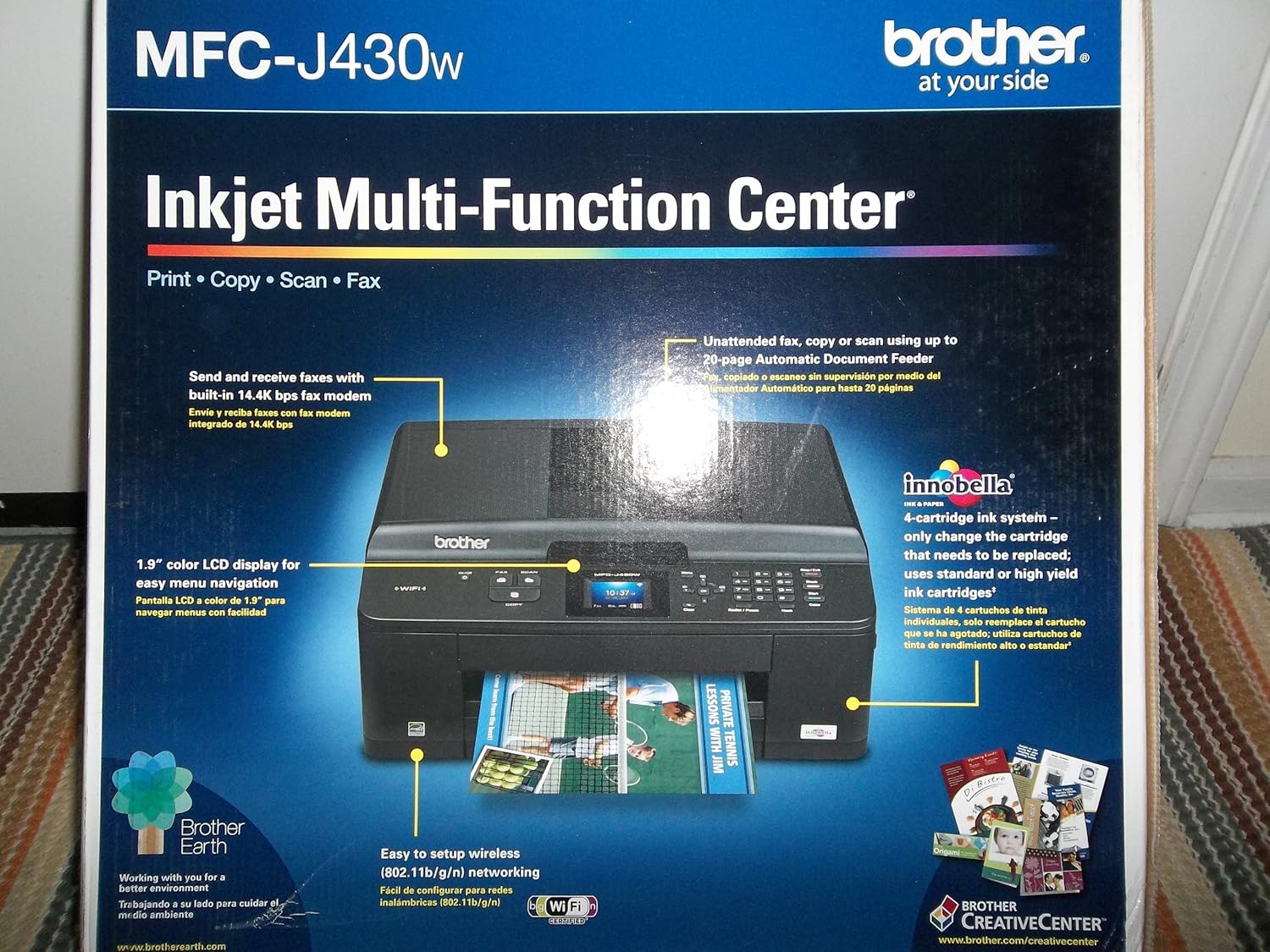
Rycina 1.1: Przód view of the Brother MFC-J430W packaging, highlighting key features like wireless connectivity and the 1.9-inch color LCD.
2. Przewodnik konfiguracji
2.1 Rozpakowanie i początkowe rozmieszczenie
Carefully remove the printer from its packaging. Ensure all protective tapes and packing materials are removed from the exterior and interior of the device. Place the printer on a stable, flat surface with adequate space for paper trays and cable connections.
2.2 Połączenie zasilania
Connect the power cord to the printer and then to a grounded electrical outlet. Do not connect the USB cable yet if you plan to use a USB connection.
2.3 Instalacja wkładu atramentowego
Open the ink cartridge cover and install the included ink cartridges into their corresponding slots. Ensure each cartridge clicks into place. The MFC-J430W uses separate ink cartridges for each color (Black, Cyan, Magenta, Yellow).
2.4 Ładowanie papieru
Open the paper tray and load paper. The printer supports various paper sizes including Letter, Legal, Executive, A4, and photo sizes (4"x6", 3.5"x5", 5"x7", 5"x8", 8"x10"). Ensure the paper guides are adjusted to fit the paper size snugly.
2.5 Instalacja oprogramowania i sterowników
For wireless setup, follow the on-screen instructions on the printer's 1.9-inch color LCD. For a wired connection, connect the USB cable to the printer's USB port, which is located under the scanner bed. Install the printer drivers and software from the provided CD-ROM or download the latest versions from the official Brother support website. The printer supports Windows and Mac operating systems.

Rysunek 2.1: Tył view of the Brother MFC-J430W packaging, detailing system requirements and wireless networking capabilities.
3. Instrukcja obsługi
3.1 Drukowanie
To print a document or photo, select the print option from your computer's application. Choose the Brother MFC-J430W as your printer and adjust settings such as paper size, print quality, and color options as needed. The printer supports both black and white and color printing.
3.2 Kopiowanie
Place the document face down on the scanner glass or face up in the Automatic Document Feeder (ADF). Use the printer's control panel to select the "Copy" function. You can adjust settings like number of copies, zoom, and quality before initiating the copy process. The ADF can handle up to 20 sheets for unattended copying.
3.3 Skanowanie
Documents can be scanned using either the flatbed scanner or the ADF. Select the "Scan" function from the printer's control panel or initiate a scan from your computer using the installed software. Scanned documents can be saved to your computer as various file types, including PDF.
3.4 Faksowanie
The MFC-J430W includes a built-in 14.4K bps fax modem. To send a fax, place the document on the scanner glass or in the ADF. Enter the recipient's fax number using the control panel and press the "Fax" button. Ensure your phone line is connected to the printer's LINE jack.
4. Konserwacja
4.1 Wymiana wkładów atramentowych
When an ink cartridge is low or empty, a message will appear on the printer's display. To replace, open the ink cartridge cover, press the release lever for the empty cartridge, and remove it. Insert a new genuine Brother ink cartridge firmly until it clicks into place. Close the cover.
4.2 Czyszczenie głowicy drukującej
If print quality deteriorates (e.g., missing lines, streaky prints), the print head may need cleaning. Access the cleaning utility through the printer's control panel menu or the printer driver on your computer. Perform a nozzle check first to confirm the issue, then run the cleaning cycle. Multiple cleaning cycles may be required for severe clogs.
4.3 Cleaning the Scanner Glass and ADF
Regularly clean the scanner glass and the white plastic strip under the ADF cover with a soft, lint-free cloth dampened with a mild glass cleaner. This prevents streaks and smudges on scanned or copied documents.
5. Rozwiązywanie Problemów
5.1 Drukarka nie odpowiada
- Sprawdź, czy drukarka jest włączona i podłączona do komputera lub sieci.
- Sprawdź, czy na wyświetlaczu drukarki nie pojawiły się żadne komunikaty o błędach.
- Sprawdź, czy w oknie dialogowym drukowania na Twoim komputerze wybrana została właściwa drukarka.
- Uruchom ponownie drukarkę i komputer.
5.2 Print Quality Issues (Streaks, Faded Prints)
- Sprawdź poziom tuszu i wymień wkłady, których poziom jest niski lub są puste.
- Perform a print head cleaning cycle (refer to Section 4.2).
- Upewnij się, że używasz papieru odpowiedniego do ustawień drukowania.
5.3 Zacięcia papieru
- Wyłącz drukarkę i odłącz ją od zasilania.
- Carefully open all covers and remove any jammed paper, pulling in the direction of the paper path.
- Upewnij się, że w środku nie pozostały żadne małe skrawki papieru.
- Zamknij wszystkie pokrywy, podłącz drukarkę do zasilania i włącz ją.
5.4 Ink Cartridge Not Recognized
If the printer displays a message indicating an ink cartridge cannot be read, first ensure the cartridge is correctly installed. Remove and reinsert the cartridge firmly. If the issue persists, try a new genuine Brother cartridge. Ensure the cartridge is not expired or damaged.
5.5 Problemy z połączeniem bezprzewodowym
- Verify that your Wi-Fi router is on and functioning correctly.
- Upewnij się, że drukarka znajduje się w zasięgu routera bezprzewodowego.
- Re-enter your Wi-Fi network password on the printer's control panel.
- Consult your router's manual for network settings or interference issues.
6. Specyfikacje
| Funkcja | Specyfikacja |
|---|---|
| Nazwa modelu | MFC-J430W |
| Technologia druku | Atramentowy |
| Funkcje | Drukowanie, kopiowanie, skanowanie, faksowanie |
| Łączność | Wi-Fi, Micro USB 2.0 Type AB |
| Maksymalna prędkość drukowania (czarny) | 33 ppm (monochromatyczny) |
| Maksymalna prędkość drukowania (kolor) | 26 ppm (Color) |
| Rozdzielczość wydruku | Do 6000 x 1200 dpi |
| Automatyczny podajnik dokumentów (ADF) | 20 arkuszy |
| Wyświetlacz | 1.9-calowy kolorowy wyświetlacz LCD |
| Rozmiar obsługiwanego papieru | Letter, Legal, Executive, Envelope, A4, Photo (various sizes) |
| Pojemność arkuszy wejściowych | 15 sheets (Max Input) |
| Waga przedmiotu | 19.8 funta |
| Wymiary produktu | 14.9 x 7.1 x 15.9 cala |
| Pojemność pamięci masowej | 40 MB |
| Pobór mocy | 430 watów (maks.) |
7. Gwarancja i wsparcie
The Brother MFC-J430W comes with a Limited Warranty. For specific warranty terms and conditions, please refer to the documentation included with your product or visit the official Brother support webstrona.
Aby uzyskać pomoc techniczną, pobrać sterowniki i zapoznać się z odpowiedziami na często zadawane pytania, odwiedź stronę Wsparcie Brata Webstrona. You may also contact Brother customer service for further assistance.
W chwili obecnej sprzedawca nie udostępnił żadnego oficjalnego filmu prezentującego ten model.