BlackBerry BB 9900 Bold Touch Smartphone User Manual
Model: BB 9900
1. Wprowadzenie
This manual provides essential instructions for setting up, operating, and maintaining your BlackBerry BB 9900 Bold Touch smartphone. Please read this guide thoroughly to ensure proper use and to maximize the device's capabilities. The BlackBerry BB 9900 Bold Touch combines a capacitive touchscreen with a full QWERTY keyboard, running on BlackBerry OS 7.
2. Zawartość opakowania
Sprawdź, czy w przesyłce znajdują się następujące elementy:
BlackBerry BB 9900 Bold Touch Smartphone
Akumulator do ponownego ładowania
Ładowarka sieciowa
Kabel USB
Instrukcja obsługi (ten dokument)
3. Urządzenie ponadview
Familiarize yourself with the physical features of your BlackBerry BB 9900 Bold Touch.
3.1 Przód View
Obraz: Przód view of the BlackBerry BB 9900 Bold Touch, highlighting the 2.8-inch touchscreen and the physical QWERTY keyboard below it. The device also features a trackpad and call/end buttons.
Wyświetlacz dotykowy: 2.8-inch capacitive display for interactive navigation.
Klawiatura QWERTY: Full physical keyboard for efficient typing.
Optical Trackpad: For precise navigation and selection.
Przyciski połączenia/zakończenia: Standard telephony controls.
3.2 Tył View
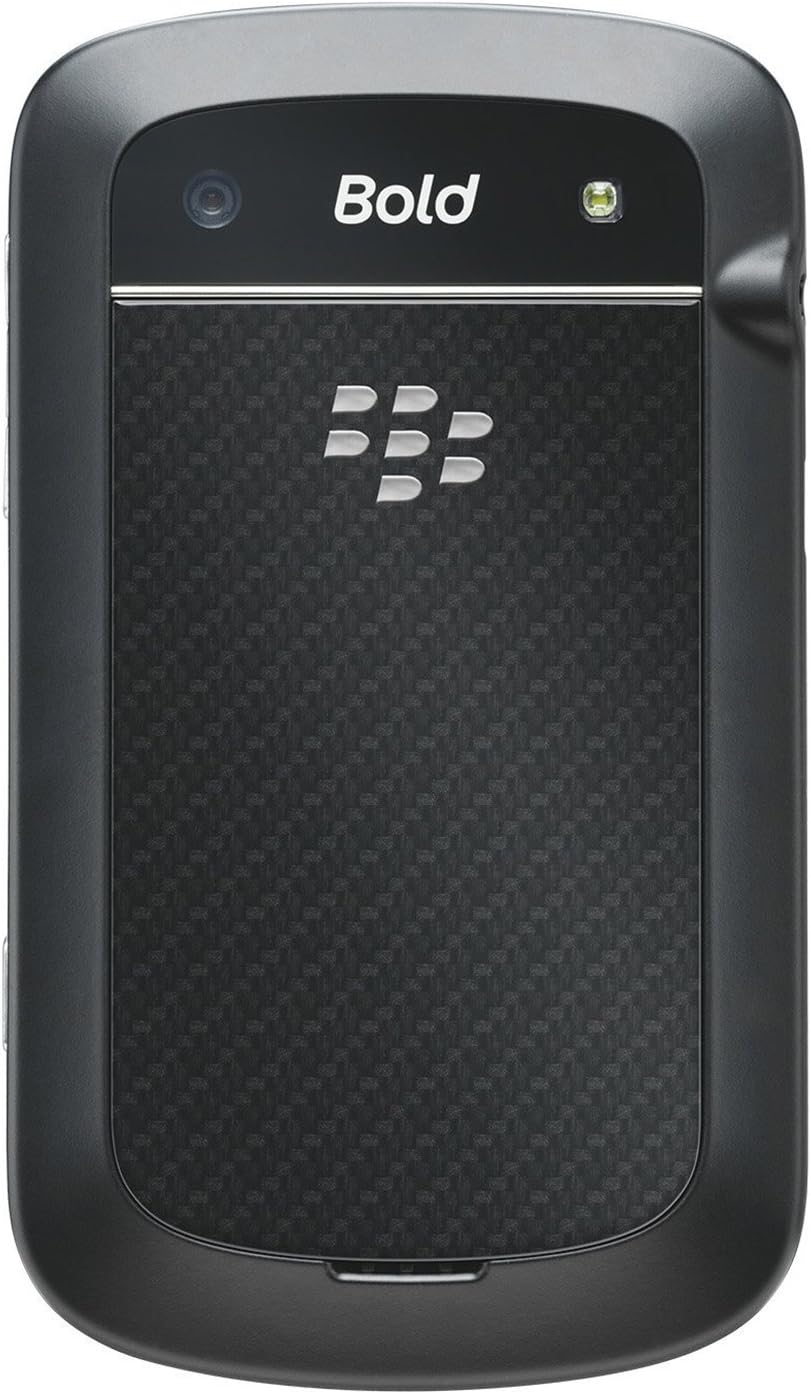
Obraz: Tył view of the BlackBerry BB 9900 Bold Touch, featuring the 5-megapixel camera lens, LED flash, and the BlackBerry logo.
Aparat 5MP: Primary camera with autofocus and LED flash.
Pokrywa baterii: Removable cover for battery and SIM card access.
3.3 Bok View
Obraz: Bok view of the BlackBerry BB 9900 Bold Touch, illustrating the placement of the volume control buttons and a customizable convenience key.
Przyciski głośności: Dostosuj poziom dźwięku.
Convenience Key: Przycisk skrótu z możliwością dostosowania.
4. Konfiguracja
4.1 Wkładanie karty SIM
Zdejmij pokrywę baterii znajdującą się z tyłu urządzenia.
Znajdź gniazdo karty SIM.
Włóż kartę SIM złotymi stykami skierowanymi w dół i tak, aby ścięty róg był wyrównany z gniazdem.
Sprawdź, czy karta SIM jest prawidłowo włożona.
4.2 Wkładanie baterii
After inserting the SIM card, align the battery's gold contacts with the contacts in the battery compartment.
Delikatnie dociśnij baterię, aż usłyszysz kliknięcie.
Załóż z powrotem pokrywę baterii.
4.3 Ładowanie urządzenia
Connect the USB cable to the charging port on your device.
Plug the other end of the USB cable into the wall charger, then into a power outlet.
Przed pierwszym użyciem należy całkowicie naładować urządzenie. Wskaźnik baterii na ekranie pokaże stan ładowania.
4.4 Włączanie/wyłączanie
Włączanie: Press and hold the Power/Lock button (usually located on the top edge) until the BlackBerry logo appears.
Aby wyłączyć: Press and hold the Power/Lock button until the 'Power Off' option appears on the screen. Tap 'Power Off' to confirm.
5. Instrukcja obsługi
5.1 Nawigacja za pomocą ekranu dotykowego
Uzyskiwać: Touch the screen briefly to open applications, select items, or activate buttons.
Trzepnąć: Drag your finger across the screen to scroll through lists or switch between home screen panels.
Powiększanie za pomocą szczypania: Use two fingers to zoom in or out on photos, web strony lub mapy.
5.2 Using the QWERTY Keyboard
The physical QWERTY keyboard allows for fast and accurate text entry. Each key corresponds to a letter, number, or symbol. Use the 'Alt' key for alternate characters and the 'Shift' key for capitalization.
5.3 Wykonywanie połączeń
From the home screen, tap the Phone icon or press the green Call button.
Enter the phone number using the keyboard.
Press the green Call button to initiate the call.
To end a call, press the red End Call button.
5.4 Wysyłanie wiadomości
Tap the Messages icon from the home screen.
Select 'Compose New' or similar option.
Wprowadź numer odbiorcy lub wybierz go z kontaktów.
Wpisz swoją wiadomość za pomocą klawiatury QWERTY.
Tap 'Send'.
5.5 Korzystanie z aparatu
Kliknij ikonę aparatu, aby otworzyć aplikację aparatu.
Skadruj ujęcie, używając ekranu jako viewznalazca.
Tap the screen or press the convenience key (if configured) to take a photo.
The 5MP camera features autofocus and an LED flash for improved image quality.
5.6 Łączenie z Wi-Fi
Go to 'Options' > 'Networks and Connections' > 'Wi-Fi'.
Turn Wi-Fi on. The device will scan for available networks.
Wybierz żądaną sieć i wpisz hasło, jeśli zostaniesz o to poproszony.
Once connected, the Wi-Fi indicator will appear in the status bar.
5.7 Using NFC (Near Field Communication)
The BlackBerry BB 9900 Bold Touch supports NFC for short-range wireless communication. This allows for quick pairing with compatible accessories or sharing data with other NFC-enabled devices by tapping them together.
Sprawdź, czy w ustawieniach urządzenia włączona jest funkcja NFC.
Hold your device close to another NFC-enabled device or tag.
Follow on-screen prompts to complete the desired action (e.g., pairing, data transfer).
6. Konserwacja
6.1 Czyszczenie urządzenia
Use a soft, lint-free cloth to wipe the screen and body of the device.
Unikaj stosowania silnych środków chemicznych, ściernych środków czyszczących i aerozoli.
Nie narażaj urządzenia na działanie nadmiernej wilgoci.
6.2 Pielęgnacja baterii
Unikaj ekstremalnych temperatur, które mogą obniżyć wydajność akumulatora.
Używaj wyłącznie oryginalnej lub zatwierdzonej ładowarki.
Nie przekłuwaj ani nie uszkadzaj akumulatora.
6.3 Aktualizacje oprogramowania
Periodically check for software updates to ensure your device has the latest features and security enhancements. Updates can typically be found in the device's 'Options' or 'Settings' menu under 'Software Updates'.
7. Rozwiązywanie Problemów
7.1 Urządzenie się nie włącza
Upewnij się, że bateria jest prawidłowo włożona i naładowana.
Podłącz urządzenie do ładowarki i odczekaj kilka minut przed ponowną próbą włączenia.
Jeśli problem nadal występuje, spróbuj wyjąć i ponownie włożyć baterię.
7.2 Problemy z łącznością sieciową
Check if your SIM card is correctly inserted and activated with your carrier.
Verify that cellular data or Wi-Fi is enabled in your device settings.
Uruchom ponownie urządzenie.
If using Wi-Fi, ensure your router is working and you have entered the correct password.
7.3 Ekran dotykowy nie reaguje
Uruchom ponownie urządzenie.
Upewnij się, że ekran jest czysty i wolny od zanieczyszczeń i wilgoci.
If the issue is intermittent, check for any recent software installations that might be causing conflicts.
8. Specyfikacje
Funkcja
Szczegół
Nazwa modelu
BB-9900
System operacyjny
BlackBerry OS 7
Wyświetlacz
2.8-inch Capacitive Touchscreen, 640 x 480 Resolution
Edytor
Not specified (typically 1.2 GHz for this model)
BARAN
768 MB
Pamięć wewnętrzna
8 GB
Kamera tylna
5 MP, Autofocus, LED Flash
Łączność
Wi-Fi 802.11 b/g/n, NFC, Bluetooth, GPS
Wsparcie sieciowe
Quad-band GSM/GPRS/EDGE, Tri-band HSPA+
Wymiary
4.53 x 2.6 x 0.41 cala (115 x 66 x 10.5 mm)
Waga
4.6 uncji (130 grama)
Gniazdo audio
3.5 mm
9. Wsparcie i gwarancja
9.1 Obsługa klienta
For technical assistance, troubleshooting beyond this manual, or service inquiries, please visit the official BlackBerry support website or contact your local service provider. Refer to the packaging or official webodwiedź naszą stronę, aby uzyskać szczegółowe dane kontaktowe.
9.2 Informacje o gwarancji
Your BlackBerry BB 9900 Bold Touch is covered by a limited warranty. Please refer to the warranty card included in your product packaging or visit the official BlackBerry webSzczegółowe warunki, w tym okres gwarancji i zakres ochrony, znajdziesz na stronie. Zachowaj dowód zakupu na wypadek roszczeń gwarancyjnych.
Ask a question about this manual
Ask about setup, troubleshooting, compatibility, parts, safety, or missing instructions. Manuals+ will review the question and use this page’s manual context to help answer it.