
Wstęp
The ADATA S102PRO is a high-performance USB 3.0 flash drive designed for fast and reliable data storage and transfer. Its durable design and high-speed interface make it ideal for everyday use, allowing you to carry important files, documents, photos, and videos with ease.
Organizować coś
Follow these steps to begin using your ADATA S102PRO USB Flash Drive:
- Zidentyfikuj port USB: Locate an available USB port on your computer. For optimal performance, use a USB 3.0 port (often colored blue internally). The ADATA S102PRO is backward compatible with USB 2.0 ports, but data transfer speeds will be limited to USB 2.0 rates.
- Zdejmij nasadkę: Carefully remove the protective cap from the USB flash drive to expose the USB connector.
- Włóż dysk: Insert the USB connector firmly into the USB port on your computer. Ensure it is inserted correctly; do not force it.
- Rozpoznawanie systemu: Your operating system (Windows, macOS, Linux) should automatically detect and install the necessary drivers. A notification may appear indicating that the device is ready for use. The drive will typically appear as a removable disk or volume in your file odkrywca.
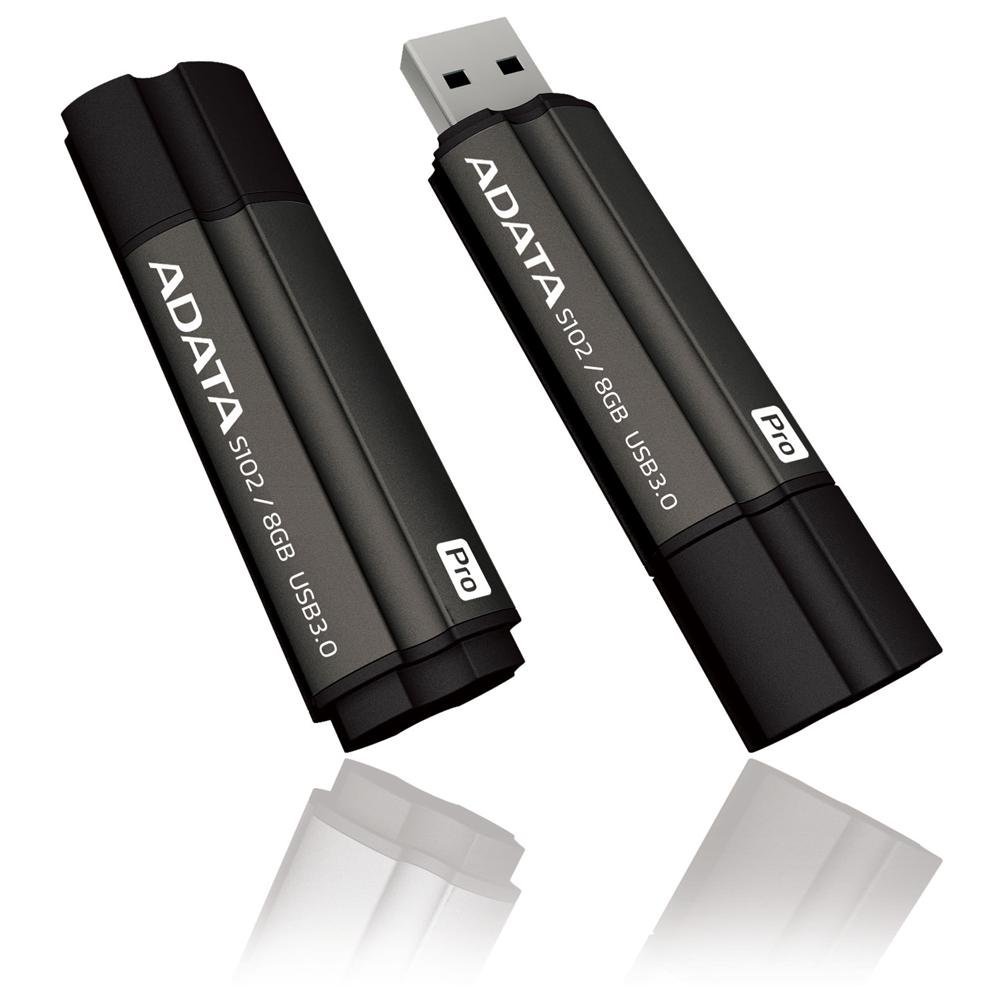
Image: The ADATA S102PRO USB Flash Drive shown with its protective cap on and with the cap removed, revealing the USB 3.0 connector. This illustrates the physical appearance and how to prepare the drive for insertion.
Operacyjny
Once the ADATA S102PRO is recognized by your computer, you can begin transferring files:
- Dostęp do dysku:
- Okna: Open "This PC" or "My Computer" and locate the drive listed under "Devices and drives" (e.g., "Removable Disk" or a drive letter like E:).
- MacOS: The drive icon will appear on your desktop or in the Finder sidebar under "Locations."
- Przenoszenie Files:
- Kopiować files Do the flash drive, drag and drop them from your computer's folders into the flash drive's window.
- Kopiować files z the flash drive, drag and drop them from the flash drive's window to a folder on your computer.
- You can also use the standard copy (Ctrl+C / Command+C) and paste (Ctrl+V / Command+V) functions.
- Bezpieczne usuwanie dysku: Przed fizycznym wyjęciem dysku flash należy go bezpiecznie wyjąć, aby zapobiec uszkodzeniu danych.
- Okna: Click the "Safely Remove Hardware and Eject Media" icon in the system tray (bottom-right corner), then select your flash drive and click "Eject." Wait for the "Safe to Remove Hardware" message.
- MacOS: Drag the drive icon from the desktop to the Trash, or click the Eject button next to the drive name in the Finder sidebar. Wait for the icon to disappear before removing the drive.
Konserwacja
Proper care will help ensure the longevity and reliability of your ADATA S102PRO USB Flash Drive:
- Protect the Connector: Always keep the protective cap on the USB connector when the drive is not in use to prevent dust, dirt, and physical damage.
- Unikaj ekstremalnych warunków: Do not expose the drive to extreme temperatures, direct sunlight, high humidity, or strong magnetic fields.
- Zachowaj ostrożność: Avoid dropping the drive or subjecting it to strong impacts.
- Do Not Remove During Transfer: Never unplug the drive while data is being read from or written to it. Always follow the safe removal procedure.
- Regularne kopie zapasowe: While flash drives are reliable, it is always recommended to back up critical data to another storage device or cloud service.
Rozwiązywanie problemów
If you encounter issues with your ADATA S102PRO, try the following solutions:
- Napęd nie został rozpoznany:
- Sprawdź, czy dysk jest całkowicie włożony do portu USB.
- Wypróbuj inny port USB na swoim komputerze.
- Przetestuj dysk na innym komputerze, aby wykluczyć problem związany z danym komputerem.
- Check your computer's Device Manager (Windows) or System Information (macOS) to see if the drive is listed, even if it doesn't appear in File Explorer/Finder.
- Niska prędkość transferu:
- Ensure you are connected to a USB 3.0 port for optimal performance. USB 2.0 ports will limit speeds.
- Przenoszenie wielu małych filemoże być wolniejsze niż przesyłanie kilku dużych files.
- Zamknij inne aplikacje, które mogą używać zasobów systemowych lub wykonywać operacje na dysku.
- Nie można pisać Files do jazdy:
- Sprawdź, czy dysk jest pełny. Usuń niepotrzebne. files or transfer them to another location.
- Zapewnij file system (e.g., FAT32, NTFS, exFAT) is compatible with your operating system and allows writing. If formatted as NTFS on macOS, you may only have read access without third-party software.
- Check for any software-based write protection or permissions issues on your computer.
Specyfikacje
| Marka | Dane |
| Nazwa modelu | S102PRO |
| Numer modelu | AT806-4G-CPK |
| Pojemność pamięci masowej | 4 GB |
| Interfejs sprzętowy | USB 3.0 (Backward compatible with USB 2.0) |
| Producent | A-DATA TECHNOLOGY (USA) CO. L |
| UPC | 842243005080 |
| ASIN | B004AVOGW8 |
Gwarancja i wsparcie
For detailed warranty information, product registration, and technical support, please visit the official ADATA webwitryny. Zazwyczaj można tam znaleźć zasoby pomocy technicznej, odpowiedzi na często zadawane pytania i dane kontaktowe do działu obsługi klienta.
Oficjalny ADATA Webstrona: www.adata.com