
TP-Link TL-MR3420 Wireless N300 3G/4G Router User Manual
Model: TL-MR3420
1. Wprowadzenie
The TP-Link TL-MR3420 Wireless N300 3G/4G Router is designed to share a 3G/4G mobile broadband connection wirelessly. By connecting a compatible UMTS/HSPA/EVDO USB modem to the router, a Wi-Fi hotspot is instantly established, allowing multiple devices to access the internet. This router also features a 3G/WAN connection backup strategy, ensuring a continuous internet connection by switching between 3G/4G and WAN (Ethernet) connections as needed. It supports wireless N speeds of up to 300Mbps, suitable for various online activities.
2. Zawartość opakowania
- TP-Link TL-MR3420 Wireless N300 3G/4G Router
- Zasilacz
- Kabel Ethernet
- Szybki przewodnik instalacji
3. Koniec sprzętuview
3.1 Front Panel and LEDs
The front panel of the router features LED indicators that provide information about the device's status, including power, system, WLAN, WAN, LAN, and 3G/4G connection status.

Obraz: Przód view of the TL-MR3420 router, showing the TP-Link logo and status LEDs.
3.2 Side Panel (USB Port)
The side panel includes a USB 2.0 port, primarily used for connecting a compatible 3G/4G USB modem.
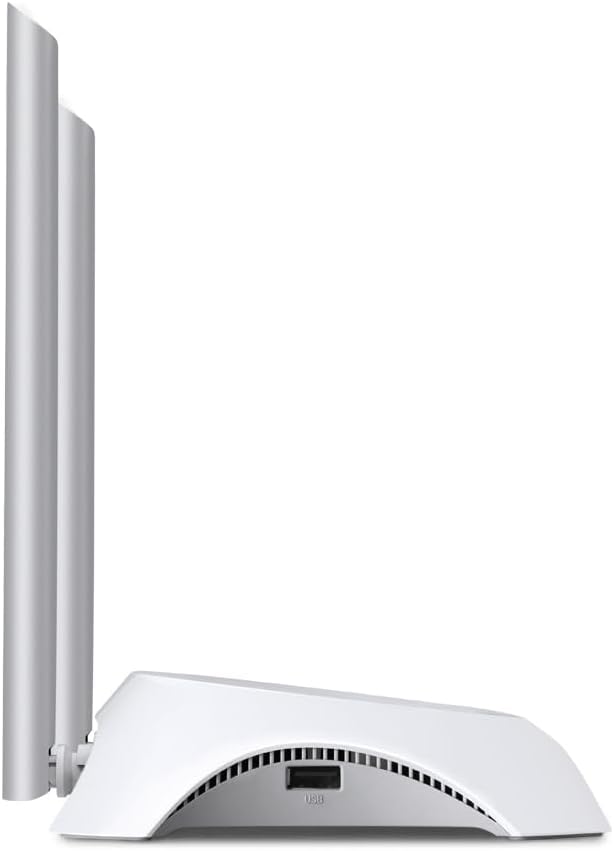
Obraz: Bok view of the TL-MR3420 router, highlighting the USB port for modem connection.
3.3 Rear Panel (Ports and Buttons)
The rear panel provides various ports and buttons for connectivity and control.
- Port zasilania: Łączy się z zasilaczem.
- Przycisk włączania/wyłączania zasilania: Włącza lub wyłącza router.
- Port WAN (niebieski): Connects to a DSL/Cable modem for traditional internet access.
- Porty LAN (żółte): Four ports for connecting wired devices like computers or switches.
- Przycisk WPS/Reset: Naciśnij, aby uruchomić funkcję WPS; naciśnij i przytrzymaj, aby przywrócić ustawienia fabryczne.
- Złącza antenowe: For attaching the two external antennas.

Obraz: Tył view of the TL-MR3420 router, displaying the power port, WAN port, LAN ports, WPS/Reset button, and antenna connectors.
4. Przewodnik konfiguracji
4.1 połączenie fizyczne
- Dołącz anteny: Screw the two detachable antennas firmly into their connectors on the rear panel.
- Connect 3G/4G USB Modem: Insert your compatible 3G/4G USB modem into the USB port on the side of the router.
- Włączanie: Connect the power adapter to the router's power port and plug it into a wall outlet. Press the Power On/Off button if necessary.
- (Optional) Connect to WAN: If using a wired internet connection as a backup or primary, connect an Ethernet cable from your DSL/Cable modem to the blue WAN port on the router.
- (Opcjonalnie) Podłącz urządzenia przewodowe: Connect your computer or other wired devices to the yellow LAN ports using Ethernet cables.

Image: The TL-MR3420 router with a 3G USB modem connected to its side USB port.
4.2 Konfiguracja początkowa (Web Berło)
- Połącz się z routerem: Connect your computer to the router either via an Ethernet cable to a LAN port or wirelessly using the default Wi-Fi SSID printed on the router's label (e.g., TP-Link_XXXX).
- Dostęp Web Przeglądarka: Otwórz web przeglądarkę (np. Chrome, Firefox) i typ
http://tplinkwifi.netorhttp://192.168.0.1(Lubhttp://192.168.1.1) w pasku adresu. Naciśnij Enter. - Login: Wprowadź domyślną nazwę użytkownika i hasło, które są zazwyczaj
adminfor both. If these do not work, check the label on the bottom of your router. - Uruchom szybką konfigurację: Postępuj zgodnie z wyświetlanymi na ekranie instrukcjami Kreatora szybkiej konfiguracji, aby skonfigurować połączenie internetowe i ustawienia sieci bezprzewodowej.
4.3 3G/4G Connection Setup
During the Quick Setup, select Router 3G/4G mode. The router will automatically detect your USB modem. You may need to select your region and ISP, and enter APN (Access Point Name) details if prompted. Ensure your 3G/4G USB modem is compatible with the TL-MR3420.
4.4 WAN Connection Setup (Optional)
If you are using a wired internet connection, configure the WAN settings. This can be done via Dynamic IP, Static IP, or PPPoE, depending on your Internet Service Provider (ISP) requirements. The TL-MR3420 supports a 3G/WAN failover strategy, allowing you to set a preferred connection (3G/4G or WAN) and use the other as a backup.
4.5 Konfiguracja sieci bezprzewodowej
Set your desired Wireless Network Name (SSID) and a strong password (WPA/WPA2 Personal recommended) for your Wi-Fi network. This will secure your wireless connection.
5. Obsługa routera
5.1 Zrozumienie wskaźników LED
| PROWADZONY | Status | Wskazanie |
|---|---|---|
| Moc | On | Router is powered on. |
| System | Błyskowy | Ruter działa normalnie. |
| Sieć bezprzewodowa | Świeci/miga | Wireless function is enabled/data is being transmitted. |
| BLADY | Świeci/miga | WAN port is connected/data is being transmitted. |
| LAN (1-4) | Świeci/miga | Corresponding LAN port is connected/data is being transmitted. |
| 3G/4G | Świeci/miga | 3G/4G modem is connected and working/data is being transmitted. |
5.2 Podłączanie urządzeń
- Bezprzewodowe urządzenia: Szukaj your Wi-Fi network (SSID) on your device and enter the password you configured.
- Urządzenia przewodowe: Connect an Ethernet cable from your device to any of the yellow LAN ports on the router.
5.3 3G/WAN Failover
The router can be configured to use either 3G/4G or WAN as the primary internet connection, with the other serving as a backup. If the primary connection fails, the router will automatically switch to the backup, ensuring continuous internet access. This setting can be managed in the router's web interface under Network > WAN Backup.
6. Konserwacja
6.1 Aktualizacja oprogramowania
Regularnie sprawdzaj dostępność aktualizacji oprogramowania sprzętowego od oficjalnego dostawcy TP-Link i instaluj je website. Firmware updates can improve performance, add new features, and fix bugs. Download the correct firmware for your model and follow the instructions provided on the TP-Link support page for upgrading via the web interface (System Tools > Firmware Upgrade).
6.2 Konfiguracja kopii zapasowej i przywracania
Możesz wykonać kopię zapasową ustawień konfiguracji routera na file on your computer. This allows you to restore your settings quickly after a factory reset or if you need to revert to a previous configuration (System Tools > Backup & Restore).
6.3 Ponowne uruchomienie systemu
If the router is experiencing issues, a simple reboot can often resolve them. You can reboot the router from the web interface (System Tools > Reboot) or by unplugging and replugging the power adapter.
6.4 Przywracanie ustawień fabrycznych
A factory reset will revert all settings to their default values. This can be done by pressing and holding the WPS/Reset button on the rear panel for approximately 5-10 seconds until the System LED flashes rapidly, or via the web interface (System Tools > Factory Defaults).
7. Rozwiązywanie Problemów
- Cannot access the internet:
- Check LED indicators: Ensure Power, System, WLAN, and 3G/4G (or WAN) LEDs are on or flashing correctly.
- Verify physical connections: Ensure all cables are securely connected.
- Check 3G/4G modem: Ensure it is properly inserted and recognized by the router.
- Confirm ISP settings: Verify that your 3G/4G or WAN settings (APN, connection type) are correct in the router's web interfejs.
- Uruchom ponownie router i modem.
- Problemy z połączeniem bezprzewodowym:
- Ensure WLAN LED is on/flashing.
- Verify correct Wi-Fi SSID and password.
- Zbliż się do routera, aby sprawdzić siłę sygnału.
- Change wireless channel in router settings to avoid interference.
- Slow internet speed:
- Check your 3G/4G signal strength or WAN connection speed.
- Ensure no other devices are heavily using bandwidth.
- Zaktualizuj oprogramowanie routera.
8. Specyfikacje
| Funkcja | Szczegół |
|---|---|
| Nazwa modelu | TL-MR3420 |
| standard bezprzewodowy | IEEE 802.11n, 802.11g, 802.11b |
| Prędkość bezprzewodowa | Do 300 Mb/s |
| Pasmo częstotliwości | 2.4 GHz |
| Typ anteny | 2x 5dBi Detachable Omni Directional Antennas |
| Interfejsy | 1x 10/100Mbps WAN Port, 4x 10/100Mbps LAN Ports, 1x USB 2.0 Port |
| Pikolak | WPS/Reset Button, Power On/Off Button |
| Wymiary (szer. x gł. x wys.) | 11.34 x 8.9 x 2.8 cala (wymiary produktu) |
| Waga przedmiotu | 9.5 uncji |
| Zasilacz | 12VDC / 1A (External Power Adapter) |
| Bezpieczeństwo sieci bezprzewodowej | 64/128-bit WEP, WPA/WPA2, WPA-PSK/WPA2-PSK encryption |
| Kompatybilne urządzenia | Personal Computer, UMTS/HSPA/EVDO USB Modems |
9. Gwarancja i wsparcie
9.1 Gwarancja na produkt
The TP-Link TL-MR3420 Wireless N300 3G/4G Router typically comes with a 2-year limited warranty. Please refer to the warranty card included in your package or visit the official TP-Link webAby zapoznać się ze szczegółowymi warunkami gwarancji obowiązującymi w Twoim regionie, odwiedź naszą witrynę.
9.2 Wsparcie techniczne
Aby uzyskać pomoc techniczną, rozwiązać problemy lub zadać dalsze pytania, odwiedź oficjalną stronę pomocy technicznej TP-Link website. You can find FAQs, firmware updates, and contact information for customer support.
- Wsparcie TP-Link Webstrona: www.tp-link.com/support/