1. Produktet er overview
The HP DeskJet 4252e is an all-in-one wireless inkjet printer designed for home and small office environments. It provides printing, scanning, copying, and faxing functionalities. Key features include dual-band Wi-Fi connectivity, an automatic document feeder, and compatibility with the HP Smart App for enhanced control and management.

Bilde 1.1: HP DeskJet 4252e highlighting its core functions: print, copy, scan, and color output.
This printer is engineered for efficiency, offering crisp black text and vibrant color prints. It supports various paper types and sizes, making it suitable for diverse document and creative project needs. The device also incorporates sustainable design principles, utilizing recycled plastics in its construction.

Bilde 1.2: The HP DeskJet 4252e is ideal for home use, supporting simple and affordable printing for everyday documents.
2. Oppsettveiledning
2.1 Utpakking og første plassering
Carefully remove the printer from its packaging. Remove all protective tapes and packing materials from the exterior and interior of the printer. Place the printer on a stable, flat surface with adequate space for paper loading and output. Consider the dimensions for optimal placement:
- Dimensjoner (D x B x H): 16.85 cm x 13.07 cm x 7.87 cm

Bilde 2.1: Physical dimensions of the HP DeskJet 4252e printer for placement planning.
2.2 Strømtilkobling
Connect the power cord to the printer and then to a grounded electrical outlet. Do not connect the printer to a surge protector or extension cord during initial setup.
2.3 Installasjon av blekkpatron
Open the ink cartridge access door. Wait for the carriage to move to the center. Install the HP 67 ink cartridges (black, cyan, magenta, yellow) into their respective slots. Close the access door.
2.4 Programvareinstallasjon og trådløst oppsett
Last ned hp smart app from your device's app store or visit hp.com/smartapp. Follow the on-screen instructions within the app to connect your printer to your dual-band Wi-Fi network. The app will guide you through the remaining setup steps, including driver installation and account creation for features like Instant Ink.

Bilde 2.2: Key components of the HP DeskJet 4252e, including input tray, automatic document feeder, flatbed scanner, and output tray.
3. Bruksanvisning
3.1 Utskrift
Load paper into the 60-sheet input tray. Ensure the paper guides are adjusted to fit the paper size. From your computer or mobile device, select the print option in your application. Choose the HP DeskJet 4252e, adjust print settings (e.g., paper type, quality, color/grayscale), and initiate printing. The printer supports various media sizes including Letter, Legal, 4" x 6", 5" x 7", 8" x 10", and No. 10 Envelopes.
3.2 Skanning
You can scan documents using either the flatbed scanner or the 35-page automatic document feeder (ADF).
- Flatbed: Place a single document or photo face-down on the scanner glass.
- ADM: Load multiple pages face-up into the automatic document feeder.
Use the HP Smart App on your smartphone or tablet, or the scanning software on your computer, to initiate the scan. You can choose to save the scan to your device, email it, or upload it to cloud services.
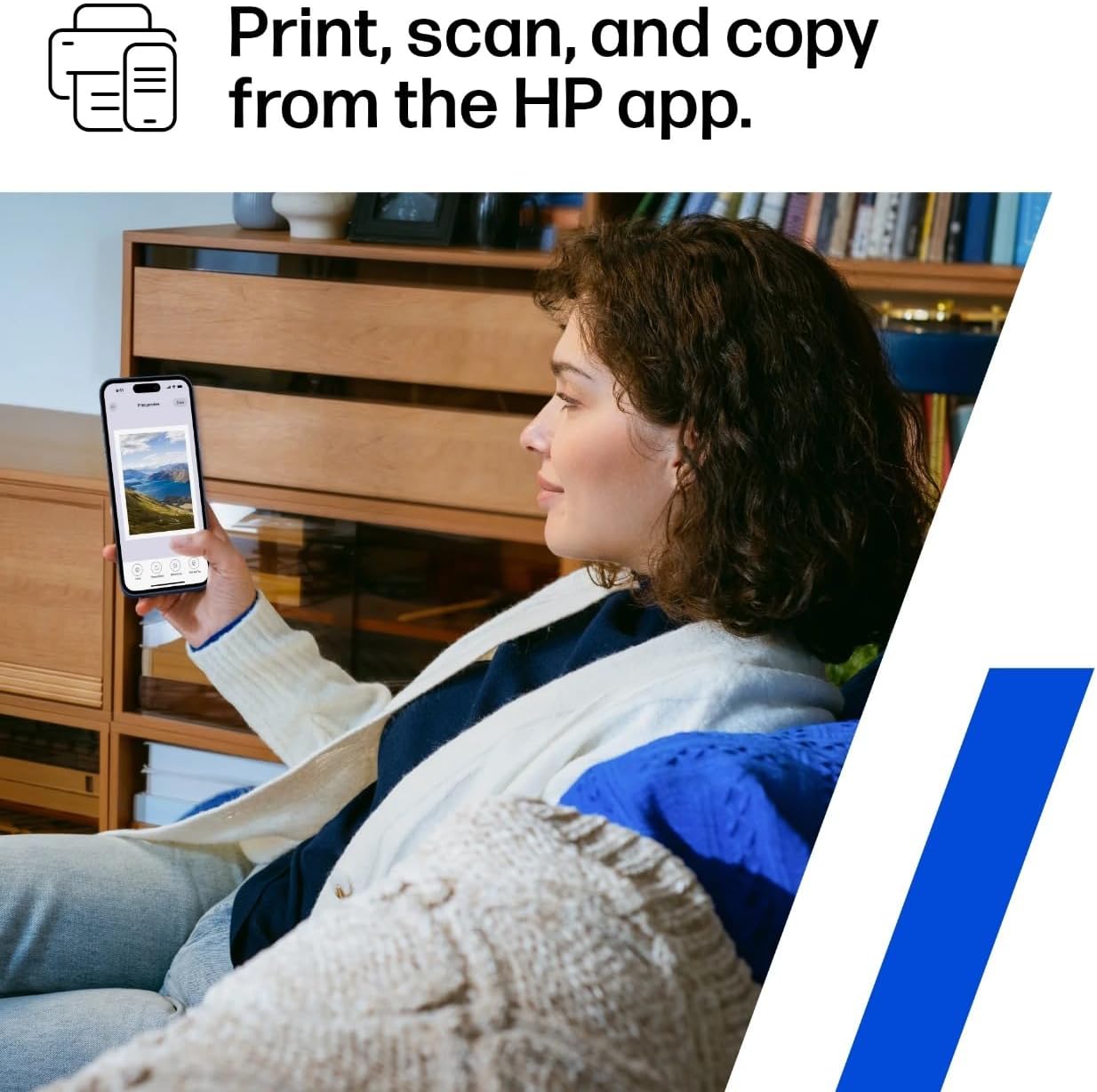
Bilde 3.1: Managing print, scan, and copy tasks directly from the HP Smart App on a mobile device.
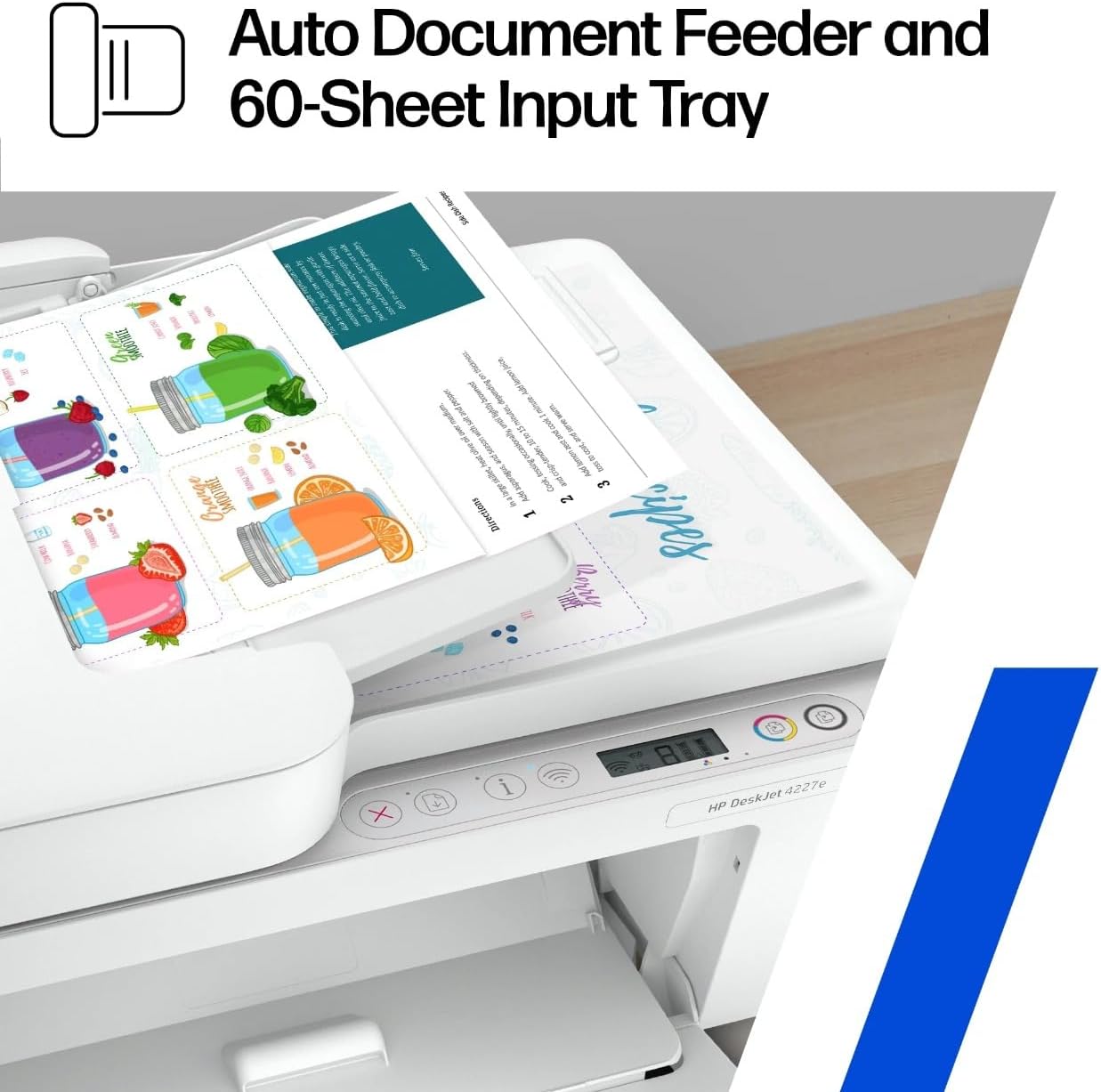
Bilde 3.2: The automatic document feeder and 60-sheet input tray facilitate efficient multi-page handling.
3.3 Kopiering
Place the original document on the scanner glass or in the ADF. On the printer's control panel or via the HP Smart App, select the copy function. Choose the number of copies and whether you want color or black and white. Press the Start Copy button.
3.4 Faksing
Load the document into the ADF or place it on the scanner glass. Enter the recipient's fax number using the printer's control panel or the HP Smart App. Confirm settings and send the fax.
4. Vedlikehold
4.1 Bytte blekkpatroner
When an ink cartridge is low or empty, the printer will display a notification. Open the ink cartridge access door, wait for the carriage to stop, and press down on the empty cartridge to release it. Insert the new HP 67 cartridge into the correct slot until it clicks into place. Close the access door.
4.2 Rengjøre skriveren
- Ytre: Tørk av de utvendige overflatene med en myk, lofri klut.
- Skannerglass: Bruk en myk klut lett dampened with glass cleaner (non-abrasive) to clean the scanner glass.
- ADF-valser: Refer to the HP Smart App or online support for specific instructions on cleaning ADF rollers if paper feed issues occur.
4.3 Fjerne papirstopp
If a paper jam occurs, the printer will display an error message. Carefully open all access doors and remove any jammed paper, pulling gently to avoid tearing. Check the input tray, output tray, and rear access area. Close all doors and resume printing.
4.4 firmwareoppdateringer
Regularly check for and install firmware updates through the HP Smart App or the printer's embedded web server (EWS). Updates can improve performance, add features, and fix issues.
5. Feilsøking
Denne delen tar for seg vanlige problemer du kan støte på med HP DeskJet 4252e-skriveren.
5.1 Tilkoblingsproblemer
- Skriver frakoblet: Ensure the printer is powered on and connected to the correct Wi-Fi network. Restart your router and printer.
- Wi-Fi-frakobling: Verify your Wi-Fi password and network name. Use the HP Smart App to re-establish the wireless connection.
5.2 Print Quality Problems
- Striper eller falmede utskrifter: Check ink levels and replace low cartridges. Run a printhead cleaning cycle from the printer's software or control panel.
- Feil farger: Ensure you are using genuine HP ink cartridges. Perform a printhead alignment.
5.3 Problemer med papirmating
- Papirstopp: Refer to Section 4.3 for clearing paper jams.
- Paper Not Picking Up: Ensure paper is loaded correctly and the paper guides are snug against the stack. Try using a different stack of paper.
5.4 Feilmeldinger
If an error code or message appears on the printer's display or in the HP Smart App, consult the HP support website or the app's help section for specific solutions related to that code.
6. Spesifikasjoner
| Trekk | Spesifikasjon |
|---|---|
| Produktdimensjoner (D x B x H) | 16.85 cm x 13.07 cm x 7.87 cm |
| Varevekt | 10.6 pund |
| Tilkoblingsteknologi | USB, Wi-Fi (Dual-Band) |
| Utskriftsteknologi | Blekkskriver |
| Skriverutgang | Farge |
| Maksimal utskriftshastighet (svart-hvitt) | 8 ppm |
| Maksimal utskriftshastighet (farge) | 5 ppm |
| Maksimal fargeutskriftsoppløsning | 4800 x 1200 dpi |
| Første side utskriftstid | 15 sekunder |
| Skannertype | Flatbed |
| Maks kopieringshastighet (svart-hvitt) | 8 ppm |
| Maksimal kopioppløsning (svart-hvitt) | 600 dpi |
| Tosidig utskrift | Automatisk |
| Maks. inndataarkkapasitet | 60 XNUMX ark |
| Kapasitet for automatisk dokumentmater (ADM) | 35 XNUMX sider |
| Utskuffkapasitet | 25 XNUMX ark |
| Kompatibel patron | HP 67 |
| Mediestørrelser som støttes | 4" x 6", 5" x 7", A4, Legal (8.5 x 14"), Letter (8.5 x 11"), No. 10 Envelopes |
| Spesielle funksjoner | Mobile Device Printing, Multi-Page Copy, HP Smart App, Instant Ink Ready |
| Produsent | HP |
7. Garanti og støtte
7.1 Produktgaranti
This HP product comes with a standard limited warranty. For detailed information regarding warranty terms, duration, and coverage, please refer to the warranty documentation included with your printer or visit the official HP support webnettstedet.
7.2 Teknisk støtte
For technical assistance, troubleshooting, or service inquiries, please utilize the following resources:
- HP Smart-appen: The app provides access to troubleshooting tools, support articles, and direct contact options.
- HP-støtte Webnettsted: Besøk support.hp.com for comprehensive guides, drivers, software downloads, and contact information.
- Nettforum: Engage with the HP support community for peer-to-peer assistance.