Invoering
This manual provides detailed instructions for setting up, operating, and maintaining your Samsung Galaxy S25 Edge smartphone. It covers essential features of Android 15, Gemini AI, and One UI 7, designed to help both new users and those upgrading to the latest model.
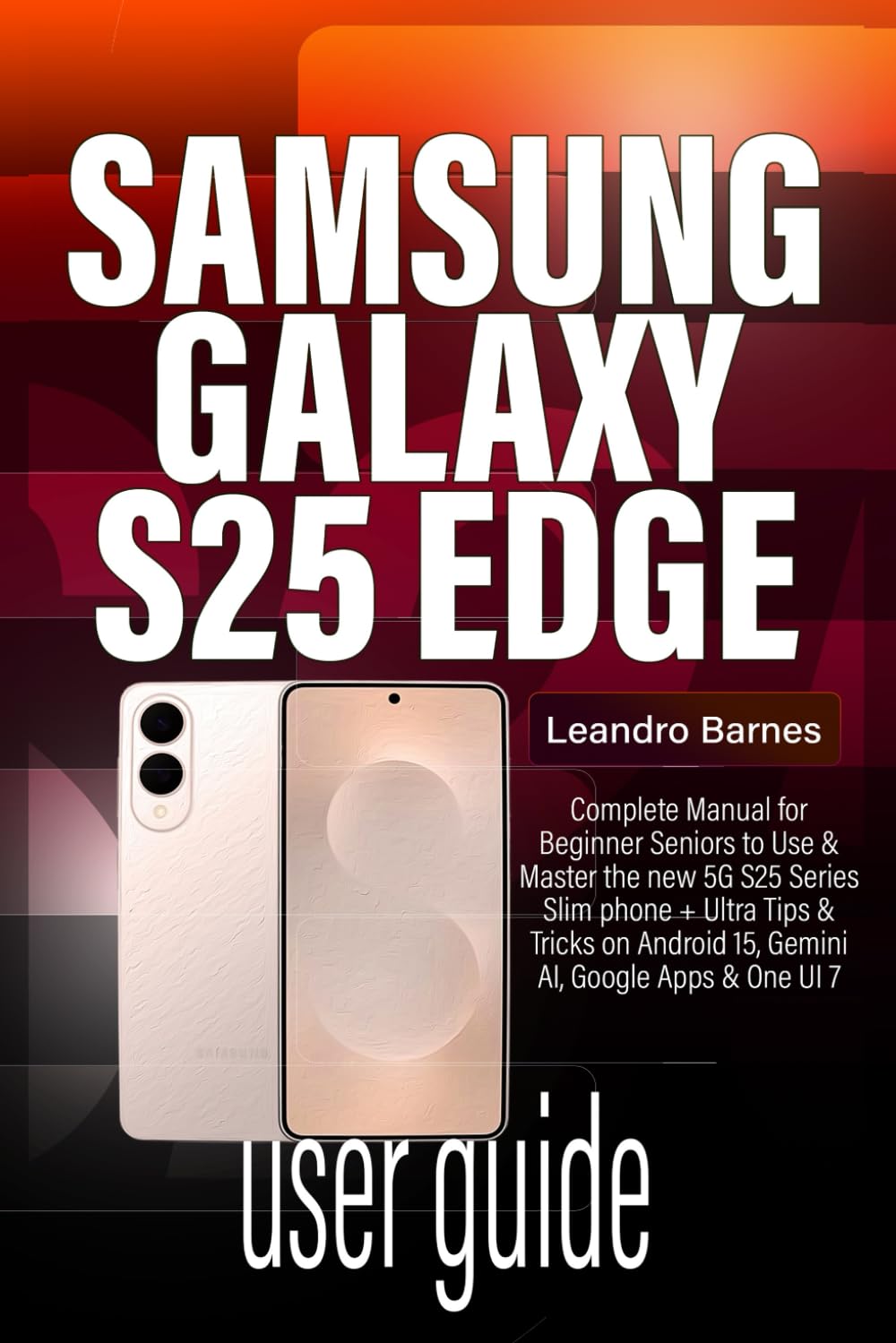
Image: Front cover of the Samsung Galaxy S25 Edge User Guide. This guide provides comprehensive instructions for the device.
1. Installatie en eerste configuratie
This section guides you through the initial setup process of your new Samsung Galaxy S25 Edge.
1.1 Inschakelen en basisinstellingen
- Inschakelen: Houd de aan/uit-knop ingedrukt totdat het Samsung-logo verschijnt.
- Taalselectie: Kies uw voorkeurstaal.
- Wi-Fi-verbinding: Connect to a Wi-Fi network to proceed with setup.
- Google account: Meld u aan met uw Google-account of maak een nieuw account.
- Gegevensoverdracht: Follow on-screen prompts to transfer data from your old phone, including iPhones.
1.2 Customizing Your Home Screen
- widgets: Press and hold on an empty area of the home screen, then select "Widgets" to add useful tools.
- Achtergronden: Change your background by selecting "Wallpaper & style" from the home screen menu.
- Gemakkelijke modus: For a simplified interface, navigate to Settings > Display > Easy mode.
- App Folders: Organize your apps by dragging one app icon onto another to create a folder.
2. Operating Your Galaxy S25 Edge
Explore the advanced features and daily operations of your device.
2.1 Camera and AI Tools
Your Galaxy S25 Edge features a 200MP AI-powered camera for stunning photography.
- Opnamemodi: Access various modes like Portrait, Pro, Night, and Slow-mo from the camera app.
- Galaxy AI Editing: Utilize built-in AI features for photo enhancement:
- Objectgum: Remove unwanted elements from your photos.
- AI Photo Effects: Apply intelligent filters and adjustments.
- Generative AI: Enhance or expand images using AI.
- AI Drawing: Add creative AI-generated elements.
- Enhance-X: Automatically improve photo quality.
2.2 One UI 7 Features
Personalize your user experience with One UI 7.
- Thema's: Download and apply custom themes from the Galaxy Themes store.
- Donkere modus: Enable Dark Mode in Instellingen > Weergave voor comfortabel viewbij weinig licht.
- Schermresolutie: Adjust display resolution for optimal performance or battery life.
2.3 Android 15 en Gemini AI
Benefit from the latest Android operating system and Google's advanced AI.
- Gemini Live: Access AI-powered features such as smart suggestions, chat assistance, and transcription tools.
- Omcirkel om te zoeken: Circle any item on your screen to instantly search for information about it.
- Notitiehulp: Get AI-powered summaries and formatting for your notes.
- Portrait Studio: Enhance portrait photos with AI-driven adjustments.
2.4 Communication and Messaging
- Meldingen: Customize notification sounds and alerts in Instellingen > Meldingen.
- Beltonen: Set unique ringtones for individual contacts.
- Messaging Shortcuts: Utilize quick replies and other messaging app features.
- Spraakgestuurd typen: Use the microphone icon on your keyboard to dictate messages.
2.5 Multitasking en productiviteit
- Multitasking met gesplitst scherm: Open two apps simultaneously by dragging an app from the Recents screen to the top or bottom half of the display.
- Pop-upvenster View: Convert an app into a floating window for quick access.
- Edge Panel: Swipe from the edge of the screen to access frequently used apps, contacts, and tools.
3. Digital Wellness and Parental Controls
Manage your screen time and ensure a healthy digital environment.
- Schermtijd: Monitor and set limits for app usage in Instellingen > Digitaal welzijn en ouderlijk toezicht.
- Samsung Kids: Create a safe and fun environment for children with parental controls.
- Bedtime Modes: Schedule your phone to automatically switch to grayscale and mute notifications for better sleep.
4. Onderhoud en optimalisatie
Tips for keeping your Galaxy S25 Edge running smoothly.
- Software-updates: Regularly check for and install system updates in Instellingen > Software-update.
- Cache wissen: Periodically clear app caches to free up storage and improve performance.
- Batterijoptimalisatie: Use the device care features in Instellingen > Batterij en apparaatonderhoud om het batterijgebruik te optimaliseren.
- Fixing Bugs: Restart your device to resolve minor software glitches. For persistent issues, consider a factory reset after backing up data.
5. Problemen met veelvoorkomende problemen oplossen
Solutions for common problems you might encounter.
- Apparaat reageert niet: Press and hold the Power and Volume Down buttons simultaneously for about 10 seconds to force restart.
- App crasht: Wis de cache en gegevens van de app (Instellingen > Apps > [App-naam] > Opslag) of de app opnieuw installeren.
- Slechte levensduur van de batterij: Check background app usage, reduce screen brightness, and disable unnecessary features like always-on display or GPS when not needed.
- Connectiviteitsproblemen: Toggle Wi-Fi or Bluetooth off and on, or reset network settings (Instellingen > Algemeen beheer > Herstellen > Netwerkinstellingen herstellen).
6. Specificaties
Key technical specifications for the Samsung Galaxy S25 Edge.
| Functie | Detail |
|---|---|
| Modelnaam | Samsung Galaxy S25 Edge |
| Besturingssysteem | Android 15 met One UI 7 |
| Verwerker | Next-generation Octa-core Processor (e.g., Exynos 2500 / Snapdragon 8 Gen 4) |
| Weergave | Dynamic AMOLED 2X, Edge Display, High Refresh Rate |
| Camera | 200MP Main Camera with AI enhancements, Multiple Rear Lenses, High-resolution Front Camera |
| Connectiviteit | 5G, Wi-Fi 7, Bluetooth 5.4, NFC, USB-C |
| Batterij | High-capacity Li-Po Battery with Fast Charging and Wireless Charging |
| Beveiliging | In-display Fingerprint Sensor, Facial Recognition |
Note: Specific details may vary by region and carrier.
7. Garantie en ondersteuning
Voor garantie-informatie en technische ondersteuning kunt u terecht bij de officiële Samsung-website. webwebsite of neem contact op met uw verkoper.
- Official Samsung Webwebsite: www.samsung.com/support
- Klantenservice: Refer to your region's Samsung support contact details.
- Product registratie: Register your device online to receive updates and support.