
Ziyituod ZYT-AX210S
Ziyituod WiFi Card 5400Mbps PCIe WiFi 6E Card with Bluetooth 5.3 - Instruction Manual
Model: ZYT-AX210S
နိဒါန်း
The Ziyituod WiFi Card (Model: ZYT-AX210S) is a high-performance PCIe adapter designed to upgrade your PC's wireless connectivity. Featuring Intel WiFi 6E AX210 technology and Bluetooth 5.3, this card offers tri-band support (2.4GHz, 5GHz, and 6GHz) for superior speeds, lower latency, and enhanced reliability. It is compatible with Windows 10 (64-bit) and Windows 11 (64-bit) operating systems.

Image: Ziyituod WiFi 6E PCIe Card with two external antennas attached.
This manual provides detailed instructions for the installation, setup, and operation of your Ziyituod WiFi Card.
ဘေးကင်းရေးအချက်အလက်
Warning: Do not install this card in a standard PCI slot. It is designed for PCI Express (PCIe) slots only.
Package Contents
သင့်ပက်ကေ့ဂျ်တွင် ပစ္စည်းများအားလုံးကို ပါ၀င်ကြောင်း အတည်ပြုပါ-
- 1 x Ziyituod WiFi 6E Tri-Band AX5400 PCIe Adapter
- 1 x Bluetooth Cable (for motherboard USB header connection)
- 2 x External 5dBi Tri-Band Antennas
- 1 x အနိမ့်ဆုံးfile Bracket (for small form factor PCs)
- 1 x အမြန်စတင်ခြင်းလမ်းညွှန်
- 1 x ကိုယာဉ်မောင်း CD ကို
- ဝက်အူပေါင်းများစွာ
- 1 x ဝက်အူလှည့်

Image: The package contents including the WiFi card, antennas, Bluetooth cable, low-profile bracket, driver CD, screws, and screwdriver.
စနစ်လိုအပ်ချက်များ
- Operating System: Windows 11 (64-bit) or Windows 10 (64-bit)
- Available PCI Express (PCIe) slot (x1, x4, x8, or x16)
- Available F_USB (9-pin USB) header on motherboard (for Bluetooth functionality)
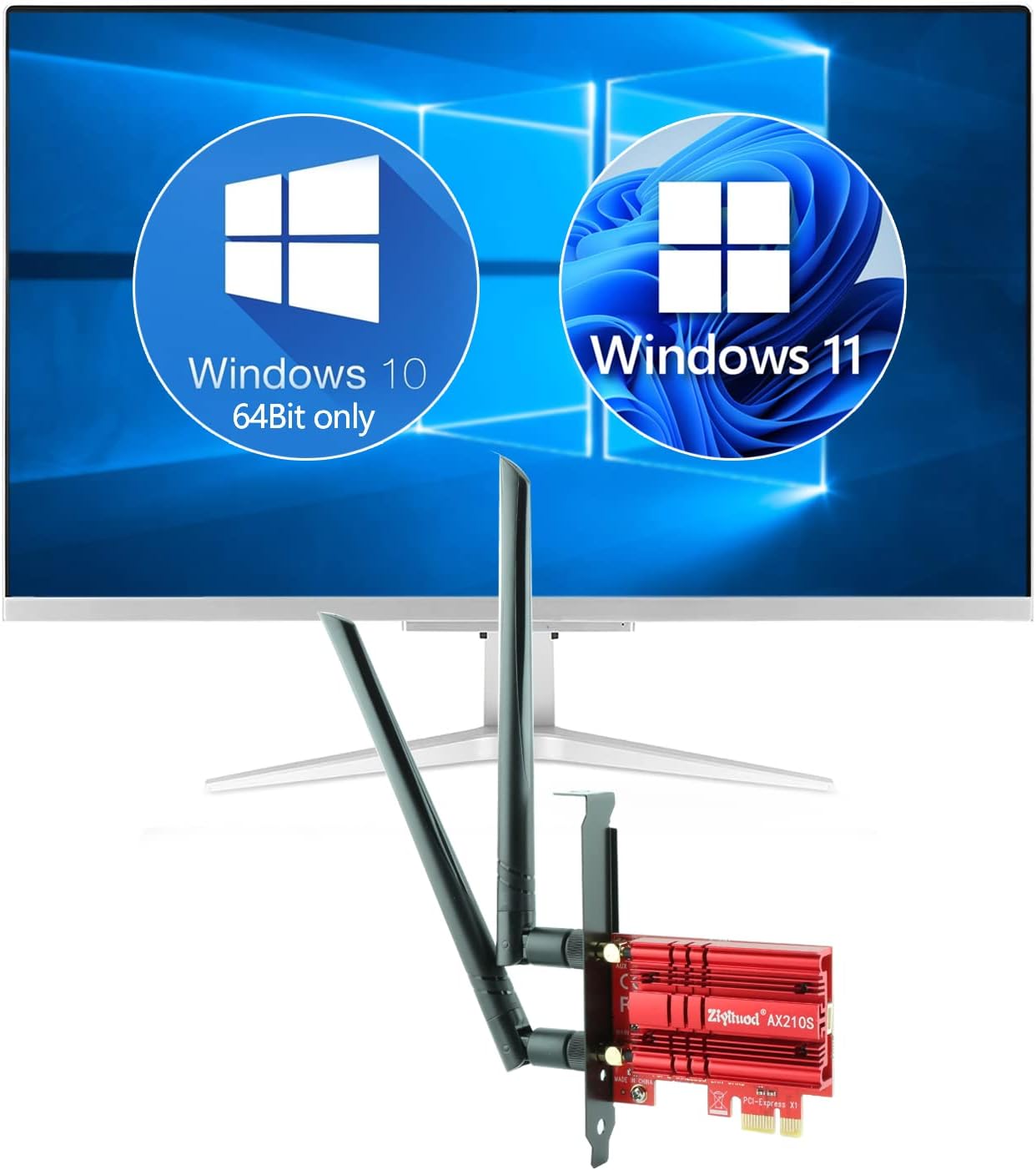
Image: Visual representation of Windows 10 (64-bit only) and Windows 11 compatibility.
တပ်ဆင်ခြင်းနှင့် တပ်ဆင်ခြင်း။
1. ရုပ်ပိုင်းဆိုင်ရာ တပ်ဆင်ခြင်း။
- သင်၏ PC ကိုပြင်ဆင်ပါ။ Unplug your computer from the power outlet and remove the side panel of the PC case.
- ဘလူးတုသ်ကြိုးကို ချိတ်ဆက်ပါ- Connect the small end of the included Bluetooth cable to the adapter's dedicated port.
- WiFi Card ထည့်ပါ Locate an available PCI Express (PCIe) slot (x1, x4, x8, or x16) on your motherboard. Carefully align the WiFi card with the slot and press it firmly until it is securely seated.
- ဘလူးတုသ်ကို Motherboard သို့ ချိတ်ဆက်ပါ- Locate an available 9-pin F_USB header on your motherboard. Connect the other end of the Bluetooth cable to this header. This connection is essential for Bluetooth functionality.
- အင်တင်နာများ ပူးတွဲပါ- Screw the two external 5dBi tri-band antennas onto the connectors at the back of the WiFi card. Adjust their orientation for optimal signal reception.
- PC ကာဗာကို ပိတ်ပါ- Reinstall the PC case side panel and plug your computer back into the power outlet.

Image: Visual guide for identifying compatible PCIe slots (x1, x4, x8, x16) and the 9-pin USB header on the motherboard for Bluetooth connection.
2. Driver ထည့်သွင်းခြင်း။
After physical installation, you will need to install the appropriate drivers for both Wi-Fi and Bluetooth. It is recommended to download the latest drivers directly from the Intel website.
- အင်တာနက်အသုံးပြုခွင့်- Temporarily connect your PC to the internet via an Ethernet cable or another working Wi-Fi adapter.
- ဒေါင်းလုဒ်ဒရိုက်များ- Visit the official Intel website ကိုရှာဖွေပါ။
Ask a question about this manual
Ask about setup, troubleshooting, compatibility, parts, safety, or missing instructions. Manuals+ will review the question and use this page’s manual context to help answer it.