
1. နိဒါန်း
This manual provides essential instructions for the setup, operation, and maintenance of your Samsung Xpress SL-M2070FW Multifunctional Printer. This device offers 4-in-1 functionality, including printing, copying, scanning, and faxing, designed to streamline your workflow. It supports wireless connectivity via NFC, Wi-Fi Direct, and Google Cloud Print for convenient use.

ပုံ 1.1- ရှေ့ view of the Samsung Xpress SL-M2070FW Multifunctional Printer, showing the paper tray and output area.
2. စနစ်ထည့်သွင်းပါ။
2.1 ထုပ်ပိုးခြင်းနှင့် ကနဦးနေရာချထားခြင်း။
- ပရင်တာအား ၎င်း၏ထုပ်ပိုးမှုမှ ဂရုတစိုက်ဖယ်ရှားပါ။
- ပရင်တာမှ အကာအကွယ်တိပ်များနှင့် ထုပ်ပိုးပစ္စည်းများအားလုံးကို ဖယ်ရှားပါ။
- လုံလောက်သော လေဝင်လေထွက်ရှိသော ပရင်တာကို တည်ငြိမ်၍ အဆင့်ရှိသော မျက်နှာပြင်ပေါ်တွင် ထားပါ။
2.2 ပါဝါချိတ်ဆက်ခြင်း။
- ပါဝါကြိုးကို ပရင်တာနှင့် ချိတ်ဆက်ပြီး မြေစိုက်လျှပ်စစ်ပလပ်ပေါက်သို့ ချိတ်ဆက်ပါ။
- ပရင်တာကိုဖွင့်ရန် ပါဝါခလုတ်ကို နှိပ်ပါ။
2.3 Toner Cartridge တပ်ဆင်ခြင်း။
- ပရင်တာ၏ ရှေ့အဖုံးကိုဖွင့်ပါ။
- Remove the toner cartridge from its packaging and gently shake it side to side to distribute the toner.
- ပရင်တာထဲသို့ တိုနာကျည်တောင့်ကို နေရာကို ကလစ်သွားသည်အထိ ထည့်ပါ။
- ရှေ့အဖုံးကိုပိတ်ပါ။
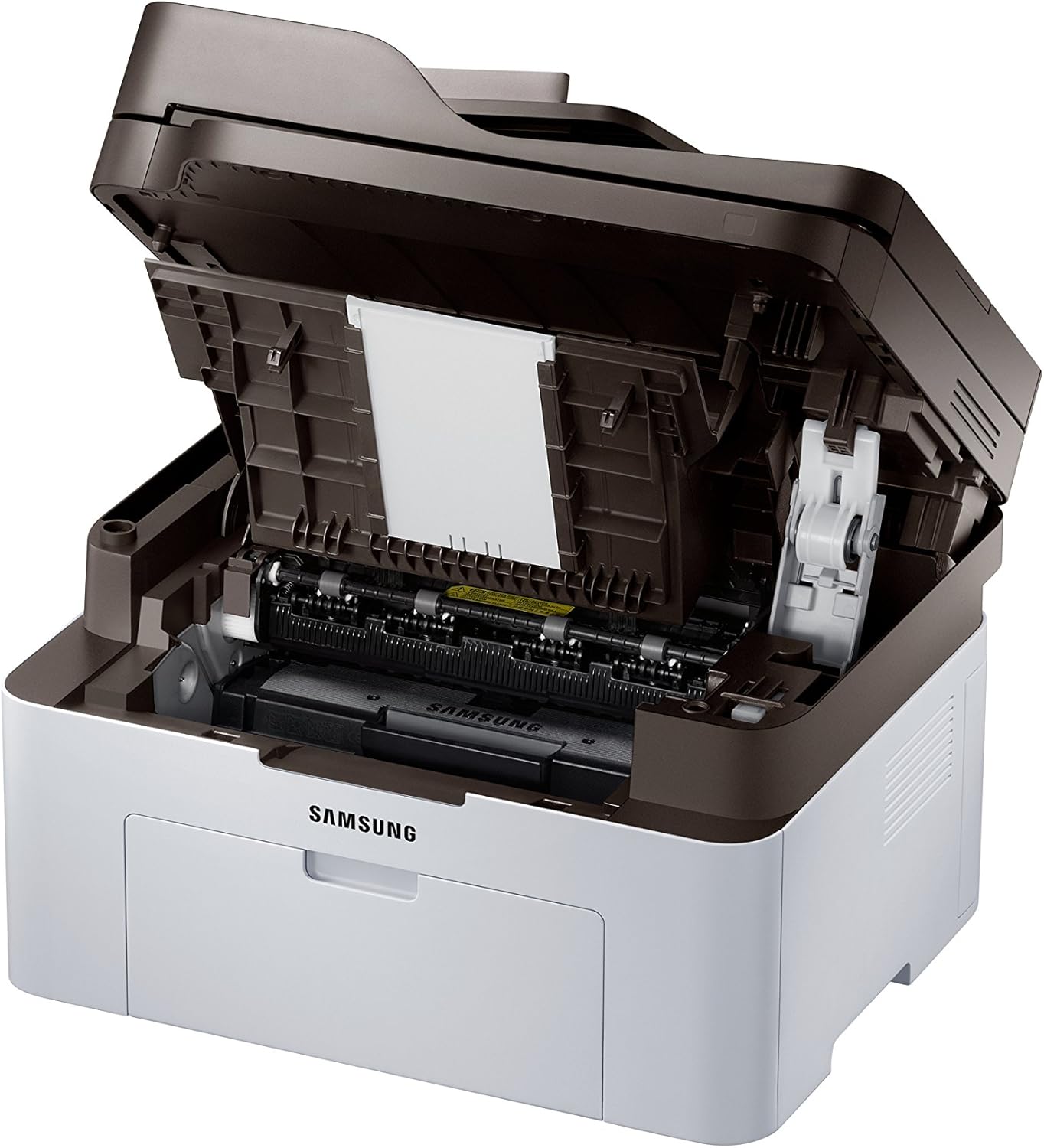
ပုံ 2.1- Front cover open, revealing the toner cartridge slot for installation or replacement.
2.4 ဆော့ဖ်ဝဲလ်ထည့်သွင်းခြင်းနှင့် ချိတ်ဆက်မှု
- Insert the provided installation CD into your computer's CD-ROM drive, or download the latest drivers from the Samsung support website.
- ပရင်တာဆော့ဖ်ဝဲကို ထည့်သွင်းရန် မျက်နှာပြင်ပေါ်ရှိ ညွှန်ကြားချက်များကို လိုက်နာပါ။
- For wireless setup, follow the prompts to connect the printer to your Wi-Fi network. The printer supports NFC for easy pairing with compatible devices.
- For USB connection, connect the printer to your computer using a USB cable (not always included).
3. လုပ်ငန်းဆောင်ရွက်မှုညွှန်ကြားချက်များ

ပုံ 3.1- စောင်း view showing the control panel with display and function buttons.
3.1 စာရွက်စာတမ်းများပုံနှိပ်ခြင်း။
- ပရင်တာအား ပါဝါဖွင့်ထားပြီး သင့်ကွန်ပျူတာ သို့မဟုတ် ကွန်ရက်သို့ ချိတ်ဆက်ထားကြောင်း သေချာပါစေ။
- အဝင်ဗန်းထဲသို့ စာရွက်ထည့်ပါ။
- သင့်ကွန်ပြူတာမှ သင် print ထုတ်လိုသော စာရွက်စာတမ်းကိုဖွင့်ပါ။
- ရွေးချယ်ပါ။ ညောင်ပင် အပလီကေးရှင်း၏မီနူးမှ (ဥပမာ၊ File > ပုံနှိပ်)။
- Choose the Samsung Xpress SL-M2070FW from the list of available printers.
- Adjust print settings as needed (e.g., number of copies, paper size, quality).
- နှိပ်ပါ။ ညောင်ပင်.
3.2 စာရွက်စာတမ်းများ ကူးယူခြင်း။
- စာရွက်စာတမ်းအား စကင်နာဖန်ခွက်ပေါ်တွင် မျက်နှာချင်းဆိုင်ချထားပါ သို့မဟုတ် အလိုအလျောက်စာရွက်စာတမ်းဖြည့်သွင်းစနစ် (ADF) တွင် မျက်နှာချင်းဆိုင်ထားပါ။
- ပရင်တာ၏ထိန်းချုပ်မှုဘောင်ပေါ်တွင်၊ ခလုတ်ကိုနှိပ်ပါ။ ကော်ပီ ခလုတ်
- Use the navigation buttons to select copy options (e.g., number of copies, darkness, original size).
- ကိုနှိပ်ပါ။ စတင်ပါ။ စတင်ကူးယူရန်ခလုတ်။
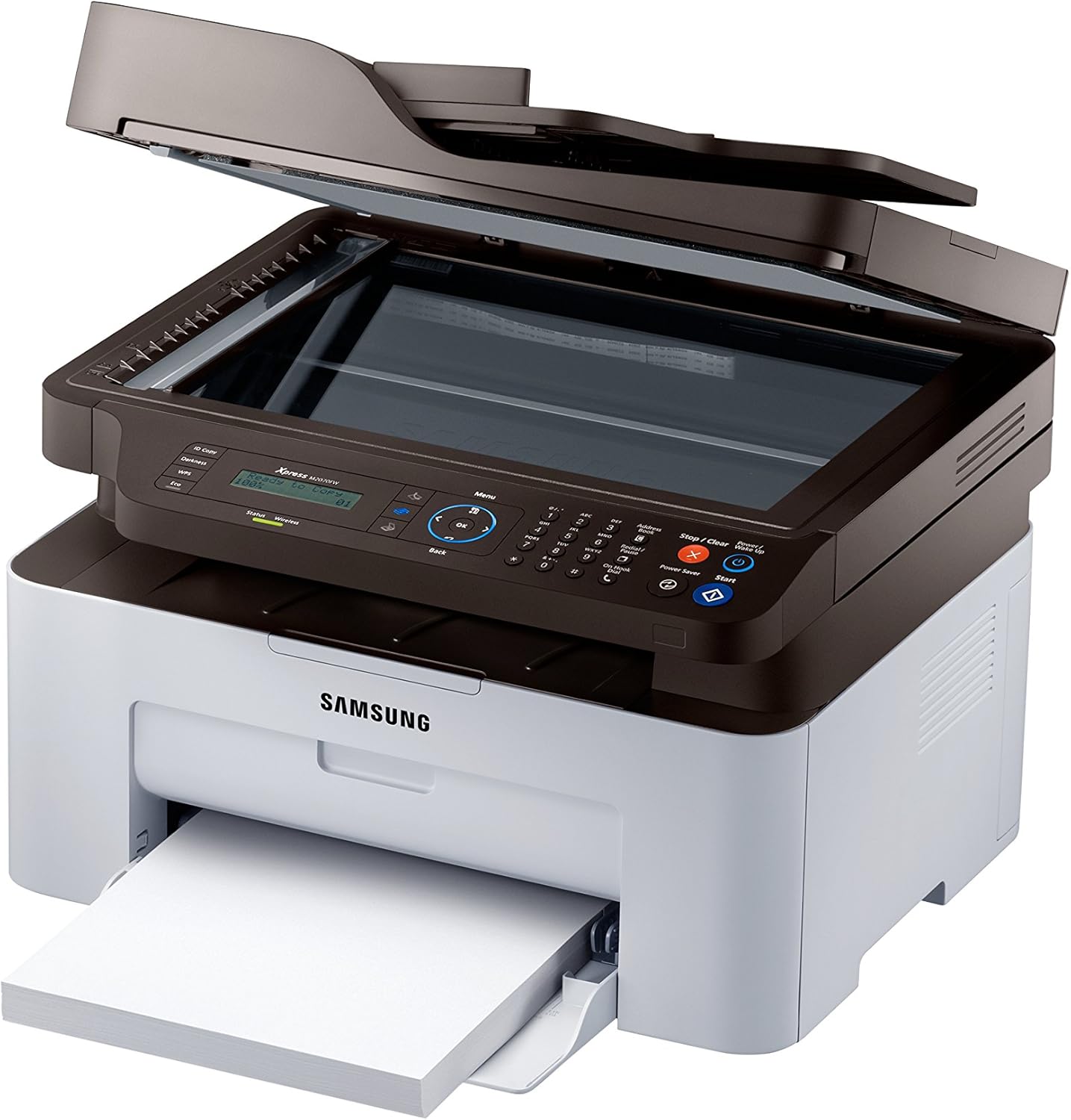
ပုံ 3.2- Top cover open, showing the flatbed scanner glass for copying and scanning.
3.3 စာရွက်စာတမ်းများကို စကင်န်ဖတ်ခြင်း။
- စာရွက်စာတမ်းကို စကင်နာဖန်သားပေါ်တွင် သို့မဟုတ် ADF တွင် ထားပါ။
- From your computer, open the Samsung Easy Document Creator software or a similar scanning application.
- ရွေးချယ်ပါ။ စကင်န် and choose your desired settings (e.g., resolution, color mode, destination).
- နှိပ်ပါ။ စကင်န် လုပ်ငန်းစဉ်စတင်ရန်။
3.4 Sending Faxes
- စာရွက်စာတမ်းကို ADF ထဲသို့ထည့်ပါ သို့မဟုတ် စကင်နာဖန်သားပေါ်တွင် တင်ပါ။
- ပရင်တာ၏ထိန်းချုပ်မှုဘောင်ပေါ်တွင်၊ ခလုတ်ကိုနှိပ်ပါ။ ဖက်စ် ခလုတ်
- ဂဏန်းကီးပတ်ကို အသုံးပြု၍ လက်ခံသူ၏ ဖက်စ်နံပါတ်ကို ရိုက်ထည့်ပါ။
- လိုအပ်ပါက ဖက်စ်ဆက်တင်များကို ချိန်ညှိပါ။
- ကိုနှိပ်ပါ။ စတင်ပါ။ ဖက်စ်ပို့ရန် ခလုတ်။
3.5 Wireless Printing (NFC, Wi-Fi Direct, Google Cloud Print)
- NFC ကို: Tap your NFC-enabled smartphone or tablet to the NFC tag on the printer to establish a direct connection and print.
- Wi-Fi တိုက်ရိုက်- Connect your mobile device directly to the printer's Wi-Fi Direct network without needing a router.
- Google Cloud Print: Register your printer with Google Cloud Print to print from anywhere using your Google account. Refer to the online manual for detailed registration steps.
4. ပြုပြင်ထိန်းသိမ်းမှု
4.1 Toner Cartridge ကို အစားထိုးခြင်း။
- When the toner low message appears on the display, order a new toner cartridge.
- ပရင်တာ၏ ရှေ့အဖုံးကိုဖွင့်ပါ။
- တိုနာကတ်ထရစ်အဟောင်းကို ဂရုတစိုက်ဆွဲထုတ်ပါ။
- Unpack the new toner cartridge and shake it gently.
- ကာထရစ်ချ်အသစ်သည် နေရာတကျ လော့ကျသွားသည်အထိ ထည့်ပါ။
- ရှေ့အဖုံးကိုပိတ်ပါ။
4.2 ပရင်တာအား သန့်ရှင်းရေးလုပ်ခြင်း။
- အပြင်ပိုင်း- ပရင်တာ၏ အပြင်ဘက်ကို နူးညံ့ပြီး အမွေးအမှင်ကင်းသော အဝတ်ဖြင့် သုတ်ပါ။ ပွတ်တိုက်ဆေးရည်ကို မသုံးပါနှင့်။
- စကင်နာဖန်- Gently clean the scanner glass with a soft cloth dampမှန်သန့်စင်ဆေးရည်ဖြင့် သန့်စင်ပါ။ အကြွင်းအကျန် မကျန်ရှိကြောင်း သေချာပါစေ။
- အတွင်းခန်း- Periodically open the front cover and gently remove any paper dust or debris with a dry, lint-free cloth.
၃
| ပြဿနာ | ဖြစ်နိုင်သော အကြောင်းတရား | ဖြေရှင်းချက် |
|---|---|---|
| ပရင်တာ ပါဝါမဖွင့်ပါ။ | ပါဝါကြိုး ကောင်းစွာမချိတ်ပါ။ | Check power cord connections to the printer and wall outlet. Ensure the outlet is functional. |
| စက္ကူတွေ ရှုပ်နေတယ်။ | Incorrect paper loading; foreign objects in paper path. | Remove all paper from the tray and reload correctly. Open covers and carefully remove any jammed paper or obstructions. |
| ပုံနှိပ်အရည်အသွေး မကောင်းပါ။ | Low toner; dirty print head/drum; incorrect print settings. | Replace toner cartridge. Clean the interior of the printer. Adjust print quality settings in the printer driver. |
| ကြိုးမဲ့ချိတ်ဆက်၍မရပါ။ | Wi-Fi စကားဝှက် မှားယွင်းနေခြင်း၊ ပရင်တာသည် ရောက်တာမှ အလွန်ဝေးကွာနေခြင်း၊ ကွန်ရက်ပြဿနာများ။ | Verify Wi-Fi password. Move printer closer to the router. Restart printer and router. Reconfigure wireless settings. |
6. သတ်မှတ်ချက်များ
- မော်ဒယ်အမည်- SL-M2070FW
- လုပ်ဆောင်ချက်များ- ပရင့်၊ မိတ္တူ၊ စကင်န်၊ ဖက်စ်
- ပုံနှိပ်နည်းပညာ- လေဆာ (မိုနိုခရုမ်)
- Max Print Speed (Monochrome): 20 ppm (တစ်မိနစ်လျှင် စာမျက်နှာ)
- အများဆုံး Copy Speed (အဖြူအမည်း) 14 ppm
- Max Copy Resolution (Black & White): 600 dpi
- စကင်နာအမျိုးအစား- ပြားပြား
- ချိတ်ဆက်မှုနည်းပညာ- USB, Wireless (Wi-Fi, NFC, Wi-Fi Direct, Ethernet)
- ဟာ့ဒ်ဝဲ အင်တာဖေ့စ်- အီသာနက်၊ USB
- Memory Storage Capacity- 128 MB
- ဓာတ်အားသုံးစွဲမှု- 50 Watts (Operating)
- ထုတ်ကုန်အတိုင်းအတာများ- 15.98 x 14.16 x 12.15 လက်မ
- ပစ္စည်းအလေးချိန်- ၉.၃၃ ပေါင် (၄.၂၄ ကီလိုဂရမ်)၊
- ပါဝင်သော အစိတ်အပိုင်းများ- Scanner Glass, Fax Machine, Paper Tray
7. အာမခံနှင့် ပံ့ပိုးမှု
Your Samsung Xpress SL-M2070FW Multifunctional Printer comes with a limited warranty. For detailed information regarding warranty terms and conditions, please refer to the warranty card included with your product or visit the official Samsung support website.
For technical assistance, driver downloads, or further support, please visit the Samsung support website သို့မဟုတ် ၎င်းတို့၏ ဖောက်သည်ဝန်ဆောင်မှုကို ဆက်သွယ်ပါ။
- အွန်လိုင်းပံ့ပိုးမှု: www.samsung.com/support/
- အာမခံအမျိုးအစား- ကန့်သတ်အာမခံ