
1. Introduzzjoni
This manual provides detailed instructions for the setup, operation, and maintenance of your AOSHIDA Gustard DAC-R26II Network Streaming DAC. Please read this manual thoroughly before using the device to ensure proper functionality and to maximize your audio experience.
The Gustard DAC-R26II is a high-performance 26-Bit R2R Digital-to-Analog Converter with integrated network streaming capabilities, supporting a wide range of digital audio formats and inputs for a versatile home audio setup.
2. Setup
2.1. Lista tal-Ippakkjar
Iċċekkja li l-oġġetti kollha elenkati hawn taħt huma inklużi fil-pakkett tiegħek:
- Main Unit (Gustard DAC-R26II)
- Karta ta' Garanzija
- Gwida Quick Start
- Korda tal-Enerġija
- Cable USB
- Kontroll mill-bogħod
- Antenna Bluetooth

Figure 2.1: Contents of the Gustard DAC-R26II package.
2.2. Unboxing u Spezzjoni Inizjali
Carefully unbox your DAC-R26II and inspect all components for any signs of damage. The following video demonstrates the unboxing process:
Video 2.2: Unboxing the Gustard DAC-R26II, showing the main unit and included accessories.
2.3. Front Panel Introduction
The front panel of the DAC-R26II features controls and a display for easy operation:

Figura 2.3: Quddiem view of the Gustard DAC-R26II.
- Buttuna tal-Qawwa: Switches between Standby and Operation states. The unit remains in standby when the rear power switch is on.
- Skrin tad-displej: Juri l-kanal tad-dħul attwali, il-format tal-kodifikazzjoni, u sampling rate. Displays menu items when entering the settings menu.
- Wiri tal-Volum: Ranges from -90dB to 00dB. "FIXED" indicates fixed volume output (bypass). Displays options when in the settings menu.
- Setting/Volume Button (-): Typically used to decrease volume. In the menu interface, it is used to switch options.
- Menu/Input Button (⚙️): Short press to switch input selection; Long press to enter or exit the menu; Short press within the menu to toggle items.
- Volume Button (+): Typically used to increase volume. In the menu interface, it is used to switch options.
2.4. Rear Panel Interface
The rear panel provides various input and output connections:
Figure 2.4: Rear panel connections of the Gustard DAC-R26II.
- XLR Right (Balanced) / XLR Left (Balanced): Ħruġ awdjo analogu bbilanċjat.
- RCA Right (Single-Ended) / RCA Left (Single-Ended): Single-ended analog audio outputs.
- LAN (Network Input): RJ45 port for network streaming.
- USB: USB input for connecting to a computer.
- IIS Input (HDMI format): High-quality digital input.
- Input koassjali: S/PDIF coaxial digital input.
- AES/EBU Digital Input: Input awdjo diġitali professjonali.
- Input ottiku: S/PDIF optical digital input.
- 10MHz Clock Input (BNC): External clock synchronization input.
- Firmware Update Port (UPDATE): For device firmware updates.
- Antenna Bluetooth: Connection point for the included Bluetooth antenna.
- Voltage Selettur: Switch for 115V or 230V AC power.
- Fjus: Power fuse compartment.
- Input tal-Enerġija AC: IEC power inlet.
- Swiċċ tal-Enerġija: Swiċċ ewlieni tal-enerġija mixgħul/mitfi.
TWISSIJA: When operating the voltage selector, ensure both switches are set to the same voltage (110V or 220V) matching your local power supply. Failure to do so will damage the internal transformer upon power-up.
3. Istruzzjonijiet Operattivi
3.1. Display Screen Introduction
The R26II utilizes a large OLED display to provide real-time status and functional information.

Figura 3.1: Aktarview of the DAC-R26II display screen.
- Kanal tal-Input: Indicates the currently selected input (e.g., COAX, AES, OPT, USB, IIS, BT, Streamer).
- Format tal-kodifikazzjoni: Shows the audio encoding format (e.g., PCM, DSD).
- SampRata tal-linarda: Juri l-kurrent sampling rate (e.g., 44.1kHz, 192kHz, DSD256).
- Volum: Shows the current volume level or "FIXED" for bypass mode.
- Arloġġ Estern: Indicates if an external 10MHz clock is detected.
3.2. Għażla tal-Kanal tad-Dħul
The R26II has 7 input channels. In the main screen state, short press the Menu/Input button (⚙️) to cycle through input selections: COAX, AES, OPT, BT, USB, Streamer, IIS.
3.3. Volume Regulation
In the main screen state, use the +/- buttons to adjust the analog volume attenuation. The volume range is -90dB to 00dB (Total 90 steps). In "FIXED" mode, the volume is at 00dB. Increasing it further enters Fixed Output Mode (Volume Bypass). Decrease volume to exit FIXED mode.
3.4. Menu tal-issettjar
To enter the settings menu, long press the Menu/Input button (⚙️). Use the +/- buttons to adjust the currently selected option. Long press the Menu/Input button again to return to the main display.
Menu Items Overview:
- PCM FILTER: PCM Digital Filter Adjustment
- DSD DIRECT: DSD Direct Mode
- NOS MODE: PCM NOS (Non-Oversampling) Mode
- REF CLOCK: Reference Clock Source Selection
- IIS MODE: IIS Pin Sequence Configuration
- FAŻI: Analog Output Phase Control
- DISPLAY: Luminożità tal-iskrin
- STANDBY: Standby Mode Behavior
3.4.1. FILTRU PCM (Aġġustament tal-Filtru Diġitali PCM)
The R26II features a high-performance built-in PCM upsampler with 3 operation modes:
- Fast: High-speed mode, detailed high-frequency information. (Default)
- Medju: Medium-speed mode, balanced sound. (Recommended)
- Bil-mod: Low-speed mode, soft listening experience.
3.4.2. DSD DIRECT (DSD Direct Mode)
- Itfi: Turns off direct mode. (Default)
- Ippermetti: Turns on direct mode.
When enabled, the DSD signal bypasses the DSD-to-PCM conversion and is sent directly to the dedicated 1-bit architecture decoding circuit. This allows original DSD signals (upsampled via PC/software) to be processed natively, potentially offering higher sound quality.
Note: Enabling this may cause a "click" sound when switching between different sampling formats.
3.4.3. NOS MODE (PCM Non-OversampModalità ling)
- Itfi: (Default)
- Ippermetti:
Bypasses internal PCM filters, sending the original PCM signal directly to the R-2R decoding matrix. This mode is ideal for users who use high-performance software (like HQPlayer) to perform formats that may cause a click sound in this mode.
3.4.4. REF CLOCK (Reference Clock Source Selection)
The R26II uses the GUSTARD-GCLK-02 synthesizer for ultra-low noise and jitter. Its synthesized clock achieves ultra-low jitter performance at the femtosecond level, while simultaneously preserving the near-end performance of the reference clock. Thanks to the high-precision divider, the frequency accuracy of its synthesized audio clock reaches the ppb level. As a result, the main clock for most of the digital processing circuits built into the R26II is also synthesized by the GCLK-02.
Għażliet tal-ARLOĠĠ TA' REFERENZA:
- Intern: Uses the internal femtosecond clock. (Default)
- EXT.10MHz: Selects an external 10MHz reference source.
Note: If "EXT" is selected but the clock is lost or deviates > ±150ppm, "EXT ERR" will be displayed.
3.4.5. IIS MODE (IIS Pin Sequence Configuration)
The IIS input over HDMI supports PCM and DSD automatically. No flag signal is needed. There are four pin sequence modes available to match different source devices.
- MODE1 (Gustard): Standard Gustard definition. Matches Gustard U16, U18, S16, etc. (Default)
- MODE2 / MODE3 / MODE4: Alternative pin definitions.
IIS Pinout Diagrams (refer to original manual for detailed diagrams if needed, but for this output, I'll just list the modes).
3.4.6. PHASE (Analog Output Phase Control)
- Non-inverted: RCA Positive Phase / XLR American Standard (1GND, 2 Hot, 3 Cold). (Default)
- Maqlub: RCA Inverted Phase / XLR Japanese/European Standard (1GND, 2 Cold, 3 Hot).
3.4.7. DISPLAY (Screen Brightness)
- AUTO: Automatically dims the screen. (Default)
- AUTO ALL OFF: Automatically turns off screen and buttons.
- AUTO DISPLAY OFF: Automatically turns off the screen only.
Note: The screen will wake up momentarily when the sampling rate or format changes.
3.4.8. STANDBY (Standby Mode Behavior)
- Manwal: The unit enters standby when AC power is connected; requires pressing the power button to turn on. (Default)
- Auto: The unit turns on automatically when AC power is connected.
3.5. Kontroll mill-bogħod
The R26II is equipped with a new brand remote controller. This remote can also control other types of products from Gustard. Hold the DAC button for 3+ seconds to enter the DAC control mode.
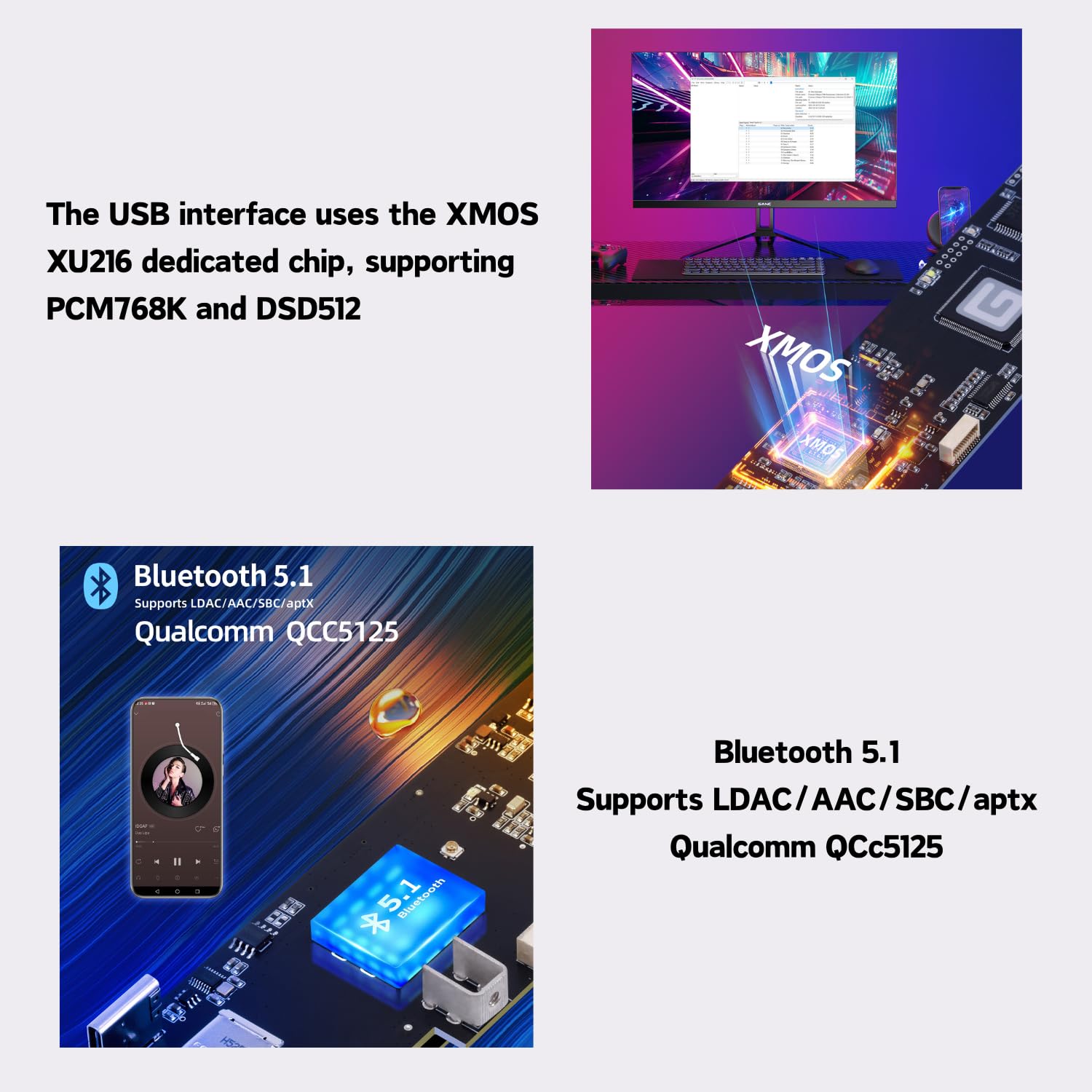
Figure 3.5: Gustard DAC-R26II Remote Control.
- Buttuna Standby: Toggles between Operation and Standby. Wake up the screen in standby mode.
- MENU: Enter function settings.
- Pad Direzzjonali:
- Up/Down: Switch function.
- Left/Right: Adjust options.
- Center: Unmute / Mute.
- Lura: Ritorn għall-iskrin prinċipali.
- VOL - / VOL +: Aġġusta l-volum.
- DAC / AMP / STREAM Buttons: Used to select the device type the remote controls. Hold the respective button for 5 seconds to switch modes.
- DAC: Used to control decoder products (e.g., X18, R26).
- AMP: Used to control amplifiers (e.g., H16, P26).
- STREAM: Used to control streamer products.
Attenzjoni:
- Id-distanza operattiva tvarja skond l-angolu.
- The remote control may not function properly if there are objects between the remote control and the sensor.
- Remove the batteries if the remote control will not be used for an extended period (one month or longer).
- If the battery leaks, thoroughly clean all residue from the battery compartment and install new batteries.
- Using this remote control may cause malfunctions in other devices controlled by infrared signals.
3.6. Streamer Usage (Network Bridge)
The R26II includes a network bridge for streaming audio. Follow these steps to use the streamer function:
- Connect the R26II to your LAN via the RJ45 port.
- Select the Streamer input channel on the DAC.
- Wait for the system to boot (approximately 1 minute). The screen will show "DSD 24.5M" or similar.
- Open a browser on a device in the same LAN and visit: http://r26.local.
- Fil- web interface, you can enable/disable protocols (AirPlay, Roon Bridge, UPnP, HQPlayer NAA, Spotify) to optimize performance.
- Firmware updates for the bridge are also handled via this web paġna.

Figure 3.6: Network Bridge System web interface for protocol management.
4. Manutenzjoni
To ensure the longevity and optimal performance of your Gustard DAC-R26II, follow these maintenance guidelines:
- Tindif: Use a soft, dry cloth to clean the exterior of the unit. Avoid using liquid cleaners, aerosols, or abrasive materials, as they may damage the finish.
- Ventilazzjoni: Ensure the unit is placed in a well-ventilated area. Do not block the ventilation openings.
- Qawwa: Skonnettja l-korda tal-enerġija mis-sokit tal-ħajt jekk l-unità ma tkunx se tintuża għal perjodu estiż.
- Ambjent: Evita li tesponi l-unità għal temperaturi estremi, umdità, jew dawl tax-xemx dirett.
5 Issolvi l-problemi
If you encounter issues with your DAC-R26II, refer to the following common troubleshooting steps:
- Ebda Qawwa:
- Iċċekkja jekk il-korda tal-enerġija hijiex imqabbda sew kemm mal-unità kif ukoll mas-sokit tal-ħajt.
- Ensure the rear power switch is in the "ON" position.
- Ivverifika l-voltage selector matches your local power supply.
- Check the fuse. If blown, replace it with a fuse of the same type and rating.
- Ebda Ħsejjes tal-Ħsejjes:
- Confirm the correct input channel is selected on the DAC.
- Check the volume level on the DAC and your connected amplifier. Ensure the DAC is not in "FIXED" volume mode if you intend to control volume via the DAC.
- Ivverifika li tiegħek ampL-amplificatur jew l-ispikers attivi huma mixgħula u konnessi b'mod korrett.
- Iċċekkja l-kejbils tal-awdjo kollha għal konnessjonijiet sikuri u ħsarat.
- "EXT ERR" on Display:
- This indicates an issue with the external 10MHz clock. Ensure the external clock source is properly connected and functioning, or switch the REF CLOCK setting to "Internal".
- Kwistjonijiet ta' Streaming fuq in-Netwerk:
- Ensure the LAN cable is securely connected.
- Verify that the DAC is connected to the same network as your control device.
- Aċċess għall- web interface (http://r26.local) to check network status and protocol settings.
If the problem persists, please contact AOSHIDA customer support for assistance.
6. Speċifikazzjonijiet
| Karatteristika | Dettall |
|---|---|
| Numru tal-Mudell | DAC-R26II |
| Digital Inputs (COAX/AES/OPT) | PCM 16-24bit/44.1-192kHz; DSD DoP64 |
| Digital Inputs (USB/Streamer) | PCM 16-32bit/44.1-768kHz; DSD DoP64-DOP256; NATIVE DSD: DSD64-DSD512 |
| Digital Inputs (IIS) | PCM 16-32bit/44.1-1536kHz; NATIVE DSD: DSD64-DSD2048 (DSD2048: @ DSD direct mode) |
| 10M Input Interface (BNC) | Input impedance 50 Ohm, 0dBm-20dBm, CMOS square wave 0.2V-3.3V, sine wave 0.5-3.3V |
| Analog Output Frequency Response | 20-20kHz /±0.2dB OS mode |
| Medda Dinamika | > 117dB |
| Sinjal-mal-ħoss Ratio | > 122dB |
| Crosstalk tal-Kanal | <-134dB @ 1kHz |
| THD+N | <=0.003% @1kHz |
| IMD | ≈0.008% @ 0dbfs |
| Livell ta' Output RCA | 2.5Vrms (VOLUM FISS) |
| Impedenza tal-Ħruġ RCA | 100Ω |
| XLR Output Level | 5.0Vrms (VOLUM FISS) |
| XLR Output Impedance | 100Ω |
| Qawwa AC | AC115V/230V 50/60Hz (Manual switching) |
| Konsum tal-Enerġija | <20W |
| Dimensjonijiet tax-Chassis (T x W x H) | 330 x 260 x 65 mm (excluding pins) |
| Piż tal-Unità | 5.5 KG |
| Tipi ta' Interface | Coaxial, IIS, LAN, Optical, USB, AES/EBU, Bluetooth |
| Numru ta 'Kanali | 2 |
7. Garanzija u Appoġġ
Your Gustard DAC-R26II comes with a warranty. Please refer to the included Gustard Warranty Card for specific terms and conditions regarding your product's warranty coverage.
For technical support, service, or any inquiries not covered in this manual, please contact AOSHIDA customer support through their official channels or visit their webis-sit għall-aktar informazzjoni ta' appoġġ aġġornata.
You can find more information and contact details on the AOSHIDA store page: AOSHIDA Store.