
Introduzzjoni
This manual provides detailed instructions for the installation, operation, and maintenance of your PHEZEN Double Din Car Stereo Radio. This unit is designed for 2005-2011 Dodge Dakota vehicles and features a 7-inch touch screen with Android 14, Wireless CarPlay, Android Auto, GPS navigation, FM radio, Steering Wheel Control (SWC), WiFi, Bluetooth, and camera support. Please read this manual thoroughly before use to ensure proper installation and optimal performance.
Informazzjoni dwar is-Sigurtà
- Installazzjoni Professjonali Rakkomandata: Minħabba l-kumplessità tas-sistemi elettriċi tal-karozzi, l-installazzjoni professjonali hija rakkomandata ħafna biex tiġi evitata ħsara lill-unità jew lill-vettura tiegħek.
- Provvista tal-Enerġija: Ensure the unit is connected to a 12V DC power supply with a negative ground.
- Wiring: Incorrect wiring can cause damage. Always refer to the wiring diagram and ensure all connections are secure and insulated.
- Sigurtà tas-Sewqan: Tħaddimx l-unità b'mod li jtelliflek mis-sewqan. Dejjem agħti prijorità lis-sigurtà fit-triq.
- Temperatura: Evita li tesponi l-unità għal temperaturi estremi jew dawl tax-xemx dirett għal perjodi twal.
- Umdità: Żomm l-unità 'l bogħod mill-ilma u l-umdità eċċessiva.
Kontenut tal-Pakkett
Iċċekkja li l-oġġetti kollha elenkati hawn taħt huma inklużi fil-pakkett tiegħek:
- 1 x Android Stereo Radio
- 1 x Kejbil tal-Enerġija
- 1 x RCA Input/Output Cable Set
- 2 x Kejbils USB
- 1 x Kejbil tad-Dħul tal-Kamera
- 1 x Antenna GPS
- 1 x Manwal tal-Istruzzjonijiet (dan id-dokument)
- 1 x Canbus Box (if applicable for your vehicle model)
- 1 x Radio Adaptor
- 1 x Mikrofonu Estern
- 1 x Backup Camera (if included in your specific package)

Figure 1: Included Components. This image displays the main head unit along with all accessories such as power cables, RCA cables, USB cables, camera input, GPS antenna, instruction manual, Canbus box, radio adaptor, external microphone, and a backup camera.
Prodott Overview
The PHEZEN Double Din Car Stereo is an advanced multimedia system designed to enhance your driving experience. Key features include:
- Sistema Operattiva: Android 14 with 2GB RAM + 32GB ROM for smooth performance.
- Wiri: 7-inch IPS touch screen with 1024*600 resolution for clear visuals.
- Integrazzjoni Smartphone: Supports Wireless Apple CarPlay and Android Auto.
- Navigazzjoni: Dual GPS navigation system with support for both offline and online maps.
- Konnettività: Built-in WiFi, Bluetooth 5.2 for hands-free calling and music streaming, USB.
- Awdjo: FM/RDS radio tuner.
- Integrazzjoni tal-Vettura: Supports Steering Wheel Control (SWC) and includes a backup camera input with a 170° wide-angle, IP68 waterproof, night vision camera.

Figure 2: PHEZEN Car Stereo Main Unit. This image shows the 7-inch touch screen car stereo installed in a vehicle dashboard, displaying its user interface.
Setup u Installazzjoni
1. Kontrolli ta 'qabel l-installazzjoni
- Ensure your vehicle is a 2005-2011 Dodge Dakota.
- Disconnect the vehicle's negative battery terminal before starting installation to prevent electrical shorts.
- Ikkonferma li l-kontenut kollu tal-pakkett huwa preżenti.
2. Dijagramma tal-Wajers
Refer to the following general wiring diagram. Specific vehicle wiring may vary. If unsure, consult a professional installer.

Figure 3: General Wiring Diagram. This diagram illustrates the connections for the main power, speaker outputs, RCA inputs/outputs, USB ports, GPS antenna, and the specific wiring for the backup camera, including the reversing detection line.
- Konnessjoni tal-Enerġija: Qabbad il-wajer isfar mal-12V kostanti, il-wajer aħmar mal-12V aċċessorju, u l-wajer iswed mal-art.
- Konnessjonijiet tal-Ispeaker: Connect speaker wires according to their polarity (positive to positive, negative to negative).
- Antenna tal-GPS: Immonta l-antenna tal-GPS f'post b'dawl ċar view tas-sema, tipikament fuq id-dashboard jew taħt il-windskrin.
- Kejbils USB: Route USB cables to a convenient location for connecting external devices.
- Backup Camera Wiring:
- Connect the camera's video output to the "CAMERA IN" RCA input on the stereo.
- Connect the camera's power wire to the vehicle's reverse light positive (+) terminal.
- Connect the camera's ground wire to the vehicle's chassis ground or reverse light negative (-) terminal.
- Connect the "REVERSE" detection wire (usually pink or brown) from the stereo's harness to the vehicle's reverse light positive (+) terminal. This signals the stereo to switch to the camera view meta l-ger tar-rivers ikun imqabbad.
- Kontroll tal-Istering Wheel (SWC): If your vehicle has SWC, connect the SWC wires from the stereo harness to your vehicle's SWC wires. Configuration may be required in the stereo settings.
- Kaxxa tal-Canbus: If your vehicle requires a Canbus box for integration (e.g., for SWC, vehicle information display), connect it as per the vehicle-specific instructions.
3. Immuntar tal-Unità
- Carefully insert the stereo into the dashboard opening.
- Secure the unit using the provided mounting brackets and screws.
- Reassemble the dashboard trim panels.
- Erġa' qabbad it-terminal negattiv tal-batterija tal-vettura.
Istruzzjonijiet Operattivi
1. L-Ewwel Tixgħel u l-Konfigurazzjoni
- After installation, turn on your vehicle's ignition. The stereo should power on automatically.
- Follow the on-screen prompts for initial setup, including language, time zone, and WiFi connection.
2. CarPlay mingħajr fili u Android Auto
This unit supports both Wireless Apple CarPlay and Android Auto for seamless smartphone integration.
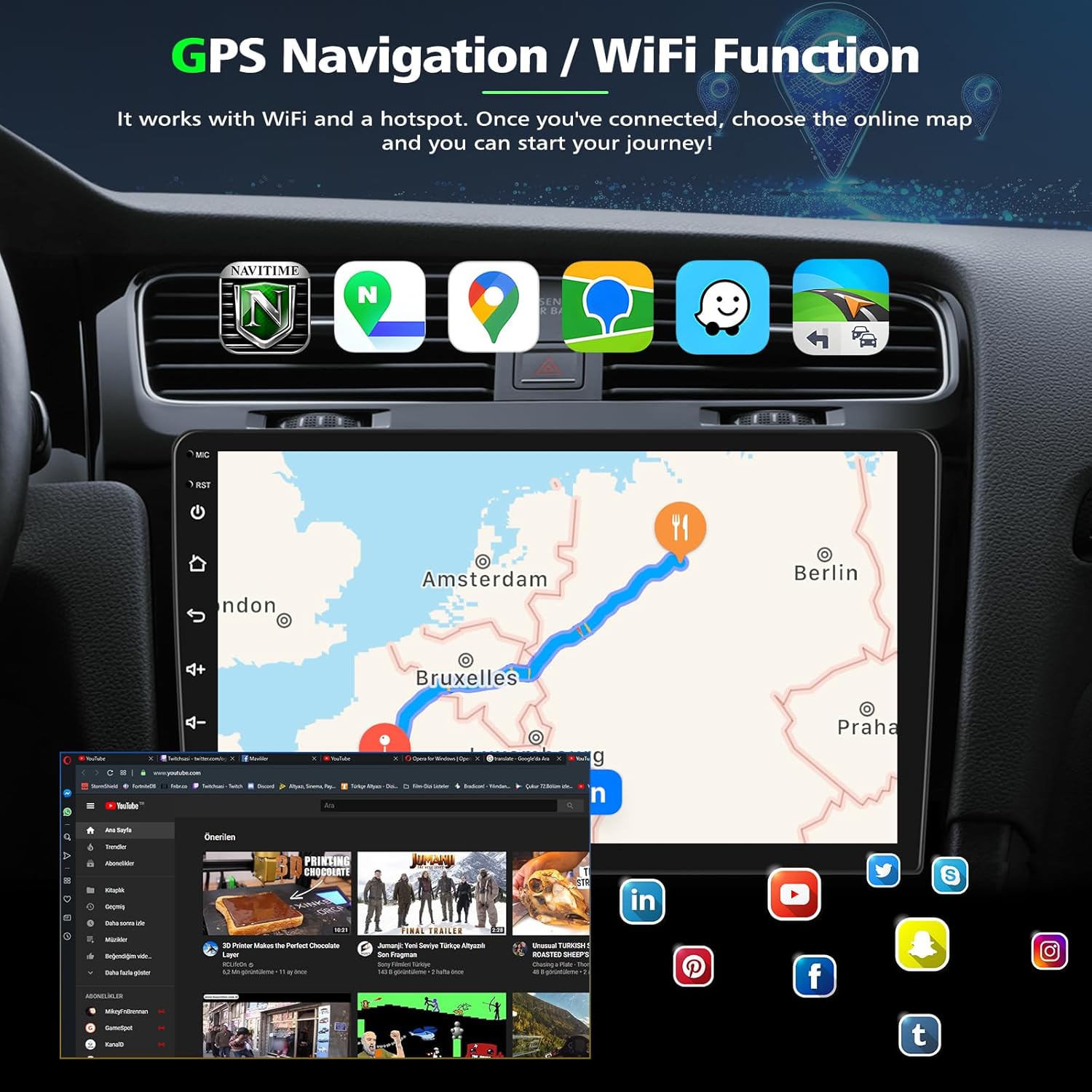
Figure 4: CarPlay and Android Auto Interface. This image shows the car stereo screen running Apple CarPlay, displaying common functions like calls, messages, navigation, and music. It also illustrates the Android Auto interface.
- Konnessjoni:
- Kun żgur li l-Bluetooth u l-Wi-Fi tat-telefon tiegħek huma attivati.
- On the stereo, open the "CarPlay" or "Android Auto" application.
- Pair your phone via Bluetooth with the stereo.
- Once paired, the system will automatically establish a Wi-Fi connection for CarPlay/Android Auto.
- Funzjonijiet: Access phone calls, messages, navigation (Apple Maps, Google Maps, Waze), music streaming, and other compatible apps directly from the stereo's touch screen or via voice commands (Siri/Google Assistant).
3. Navigazzjoni GPS u Konnettività WiFi
The unit features a dual navigation system and WiFi for internet access.

Figure 5: GPS Navigation and WiFi Functionality. This image illustrates the car stereo's GPS navigation capabilities, showing a route on the map, and highlights the WiFi function with various online app icons.
- Navigazzjoni GPS:
- Pre-installed navigation apps support offline maps (download required).
- Connect to WiFi to use online navigation services (e.g., Google Maps, Waze) for real-time traffic updates.
- Konnessjoni WiFi:
- Mur f'"Settings" > "Network & Internet" > "Wi-Fi".
- Select your desired Wi-Fi network (e.g., mobile hotspot) and enter the password.
- Once connected, you can browse the internet, download apps, and stream content.
4. Funzjonalità Bluetooth
Bluetooth 5.2 enables hands-free calling and wireless audio streaming.

Figure 6: Bluetooth, FM Radio, Split Screen, and Voice Control. This composite image demonstrates the Bluetooth calling interface, the FM radio tuner, the split-screen function showing navigation and media, and the voice control feature.
- Tqabbil:
- Go to the "Bluetooth" app on the stereo.
- Ippermetti l-Bluetooth fuq it-telefon tiegħek u fittex apparati disponibbli.
- Select the stereo's Bluetooth name (e.g., "PHEZEN Car Stereo") and confirm pairing.
- Sejħat mingħajr idejn: Make and receive calls directly from the stereo. Use the built-in or external microphone for clear communication.
- Streaming tal-Awdjo: Play music from your phone wirelessly through the car stereo.
5. Radju FM/RDS
Tune into your favorite radio stations with the built-in FM tuner.
- Open the "Radio" app.
- Use the scan function to automatically find and save stations, or manually tune to frequencies.
- RDS (Radio Data System) provides station information where available.
6. Kontroll tal-Istering Wheel (SWC)
Control basic stereo functions using your vehicle's existing steering wheel buttons.

Figure 7: Reverse Display and Steering Wheel Control. This image shows the automatic reverse camera display with parking lines and the menu for configuring steering wheel controls.
- Konfigurazzjoni:
- Mur fuq "Settings" > "Kontroll tal-Istering" jew "Tagħlim SWC".
- Follow the on-screen instructions to program each steering wheel button to its corresponding function on the stereo.
7. Reverse Display (Backup Camera)
When properly installed, the stereo will automatically display the rear view meta l-vettura tinbidel għal ger tar-rivers.
- The included camera features a 170° wide-angle lens, IP68 waterproof rating, and night vision for optimal visibility.
- Parking guidelines may be displayed on the screen to assist with parking.
8. Split Screen Funzjoni
Agħmel ħafna affarijiet f'daqqa billi tħaddem żewġ applikazzjonijiet simultanjament fuq l-iskrin.
- To activate, open an app, then long-press the recent apps button or drag an app to one side of the screen (depending on Android version).
- Select a second app to fill the other half of the screen.
9. Kontroll tal-Vuċi
Use voice commands to control various functions, enhancing convenience and safety.
- Activate voice control through the dedicated button on the screen or by saying a wake word (if configured).
- Commands can include navigation requests, playing music, making calls, and more.
Manutenzjoni
- Tindif tal-iskrin: Uża drapp artab u mingħajr suf biex timsaħ bil-mod it-touch screen. Għal tbajja' persistenti, neħħi ftit.ampNaddaf id-drapp bl-ilma jew b'prodott tat-tindif li ma jagħmilx ħsara lill-iskrin. Evita kimiċi ħarxa.
- Tindif Ġenerali: Imsaħ il-barra tal-unità b'ċarruta niexfa jew kemxejn nadifaamp drapp. Tużax tindif li joborxu.
- Aġġornamenti tas-Software: Iċċekkja perjodikament għal aġġornamenti tas-softwer permezz tas-settings tas-sistema jew tal-manifattur websit biex jiżgura prestazzjoni ottimali u aċċess għal karatteristiċi ġodda.
- Evita l-Ostruzzjoni: Ensure no objects obstruct the unit's ventilation openings to prevent overheating.
Issolvi l-problemi
| Problema | Kawża Possibbli | Soluzzjoni |
|---|---|---|
| L-unità ma tixgħelx. | Incorrect power wiring; Blown fuse; Loose connection. | Check power cable connections (yellow, red, black wires). Verify vehicle fuse and stereo fuse. Ensure all connections are secure. |
| L-ebda ħoss. | Volum baxx wisq; Mute attivat; Wajers tal-ispiker mhux korretti; Ampkwistjoni ta 'lifier. | Increase volume. Check if mute is active. Verify speaker wiring polarity. If an external ampJekk jintuża amplificatur, iċċekkja l-qawwa u l-konnessjonijiet tiegħu. |
| Is-sinjal tal-GPS mitluf jew mhux preċiż. | GPS antenna obstructed or improperly installed; Outdated maps. | Kun żgur li l-antenna tal-GPS għandha viżibilità ċara view of the sky. Check antenna connection. Update navigation maps if necessary. |
| Il-Bluetooth mhux qed jikkonnettja. | Bluetooth mhux attivat fuq it-telefon/stereo; Proċess ta' tqabbil mhux korrett; Interferenza. | Ensure Bluetooth is enabled on both devices. Delete previous pairings and re-pair. Try restarting both devices. |
| Il-kamera ta' wara ma turiex. | Incorrect camera wiring; Reverse detection wire not connected; Faulty camera. | Check camera power and video connections. Ensure the "REVERSE" detection wire is correctly connected to the reverse light positive. Test camera functionality. |
| Il-kontrolli tal-istering mhux qed jaħdmu. | SWC wires not connected; Incorrect SWC learning configuration; Canbus issue. | Verify SWC wire connections. Re-perform the SWC learning process in settings. Check Canbus box connection if applicable. |
| L-iskrin tat-touch ma jirrispondix jew mhux preċiż. | Software glitch; Physical damage; Calibration needed. | Restart the unit. Check for physical damage. If available, perform screen calibration in settings. |
Speċifikazzjonijiet
| Brand | PHEZEN |
| Numru tal-Mudell | B0FT2S1T63 |
| Vetturi Kompatibbli | Dodge Dakota tal-2005-2011 |
| Sistema Operattiva | Android 14 |
| RAM + ROM | 2GB RAM + 32GB ROM |
| Daqs tal-Iskrin | 7 pulzier |
| Riżoluzzjoni tal-Iskrin | 1024 * 600 |
| Karatteristiċi Speċjali | Android Auto, Apple CarPlay, GPS Navigation, Hands-Free Calling, Touchscreen |
| Teknoloġija tal-Konnettività | Bluetooth, USB, Wi-Fi |
| Modalità tal-Ħruġ tal-Awdjo | Stereo |
| Apparati Kompatibbli | Smartphone |
Informazzjoni dwar Garanzija
The manufacturer states "NON" for warranty description. Please refer to your purchase receipt or contact the seller directly for specific warranty terms and conditions, if any apply.
Appoġġ għall-Klijent
If you encounter any issues or have questions regarding your PHEZEN car stereo, please contact the seller directly through the platform where you made your purchase. For Amazon purchases, you can typically find the "Ask a question" link on the product page or through your order history.
When contacting support, please provide your product model number (B0FT2S1T63) and a detailed description of the issue.