
1. Introduction
This manual provides detailed instructions for the installation, operation, and maintenance of your KSIX 2025 Cutting Plotter. Please read this manual thoroughly before using the device to ensure proper function and to prevent damage. Keep this manual for future reference.
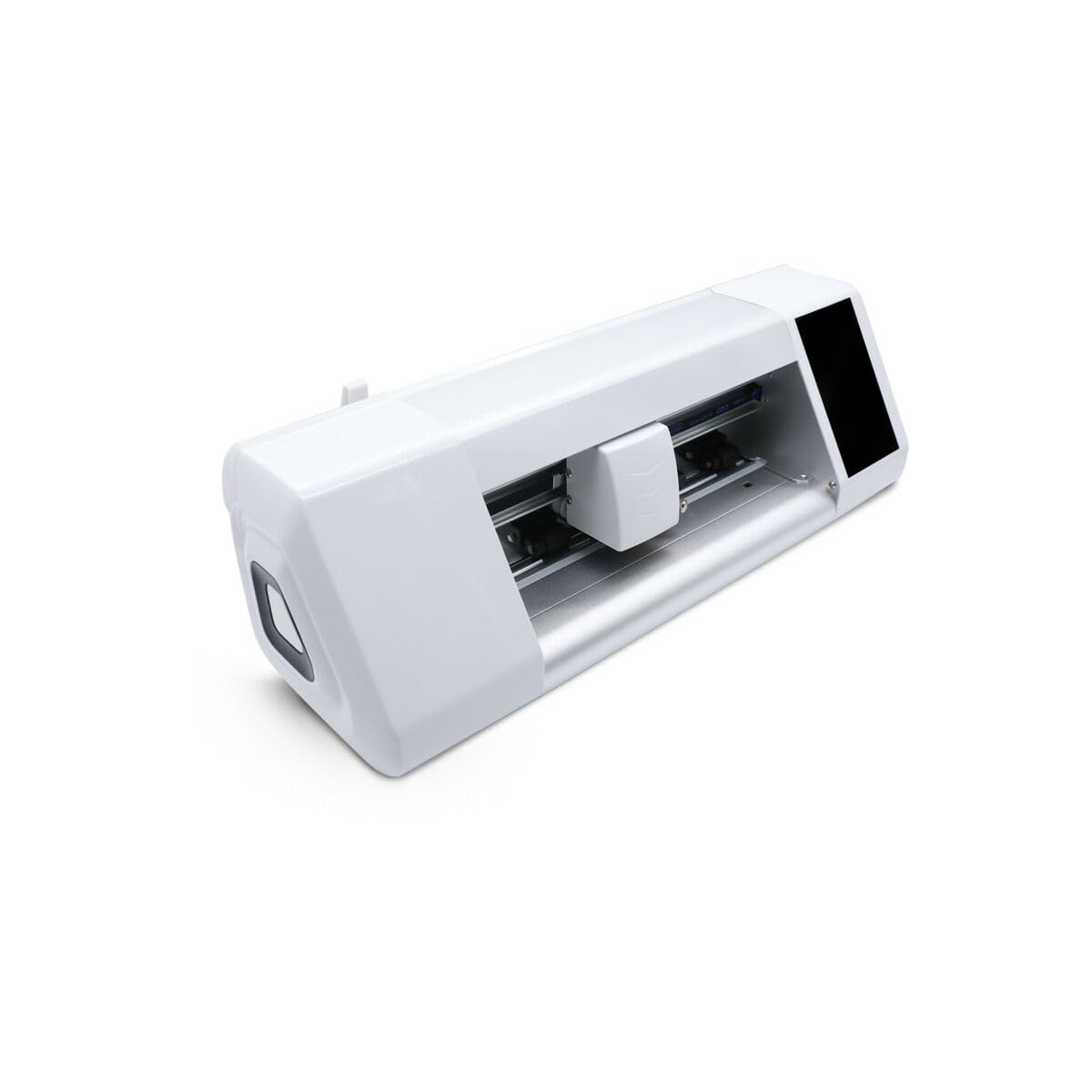
Figure 1: KSIX 2025 Cutting Plotter. This image shows the overall design of the cutting plotter.
2. Safety Information
Always observe the following safety precautions to reduce the risk of injury or damage to the device:
- Ensure the device is placed on a stable, level surface.
- Keep hands and loose clothing away from moving parts during operation.
- Use only the power adapter supplied with the device.
- Do not expose the device to moisture or extreme temperatures.
- Unplug the device from the power outlet before cleaning or performing maintenance.
- Keep out of reach of children.
3. Setup
3.1. Unpacking
- Carefully remove the cutting plotter and all accessories from the packaging.
- Verify that all components are present: cutting plotter unit, power cable, USB cable, blade holder, cutting blades, and this user manual.
- Retain the packaging for future transport or storage.
3.2. Physical Connection
- Power Connection: Connect the power cable to the plotter's power input and then to a suitable electrical outlet.
- USB Connection: For direct connection, plug the USB cable into the plotter and then into your computer.
- Wi-Fi Connection: The KSIX 2025 supports Wi-Fi connectivity. Refer to section 4.3 for Wi-Fi setup instructions.
3.3. Software and Driver Installation
Before operating the plotter, install the necessary drivers and software on your computer. These are typically provided on a CD/DVD or available for download from the official KSIX website. Follow the on-screen instructions for installation.
4. Operating Instructions
4.1. Powering On/Off
- To Power On: Press the power button located on the control panel. The display will illuminate.
- To Power Off: Press and hold the power button until the device shuts down.
4.2. Loading Material
- Lift the pinch rollers.
- Place your cutting material (vinyl, paper, etc.) onto the cutting mat or directly into the plotter, aligning it with the guides.
- Lower the pinch rollers to secure the material. Ensure the material is flat and free of wrinkles.
4.3. Wi-Fi Connectivity
- On the plotter's control panel, navigate to the "Settings" menu.
- Select "Network" or "Wi-Fi Settings".
- Choose your Wi-Fi network from the list and enter the password if prompted.
- Confirm the connection. The plotter should display a connected status.
4.4. Sending a Cut Job
- Prepare your design in the cutting software on your computer.
- Ensure the plotter is connected (USB or Wi-Fi) and powered on.
- In the software, select the KSIX 2025 plotter as your output device.
- Adjust cutting parameters (force, speed, number of passes) as needed for your material.
- Click "Send" or "Cut" in the software to initiate the cutting process.
Note: For detailed instructions on using the cutting software, refer to the software's dedicated user manual or help documentation.
5. Maintenance
5.1. Cleaning
- Exterior: Wipe the exterior surfaces with a soft, damp cloth. Do not use abrasive cleaners or solvents.
- Cutting Area: Regularly remove any small pieces of material or debris from the cutting area and around the blade holder.
- Pinch Rollers: Clean the pinch rollers with a lint-free cloth to ensure proper material grip.
5.2. Blade Replacement
- Ensure the plotter is powered off and unplugged.
- Carefully remove the blade holder from the carriage.
- Unscrew the cap of the blade holder and remove the old blade.
- Insert a new blade, ensuring it is properly seated.
- Replace the cap and reinsert the blade holder into the carriage.
- Caution: Blades are extremely sharp. Handle with care.
6. Troubleshooting
| Problem | Possible Cause | Solution |
|---|---|---|
| Plotter does not power on. | No power supply; faulty power cable. | Check power cable connection; try a different outlet. |
| Plotter not recognized by computer. | USB cable disconnected; drivers not installed; Wi-Fi not connected. | Ensure USB cable is secure; install drivers; check Wi-Fi connection. |
| Material is not cutting properly. | Dull blade; incorrect cutting force/speed; material not loaded correctly. | Replace blade; adjust cutting settings in software; re-load material. |
| Material slips during cutting. | Pinch rollers not engaged; dirty pinch rollers; material too thin/thick. | Lower pinch rollers; clean rollers; use appropriate material. |
7. Specifications
| Feature | Detail |
|---|---|
| Brand | KSIX smart your tech |
| Model Number | 8427542136738 |
| Product Dimensions (L x W x H) | 0.03 x 32 x 29 cm |
| Item Weight | 8.5 Kilograms |
| Connectivity | Wi-Fi (as per product description) |
| Color | Multicolor (as per feature bullets) |
| Reference (S1906880) | S1906880 (as per feature bullets) |
8. Warranty and Support
For warranty information and technical support, please refer to the documentation included with your purchase or visit the official KSIX website. Keep your proof of purchase for warranty claims.
Online Support: www.ksix.com/support (Example link, replace with actual if available)
