
Gofunly H6
Gofunly Kids Instant Print Camera H6 User Manual
Mudell: H6
Introduzzjoni
This manual provides detailed instructions for the safe and effective use of your Gofunly Kids Instant Print Camera, Model H6. Please read this manual thoroughly before operating the device and retain it for future reference.
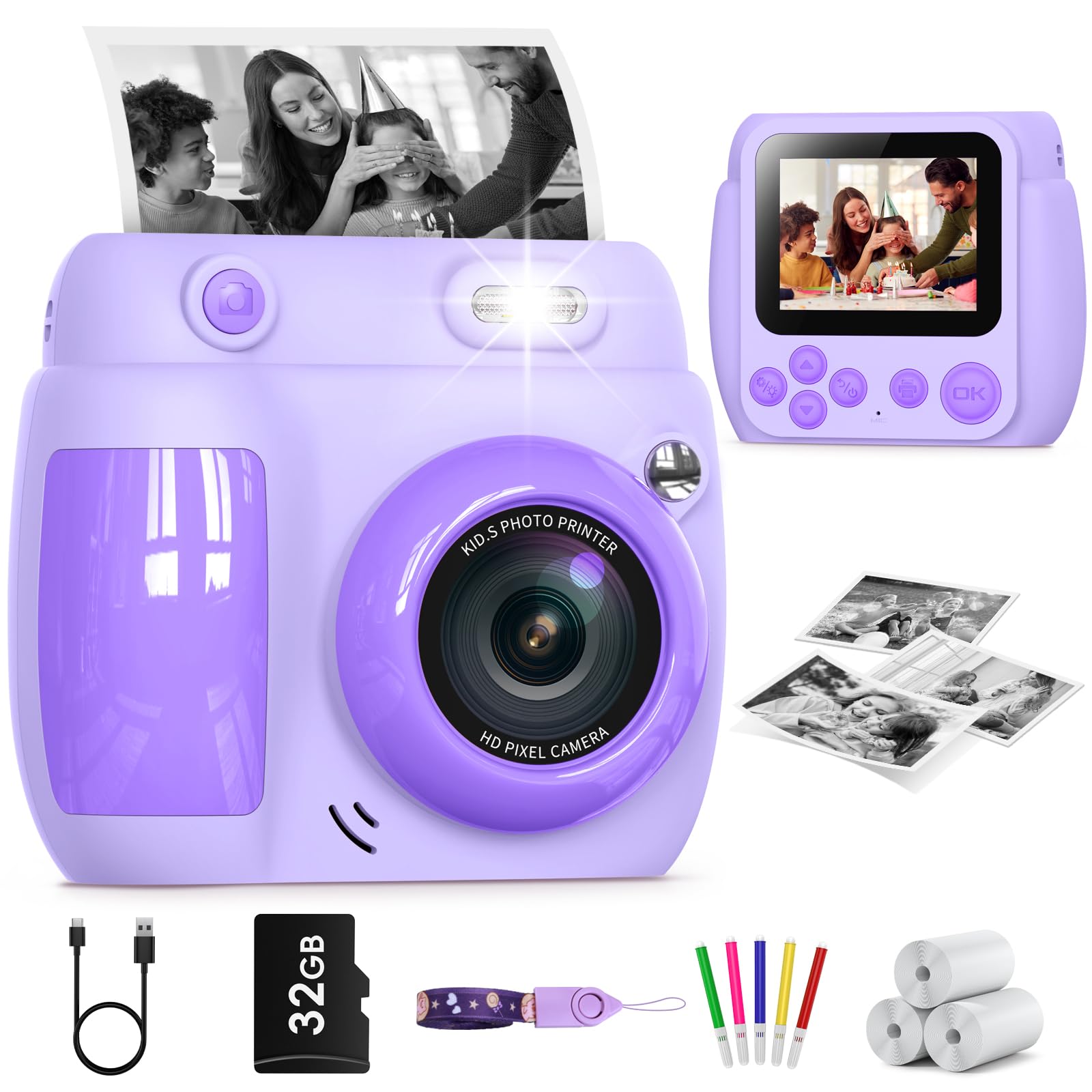
Image: The Gofunly Kids Instant Print Camera H6, purple model.
Kontenut tal-Pakkett
Upon opening your Gofunly Kids Instant Print Camera package, you should find the following items:
- Gofunly Kids Instant Print Camera (Model H6)
- Cable tal-Iċċarġjar tal-USB
- Lanyard
- 3 Rolls of Print Paper
- Karta SD ta' 32GB (installata minn qabel jew inkluża)
- Color Markers (for decorating printed photos)

Image: All items included in the Gofunly Kids Instant Print Camera package.
Setup
1. Iċċarġjar tal-Kamera
Before first use, ensure the camera is fully charged. Connect the provided USB charging cable to the camera's USB port and to a compatible USB power source (e.g., computer, wall adapter). The charging indicator will show the charging status.

Image: Illustration of the USB charging port and SD card slot on the camera.
2. Installing Print Paper
The camera uses thermal print paper. Follow these steps to install or replace a roll:
- Pull open the film door on the side of the camera.
- Insert a new roll of print paper, ensuring the paper feeds out from the top and approximately 1-2 inches are extended.
- Agħlaq il-bieba tal-film sew.
- The camera is now ready to print photos.

Image: Step-by-step guide for installing print paper.
Video: Demonstration of how to install print paper into the camera.
Istruzzjonijiet Operattivi
1. Power On/Off
Press and hold the power button to turn the camera on or off.
2. Basic Camera Functions
The camera features a 2.4-inch IPS screen and intuitive controls. Navigate through the menu using the directional buttons and confirm selections with the 'OK' button.
- Modalità Kamera: Capture color photos.
- Modalità Video: Record 1080P HD videos.
- Plejer tal-Mużika: Play stored music files.
- Logħob: Enjoy 4 built-in puzzle games.
- Daqq: View ritratti u vidjows maqbudin.
- Settings: Adjust camera parameters.

Immaġni: Fuqview of the camera's multifunctional capabilities.
3. Tieħu Ritratti u Stampar
In Camera Mode, press the shutter button to take a photo. The camera can instantly print black-and-white photos using thermal paper. You can also choose to save photos to the 32GB SD card without printing.

Image: The camera capturing and printing a black and white photo.
Video: A child demonstrating taking a photo and printing it instantly.
4. Using Frames and Filters
The camera includes various frames and filters to enhance photos. Access these options through the camera's menu before taking a picture.

Immaġni: Eżamples of frames and filters available on the camera.
5. Zoom Diġitali
The camera supports up to 10x digital zoom. Use the zoom buttons to adjust the magnification before capturing an image or video.
Image: Illustration of the camera's 10x digital zoom feature.
6. Funzjoni tal-Flash
The camera has a built-in flash for low-light conditions. Activate or deactivate the flash through the camera settings. Attenzjoni: Do not look directly into the flash light when it is on.

Image: Comparison of photos taken with flash on and flash off.
Manutenzjoni
- Tindif: Use a soft, dry cloth to clean the camera body and screen. Do not use liquid cleaners or solvents.
- Ħażna: Aħżen il-kamera f'post frisk u niexef 'il bogħod mix-xemx diretta u minn temperaturi estremi.
- Kura tal-batterija: Biex ittawwal il-ħajja tal-batterija, evita li tiċċarġja kompletament il-batterija ta' spiss. Iċċarġjaha regolarment.
- Ħażna tal-Karta: Keep print paper rolls in a dry place, away from moisture and heat, to ensure optimal print quality.
Issolvi l-problemi
| Problema | Kawża Possibbli | Soluzzjoni |
|---|---|---|
| Il-kamera ma tixgħelx. | Batterija baxxa. | Iċċarġja l-kamera kompletament billi tuża l-kejbil USB provdut. |
| Ir-ritratti mhux qed jiġu stampati. | Print paper incorrectly installed or depleted. | Check paper installation (refer to "Installing Print Paper" section) or replace the paper roll. |
| Kwalità fqira tal-istampar. | Batterija baxxa, karta qadima, jew ras tal-istampar maħmuġa. | Ensure camera is charged. Replace paper. Gently clean the print head if accessible (refer to manual for specific instructions if available). |
| Ma nistax insalva r-ritratti/vidjows. | SD card full or not inserted correctly. | Check if the 32GB SD card is properly inserted. Delete old files or format the card if necessary (backup important data first). |
Speċifikazzjonijiet
| Karatteristika | Dettall |
|---|---|
| Brand | Gofunly |
| Isem tal-Mudell | H6 |
| Kulur | Vjola |
| Daqs tal-Iskrin | 2.4 Pulzier |
| Riżoluzzjoni Għadha Totali | 48 MP |
| Riżoluzzjoni Għadha Effettiva | 12 MP |
| Riżoluzzjoni tal-vidjo | 1080p |
| Frame Rata | 30 FPS |
| Zoom ottiku | 10 x |
| Stabbilizzazzjoni tal-Immaġni | Falza |
| Appoġġjati File Format | JPEG, MP4 |
| Kapaċità tal-batterija | 1000 Milliamp Sigħat |
| Kapaċità ta 'Reġistrazzjoni | 2 Sigħat |
| Kapaċità tal-Ħżin tal-Memorja | 32 GB (External-Memory Size) |
| Karatteristika Speċjali | Flash Mibni fil- |
| Materjal | Plastik |
| Livell ta 'Reżistenza għall-Ilma | Mhux Reżistenti għall-Ilma |
Informazzjoni dwar Garanzija
The product information indicates that there is no explicit warranty provided for this item. Please refer to the retailer's return policy for details on returns or exchanges.
Appoġġ
For any questions or assistance regarding your Gofunly Kids Instant Print Camera, please contact Gofunly customer support. They offer 24/7 professional customer support.
You can also visit the official Gofunly store for more product information and support: Gofunly Store
Ask a question about this manual
Ask about setup, troubleshooting, compatibility, parts, safety, or missing instructions. Manuals+ will review the question and use this page’s manual context to help answer it.