
1. Introduzzjoni
The Nero Screen Recorder PRO 365 is a powerful and stable Windows screen recording software designed for capturing high-quality video, audio, and webcam footage. It supports 4K resolution at 60 frames per second (FPS) and offers flexible recording options for various needs, including tutorials, gameplays, and software demonstrations. This manual provides detailed instructions for setup, operation, and troubleshooting to ensure optimal use of the software.
2. Setup u Installazzjoni
To begin using Nero Screen Recorder PRO 365, follow these steps:
- Purchase and Activation: Upon purchase, you will receive an activation card containing a download link and your unique activation code.
- Niżżel is-softwer: Use the provided download link to obtain the Nero Screen Recorder PRO 365 installation file.
- Installazzjoni: Run the installer and follow the on-screen prompts. Ensure your system meets the minimum requirements (Windows 11/10).
- Attivazzjoni: Launch the software and enter your activation code when prompted to activate your annual license. No automatic renewal is required.

Image 2.1: An activation card for Nero Screen Recorder PRO 365, showing the download link and activation code.
3. Istruzzjonijiet Operattivi
Nero Screen Recorder PRO 365 offers various recording modes and customization options.
3.1. Modi ta' Reġistrazzjoni
The software provides flexible options to capture your screen content:
- Full Screen Recording: Captures the entire display.
- Custom Area (Free Form) Recording: Allows you to define a specific rectangular area of your screen to record. This is ideal for focusing on particular sections or applications.
- Application Window Recording: Records a specific application window, even if other windows overlap it.

Image 3.1: Screenshot showing the free form recording selection area on a desktop, with the Nero Screen Recorder PRO interface visible.

Image 3.2: Screenshot illustrating the selection of a specific application window for recording using Nero Screen Recorder PRO.
3.2. Awdjo u Webcam Recording
You can capture system audio, microphone input, and webcam footage simultaneously for a comprehensive recording experience.

Image 3.3: Screenshot of the audio settings in Nero Screen Recorder PRO, showing options for system sound and microphone input levels.
3.3. Video Quality and Export
Record your screen in high-definition 4K resolution with smooth 60 FPS. Recordings can be exported in MP4 format for maximum compatibility with various platforms.
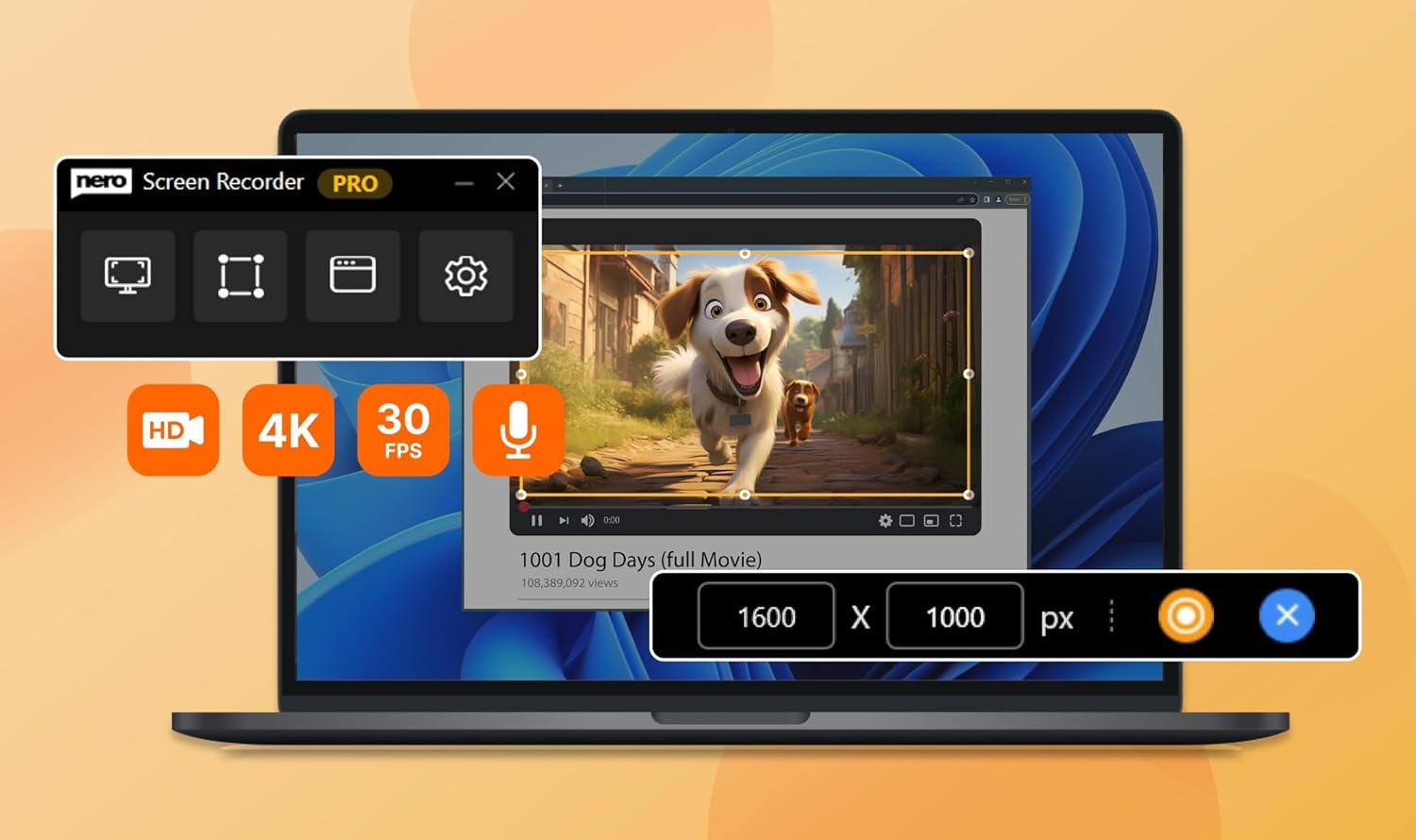
Image 3.4: Screenshot displaying the video quality options in Nero Screen Recorder PRO, highlighting HD, 4K, and 30 FPS settings.
3.4. Hotkeys and Control Panel
Customize hotkeys for quick access to functions like starting, stopping, and pausing recordings. A control panel is available for managing your recording sessions.
3.5. AI Subtitles
Generate subtitles automatically using AI in real-time and customize them for accessibility, making your content more engaging and inclusive.
3.6. How it Works Video
Video 3.1: An official video from Nero Sale demonstrating the core functionalities of Nero Screen Recorder, including different recording modes, audio settings, and hotkey customization.
4. Manutenzjoni
To ensure the longevity and optimal performance of your Nero Screen Recorder PRO 365 software:
- Żomm is-Softwer Aġġornat: Regularly check for and install software updates to benefit from new features, performance improvements, and security patches.
- Immaniġġja l-Ħażna: Screen recordings, especially in 4K, can consume significant disk space. Regularly review u mmaniġġja r-rekordjati tiegħek files to free up storage.
- Ottimizzazzjoni tas-Sistema: Ensure your operating system (Windows 11/10) is well-maintained and free of unnecessary background processes to maximize recording performance.
5 Issolvi l-problemi
If you encounter issues with Nero Screen Recorder PRO 365, consider the following:
- Software Not Launching: Verify that your system meets the minimum requirements and that the software is properly installed and activated.
- Recording Issues (Lag/Stutter): Ensure your computer has sufficient processing power and free disk space. Close unnecessary applications running in the background. Lowering the recording resolution or frame rate in settings may also help.
- Problemi tal-awdjo: Check your audio settings within the software to ensure the correct input (microphone) and output (system sound) devices are selected and their volumes are adjusted appropriately.
- Żbalji fl-Attivazzjoni: Double-check your activation code for accuracy. If issues persist, contact Nero customer support.
- Instabbiltà Ġenerali: Try restarting the software and your computer. If the problem continues, consider reinstalling the software.
6. Speċifikazzjonijiet
| Karatteristika | Dettall |
|---|---|
| Dimensjonijiet tal-Prodott | 6.3 x 4.53 x 0.01 pulzieri |
| Piż | 0.35 uqija |
| Manifattur | Nero Inc. |
| Sistema Operattiva | Windows 11/10 |
| Riżoluzzjoni tal-vidjo | Sa 4K (2160p) |
| Frame Rata | Sa 60 FPS |
| Qbid Awdjo | System audio, Microphone |
| Format tal-output | MP4 |
| Tip ta' Liċenzja | Annual License (No Automatic Renewal) |
7. Garanzija u Appoġġ
Nero Screen Recorder PRO 365 comes with an annual license, providing full access to the software for one year without automatic renewal. For technical assistance, product inquiries, or support related to your license, please refer to the official Nero support channels. Details can typically be found on the Nero website or within the software's help section.