
Prodott Overview
The Gigabyte Aorus Waterforce II 360 Ice Liquid Cooler is an all-in-one (AIO) liquid cooling solution designed for high-performance computing systems. It features a user-friendly fan design with a magnetic lock mechanism and daisy-chain capability for simplified installation and cable management. The cooler incorporates an Edge View circular color LCD for displaying custom text or video playback. Its newly designed fan blades enhance both airflow and pressure while minimizing noise. Both the water block and fans feature gradient lighting, and the ARGB fan lighting can be synchronized with other AORUS devices via GIGABYTE Control Centre (GCC). This cooler offers universal fan and pump RPM control, ensuring compatibility with various motherboard brands.
Karatteristiċi ewlenin:
- Fan design with magnetic lock mechanism and daisy-chain functionality.
- Circular color LCD for custom video playback and text support.
- New fan blade design for increased airflow and pressure.
- Water block and fans with gradient lighting.
- Universal fan and pump RPM control, compatible with all motherboard brands.
Gwida ta' Setup
1. Tneħħija tal-kaxxa u Kontroll tal-Komponenti
Carefully unbox the Aorus Waterforce II 360 Ice Liquid Cooler and verify all components are present. The package should include the radiator with pre-attached fans, the pump/water block unit, mounting hardware for various CPU sockets (Intel and AMD), and necessary cables.

Immaġni: Sploda view showing the various components included with the Aorus Waterforce II 360 Ice Liquid Cooler, including the radiator, fans, pump, and mounting accessories.
2. Installazzjoni tar-Radjatur u l-Fann
Mount the 360mm radiator to an available fan mount in your PC case. Ensure proper airflow direction. The fans feature a magnetic lock mechanism and daisy-chain design for easy connection to the radiator.

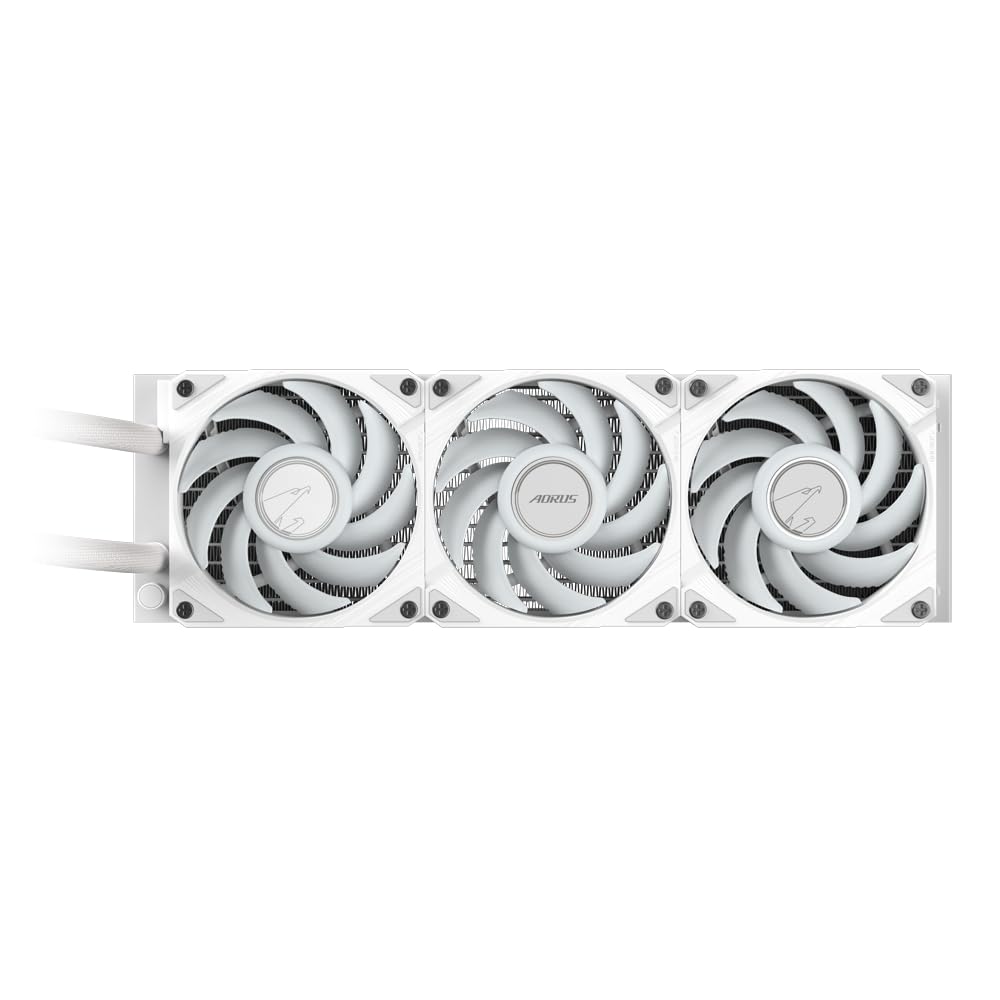
Immaġni: Minn fuq għal isfel view of the Gigabyte Aorus Waterforce II 360 Ice Liquid Cooler, showcasing the three fans with their vibrant RGB lighting and the white radiator frame.
3. Water Block Mounting
Prepare your CPU socket by installing the appropriate backplate and standoffs. Apply thermal paste to the CPU if not pre-applied on the water block. Carefully place the water block onto the CPU and secure it with the provided screws, ensuring even pressure.
Immaġni: Naħa waħda view of the Gigabyte Aorus Waterforce II 360 Ice Liquid Cooler, highlighting the white tubing connecting the water block to the radiator and the overall compact design.
4. Konnessjonijiet tal-kejbil
Connect the pump's power cable to a dedicated AIO_PUMP or CPU_FAN header on your motherboard. Connect the fan cables to available fan headers, utilizing the daisy-chain feature to minimize cable clutter. Connect the USB cable from the water block to an internal USB 2.0 header on your motherboard for LCD control and ARGB synchronization via GIGABYTE Control Centre (GCC).

Immaġni: Angolata view of the Gigabyte Aorus Waterforce II 360 Ice Liquid Cooler, showing the water block with its AORUS logo and the three fans with their white blades and housing.
Istruzzjonijiet Operattivi
1. L-Ewwel Tixgħil
After completing all connections, power on your computer. The AIO cooler's pump and fans should begin operating. Observe for any unusual noises or leaks.
2. Software Installation (GIGABYTE Control Centre - GCC)
For full control over the LCD display, fan RPM, pump RPM, and ARGB lighting, download and install the GIGABYTE Control Centre (GCC) software from the official Gigabyte website. This software allows for customization of the circular LCD screen with custom text or video playback.
3. Monitoring and Adjustments
Use GCC or other system monitoring tools to check CPU temperatures and cooler performance. Adjust fan and pump speeds as needed to balance cooling performance and noise levels. The universal design allows for fine-tuning across various motherboard platforms.
Manutenzjoni
1. Dust Cleaning
Regularly clean dust from the radiator fins and fan blades using compressed air or a soft brush. Dust accumulation can impede airflow and reduce cooling efficiency. It is recommended to do this every 3-6 months depending on your environment.
2. Tubing and Connection Inspection
Periodically inspect the tubing and connections for any signs of leaks, kinks, or damage. Ensure all connections remain secure.
3. Thermal Paste Reapplication (Advanced)
While not frequently required, if you notice a significant increase in CPU temperatures over time, consider reapplying thermal paste to the CPU. This involves carefully removing the water block, cleaning old thermal paste, and applying new paste before re-mounting.
Issolvi l-problemi
Issue: High CPU Temperatures
- Kawża Possibbli: Insufficient thermal paste or improper water block contact.
- Soluzzjoni: Re-seat the water block, ensuring even pressure. Check and reapply thermal paste if necessary.
- Kawża Possibbli: Il-fannijiet ma jdurux jew iduru bil-mod wisq.
- Soluzzjoni: Check fan connections to the motherboard or daisy-chain. Ensure fan RPM is set appropriately in GCC or BIOS.
- Kawża Possibbli: Radiator airflow obstructed by dust.
- Soluzzjoni: Clean dust from radiator fins and fan blades.
Issue: LCD Display Not Working
- Kawża Possibbli: USB cable not connected or loose.
- Soluzzjoni: Ensure the internal USB 2.0 cable from the water block is securely connected to the motherboard.
- Kawża Possibbli: GIGABYTE Control Centre (GCC) software not installed or running.
- Soluzzjoni: Install or restart GCC software. Check for software updates.
Issue: Unusual Noises from Pump or Fans
- Kawża Possibbli: Air bubbles in the loop (pump noise).
- Soluzzjoni: Gently tilt your PC case to help dislodge air bubbles. This usually resolves itself over time.
- Kawża Possibbli: Fan bearing noise or obstruction.
- Soluzzjoni: Inspect fans for any physical obstructions. If noise persists, contact support.
Speċifikazzjonijiet
| Karatteristika | Dettall |
|---|---|
| Numru tal-Mudell | 14900K |
| Brand | Gigabyte |
| Metodu tat-tkessiħ | Liquid (AIO) |
| Daqs tar-Radjatur | 360mm |
| Veloċità tal-fann (Mass) | 360 RPM |
| Livell ta' Storbju | 37.5 dB |
| Tip ta 'Konnettur tal-Enerġija | 4-pin |
| Apparati Kompatibbli | Kompjuter |
| Dimensjonijiet tal-Pakkett | 46.6 x 20.8 x 14.3 ċm |
| Piż tal-oġġett | 2.43 kilogrammi |
Note: The maximum fan speed of 360 RPM listed in the product specifications may refer to a specific component or be a data entry anomaly. Typical cooling fans operate at much higher RPMs. Please refer to the official product page or GIGABYTE Control Centre for accurate fan speed ranges.
Garanzija u Appoġġ
For warranty information, technical support, and service inquiries, please refer to the official Gigabyte webis-sit jew ikkuntattja lid-dipartiment tas-servizz tal-konsumatur tagħhom. Żomm il-prova tax-xiri tiegħek għal talbiet ta’ garanzija.
Manifattur: GIGA-BYTE Technology Co., Ltd.
Paġna tal-prodott: Visit Gigabyte Official Websit