
1. Introduzzjoni u Fuqview
The Samsung Galaxy Tab S9 Ultra is a high-performance tablet designed for productivity, creativity, and entertainment. It features a large 14.6-inch Dynamic AMOLED 2X display, powered by a Snapdragon 8 Gen 2 processor, ensuring smooth operation for demanding tasks and gaming. The tablet is built with an Armor Aluminum frame for enhanced durability and boasts an IP68 rating for water and dust resistance. It comes equipped with an S-Pen for precise input and creative applications.

Figura 1.1: Quddiem u wara view of the Samsung Galaxy Tab S9 Ultra, showcasinid-disinn eleganti u l-modulu tal-kamera tiegħu.
2. Setup
2.1 Tneħħija tal-kaxxa u Spezzjoni Inizjali
Carefully remove all components from the packaging. Verify that the tablet, S-Pen, and charging accessories are present. Inspect the tablet for any physical damage before proceeding.
- Samsung Galaxy Tab S9 Ultra tablet
- S-Pen stylus
- Cable tal-iċċarġjar USB-C
- 45W Super Fast Charger (may be included or sold separately depending on region/retailer)
2.2 Iċċarġjar tat-Tablet
Before first use, fully charge the tablet. Connect the USB-C cable to the tablet's charging port and the other end to the 45W Super Fast Charger. Plug the charger into a wall outlet. The charging indicator on the screen will show the charging status.
2.3 Ixgħel u Konfigurazzjoni Inizjali
Press and hold the Power button located on the side of the tablet until the Samsung logo appears. Follow the on-screen prompts to complete the initial setup:
- Agħżel il-lingwa preferuta tiegħek.
- Connect to a Wi-Fi network (supports Wi-Fi 6e for fast connectivity).
- Review u aċċetta l-Ftehim tal-Liċenzja tal-Utent Aħħari u l-Politika tal-Privatezza.
- Idħol bil-kont Google tiegħek jew oħloq wieħed ġdid.
- Set up a screen lock (PIN, pattern, password, fingerprint, or face recognition).
- Sign in with your Samsung account or create a new one to access Samsung-specific features and services.
- Irrestawra d-dejta minn apparat preċedenti (mhux obbligatorju).
2.4 S-Pen Setup
The S-Pen is designed to attach magnetically to the back of the tablet for charging and storage. When first used, the S-Pen will automatically pair with the tablet. Ensure the S-Pen is properly seated in its magnetic slot on the back of the tablet for optimal charging and connectivity.
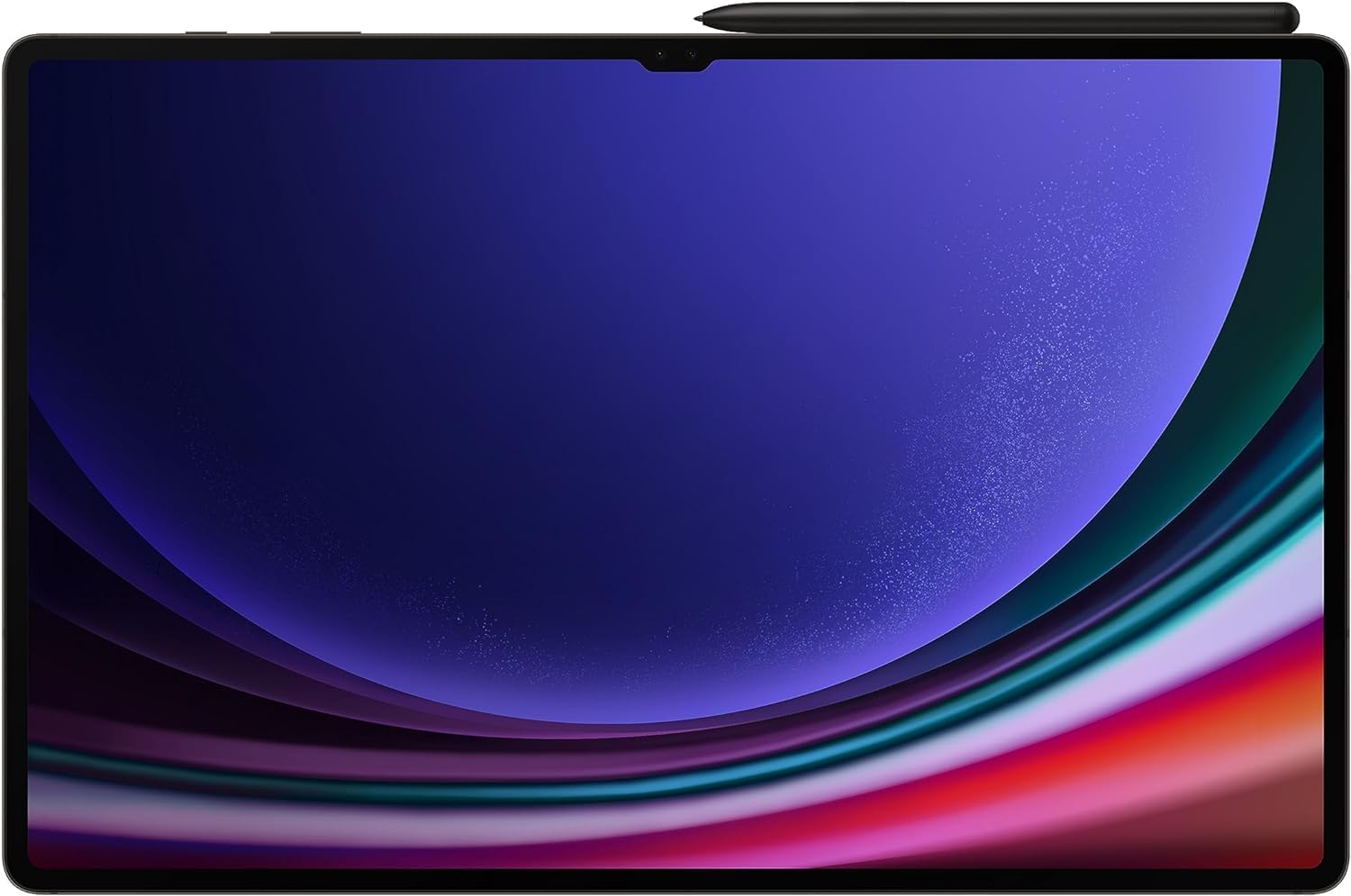
Figura 2.1: Wara view of the tablet showing the magnetic charging slot for the S-Pen.
3. Istruzzjonijiet Operattivi
3.1 Navigazzjoni Bażika
The Galaxy Tab S9 Ultra uses a touch-based interface. Common gestures include tapping to select, swiping to scroll, pinching to zoom, and long-pressing for contextual menus. The 14.6-inch Dynamic AMOLED 2X display provides a vibrant and responsive user experience.

Figura 3.1: Quddiem view of the tablet with the display active, demonstrating the large screen size.
3.2 L-użu tal-S-Pen
The S-Pen enhances interaction with the tablet. It can be used for:
- Kitba u Tpinġija: Use the S-Pen for precise note-taking and creative artwork in compatible applications.
- Kmand tal-Ajru: Hover the S-Pen over the screen and press the S-Pen button to open the Air Command menu, providing quick access to features like Create note, Smart select, Screen write, and Live message.
- Azzjonijiet tal-Ajru: Control certain tablet functions remotely using S-Pen gestures, such as navigating presentations or controlling media playback.
3.3 Multitasking and Samsung DeX
The Galaxy Tab S9 Ultra supports advanced multitasking capabilities:
- Skrin maqsum: Open two applications side-by-side by dragging an app from the Recents screen to either side of the display.
- Pop-up View: Open applications in resizable floating windows for flexible workflow.
- Samsung DeX: Transform your tablet experience into a desktop-like environment. Access DeX from the Quick Panel. DeX allows you to open multiple app windows, use a taskbar, and connect external monitors for an expanded workspace.
3.4 Konnettività
- Wi-Fi: Connect to wireless networks using Wi-Fi 6e for high-speed internet access.
- Bluetooth: Pair with Bluetooth devices such as headphones, keyboards, and mice.
3.5 Użu tal-Kamera
The tablet features multiple cameras, including dual front cameras, suitable for video calls and capturing photos. Open the Camera app to access various modes and settings.
4. Manutenzjoni
4.1 Tindif tat-Tablet
Biex tnaddaf l-iskrin, uża drapp artab u mingħajr suf. Għal tbajja' persistenti, neħħi ftitampen the cloth with water or a screen-safe cleaning solution. Avoid harsh chemicals or abrasive materials. For the body, use a dry or slightly damp drapp artab.
4.2 Kura tal-Batterija
Biex ittawwal il-ħajja tal-batterija:
- Evita temperaturi estremi.
- Tħallix it-tablet iċċarġjat kompletament jew skarikat kompletament għal perjodi twal.
- Use the provided or certified charging accessories.
4.3 Aġġornamenti tas-Software
Iċċekkja u installa aġġornamenti tas-softwer regolarment biex tiżgura prestazzjoni ottimali, sigurtà, u aċċess għal karatteristiċi ġodda. Mur fuq Settings > Aġġornament tas-softwer biex tiċċekkja għal aġġornamenti.
4.4 Ġestjoni tal-Ħażna
Perjodikament mill-ġdidview u immaniġġja l-ħażna tat-tablet tiegħek. Ħassar il-ħżin żejjed files, uninstall unused apps, and consider cloud storage for large media files biex iżommu l-prestazzjoni.
5 Issolvi l-problemi
5.1 Kwistjonijiet Komuni u Soluzzjonijiet
- It-tablet mhux qed jixgħel: Ensure the tablet is charged. Connect it to the charger and wait a few minutes before attempting to power on again.
- L-iskrin ma jirrispondix: Agħmel restart furzat billi żżomm il-buttuna tal-Qawwa u l-buttuna tal-Volum 'l isfel simultanjament għal madwar 7-10 sekondi.
- Problemi ta' konnettività tal-Wi-Fi: Restart the tablet and your Wi-Fi router. Forget and reconnect to the Wi-Fi network in Settings.
- S-Pen not responding: Ensure the S-Pen is fully charged by attaching it to the magnetic slot on the back of the tablet. If issues persist, try resetting the S-Pen connection in Settings.
5.2 Irrisettja l-Fabbrika
If software issues persist, a factory reset may be necessary. This will erase all data on the tablet, so ensure you back up important information before proceeding. Navigate to Settings > Ġestjoni ġenerali > Irrisettja > Irrisettja d-dejta tal-fabbrika.
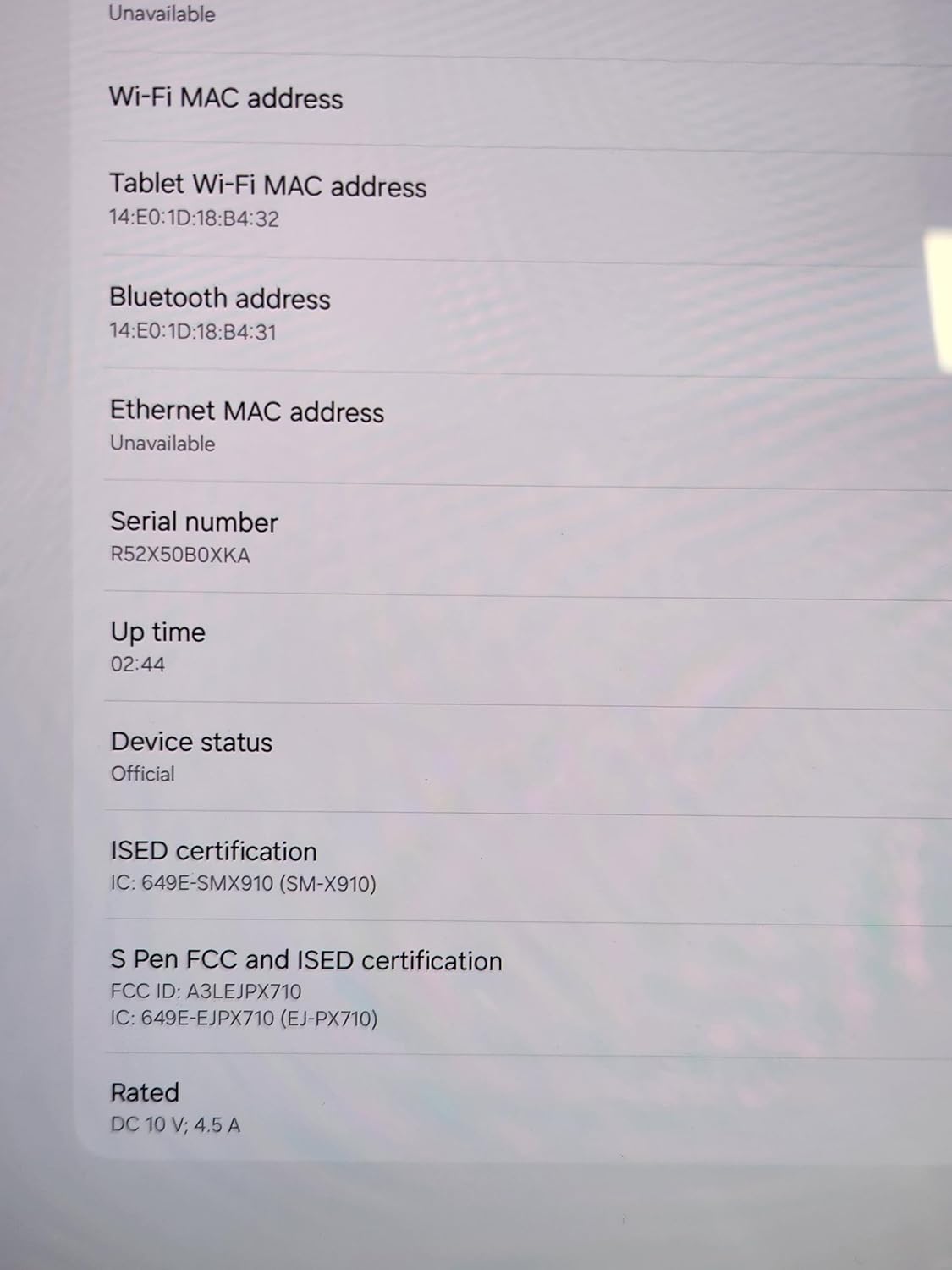
Figure 5.1: Device information screen, useful for verifying model and serial numbers during troubleshooting or support inquiries.
6. Speċifikazzjonijiet
| Karatteristika | Speċifikazzjoni |
|---|---|
| Brand | SAMSUNG |
| Isem tal-Mudell | Galaxy Tab S9 Ultra |
| Daqs tal-Iskrin | 14.6 Pulzier |
| Riżoluzzjoni tal-Iskrin | 2960 x 1848 Pixels (Dynamic AMOLED 2X) |
| Proċessur | Snapdragon 8 Ġen 2 |
| Memorja (RAM) | 16GB (for 1TB model) |
| Kapaċità tal-Ħżin | 1 TB (Flash Memory) |
| Sistema Operattiva | Android 13 |
| Tip bla fili | 802.11ax (Wi-Fi 6e) |
| Konnettività | Bluetooth |
| Piż tal-oġġett | 2.31 liri |
| Dimensjonijiet tal-Prodott | 16 x 12 x 1 pulzieri |
| Kulur | Grafita |
| Batterija | 1 batterija tal-polimer tal-litju (inkluża) |
| Durabilità | IP68 Water and Dust Resistant, Armor Aluminum Frame |
7. Garanzija u Appoġġ
This product is a renewed item. Warranty and support terms for renewed products may differ from new products. Please refer to the specific warranty information provided by the seller at the time of purchase or consult the Amazon Renewed program details for applicable return and warranty policies.
For general product information, software updates, and troubleshooting guides, you can visit the official Samsung support websit: