
1. Introduzzjoni
Welcome to the HyperX Armada 25 Gaming Monitor user manual. This document provides essential information for setting up, operating, maintaining, and troubleshooting your new monitor. The HyperX Armada 25 is designed for competitive gaming, featuring a 24.5-inch Full HD (1920x1080) IPS panel, a 240Hz refresh rate, and a 1ms response time, ensuring smooth and responsive visuals. It also includes NVIDIA G-SYNC compatibility to eliminate screen tearing and minimize input latency. A desk mount is included for convenient setup and to maximize desk space.
Karatteristiċi ewlenin:
- Pakkett All-in-One: Includes an ergonomic arm and desk mount for easy setup and space-saving.
- Rata Għolja ta' Riffriskar u Ħin ta' Rispons: 240Hz refresh rate and 1ms response time for ultra-smooth gaming.
- Vibrant IPS Panel: 24.5-inch Full HD (1920x1080) IPS panel delivers stunning visuals with accurate colors and wide viewangoli.
- Kompatibbli ma' NVIDIA G-SYNC: Eliminates screen tearing and reduces stuttering for a fluid gaming experience.

Vidjo Uffiċjali tal-Prodott:
2. Setup
This section guides you through the initial setup of your HyperX Armada 25 Gaming Monitor, including assembly and connection to your computer.
2.1. Assembling the Desk Mount
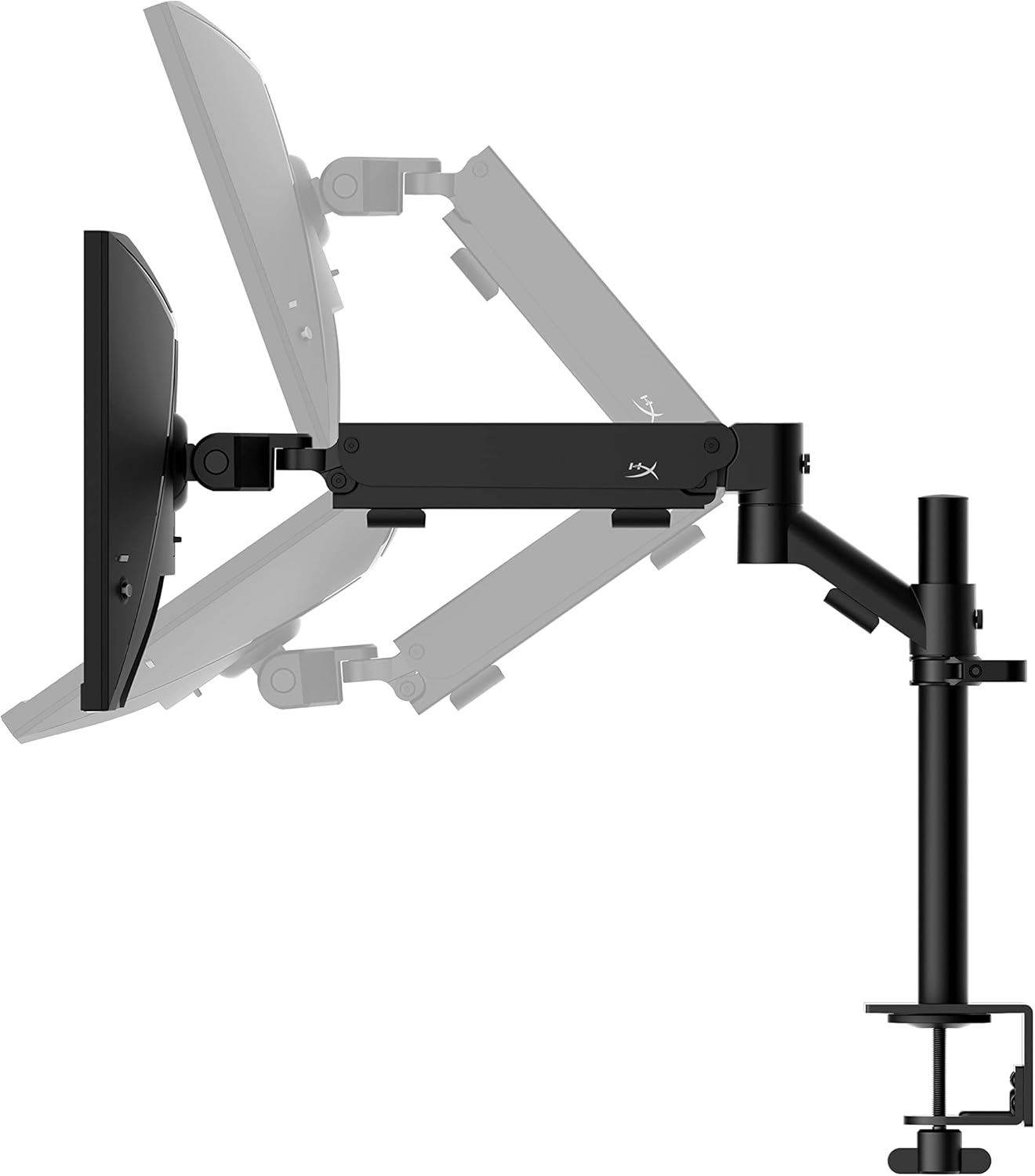
The HyperX Armada 25 comes with an integrated ergonomic desk mount. Follow the instructions provided in the separate quick start guide for detailed assembly steps. The monitor head easily snaps into the arm, allowing for quick and secure installation.

2.2. Tqabbad il-Monitor
Connect the monitor to your computer using the appropriate cables. The HyperX Armada 25 supports both HDMI and DisplayPort connections.
- Qabbad tarf wieħed tal-kejbil HDMI jew DisplayPort mal-port korrispondenti fuq il-karta grafika tal-kompjuter tiegħek.
- Connect the other end of the cable to an available HDMI 2.0 or DisplayPort 1.4 port on the back of your monitor.
- Qabbad il-korda tal-enerġija mal-monitor u mbagħad ma' sokit tal-enerġija.
- Agħfas il-buttuna tal-qawwa fuq il-monitor biex tixgħel.

3. It-tħaddim tal-Monitor
This section covers basic operation and navigation of the monitor's On-Screen Display (OSD) menu.
3.1. Navigazzjoni fuq l-Iskrin (OSD).
The OSD menu is controlled using a joystick located on the back of the monitor. This joystick allows you to power on/off the monitor and navigate through various settings.
- Agħfas il-joystick: Biex tiftaħ il-menù tal-OSD jew tikkonferma għażla.
- Move the joystick Up/Down/Left/Right: To navigate through menu options and adjust settings.
- Hold the joystick: To power off the monitor.

3.2. Aġġustament tal-Pożizzjoni tal-Monitor
The ergonomic desk mount allows for flexible positioning of your monitor. You can adjust the height, tilt, swivel, and pivot to find your optimal viewangolu tal-ing.

4. Manutenzjoni
Proper maintenance ensures the longevity and optimal performance of your HyperX Armada 25 Gaming Monitor.
- Tindif tal-Iskrin: Uża ċarruta ratba u mingħajr ħelu dampened with water or a specialized screen cleaner. Avoid using harsh chemicals, abrasive materials, or direct spraying onto the screen.
- Tindif tas-Casing: Imsaħ il-monitor casinNaddaf b'ċarruta ratba u niexfa.
- Ventilazzjoni: Kun żgur li l-fetħiet tal-ventilazzjoni tal-monitor mhumiex imblukkati biex tevita li jisħon iżżejjed.
- Qawwa Mitfi meta ma tkunx qed tintuża: Itfi l-monitor meta ma jkunx qed jintuża għal perjodi twal biex tiffranka l-enerġija u ttawwal il-ħajja tiegħu.
5 Issolvi l-problemi
Jekk tiltaqa' ma' problemi bil-monitor tiegħek, irreferi għall-passi komuni li ġejjin għas-soluzzjoni tal-problemi.
- Ebda Qawwa:
- Iċċekkja jekk il-kejbil tad-dawl huwiex imqabbad sew mal-monitor kif ukoll mal-iżbokk tad-dawl.
- Kun żgur li s-sokit tal-enerġija qed jaħdem sew.
- Agħfas il-buttuna tal-qawwa fuq il-monitor.
- Ebda Sinjal:
- Verify that the HDMI or DisplayPort cable is securely connected to both the monitor and your computer.
- Kun żgur li l-kompjuter tiegħek huwa mixgħul u mhux fil-modalità sleep.
- Agħżel is-sors tad-dħul korrett billi tuża l-menù OSD.
- Flickering Screen or Image Issues:
- Check the display cable for damage or loose connections.
- Kun żgur li s-sewwieqa tal-karta grafika tiegħek huma aġġornati.
- Aġġusta r-rata ta' aġġornament fis-settings tad-displej tal-kompjuter tiegħek.
- If G-SYNC is enabled, try disabling it temporarily to see if the issue persists.
- Buttons Not Responding (OSD Joystick):
- Kun żgur li l-monitor huwa mixgħul.
- Try restarting the monitor by unplugging and replugging the power cable.
- Clean around the joystick to ensure no debris is obstructing its movement.
6. Speċifikazzjonijiet
Detailed technical specifications for the HyperX Armada 25 Gaming Monitor.
| Karatteristika | Dettall |
|---|---|
| Dimensjonijiet tal-Prodott | 21.94 x 25.79 x 31.12 pulzier; 16.98 Liri |
| Numru tal-Mudell tal-Oġġett | HyperX Armada 25 |
| Data L-Ewwel Disponibbli | 24 ta’ Awwissu, 2022 |
| Manifattur | HP Inc. |
| ASIN | B0B2C1G356 |
| Daqs tal-Wiri | Dijagonali ta '24.5 pulzieri |
| Riżoluzzjoni | FHD (1920x1080) |
| Riffriskar Rata | 240Hz |
| Tip ta' Panel | Bord tal-IPS |
| Ħin ta' Rispons | 1ms |
| Teknoloġija tas-Sinkronizzazzjoni | Kompatibbli NVIDIA® G-SYNC® |
| Included Mount | Desk Mount Included |
| Konnettività | HDMI and Display Port |
7. Garanzija u Appoġġ
For warranty information, technical support, or to access additional resources, please visit the official HyperX websit jew ikkuntattja lis-servizz tal-konsumatur tagħhom.
- HyperX Uffiċjali Websit: www.hyperx.com
- Paġna ta' Appoġġ għall-Prodott: Refer to the support section on the HyperX websit għall-mudell speċifiku tiegħek.