
Iproda T1045A
iProda T1045A 10.1 inch Android Tablet User Manual
Comprehensive instructions for your iProda T1045A Android Tablet.
1. Introduzzjoni
This manual provides detailed instructions for the setup, operation, maintenance, and troubleshooting of your iProda T1045A 10.1 inch Android Tablet. Please read this manual thoroughly before using your device to ensure proper functionality and to maximize your user experience.
The iProda T1045A is a 10.1-inch tablet featuring an HD IPS display with 1280x800 resolution, powered by a 64-bit Quad-core processor running Android 9 Pie. It includes 3GB RAM, 64GB internal storage expandable up to 128GB via TF card, dual-band Wi-Fi, HDMI output, and a 5000mAh battery for extended use.
2. Prodott Aktarview
2.1 Kontenut tal-Pakkett
Malli tiftaħ il-pakkett, ivverifika li l-oġġetti kollha huma preżenti:
- iProda T1045A 10.1 inch Android Tablet
- Cable USB
- Adapter tal-Enerġija
- Manwal għall-Utent (dan id-dokument)

Image: Contents of the iProda T1045A tablet package.
2.2 Layout tal-Apparat
Familiarize yourself with the physical components and ports of your tablet:
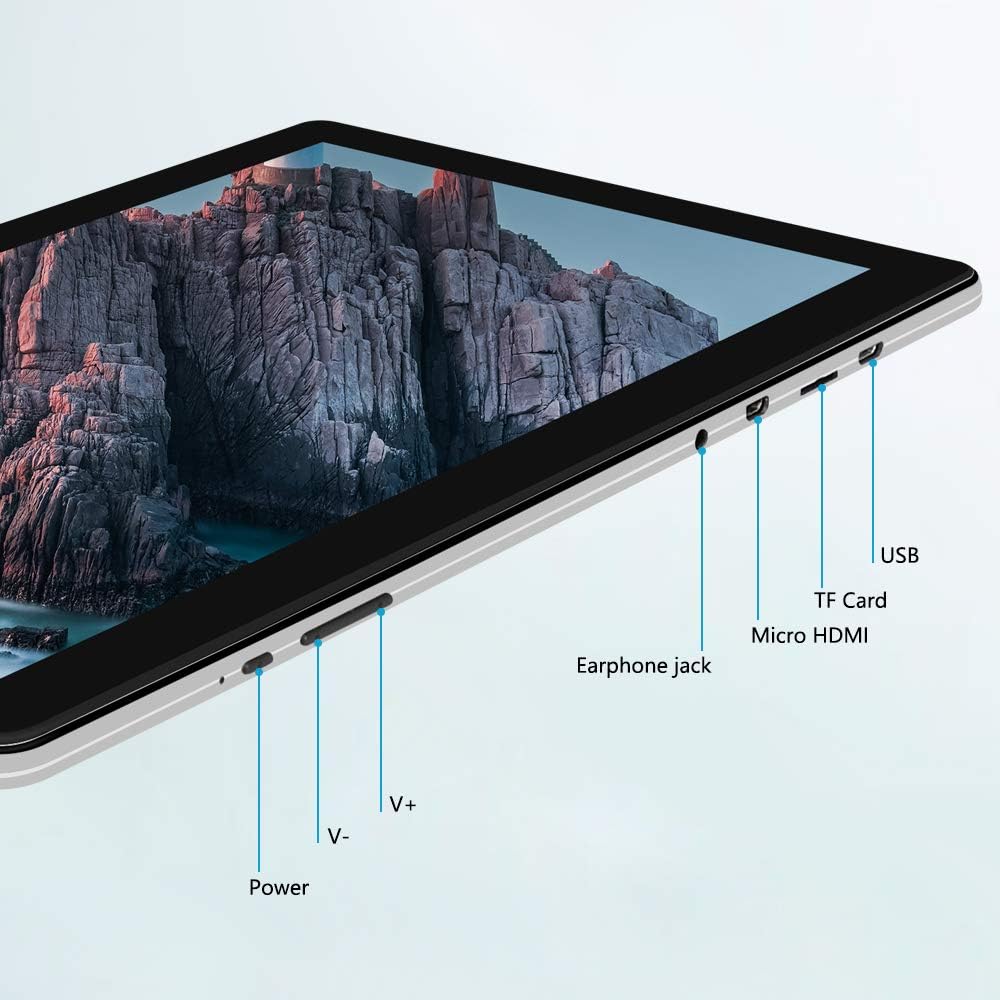
Immaġni: Ġenb view of the iProda T1045A tablet highlighting port locations.
- Buttuna tal-Qawwa: Press and hold to power on/off or restart the tablet. Short press to turn the screen on/off.
- Volume Buttons (V+, V-): Aġġusta l-volum tal-awdjo.
- Jack tal-widna: Qabbad headphones ta '3.5mm.
- Slott tal-Karta TF: Insert a microSD card for expandable storage (up to 128GB).
- Port Mikro HDMI: Connect to an external display using a Micro HDMI to HDMI cable.
- Port USB: Connect to a computer for data transfer or for charging the device.
3. Setup
3.1 Iċċarġjar inizjali
Before first use, fully charge the tablet. Connect the provided USB cable to the tablet's USB port and the power adapter, then plug the adapter into a wall outlet. The charging indicator will typically illuminate. A full charge may take several hours.
3.2 Tixgħel/Jitfi
- Biex Tixgħel: Agħfas u żomm il-buttuna Power sakemm l-iskrin jixgħel.
- Biex Tifi: Agħfas u żomm il-buttuna tal-Enerġija sakemm jidher menu tal-enerġija fuq l-iskrin. Agħżel "Itfi" u kkonferma.
- Biex terġa' tibda: Mill-menù tal-enerġija, agħżel "Erġa' ibda".
- Screen mixgħul/mitfi: Briefly press the Power button to turn the screen off (sleep mode) or wake it up.
3.3 Wizard tas-Setup Inizjali
The first time you power on the tablet, you will be guided through an initial setup process. Follow the on-screen prompts to:
- Agħżel il-lingwa preferuta tiegħek.
- Qabbad ma 'netwerk Wi-Fi.
- Issettja l-kont Google tiegħek (mhux obbligatorju, iżda rakkomandat għat-tniżżil tal-app).
- Ikkonfigura s-settings tad-data u l-ħin.
3.4 Inserting a TF Card (MicroSD)
To expand the tablet's storage:
- Locate the TF card slot on the side of the tablet.
- Carefully insert a microSD card (up to 128GB) into the slot with the gold contacts facing down until it clicks into place.
- Biex tneħħiha, imbotta l-karta bil-mod 'il ġewwa sakemm toħroġ 'il barra.
4. Istruzzjonijiet Operattivi
4.1 Navigazzjoni Bażika
The iProda T1045A uses a touch-sensitive screen for navigation:
- Tektek: Agħżel oġġett jew iftaħ applikazzjoni.
- Tektek u Żomm: Aċċessa l-menus kuntestwali jew iċċaqlaq l-ikoni.
- Swipe: Skrollja fil-listi jew aqleb bejn l-iskrins ewlenin.
- Oqros: Iżżumja 'l ġewwa jew 'il barra fuq l-immaġnijiet u web paġni.
4.2 Konnessjoni Wi-Fi
Biex tikkonnettja ma' netwerk bla fili:
- Mur fuq Settings > Netwerk u Internet > Wi-Fi.
- Ixgħel il-Wi-Fi On.
- Agħżel in-netwerk mixtieq tiegħek mil-lista.
- Daħħal il-password jekk tintalab, imbagħad tektek Qabbad.
The tablet supports both 2.4G and 5G dual-band Wi-Fi for faster and more stable connections.
4.3 Tqabbil tal-Bluetooth
To pair with Bluetooth devices (e.g., headphones, speakers):
- Mur fuq Settings > Apparati konnessi > Bluetooth.
- Toggle Bluetooth On.
- Kun żgur li l-apparat Bluetooth tiegħek jinsab fil-modalità ta' tqabbil.
- Select your device from the list of available devices and follow any on-screen prompts to complete pairing.
4.4 Użu tal-Kameras
It-tablet huwa mgħammar b'kamera ta' quddiem ta' 2MP u kamera ta' wara ta' 5MP.
- Iftaħ il- Kamera application from the app drawer.
- Tektek l-ikona tal-kamera biex taqleb bejn il-kameras ta' quddiem u ta' wara.
- Tektek il-buttuna tax-shutter biex tieħu ritratti jew tibda/twaqqaf ir-reġistrazzjoni tal-vidjow.

Image: Tablet in use, showcasing its camera capabilities.
4.5 Connecting to an External Display (HDMI)
To display your tablet's screen on a larger monitor or TV:
- Connect one end of a Micro HDMI cable to the tablet's Micro HDMI port.
- Connect the other end of the cable to an HDMI input on your external display.
- Select the correct HDMI input source on your external display.
- The tablet's screen content should now be mirrored on the external display.
4.6 Ġestjoni tal-App
The tablet runs Android 9 Pie and supports applications from the Google Play Store.
- Installazzjoni ta' Apps: Iftaħ il- Play Store app, search for your desired application, and tap Installa.
- Id-diżinstallazzjoni tal-Apps: Tap and hold an app icon on the home screen or in the app drawer, then drag it to "Uninstall" or select "App info" and choose "Uninstall". Alternatively, go to Settings > Apps u notifiki, agħżel l-app, u tektek Iddiżinstalla.
5. Manutenzjoni
5.1 Tindif tal-Apparat
Biex tnaddaf it-tablet tiegħek:
- Power off the tablet before cleaning.
- Uża drapp artab u mingħajr suf, ftit imxarrabampened with water or a screen cleaner, to wipe the screen and body.
- Evita li tuża kimiċi ħarxa, prodotti tat-tindif li joborxu, jew umdità eċċessiva.
5.2 Aġġornamenti tas-Software
Periodically check for software updates to ensure optimal performance and security:
- Mur fuq Settings > Sistema > Avvanzat > Aġġornament tas-sistema.
- Follow the on-screen instructions to download and install any available updates. Ensure your tablet is sufficiently charged or connected to power during updates.
5.3 Ġestjoni tal-Ħażna
To manage internal storage and the TF card:
- Mur fuq Settings > Ħażna.
- Hawnhekk tista ' view storage usage, free up space, and manage files on both internal storage and the inserted TF card.
6 Issolvi l-problemi
This section addresses common issues you might encounter with your iProda T1045A tablet.
6.1 L-Apparat Mhux Qed Jixgħel
- Ensure the tablet is sufficiently charged. Connect it to the power adapter and allow it to charge for at least 30 minutes before attempting to power on again.
- Ipprova żomm il-buttuna tal-Qawwa għal 10-15-il sekonda biex terġa' tibda.
6.2 Kwistjonijiet ta' Konnessjoni tal-Wi-Fi
- Verify that Wi-Fi is enabled in Settings.
- Kun żgur li qed iddaħħal il-password korretta tal-Wi-Fi.
- Erġa' ibda r-router Wi-Fi tiegħek u t-tablet.
- Try connecting to a different Wi-Fi network to determine if the issue is with the tablet or the network.
6.3 Prestazzjoni bil-mod
- Agħlaq applikazzjonijiet fl-isfond mhux meħtieġa.
- Clear cached data for apps in Settings > Apps u notifiki > [Isem tal-App] > Ħażna u cache > Ċar il-cache.
- Ensure sufficient free storage space. Uninstall unused apps or move large files to a TF card.
- Ibda mill-ġdid il-pillola.
6.4 Il-Batterija Tixxotta Malajr
- Naqqas il-luminożità tal-iskrin.
- Iddiżattiva l-Wi-Fi, il-Bluetooth, u l-GPS meta ma tkunx qed tużahom.
- Agħlaq l-apps fl-isfond li jikkunsmaw ħafna enerġija.
- Iċċekkja l-użu tal-batterija f' Settings > Batterija biex tidentifika applikazzjonijiet li jikkunsmaw ħafna enerġija.
- Ensure the tablet is not allowed to run below 15% charge frequently, as this can impact battery longevity.
6.5 Irrisettja l-Fabbrika
Jekk iseħħu problemi persistenti, reset tal-fabbrika jista' jsolvihom. Twissija: Dan se jħassar id-dejta kollha fuq it-tablet tiegħek. Agħmel backup tad-dejta importanti qabel ma tipproċedi.
- Mur fuq Settings > Sistema > Avvanzat > Irrisettja l-għażliet.
- Agħżel Ħassar id-dejta kollha (reset tal-fabbrika).
- Ikkonferma d-deċiżjoni tiegħek u segwi l-istruzzjonijiet fuq l-iskrin.
7. Speċifikazzjonijiet
Below are the technical specifications for the iProda T1045A tablet:
| Isem tal-Mudell | T1045A |
| Sistema Operattiva | Android 9 Pie |
| Daqs tal-Wiri | 10.1 Pulzier |
| Riżoluzzjoni tal-Wiri | 1280 x 800 pixel (HD IPS) |
| Proċessur | MediaTek Quad-core 1.5Ghz |
| RAM | 3 GB |
| Ħażna Interna | 64 GB SSD |
| Ħażna espansibbli | Up to 128 GB via TF Card (MicroSD) |
| Koproċessur tal-Grafika | ARM Mali-T720 MP2 |
| Kamera ta' wara | 5 MP |
| Kamera ta' Quddiem | 2 MP |
| Kapaċità tal-batterija | 5000 mAh Polimer tal-litju |
| Ħajja Medja tal-Batterija | Sa 8 sigħat |
| Konnettività bla fili | Dual-Band Wi-Fi (802.11a/b/g/n), Bluetooth 4.0 |
| Portijiet | 1x USB 2.0, 1x Micro HDMI, 3.5mm Earphone Jack, TF Card Slot |
| Dimensjonijiet | 34.5 x 19.7 x 5.5 ċm |
| Piż | 550 g |

Image: Key performance specifications of the tablet.

Image: Tablet portability and battery details.
8. Garanzija u Appoġġ
8.1 Garanzija tal-Prodott
The iProda T1045A tablet comes with a 12-il xahar garanzija mid-data tax-xiri. Din il-garanzija tkopri difetti fil-manifattura u malfunzjonijiet taħt użu normali. Ma tkoprix ħsara kkawżata minn użu ħażin, inċidenti, tiswijiet mhux awtorizzati, jew xedd u kedd normali.
8.2 Appoġġ għall-Klijent
If you encounter any issues not covered in the troubleshooting section or require further assistance, please contact iProda customer support. Refer to your purchase documentation or the iProda official websit għal informazzjoni ta' kuntatt.
When contacting support, please have your tablet's model number (T1045A) and purchase details readily available.
Ask a question about this manual
Ask about setup, troubleshooting, compatibility, parts, safety, or missing instructions. Manuals+ will review the question and use this page’s manual context to help answer it.