
1. Introduzzjoni
Thank you for choosing the Gembird MUS-6B-01 Optical USB Mouse. This manual provides essential information for setting up, operating, maintaining, and troubleshooting your new mouse. Please read these instructions carefully to ensure optimal performance and longevity of your device.

Image: The official Gembird brand logo, featuring the company name in a stylized font with a geometric design.
2. Prodott Aktarview
The Gembird MUS-6B-01 is a reliable 6-button optical USB mouse designed for comfortable and precise navigation. Its ambidextrous design makes it suitable for both left and right-handed users.
Karatteristiċi ewlenin:
- Traċċar Ottiku: Provides smooth and accurate cursor control.
- 6 Buttuni: Includes standard left/right click, scroll wheel, DPI adjustment, and two side buttons for enhanced functionality.
- Konnettività USB: Simple plug-and-play connection to your computer.
- Disinn Ambidestru: Comfortable for both left and right-handed users.
Komponenti:
- Ikklikkja fuq il-buttuna tax-xellug
- Ikklikkja lemin Buttuna
- Scroll Wheel (also functions as a middle click button)
- Buttuna ta 'Aġġustament DPI
- Buttuna 'l Quddiem (Fil-Ġenb)
- Buttuna lura (tal-ġenb)
- Optical Sensor (underside)
- USB Connector (at the end of the cable)
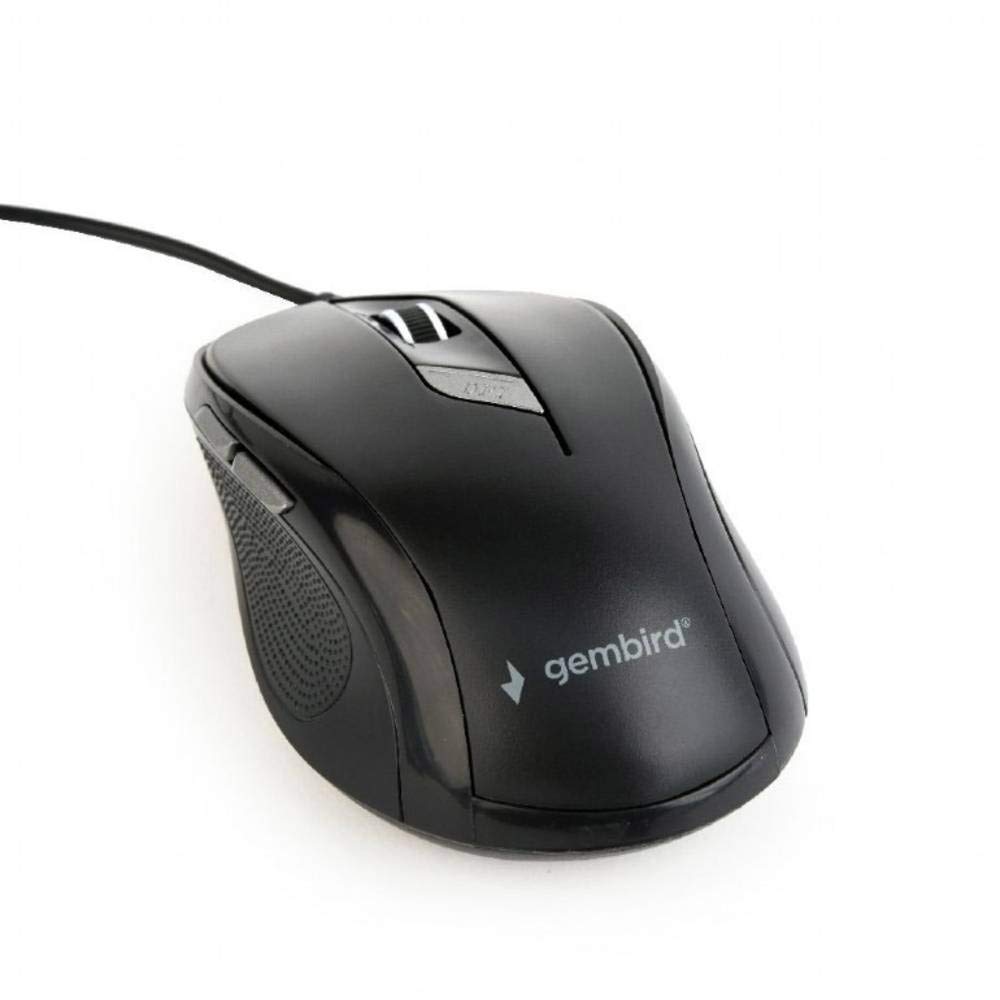
Immaġni: Minn fuq għal isfel view of the Gembird MUS-6B-01 optical USB mouse. The mouse is black with a matte finish, featuring a scroll wheel, left and right click buttons, a DPI button, and two side buttons. A black USB cable extends from the front of the mouse.
3. Setup
Setting up your Gembird MUS-6B-01 mouse is a simple plug-and-play process.
Passi ta' Installazzjoni:
- Sib port USB disponibbli fuq il-kompjuter tiegħek.
- Plug the USB connector of the Gembird MUS-6B-01 mouse firmly into the USB port.
- Your operating system (Windows, Linux) will automatically detect and install the necessary drivers. This process may take a few moments.
- Once the drivers are installed, the mouse is ready for use.
No additional software installation is typically required for basic functionality.
4. Istruzzjonijiet Operattivi
Familiarize yourself with the functions of each button on your Gembird MUS-6B-01 mouse.
Funzjonijiet Bażiċi:
- Ikklikkja Xellug: Primary action, selecting items, opening files.
- Ikklikkja bil-lemin: Opens context menus, provides additional options.
- Scroll Wheel: Skrollja 'l fuq jew 'l isfel fid-dokumenti u web paġni.
- Middle Click (Scroll Wheel Press): Often used to open links in new tabs or for specific application functions.
Funzjonijiet Avvanzati:
- Buttuna tal-Aġġustament tad-DPI: Located behind the scroll wheel, this button allows you to cycle through different sensitivity (DPI) settings. Press it to change the cursor speed to suit your preference.
- Buttuna 'l Quddiem (Ġenb): Tipikament jinnaviga 'l quddiem fi web browsers jew file esploraturi.
- Buttuna lura (tal-ġenb): Tipikament jinnaviga lura ġewwa web browsers jew file esploraturi.
The functionality of the side buttons may vary depending on the application or operating system settings. Some operating systems allow customization of these buttons.
5. Manutenzjoni
Proper care will help extend the life of your Gembird MUS-6B-01 mouse.
Tindif:
- Skonnettja l-maws mill-kompjuter tiegħek qabel ma tnaddaf.
- Uża artab, ftit damp, lint-free cloth to wipe the surface of the mouse.
- For stubborn dirt, a small amount of mild soap solution can be applied to the cloth (not directly to the mouse).
- Use a cotton swab or compressed air to clean around the scroll wheel and between buttons.
- Ensure the optical sensor on the underside is clean and free of dust or debris.
- Tużax kimiċi ħarxa, prodotti tat-tindif li joborxu, u lanqas tgħaddasx il-maws fl-ilma.
Ħażna:
When not in use for extended periods, store the mouse in a clean, dry environment away from extreme temperatures and direct sunlight.
6 Issolvi l-problemi
If you encounter issues with your Gembird MUS-6B-01 mouse, try the following troubleshooting steps:
| Problema | Soluzzjoni Possibbli |
|---|---|
| Il-ġurdien ma jirrispondix |
|
| Erratic or jumpy cursor movement |
|
| Buttuni li ma jaħdmux |
|
7. Speċifikazzjonijiet
Detailed technical specifications for the Gembird MUS-6B-01 Optical USB Mouse:
| Karatteristika | Speċifikazzjoni |
|---|---|
| Brand | Gembird |
| Isem tal-Mudell | MUS-6B-01 |
| Teknoloġija tal-Konnettività | Bil-fili (USB) |
| Teknoloġija ta 'Sejbien tal-Moviment | Ottiċi |
| Kwantità tal-Buttuni | 6 |
| Orjentazzjoni tal-Idejn | Ambidestru |
| Sistemi Operattivi Kompatibbli | Linux, Windows 7, Windows XP (and newer versions) |
| Pjattaforma tal-Ħardwer | Kompjuter Personali |
| Tul tal-Cable | 5.0-il metru |
| Piż tal-oġġett | 74 Gramm |
| Materjal | Plastik |
| Kulur | Iswed |
| Batteriji Meħtieġa | Nru |
8. Informazzjoni dwar is-Sigurtà
Jekk jogħġbok osserva l-linji gwida tas-sigurtà li ġejjin:
- Tesponix il-maws għall-ilma jew għal umdità eċċessiva.
- Evita li twaqqa' jew tissuġġetta l-maws għal impatti qawwija.
- Do not attempt to disassemble or repair the mouse yourself. Refer to qualified service personnel.
- Żomm l-apparat 'il bogħod minn temperaturi estremi u dawl tax-xemx dirett.
- Armi l-iskart elettroniku b'mod responsabbli skont ir-regolamenti lokali.
9. Garanzija u Appoġġ
Gembird products are designed for reliability and performance. For specific warranty terms and conditions, please refer to the warranty card included with your product or visit the official Gembird website. For technical support or further assistance, please contact your retailer or the Gembird customer service department.