
1. Introduzzjoni
This manual provides instructions for the installation, operation, and maintenance of your Gembird 3.5" SATA USB 3.0 External HDD Enclosure. This device allows you to convert an internal 3.5-inch SATA hard disk drive into a portable external storage solution, utilizing the high-speed USB 3.0 interface for data transfer.
2. Kontenut tal-Pakkett
Jekk jogħġbok iċċekkja l-kontenut tal-pakkett bir-reqqa. Jekk xi oġġetti huma nieqsa jew bil-ħsara, ikkuntattja lill-bejjiegħ tiegħek.
- Gembird 3.5" SATA USB 3.0 External HDD Enclosure (Model: EE3-U3S-3)
- Kejbil tad-data USB 3.0
- Adapter tal-enerġija
- Screws and screwdriver (if applicable for assembly)
- Manwal għall-Utent (dan id-dokument)
3. Setup
3.1 Installing a 3.5" SATA Hard Drive
- Iftaħ l-għeluq b'attenzjoni casing.
- Connect your 3.5-inch SATA hard drive to the SATA data and power connectors inside the enclosure. Ensure a firm connection.
- Secure the hard drive within the enclosure using the provided screws, if necessary.
- Slide the enclosure casing back into place until it is securely closed.
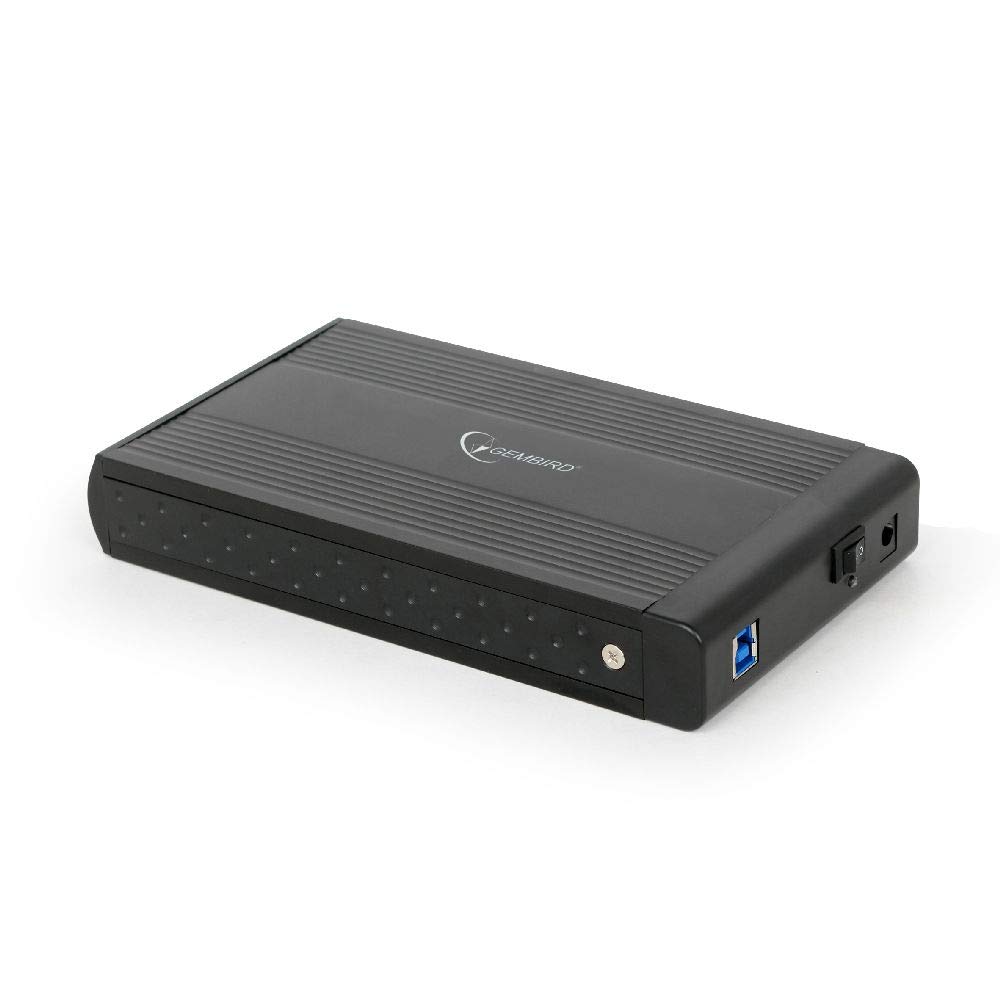
Image: The Gembird 3.5-inch SATA USB 3.0 External HDD Enclosure. This image shows the sleek black aluminum casing of the enclosure, designed to house a 3.5-inch SATA hard drive and connect to a computer via USB 3.0.
3.2 Konnessjoni mal-Kompjuter Tiegħek
- Connect the power adapter to the enclosure's power input port and then plug it into an electrical outlet.
- Connect one end of the supplied USB 3.0 cable to the USB 3.0 port on the enclosure.
- Connect the other end of the USB 3.0 cable to an available USB 3.0 port on your computer. For optimal performance, use a USB 3.0 port (typically blue). The enclosure is backward compatible with USB 2.0, but data transfer speeds will be limited.
- Your operating system should automatically detect and install the necessary drivers. The hard drive will appear as a new storage device.
4. Istruzzjonijiet Operattivi
4.1 Trasferiment tad-Data
Once the enclosure is connected and recognized by your computer, you can drag and drop files to and from the external hard drive, or use it for backup purposes. The USB 3.0 interface supports data transfer speeds up to 5 Gbps (Gigabits per second), significantly faster than USB 2.0.
4.2 Tneħħija Sikura
Always safely remove the external hard drive before disconnecting it from your computer to prevent data corruption. In Windows, use the "Safely Remove Hardware and Eject Media" icon in the system tray. On macOS, drag the drive icon to the Trash or use the Eject option in Finder.
5. Manutenzjoni
To ensure the longevity and optimal performance of your enclosure:
- Żomm l-għeluq nadif u ħieles mit-trab. Uża drapp artab u niexef għat-tindif.
- Evita li tesponi l-kompartiment għal temperaturi estremi, umdità, jew dawl tax-xemx dirett.
- Do not drop or subject the enclosure to strong impacts, as this can damage the internal hard drive.
- Ensure proper ventilation to prevent overheating, especially during prolonged use.
6 Issolvi l-problemi
6.1 Enclosure Not Detected
- Check power: Ensure the power adapter is securely connected to both the enclosure and a working electrical outlet.
- Check USB connection: Verify that the USB cable is firmly connected to both the enclosure and a functional USB port on your computer. Try a different USB port or cable.
- Hard drive installation: Re-open the enclosure and ensure the SATA hard drive is correctly seated and connected to the internal connectors.
- Ġestjoni tad-Diski (Windows) / Utilità tad-Diski (macOS): Check if the drive appears in your operating system's disk management tools. If it appears but is unallocated or unformatted, you may need to initialize and format it (note: formatting will erase all data on the drive).
6.2 Veloċitajiet Baxxi tat-Trasferiment tad-Dejta
- Port USB 3.0: Ensure you are connected to a USB 3.0 port on your computer. USB 2.0 ports will limit speeds.
- USB 3.0 cable: Use the provided USB 3.0 cable or another certified USB 3.0 cable.
- Hard drive performance: The speed of the internal hard drive itself can be a limiting factor. Older or slower HDDs will not achieve maximum USB 3.0 speeds.
7. Speċifikazzjonijiet
| Mudell | EE3-U3S-3 |
| Fattur tal-Formola | 3.5-il pulzier |
| Interface (Internal) | SATA |
| Interface (External) | USB 3.0 |
| Rata ta' Trasferiment tad-Data | Sa 5 Gbps (USB 3.0) |
| Materjal | Aluminju |
| Kulur | Iswed |
| Apparati Kompatibbli | 3.5" SATA HDDs |
| Piż | 235 Gramm |
8. Garanzija u Appoġġ
Gembird products are designed for reliability and performance. For warranty information, please refer to the warranty card included with your product or visit the official Gembird website. For technical support or further assistance, please contact your retailer or the Gembird customer support team.