
1. Introduzzjoni
This user manual provides comprehensive instructions for the setup, operation, and maintenance of your Xerox AltaLink C8070/H2 Color Multifunction Printer. Designed for office environments, this device offers high-speed color and monochrome printing, copying, and scanning capabilities, along with advanced features to enhance productivity.
Please read this manual thoroughly before using the printer to ensure safe and efficient operation and to maximize the lifespan of your device.
2. Setup
2.1 Spakkjar u Tqegħid
Carefully remove the printer from its packaging. The unit weighs approximately 349 pounds, so ensure adequate assistance for moving and placement. The dimensions are 28.9"D x 25.2"W x 45.2"H. Place the printer on a stable, level surface with sufficient space for ventilation and access to all trays and compartments.
Ensure the printer is placed near a power outlet and a network connection point (Ethernet).
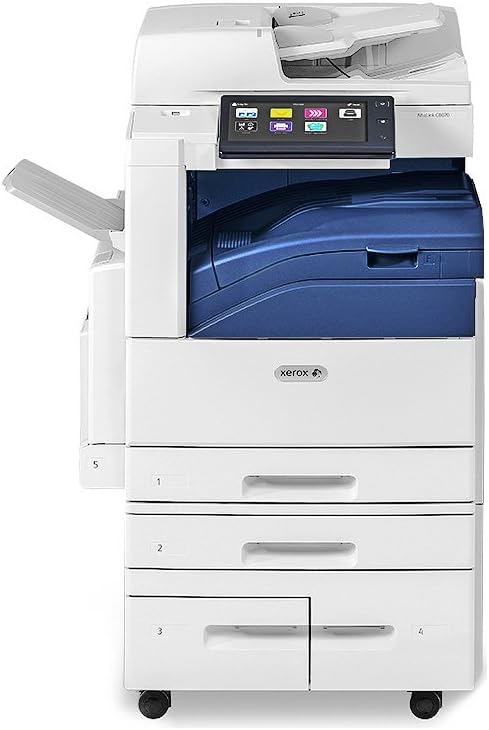
Figura 2.1: Quddiem view of the Xerox AltaLink C8070/H2 Multifunction Printer, showing the main unit with multiple paper trays and the control panel.
2.2 Connecting Power and Network
- Qabbad il-korda tal-enerġija mal-istampatur u mbagħad ma' sokit elettriku ertjat.
- Qabbad kejbil Ethernet mir-router tan-netwerk tiegħek jew aqleb għall-port Ethernet fuq il-printer.
- The printer also supports NFC connectivity for certain functions.
2.3 Initializing the Printer
Upon first power-on, the printer will perform an initialization sequence. Follow any on-screen prompts on the control panel. The control panel is a touch-screen interface that allows for easy navigation and configuration.

Figura 2.2: Minn fuq għal isfel view of the Xerox AltaLink C8070/H2 Multifunction Printer with the automatic document feeder (ADF) open, revealing the scanner glass and paper guides.
2.4 Tagħbija tal-Karta
The printer comes with 2-520 sheet trays, a 2,000-sheet high-capacity tandem tray, and a 100-sheet bypass tray. It supports plain paper up to Super B/A3 size.
- Iġbed it-trej tal-karta mixtieq 'il barra.
- Aġġusta l-gwidi tal-karti biex jaqblu mad-daqs tal-karta.
- Load the paper stack, ensuring it is not overfilled.
- Imbotta t-trej bil-mod lura fil-printer.
3. Istruzzjonijiet Operattivi
The Xerox AltaLink C8070/H2 is an all-in-one multifunction device capable of printing, copying, and scanning.
3.1 Stampar
The printer supports color and monochrome PC/Network printing at up to 70 pages per minute (ppm). Maximum color print resolution is 1200 x 2400 dpi, and maximum black and white print resolution is 600 dpi.
- Ensure the printer is connected to your network and drivers are installed on your computer.
- Mill-kompjuter tiegħek, iftaħ id-dokument li tixtieq tipprintja.
- Agħżel "Stampa" mill-menù tal-applikazzjoni.
- Choose the Xerox AltaLink C8070/H2 from the list of available printers.
- Adjust print settings (e.g., color/mono, duplex, paper source) as needed.
- Ikklikkja "Ipprintja".
3.2 Ikkupjar
The maximum copy speed for both black & white and color is 70 ppm, with a resolution of 600 x 600 dpi. The printer supports automatic duplex copying.
- Poġġi d-dokument oriġinali tiegħek wiċċu 'l fuq fl-Awtomatiku tad-Dokumenti (ADF) jew wiċċu 'l isfel fuq il-ħġieġ tal-iskaner.
- Fuq il-pannell tal-kontroll tal-istampatur, agħżel il-funzjoni "Kopja".
- Adjust settings such as number of copies, color/mono, duplex, and reduction/enlargement.
- Agħfas il-buttuna "Start" biex tibda tikkopja.
3.3 Skennjar
The integrated Automatic Document Feeder (ADF) allows for efficient scanning of multiple pages.
- Poġġi d-dokument(i) oriġinali tiegħek fl-ADF jew fuq il-ħġieġa tal-iskaner.
- On the printer's control panel, select the "Scan" function.
- Choose your desired scan destination (e.g., email, network folder, USB).
- Ikkonfigura s-settings tal-iskannjar bħar-riżoluzzjoni, file format, u modalità tal-kulur.
- Agħfas il-buttuna "Start" biex tibda tiskennja.

Figura 3.1: Ġenb view of the Xerox AltaLink C8070/H2 Multifunction Printer, highlighting the output tray and the overall compact design.
4. Manutenzjoni
Regular maintenance ensures optimal performance and extends the life of your Xerox AltaLink C8070/H2 printer.
4.1 Sostituzzjoni tal-Iskrataċ tat-Toner
The printer uses CMYK (Cyan, Magenta, Yellow, Black) toner cartridges. The control panel will display alerts when toner levels are low.
- Iftaħ il-qoxra ta' quddiem tal-istampatur.
- Identify the empty toner cartridge.
- Grasp the handle of the cartridge and pull it out.
- Iftaħ il-kartriġ il-ġdid tat-toner mill-pakkett u ħawdu bil-mod biex tqassam it-toner.
- Daħħal il-kartuċċa l-ġdida sew sakemm tikklikkja f'postha.
- Agħlaq il-qoxra ta' quddiem.
4.2 Tindif tal-Ħġieġ tal-Iskaner u l-ADF
Dust and smudges on the scanner glass or ADF can affect scan quality.
- Itfi l-istampatur.
- Iftaħ il-qoxra tad-dokument alimentatur.
- Wipe the scanner glass and the white strip on the underside of the ADF cover with a soft, lint-free cloth dampened with a mild, non-abrasive glass cleaner.
- Allow surfaces to dry completely before closing the covers and powering on the printer.
5 Issolvi l-problemi
Din it-taqsima tindirizza kwistjonijiet komuni li tista' tiltaqa' magħhom mal-istampatur tiegħek.
5.1 Ġammijiet tal-karti
If a paper jam occurs, the control panel will display an error message indicating the location of the jam. Follow the on-screen instructions or the steps below:
- Iftaħ l-għata jew it-trejs indikati.
- Neħħi bir-reqqa kwalunkwe karta mblukkata, billi iġbedha fid-direzzjoni tal-mogħdija tal-karta biex tevita li titqatta’.
- Kun żgur li l-frammenti kollha tal-karti jitneħħew.
- Close all covers and trays securely.
5.2 Kwistjonijiet ta' Kwalità tal-Istampar
If prints are faded, streaky, or have incorrect colors:
- Iċċekkja l-livelli tat-toner u ibdel kwalunkwe kartuċċa baxxa.
- Perform a print head cleaning or calibration from the printer's control panel settings.
- Kun żgur li qed tuża karta xierqa għax-xogħol tal-istampar tiegħek.
5.3 Problemi ta' Konnettività tan-Netwerk
If the printer is not accessible on the network:
- Verify the Ethernet cable is securely connected to both the printer and the network device.
- Check the network status on the printer's control panel.
- Restart the printer and your network router/switch.
- Ensure the printer has a valid IP address.
6. Speċifikazzjonijiet
| Karatteristika | Dettall |
|---|---|
| Dimensjonijiet tal-Prodott | 28.9"D x 25.2"W x 45.2"H |
| Piż tal-oġġett | 349 Liri |
| Teknoloġija tal-Istampar | Laser |
| Output Printer | Kulur |
| Veloċità Massima tal-Istampar (Kulur/Mono) | 70 ppm |
| Riżoluzzjoni Massima tal-Istampar bil-Kulur | 1200 x 2400 dpi |
| Riżoluzzjoni Massima tal-Istampar B&W | 600 dpi |
| Max Copy Speed (Color/Mono) | 70 ppm |
| Riżoluzzjoni Massima tal-Kopja | 600 x 600 dpi |
| Tip ta' Skaner | Alimentatur Awtomatiku tad-Dokumenti (ADF) |
| Duplex Printing/Copying | Awtomatiku |
| Provvista tal-Karta | 2-520 Sheet Trays, 2,000-Sheet High Capacity Tandem Tray, 100-Sheet Bypass |
| Kapaċità Massima tal-Folja tal-Input | 2000 |
| Daqs Massimu tal-Midja | Super B/A3 |
| Kapaċità tal-Ħżin tal-Memorja | 8 GB |
| Interface tal-Ħardwer | Ethernet |
| Teknoloġija tal-Konnettività | NFC |
| Komponenti Inklużi | Printer, Paper Trays, NFC Tag |
7. Garanzija u Appoġġ
The Xerox AltaLink C8070/H2 comes with a limited warranty. For specific terms and conditions, please refer to the warranty documentation included with your product or visit the official Xerox websit.
For technical support, service requests, or further assistance, please contact Xerox Customer Support. You can find contact information on the Xerox website or through the documentation provided with your printer.
Manifattur: Xerox Corporation
Numru tal-Mudell: C8070/H2
ASIN: B073XWD8G2
UPC: 095205880212