
Introduction
This manual provides comprehensive instructions for the installation, operation, and maintenance of your Alcatel-Lucent 4018 Extended Edition IPTouch VoIP Phone. Please read this manual carefully before using the device to ensure proper functionality and to prevent damage.
Safety Information
Observe the following safety precautions to reduce the risk of fire, electric shock, and injury:
- Use only the power adapter supplied with the phone.
- Do not expose the phone to water or moisture.
- Avoid placing the phone near heat sources or in direct sunlight.
- Do not attempt to open or repair the phone yourself. Refer all servicing to qualified personnel.
- Ensure proper ventilation around the device.
Package Contents
Verify that your package contains the following items:
- Alcatel-Lucent 4018 Extended Edition IPTouch VoIP Phone
- Handset
- Handset Cord
- Ethernet Cable
- Power Adapter (if applicable)
- Quick Start Guide
Product Overview
The Alcatel-Lucent 4018 Extended Edition IPTouch VoIP Phone is designed for efficient communication. Familiarize yourself with its components:
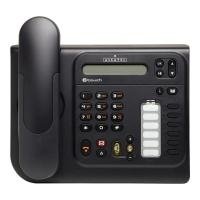
Front view of the Alcatel-Lucent 4018 Extended Edition IPTouch VoIP Phone, showing the display, keypad, and function buttons.
Key Components:
- Display Screen: Shows call information, menus, and status.
- Contextual Keys: Buttons below the display that change function based on the current menu.
- Navigation Keys: For scrolling through menus and options.
- Dial Pad: Standard numeric keypad for dialing.
- Function Keys: Dedicated buttons for features like voicemail, hold, transfer, and speakerphone.
- Handset: For private conversations.
- Speakerphone: For hands-free communication.
Setup
1. Connecting the Phone
- Connect the handset cord to the handset and the designated port on the phone base.
- Connect one end of the Ethernet cable to the LAN port on the back of the phone and the other end to your network switch or router.
- If Power over Ethernet (PoE) is not available, connect the power adapter to the phone's power port and then to an electrical outlet.
2. Initial Configuration
Upon first power-up, the phone will attempt to connect to your network and register with your VoIP server. This process may require network credentials or specific server settings, which are typically provided by your IT administrator.
- Follow any on-screen prompts for initial setup.
- Contact your system administrator for specific IP address, subnet mask, gateway, and DNS server settings if manual configuration is required.
Operating Instructions
Making a Call:
- Lift the handset or press the Speaker button.
- Dial the desired phone number using the keypad.
- Press the Dial contextual key or wait for the call to connect automatically.
Answering a Call:
- When the phone rings, lift the handset or press the Speaker button.
- Alternatively, press the Answer contextual key.
Ending a Call:
- Replace the handset or press the End Call contextual key or Speaker button.
Voicemail:
- Press the dedicated Voicemail button (often indicated by an envelope icon).
- Follow the audio prompts to access and manage your messages.
Hold and Transfer:
- During an active call, press the Hold button to place the call on hold.
- To transfer a call, press the Transfer button, dial the new number, and then press Transfer again or hang up (consult your system's specific transfer method).
Maintenance
- Cleaning: Use a soft, dry cloth to clean the phone's surface. Do not use liquid cleaners or aerosols directly on the phone.
- Storage: If storing the phone for an extended period, disconnect it from power and network, and store it in a cool, dry place.
- Software Updates: Firmware updates are typically managed by your IT department. Do not attempt to update the firmware without guidance from your administrator.
Troubleshooting
| Problem | Possible Cause | Solution |
|---|---|---|
| Phone does not power on. | No power connection or faulty power adapter. | Check power cable connection. Ensure power adapter is functional. If using PoE, verify network cable and switch. |
| Cannot make or receive calls. | Network connectivity issue or VoIP registration failure. | Check Ethernet cable connection. Restart the phone. Contact your IT administrator to verify VoIP server settings and registration status. |
| No dial tone. | Handset not properly connected or phone not registered. | Ensure handset cord is securely connected. Verify phone is registered to the VoIP server (check display for status). |
| Poor audio quality. | Network congestion or faulty handset/speaker. | Check network connection. Try restarting the phone. If problem persists, contact support. |
For issues not listed here, please contact your IT support or the product manufacturer.
Specifications
| Feature | Detail |
|---|---|
| Model Number | 3GV27063DB |
| Compatible Devices | Internet, computers, VoIP services |
| Phone Type | Corded |
| Material | Plastic |
| Power Source | Electric cable |
| Dialer Type | Single keypad |
| Answering System Type | Digital |
| Item Weight | 4.52 Pounds |
| Caller ID | Yes |
| Batteries Required | Non-standard battery requires batteries (Note: This usually implies a backup battery or specific type, not standard AA/AAA) |
Warranty and Support
For warranty information, technical support, or service inquiries, please contact your vendor or IT administrator. Alcatel-Lucent provides support through authorized channels.
Spare parts availability: Information unavailable on spare parts.
Software updates guaranteed until: Information not available.


