
Xerox 3215/NI
Xerox WorkCentre 3215/NI Monochrome Multifunction Printer User Manual
Mudell: 3215/NI | Marka: Xerox
This manual provides detailed instructions for the setup, operation, maintenance, and troubleshooting of your Xerox WorkCentre 3215/NI Monochrome Multifunction Printer.
1. Introduzzjoni
The Xerox WorkCentre 3215/NI is a versatile monochrome multifunction printer designed for efficient printing, copying, scanning, and faxing. It offers reliable performance for single users or small teams, integrating essential office functions into a compact device.
Karatteristiċi Ewlenin
- Wi-Fi Dirett: Enables secure direct connections from mobile phones, tablets, and laptop computers without an existing wireless network.
- Affordable Reliability: Designed to keep operational costs low while providing fast, dependable printing.
- Easy Wireless Setup: Simplifies connection to your Wi-Fi network.
- Disinn kompatt: Allows for flexible placement due to its quiet operation and small footprint.
- Appoġġ Komprensiv: Backed by Xerox Service and Support, including a standard one-year warranty.
Kontenut tal-Pakkett
Iċċekkja li l-oġġetti kollha huma preżenti fil-kaxxa:
- Xerox WorkCentre 3215/NI Multifunction Printer
- Initial Laser Toner Cartridge
- Kejbil tal-Enerġija
- Cable USB
- Phone Cable (for fax functionality)
- Installation CD (contains drivers and software)
2. Setup
2.1 Spakkjar u Tqegħid
Carefully remove the printer from its packaging. Ensure all protective tapes and packing materials are removed from both the exterior and interior of the device. Place the printer on a stable, level surface with adequate space for ventilation and access to connections.

Immaġni: Quddiem view of the Xerox WorkCentre 3215/NI Monochrome Multifunction Printer, showing the paper tray and control panel. This image illustrates the printer's overall design and accessible components.
2.2 Installazzjoni tal-Kartriġ tat-Toner
Open the front cover of the printer. Gently insert the toner cartridge into its designated slot until it clicks securely into place. Ensure the sealing tape is completely removed from the cartridge before installation to prevent printing issues.

Immaġni: Quddiem view of the Xerox WorkCentre 3215/NI Monochrome Multifunction Printer with the paper tray closed, ready for operation. This view highlights the compact nature of the device.
2.3 Konnessjoni tal-Istampatur
2.3.1 Konnessjoni tal-Enerġija
Connect the power cable to the printer's power input, then plug the other end into a grounded electrical outlet.
2.3.2 Network Connection (Wi-Fi, USB, Ethernet)
The WorkCentre 3215/NI supports multiple connectivity options:
- Wi-Fi: For wireless connectivity, use the Xerox Easy Wireless Setup utility found on the installation CD or downloaded from the official Xerox website. Follow the on-screen prompts to connect the printer to your wireless network. The Wi-Fi Direct feature allows direct connection from compatible mobile devices.
- USB: For a direct connection to a single computer, use the provided USB cable. Install the necessary drivers from the installation CD.
- Ethernet: Connect an Ethernet cable from the printer's network port to your network router or switch. Install the drivers from the installation CD for network printing capabilities.
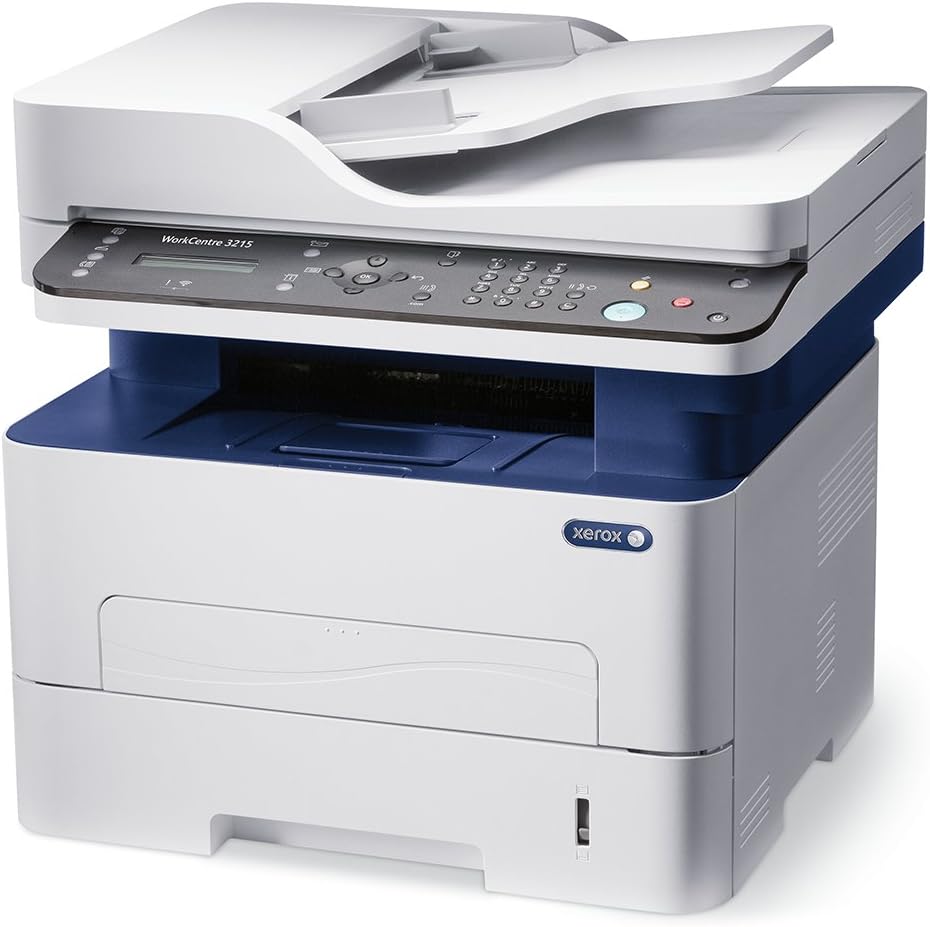
Immaġni: In-naħa tax-xellug view of the Xerox WorkCentre 3215/NI Monochrome Multifunction Printer, showing the side panel and overall depth. This perspective helps in understanding the printer's physical footprint.
3. Istruzzjonijiet Operattivi
3.1 Control Panel Overview
The printer's control panel features an LCD display and various buttons for navigating menus, selecting functions, and initiating operations.

Immaġni: Minn fuq għal isfel view of the Xerox WorkCentre 3215/NI Monochrome Multifunction Printer's control panel, highlighting the LCD screen and various function buttons. This image is useful for identifying controls during operation.
3.2 Stampar
Load paper into the paper tray. From your computer, select the Xerox WorkCentre 3215/NI as your printer and adjust print settings as needed (e.g., paper size, print quality).
3.2.1 Manual Duplex Printing
This printer supports manual duplexing. The printer will first print all odd-numbered pages. You will then be prompted to reinsert the printed pages into the paper tray in the correct orientation to print the even-numbered pages on the reverse side. Refer to the on-screen instructions or the printer's LCD for specific reinsertion guidance.
3.3 Ikkupjar
Place your document on the scanner glass or in the Automatic Document Feeder (ADF). Use the control panel to select the "Copy" function and adjust settings such as number of copies, darkness, and paper size.
3.4 Skennjar
Place your document on the scanner glass or in the ADF. Select "Scan" from the control panel or initiate a scan from your computer using the installed software. You can scan to email, a network folder, or a connected USB device.
3.5 Faxing
Connect a phone line to the printer's fax port. Use the control panel to enter the recipient's fax number and send documents placed on the scanner glass or in the ADF.
4. Manutenzjoni
4.1 Sostituzzjoni tal-Kartriġ tat-Toner
When the printer indicates a low toner level, open the front cover, remove the old cartridge, and insert a new Xerox-compatible toner cartridge. Ensure the new cartridge is properly seated.
4.2 Tindif tal-Istampatur
Naddaf regolarment il-barra tal-istampatur b'ċarruta ratba u nadifa.amp cloth. For the scanner glass, use a lint-free cloth and a mild glass cleaner. Avoid using abrasive materials or harsh chemicals, which can damage the surfaces.
4.3 Ġestjoni tat-Trej tal-Karta
Ensure paper is loaded correctly and within the specified limits to prevent paper jams. Use only recommended paper types and sizes for optimal performance and print quality.
5 Issolvi l-problemi
5.1 Kwistjonijiet Komuni u Soluzzjonijiet
- Il-Printer Mhux Qed Jirrispondi: Check all power connections, USB/Ethernet cables, and Wi-Fi connectivity. Restart the printer and your computer.
- Ġammijiet tal-karti: Follow the instructions displayed on the printer's LCD to locate and clear any jammed paper. Ensure paper is loaded correctly and not overfilled.
- Kwalità Fqira tal-Istampar: Verify toner levels. If necessary, clean the print head or drum unit (refer to the full user guide for detailed steps). Ensure you are using genuine Xerox toner cartridges.
- Configuration Page Prints on Startup: To disable the automatic printing of a configuration page on startup, navigate to System Setup > Machine Setup > Conf. Page on the printer's LCD panel and select the "OFF" option.
- Kwistjonijiet ta' Konnettività: For Wi-Fi, ensure the printer is within range of your wireless router. For wired connections, verify the integrity of the Ethernet or USB cable. Reinstall printer drivers if necessary.
For more detailed troubleshooting steps and advanced solutions, refer to the comprehensive user guide available on the Xerox support websit.
6. Speċifikazzjonijiet
| Karatteristika | Dettall |
|---|---|
| Isem tal-Mudell | 3215/NI |
| Brand | Xerox |
| Output Printer | Monokromu |
| Teknoloġija tal-Istampar | Laser |
| Veloċità Massima tal-Istampar (Monokromu) | 27 ppm |
| Veloċità Massima tal-Kopja (Iswed u Abjad) | 27 ppm |
| Riżoluzzjoni Massima tal-Istampar bl-Iswed u l-Abjad | 300 dpi |
| Teknoloġija tal-Konnettività | Wi-Fi, USB, Ethernet |
| Kapaċità Massima tal-Folja tal-Input | 250 folja |
| Kapaċità tal-Ħżin tal-Memorja | 256 MB |
| Dimensjonijiet tal-Prodott (L x W x H) | 17 x 19 x 20.5 pulzieri |
| Piż tal-oġġett | 24 liri |
| Tip ta' Skaner | Dokument |
| Stampar Duplex | Manwal |
| UPC | 095205863161 |
7. Garanzija u Appoġġ
7.1 Informazzjoni dwar Garanzija
The Xerox WorkCentre 3215/NI comes with a standard limited warranty. For specific terms, conditions, and duration of your warranty coverage, please refer to the warranty documentation included with your product or visit the official Xerox websit.
7.2 Appoġġ għall-Klijent
For technical assistance, driver downloads, software updates, or additional support resources, please visit the official Ħanut Xerox fuq Amazon or the main Xerox support websit.
A comprehensive User Guide in PDF format is also available for download, providing more in-depth information and advanced troubleshooting:
Ask a question about this manual
Ask about setup, troubleshooting, compatibility, parts, safety, or missing instructions. Manuals+ will review the question and use this page’s manual context to help answer it.