
Introduzzjoni
This manual provides detailed instructions for the setup, operation, maintenance, and troubleshooting of your Xerox WorkCentre 3315/DN Monochrome Multifunction Printer. Please read this manual thoroughly to ensure proper use and to maximize the performance and longevity of your device.
1. Setup
1.1 Spakkjar u Tqegħid
Carefully remove the printer from its packaging. Ensure all packing materials and protective tapes are removed. Place the printer on a stable, level surface with adequate ventilation. Allow sufficient space around the printer for proper operation and maintenance access.
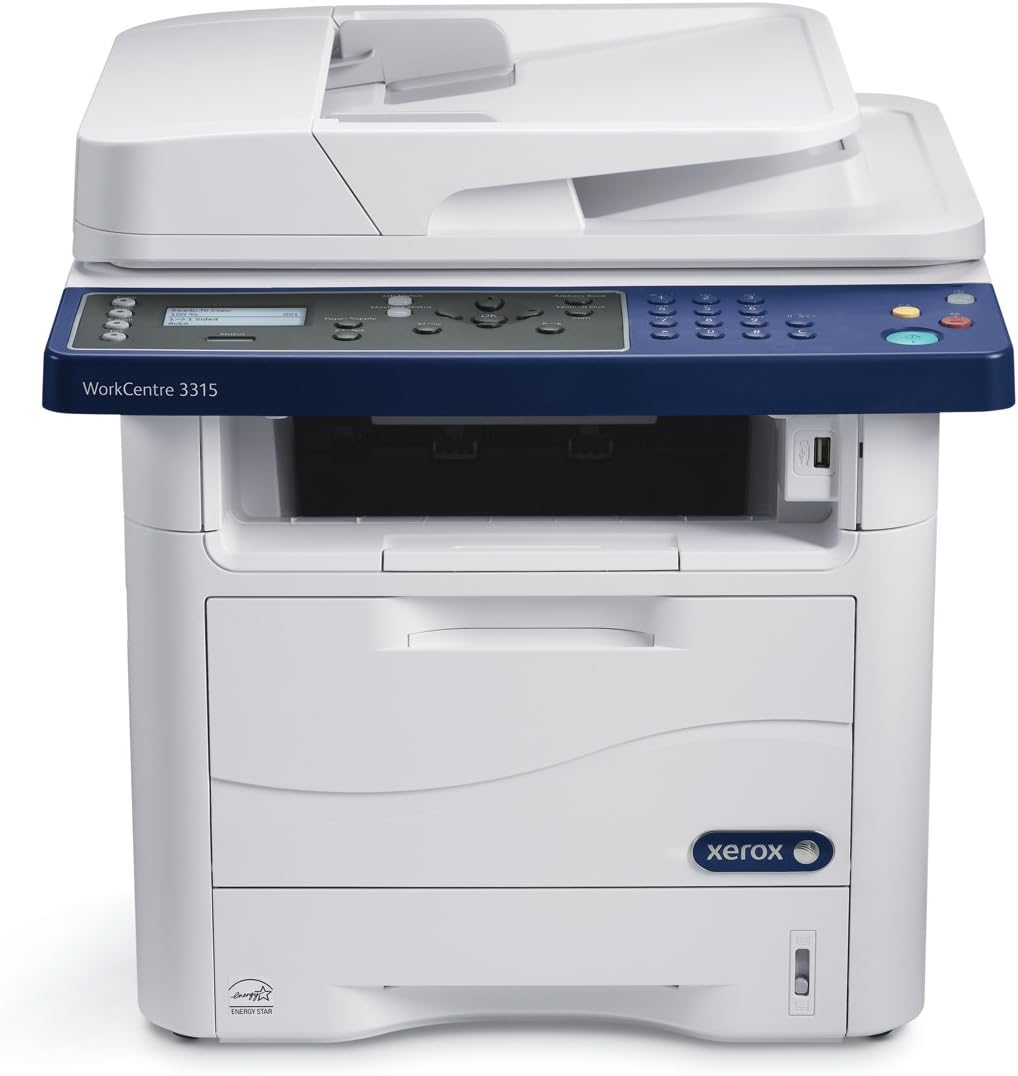
Figura 1.1: Quddiem view of the Xerox WorkCentre 3315/DN Multifunction Printer, showing its compact design suitable for office environments.
1.2 Konnessjoni tal-Kejbils tal-Enerġija u tad-Data
- Qabbad il-korda tal-enerġija mal-istampatur u mbagħad ma' sokit elettriku ertjat.
- Għall-konnettività tan-netwerk, qabbad kejbil Ethernet mill-port Ethernet tal-istampatur mar-router jew is-swiċċ tan-netwerk tiegħek.
- For direct connection, connect a USB 2.0 cable from the printer's USB port to your computer.
1.3 Tagħbija tal-Karta
The standard paper tray holds 250 sheets, and the bypass tray holds 50 sheets. Ensure paper is loaded correctly to prevent jams.
- Open the paper tray and adjust the guides to fit the paper size.
- Iftaħ il-munzell tal-karti qabel ma tgħabbih biex tevita li diversi folji jidħlu f'daqqa.
- Insert the paper with the print side facing down.
1.4 Installazzjoni tal-Kartriġ tat-Toner
The printer uses a monochrome toner cartridge. Follow these steps to install or replace the cartridge:
- Iftaħ il-qoxra ta' quddiem tal-istampatur.
- Carefully insert the new toner cartridge into its slot until it clicks into place.
- Agħlaq il-qoxra ta' quddiem.

Figure 1.2: The front panel of the printer opened, revealing the compartment for installing or replacing the toner cartridge.
1.5 Installazzjoni tas-Softwer
Install the necessary drivers and software from the provided installation CD or download them from the official Xerox support website. The Easy Printer Manager software is recommended for network scanning functionalities.
2. Istruzzjonijiet Operattivi
The WorkCentre 3315/DN features an intuitive LCD display and control panel for easy operation.

Figura 2.1: Close-up view of the printer's control panel, featuring the LCD display, navigation buttons, and numeric keypad for various functions.
2.1 Stampar
- Stampar Standard: Send print jobs from your computer. The printer supports up to 33 pages per minute (ppm) in black and white at 600 x 600 dpi resolution.
- Stampar Duplex: The printer supports automatic two-sided printing. This feature can be enabled or disabled through your printer settings on your computer.
- Port USB ta 'quddiem: The front USB port is available for direct printing of documents from a USB flash drive.
2.2 Ikkupjar
Use the control panel to make copies. The auto document feeder (ADF) can hold up to 50 sheets for multi-page copying.
- Poġġi d-dokumenti fuq il-ħġieġa tal-iskaner jew fl-ADF.
- Select 'Copy' from the control panel.
- Adjust settings such as number of copies, darkness, and reduction/enlargement as needed.
- Agħfas il-buttuna 'Ibda'.
2.3 Skennjar
The WorkCentre 3315/DN features a flatbed scanner and an automatic document feeder.
- Skennja lejn il-PC: Requires the Easy Printer Manager software running on your computer. Select 'Scan to PC' from the printer's control panel.
- Skennja għal USB: Insert a USB flash drive into the front USB port. Select 'Scan to USB' from the control panel. The default format is PDF, but other formats (TIFF, JPG) can be configured via the printer's web interface.
2.4 Faxing
The printer supports fax functionality.
- Daħħal id-dokumenti fl-ADF jew poġġihom fuq il-ħġieġa tal-iskaner.
- Daħħal in-numru tal-faks tar-riċevitur billi tuża t-tastiera numerika fuq il-pannell tal-kontroll.
- Press the 'Fax' button.
3. Manutenzjoni
3.1 Sostituzzjoni tal-Kartriġ tat-Toner
When the toner is low, a message will appear on the LCD display. Refer to Section 1.4 for installation steps. Always use genuine Xerox toner cartridges for optimal performance and print quality.
3.2 Tindif tal-Istampatur
- Barra: Imsaħ il-barra tal-istampatur b'ċarruta ratba u damp, drapp mingħajr suf. Tużax prodotti tat-tindif jew solventi li joborxu.
- Ħġieġ tal-iskaner: Naddaf il-ħġieġa tal-iskaner b'ċarruta ratbaampened with glass cleaner. Ensure no residue is left behind.
- Rombli tal-ADF: Periodically clean the ADF rollers to prevent paper feeding issues. Refer to the detailed cleaning instructions in the full PDF manual for specific steps.
3.3 Tneħħija tal-Karta Imblukkata
If a paper jam occurs, the printer's display will indicate the location of the jam. Carefully open the indicated covers and gently pull out any jammed paper in the direction of the paper path. Avoid tearing the paper, as small pieces can cause further issues.
4 Issolvi l-problemi
This section addresses common issues you might encounter with your WorkCentre 3315/DN printer.
4.1 Printing Issues
- Il-Printer Mhux Qed Jirrispondi: Check power connections, USB/Ethernet cable connections. Ensure the printer is online and not in an error state. Restart both the printer and your computer.
- Kwalità Fqira tal-Istampar: Check toner level. Ensure paper type settings match the loaded paper. Clean the print head if necessary (refer to full manual).
- Kwistjonijiet tas-sewwieq: If the Windows driver does not work, download the latest drivers directly from the Xerox support websit.
4.2 Kwistjonijiet ta' Skennjar
- Scanner Feeder Finicky: Ensure documents are properly aligned and free of wrinkles or tears before loading into the ADF. Clean the ADF rollers if misfeeds occur.
- Scan to PC Not Working: Verify that the Easy Printer Manager software is installed and running on the PC. Ensure network connectivity between the printer and the PC.
- Slow Network Scan: For large scans, consider using the USB scan option as it may offer faster transfer speeds.
4.3 Faxing Issues
- Faxes Not Sending/Receiving: Check phone line connection. Verify recipient's fax number. Ensure there are no paper jams or low toner issues.
- Cannot Scan While Receiving Faxes: This model may not support simultaneous scanning and fax reception. Wait for the fax to complete before initiating a scan job.
5. Speċifikazzjonijiet
| Karatteristika | Dettall |
|---|---|
| Isem tal-Mudell | 3315/DN |
| Komponenti Inklużi | Laser Multifunction Office Machine |
| Midja Stampata Appoġġjata | Envelopes, Paper (plain), Transparencies, Card stock, Labels |
| Tip ta' Skaner | Flatbed with Auto Document Feeder |
| Kapaċità Massima tal-Folja tal-Input | 820 sheets (Standard + Bypass) |
| Veloċità Massima tal-Kopja (Iswed u Abjad) | 33 ppm |
| Tip ta 'Wiri | LCD |
| Riżoluzzjoni Massima tal-Istampar bl-Iswed u l-Abjad | 600 x 600 dpi |
| Stampar fuq żewġ naħat | Iva |
| Interface tal-Ħardwer | USB, Ethernet (10/100base-t) |
| Kulur tal-linka | Black (Monochrome) |
| Kapaċità tal-Ħżin tal-Memorja | 128 MB (upgradable to 384 MB) |
| Veloċità tal-Proċessur | 360 MHz |
| Dimensjonijiet tal-Prodott | 13.5 x 10.7 x 6.1 pulzieri |
| Piż tal-oġġett | 3.3 liri |
6. Informazzjoni dwar Garanzija
The Xerox WorkCentre 3315/DN comes with a Garanzija Limitata. For specific terms, conditions, and duration of your warranty, please refer to the warranty documentation included with your product or visit the official Xerox support websit.
7. Appoġġ u Riżorsi
For further assistance, driver downloads, or detailed troubleshooting guides, please visit the official Xerox support website. You can also refer to the comprehensive User Manual available in PDF format:
Niżżel il-Manwal Sħiħ tal-Utent (PDF)
For direct support, contact Xerox customer service through their official channels.