
Introduzzjoni
The Microsoft Optical Desktop Elite for Bluetooth provides a wireless keyboard and mouse solution designed for use with Windows PCs. This combo utilizes Bluetooth wireless technology for connectivity, offering enhanced range and reliability. It enables synchronization and information sharing between your PC and other Bluetooth-enabled devices.
X'hemm fil-Kaxxa
- Microsoft Bluetooth Keyboard
- Microsoft Bluetooth Optical Mouse
- USB Bluetooth Transceiver
- Batteriji (installati minn qabel jew inklużi separatament)
- Dokumentazzjoni tal-Prodott

Image: The retail packaging for the Microsoft Optical Desktop Elite for Bluetooth, showing the keyboard, mouse, and USB transceiver.
Setup
Installa Batteriji
Ensure fresh batteries are installed in both the keyboard and the mouse. Refer to the battery compartment markings for correct polarity.
Connect USB Transceiver
Plug the included USB Bluetooth transceiver into an available USB port on your Windows PC. The system will typically install the necessary drivers automatically.
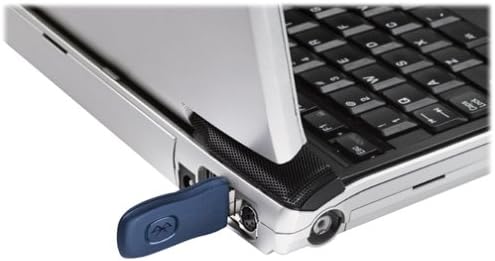
Image: A blue USB Bluetooth transceiver plugged into the side of a laptop computer.
Apparat Par
Follow the on-screen prompts or refer to your Windows Bluetooth settings to pair the keyboard and mouse with the transceiver. This usually involves pressing a connect button on the devices and the transceiver.
Install Software (Optional)
For advanced customization of keyboard shortcuts and mouse buttons, install the Microsoft IntelliPoint and IntelliType Pro software from the official Microsoft website or the included CD (if applicable).
Istruzzjonijiet Operattivi
The Microsoft Optical Desktop Elite for Bluetooth offers a range of features for enhanced productivity.

Image: The Microsoft Optical Desktop Elite keyboard and mouse, showcasing their ergonomic design and wireless nature.
Karatteristiċi tat-Tastiera:
- Standard QWERTY Layout: Full-size keyboard with a standard QWERTY layout.
- Ċwievet Sħana Programmabbli: Utilize the customizable hot keys for quick access to applications, documents, or web paġni.
- Kontrolli tal-Midja: Dedicated keys for volume control, play/pause, and track navigation.
- Side-to-Side Scrolling: The keyboard features a scroll wheel or button for horizontal scrolling in documents and web paġni.
Karatteristiċi tal-Ġurdien:
- Traċċar Ottiku: Provides precise and smooth cursor control on various surfaces.
- Scroll Wheel: For vertical scrolling and button functionality.
- Side-to-Side Scrolling: The mouse scroll wheel also supports horizontal scrolling.
- Buttuni programmabbli: Customize side buttons for specific functions using the IntelliPoint software.
- Ħajja Itwal tal-Batterija: Designed for extended use between battery replacements.

Image: A detailed diagram highlighting various features and buttons on the Microsoft Optical Desktop Elite keyboard and mouse.
Manutenzjoni
Tindif:
- Tastiera: Uża drapp ratba u mingħajr ħelu ftit dampLaħlaħ bl-ilma jew b'soluzzjoni ħafifa tat-tindif. Evita umdità eċċessiva.
- Ġurdien: Clean the optical sensor area on the bottom of the mouse with a dry cotton swab. Wipe the body with a soft, damp drapp.
- Do not immerse devices in liquid.
Sostituzzjoni tal-batterija:
- When battery indicators on the keyboard or mouse signal low power, replace batteries promptly.
- Iftaħ il-kompartiment tal-batterija, neħħi l-batteriji qodma, u daħħal oħrajn ġodda, waqt li tiżgura l-polarità korretta.
- Armi l-batteriji qodma skont ir-regolamenti lokali.
Issolvi l-problemi
- Devices not connecting or frequently disconnecting:
- Ensure the USB Bluetooth transceiver is securely plugged into a working USB port.
- Check battery levels in both the keyboard and mouse. Replace if low.
- Re-pair the devices with the transceiver. Refer to the "Pair Devices" step in the Setup section.
- Ensure no other strong wireless signals (e.g., Wi-Fi routers, other Bluetooth devices) are causing interference. Try moving the transceiver closer to the devices.
- Ibda mill-ġdid il-kompjuter tiegħek.
- Il-cursor tal-maws huwa erratiku jew ma jirrispondix:
- Naddaf is-senser ottiku fil-qiegħ tal-maws.
- Kun żgur li qed tuża l-maws fuq wiċċ adattat. Uċuħ li jirriflettu ħafna jew trasparenti jistgħu jikkawżaw problemi.
- Iċċekkja l-livelli tal-batterija.
- Keyboard keys are not responding:
- Iċċekkja l-livelli tal-batterija.
- Ensure the keyboard is paired correctly.
- Verify that the keyboard is not in a sleep mode. Press any key to wake it.
- Side-to-side scrolling not working:
- Ensure the IntelliPoint/IntelliType Pro software is installed and configured correctly.
- Verify that the application you are using supports horizontal scrolling.
Speċifikazzjonijiet
| Karatteristika | Dettall |
|---|---|
| Brand | Microsoft |
| Mudell | Optical Desktop Elite for Bluetooth |
| Teknoloġija tal-Konnettività | Bluetooth, USB, Mingħajr Fili |
| Apparati Kompatibbli | Personal Computer (Windows OS) |
| Sejbien tal-Moviment | Optical (Mouse) |
| Layout tat-Tastiera | QWERTY (105 Keys) |
| Sors tal-Enerġija | Mħaddma bil-batterija |
| Piż tal-oġġett | 4 Liri (madwar) |
| Kulur | Iswed/Blu |
Garanzija u Appoġġ
For warranty information and technical support, please refer to the documentation included with your product or visit the official Microsoft support websit. Żomm il-prova tax-xiri tiegħek għal talbiet ta' garanzija.
Appoġġ onlajn: support.microsoft.com