
1. Pengenalan
This manual provides comprehensive instructions for setting up, operating, maintaining, and troubleshooting your akimart 10.1-inch Smart Digital Calendar & Photo Frame. This device is designed to streamline family schedules, manage chores, and display cherished memories in a single, interactive unit.

Image: The akimart 10.1-inch Smart Digital Calendar and Photo Frame, showcasing its digital calendar interface with color-coded family schedules. A smartphone next to it displays the companion app, highlighting seamless integration.
2. Persediaan
2.1 Membuka Kotak dan Menghidupkan Kuasa Awal
Carefully remove all components from the packaging. The box should contain the digital calendar, a power adapter, and a stand. Connect the power adapter to the device and plug it into an AC outlet. The device will power on automatically.

Image: The digital calendar displayed in both horizontal and vertical orientations, illustrating its auto-rotation capability for flexible placement on a tabletop.
2.2 Sambungan Wi-Fi
- On the touchscreen, navigate to the 'Settings' menu.
- Select 'Wi-Fi' and choose your network from the available options.
- Masukkan kata laluan Wi-Fi anda jika digesa.
- Once connected, the device will synchronize with internet time servers for accurate time and weather information.
2.3 App Download and Calendar Sync
To fully utilize the device's features, download the 'eCalendar' mobile application on your smartphone (iOS or Android). Scan the QR code provided in the Quick Start Guide or visit the official weblaman web untuk memuat turun aplikasi.

Image: The digital calendar screen displaying logos of various calendar services (Apple, Cozi, Google, Yahoo, Outlook), indicating its compatibility for seamless event synchronization.
The device is compatible with Google Calendar, iCloud Calendar, Outlook Calendar, Cozi, and Yahoo. Ensure your external calendar has the public sharing option enabled for proper synchronization.
Video: An official akimart video demonstrating how to set up and bind your calendar with the device.
3. Arahan Operasi
3.1 Calendar Functions
The main interface displays your synchronized calendar. Events can be color-coded for each family member, providing a clear overview of daily and weekly schedules. You can add events directly on the device or through the mobile app.
- Tugasan: Create and track chores for family members.
- Ganjaran: Implement a reward system for completed tasks.
- Makanan: Plan weekly meals, access recipes, and watch cooking tutorials.
- Senarai: Create custom lists for groceries or other needs.
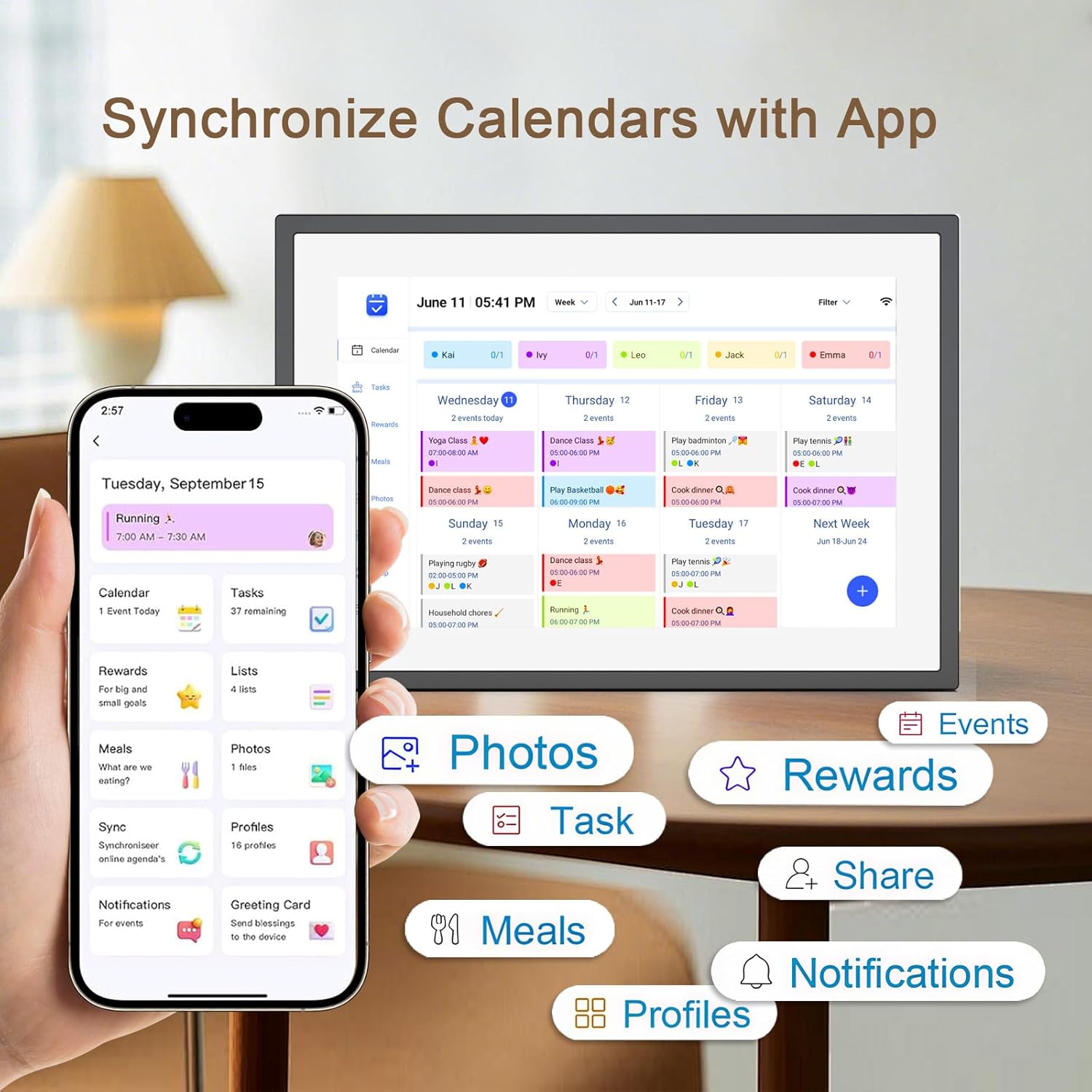
Image: The companion app interface, illustrating various features like calendar, tasks, rewards, meals, photos, and lists, all accessible from your smartphone.
Video: An official akimart video tutorial on how to add chores to the digital calendar.
3.2 Photo Frame Functions
When not actively used for scheduling, the device functions as a digital photo frame. You can upload photos and videos via the companion app to display cherished memories. The frame supports automatic rotation based on its orientation.

Image: The digital calendar functioning as a photo frame, displaying a family photo. A smartphone illustrates the process of sharing photos to the frame wirelessly.
3.3 Fungsi Jam dan Penggera
The device displays the current time and date. Multiple alarms can be set through the settings menu, offering customizable alerts for various activities.
3.4 Paparan Cuaca
The device shows current weather conditions and forecasts for your specified location, ensuring you are always informed about local weather.
4. Penyelenggaraan
- Pembersihan: Use a soft, dry cloth to clean the screen and frame. Avoid abrasive cleaners or solvents.
- Kemas Kini Perisian: Ensure your device's software and the mobile app are regularly updated to access new features and improvements.
- Pengurusan tenaga: Utilize the 'Sleep Mode' feature to automatically turn off the display during scheduled times, conserving energy and extending screen life.

Image: The digital calendar screen showing the "Sleep Mode" settings, allowing users to schedule automatic display turn-off times for undisturbed rest.
5. Penyelesaian masalah
- Peranti Tidak Dihidupkan: Pastikan penyesuai kuasa disambungkan dengan selamat pada kedua-dua peranti dan salur keluar kuasa yang berfungsi.
- Isu Sambungan Wi-Fi: Verify your Wi-Fi password and ensure the device is within range of your router. Restarting both the device and your router may resolve connectivity problems.
- Calendar Not Syncing: Confirm that the public sharing option is enabled for your external calendar (Google, iCloud, etc.). Check the 'Sync' section in the eCalendar app.
- Skrin Tidak Responsif/Beku: Perform a soft reset by pressing and holding the power button until the device restarts.
- Pemasangan Dinding: Please note that this model is designed for tabletop use with its included stand and is bukan intended for wall mounting.
6. Spesifikasi
| Ciri | Perincian |
|---|---|
| Dimensi Produk | 7 x 9 x 0.99 inci |
| Berat Barang | 2.59 paun |
| Nombor Model Item | ZN-DP1002 |
| Saiz Skrin | 10.1 Inci |
| Resolusi | 1080p |
| Peranti Serasi | Telefon Pintar (iOS & Android) |
| Jenama | akimart |
| warna | Hitam |
7. Waranti dan Sokongan
For warranty information and technical support, please refer to the contact details provided in your product packaging or visit the official akimart website. Our diligent and knowledgeable engineering teams are available to assist with pre-sales and after-sales inquiries.
Anda juga boleh melawat akimart Store on Amazon untuk maklumat produk tambahan dan sumber sokongan.