
pengenalan
This manual provides essential information for setting up, operating, and maintaining your NIMO 15.6" FHD Laptop Computer (Model NIMO N157). Please read this manual thoroughly before using your device to ensure optimal performance and longevity.
Apa yang ada dalam Kotak
- 1 x NIMO N157 Laptop
- 1 x Type-C 65W PD Fast Charger
- 1 x Manual Pengguna (dokumen ini)
- Windows 11 Home (pre-installed)
- 2 Years Warranty, 90 Days Return information
Panduan Persediaan
1. Hidupkan dan Pengecasan Awal
Before first use, ensure your NIMO laptop is fully charged. Connect the provided Type-C 65W PD Fast Charger to the laptop's Type-C charging port and a power outlet. The charge LED indicator will illuminate. A full charge is recommended for optimal battery calibration.

Image: NIMO laptop connected to its Type-C 65W GaN II PD charger. This charger provides fast charging capabilities.
2. Operating System Setup (Windows 11 Home)
Upon first power-on, the laptop will guide you through the Windows 11 Home setup process. Follow the on-screen instructions to configure language, region, network settings, and create a user account. An internet connection (Wi-Fi 6 supported) is recommended for the initial setup to download necessary updates.

Image: The NIMO laptop screen showing the Windows 11 desktop interface.
3. Persediaan Pembaca Cap Jari
For enhanced security and quick login, set up the integrated fingerprint reader. Navigate to Windows Settings > Accounts > Sign-in options and follow the prompts to register your fingerprint. This allows for secure one-touch login.

Imej: Dari dekat view of the fingerprint reader on the NIMO laptop, illustrating its use for secure login.
Arahan Operasi
1. Keyboard and Backlight
The NIMO laptop features a full-size keyboard with a numeric keypad and a backlit function. To activate or adjust the keyboard backlight, use the dedicated function keys (Fn + Fx, refer to your keyboard layout for specific key). This feature allows for comfortable typing in low-light environments.
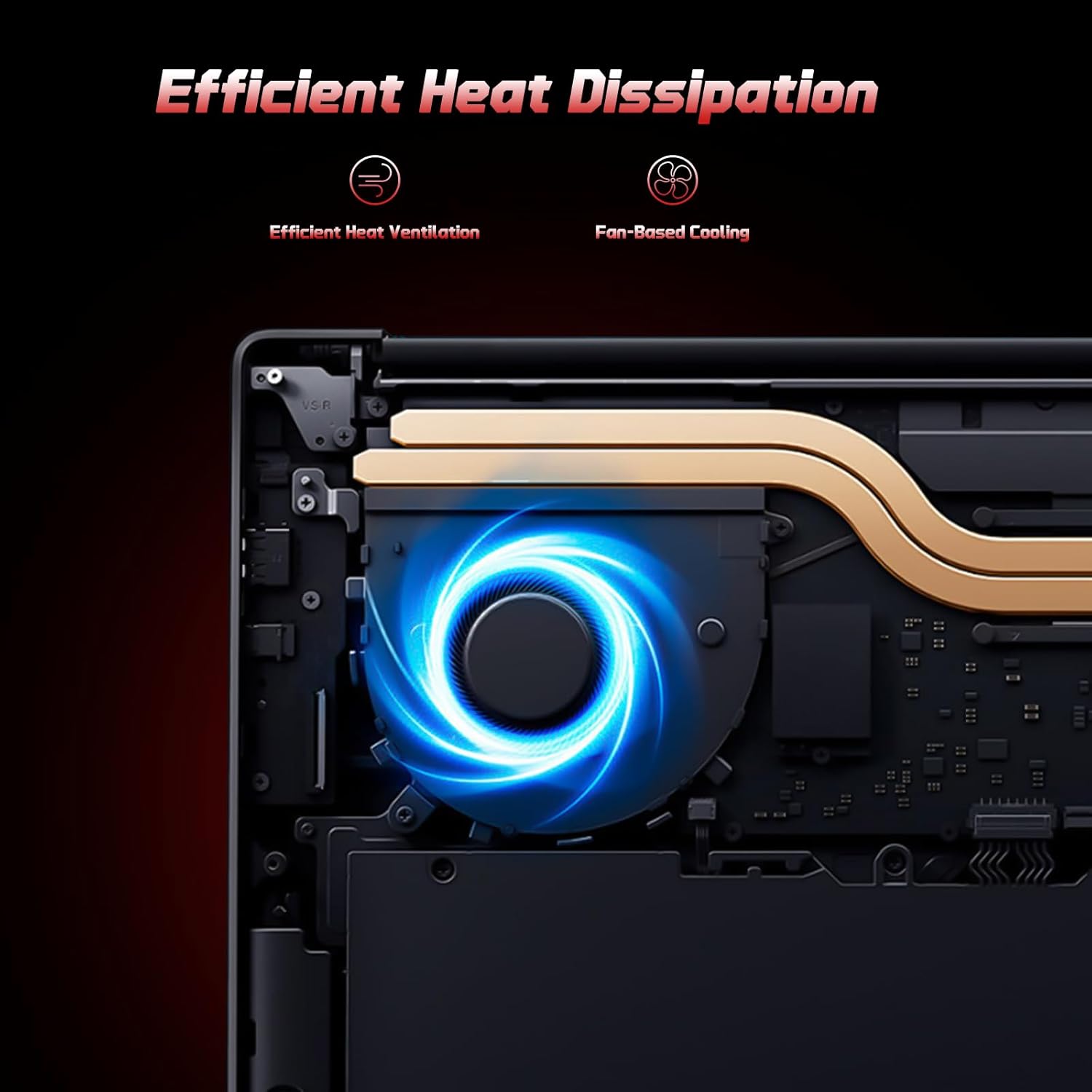
Image: A user typing on the NIMO laptop's backlit keyboard in a dim environment.
2. Menyambung Peranti
The laptop is equipped with multiple ports for various peripherals:
- Port USB: Sambungkan peranti USB seperti pemacu luaran, tetikus atau papan kekunci.
- Port HDMI: Sambung ke monitor luaran atau TV untuk paparan lanjutan.
- Port Jenis-C: One port supports 65W PD fast charging, and another is a multifunction port for data transfer and display output.
- Slot Micro SD: Insert a Micro SD card for expandable storage.
- Jack fon kepala: Sambungkan fon kepala atau pembesar suara luaran.
- Slot Kunci Kensington: Untuk keselamatan fizikal.
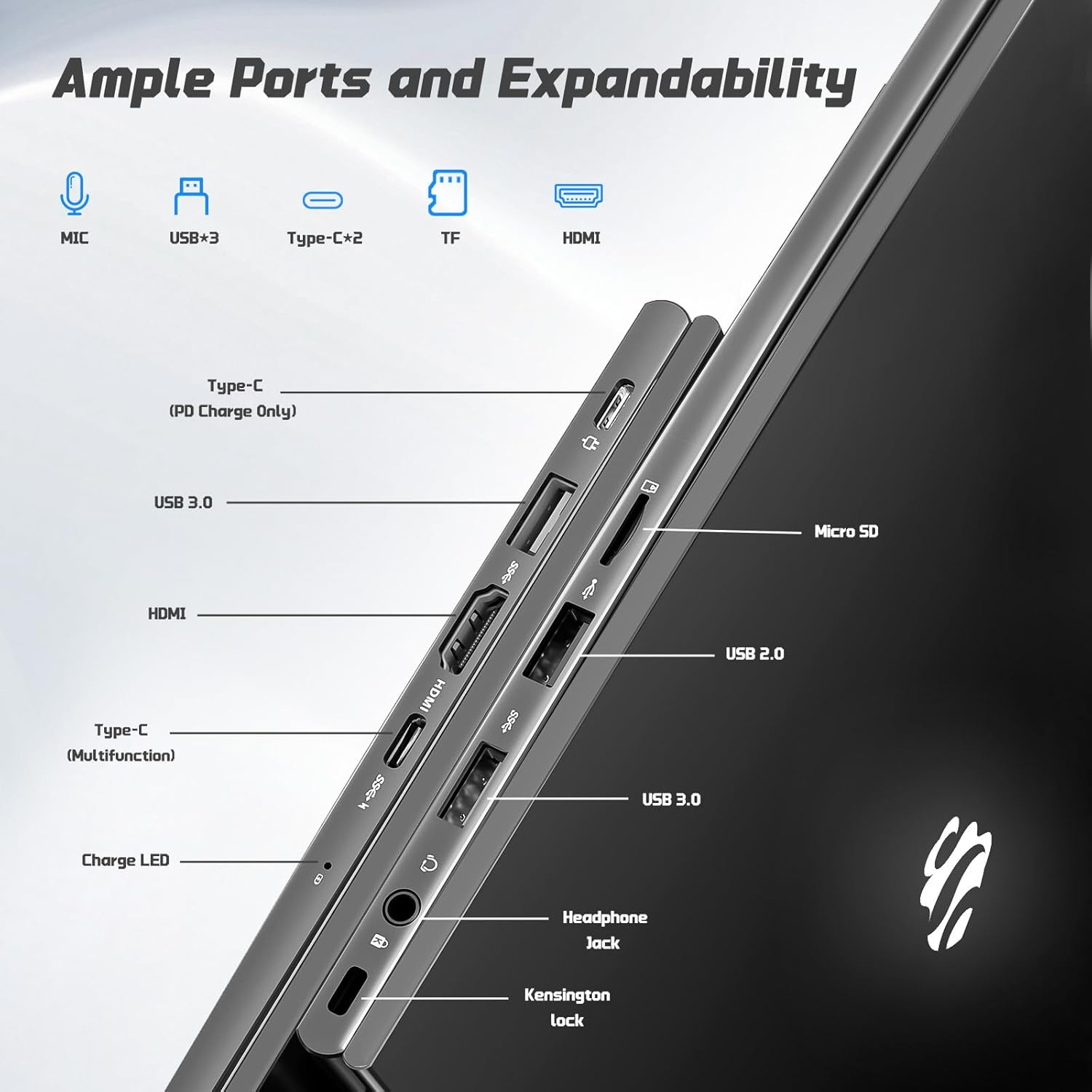
Imej: Sisi view of the NIMO laptop highlighting the available ports including USB, HDMI, Type-C, Micro SD, and headphone jack.
3. Webkamera dan Privasi
The integrated 2MP webcam is suitable for video calls and online meetings. For privacy, ensure the camera is covered or disabled when not in use, if a physical privacy shutter is present (refer to product images for confirmation).
Video: This video demonstrates the NIMO laptop's features, including the webcam and various ports. It shows the laptop being used for work, school, and play, highlighting the backlit keyboard and fingerprint unlock feature.
Video: This video showcases the NIMO laptop's versatility for different users, including students and professionals. It highlights the 15.6" FHD display, backlit keyboard, and multiple connectivity options.
Video: A comprehensive introduction to the NIMO 15.6" laptop, detailing its design, performance, and user experience for various tasks.
Video: This video emphasizes the efficiency and convenience of the NIMO laptop, showcasing its features that contribute to productivity and ease of use.
Video: This video highlights the NIMO 15.6" FHD laptop's suitability for students, home use, and work, demonstrating its performance in various daily scenarios.
Penyelenggaraan
1. Membersihkan Komputer Riba
To clean the screen, use a soft, lint-free cloth specifically designed for electronics. For the keyboard and chassis, a slightly damp cloth with mild cleaning solution can be used. Avoid excessive moisture and abrasive materials. Ensure the laptop is powered off before cleaning.
2. Penjagaan Bateri
The NIMO laptop features a 53.58 Watt Hours Lithium Polymer battery. To prolong battery life, avoid fully discharging the battery frequently. It is recommended to keep the battery charge between 20% and 80% when possible. Store the laptop in a cool, dry place when not in use for extended periods.
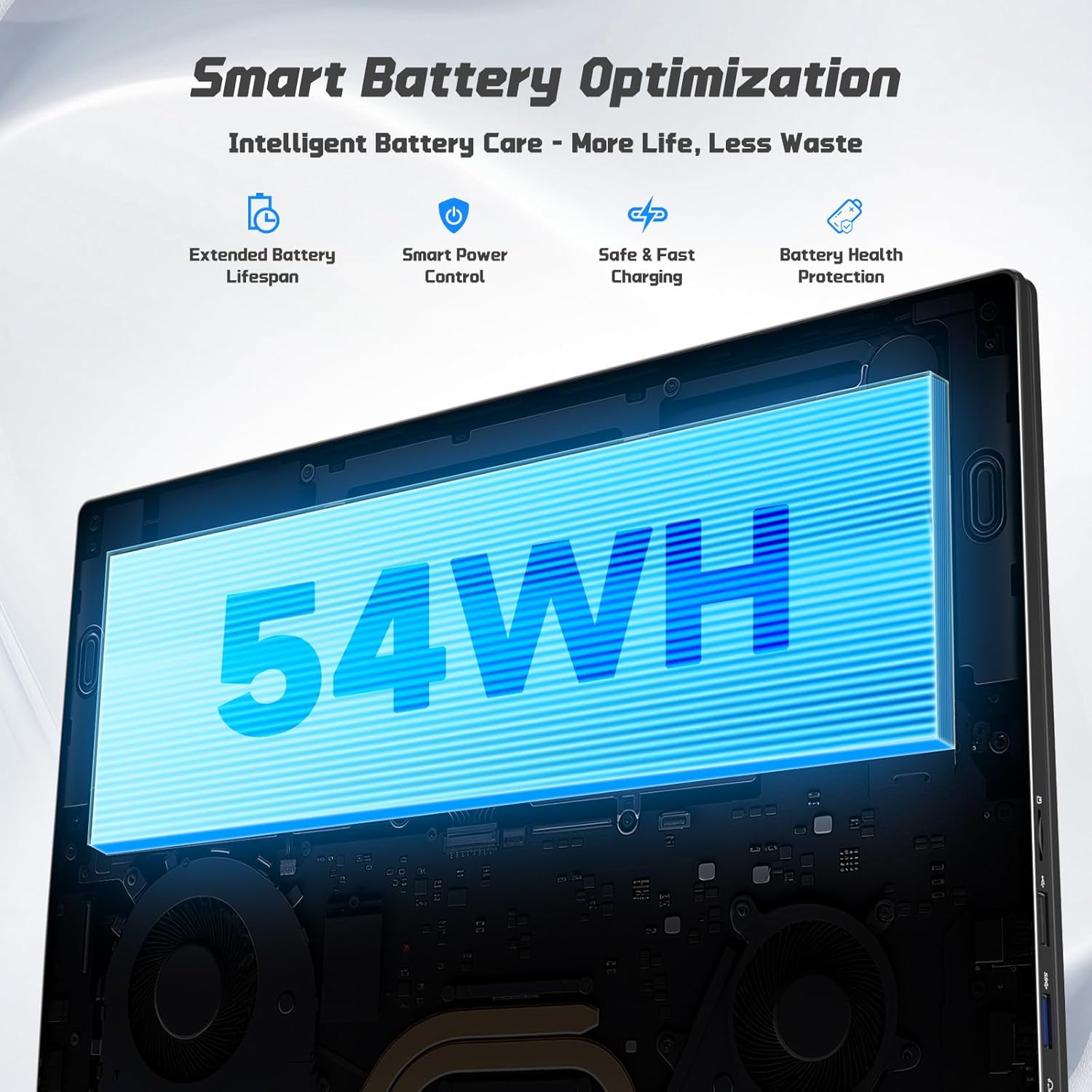
Image: Diagram illustrating the NIMO laptop's smart battery optimization features, including extended lifespan, smart power control, safe and fast charging, and battery health protection.
3. Kemas Kini Perisian
Semak dan pasang kemas kini Windows secara berkala untuk memastikan sistem anda mempunyai tampalan keselamatan dan penambahbaikan prestasi terkini. Pergi ke Tetapan > Kemas Kini Windows untuk mengurus kemas kini.
4. Pelesapan Haba
The laptop is designed with efficient heat ventilation and fan-based cooling. To prevent overheating, ensure that the ventilation openings are not blocked during use. Avoid placing the laptop on soft surfaces like beds or couches that can obstruct airflow.
Imej: Satu dalaman view of the NIMO laptop showing its efficient heat dissipation system with fan-based cooling.
Menyelesaikan masalah
1. Laptop Not Powering On
- Pastikan pengecas disambungkan dengan selamat pada komputer riba dan soket kuasa yang berfungsi.
- Check the charge LED indicator. If it's not lit, try a different outlet or charger.
- Tekan dan tahan butang kuasa selama 10-15 saat untuk melakukan tetapan semula keras.
2. Screen Issues (No Display, Flickering)
- Connect an external monitor via the HDMI port to check if the issue is with the laptop's display or graphics output.
- Mulakan semula komputer riba.
- Ensure display drivers are up to date via Windows Update or NIMO's support webtapak.
3. Prestasi Perlahan
- Tutup aplikasi yang tidak perlu berjalan di latar belakang.
- Semak dan pasang sebarang kemas kini Windows yang belum selesai.
- Ensure sufficient free space on the 128GB SSD. Consider expanding storage using the Micro SD slot or upgrading the SSD if needed.
- Jalankan imbasan virus.
4. Wi-Fi or Bluetooth Connectivity Issues
- Ensure Wi-Fi and Bluetooth are enabled in Windows Settings.
- Mulakan semula penghala/modem anda untuk masalah Wi-Fi.
- Update network drivers via Windows Update or NIMO's support webtapak.
Spesifikasi
| Ciri | Perincian |
|---|---|
| Jenama | NIMO |
| Nama Model | NIMO N157G |
| Saiz Skrin | 15.6 Inci |
| Resolusi Paparan | 1920x1080 Piksel (FHD) |
| Jenis Paparan | IPS LCD, Anti-glare |
| Pemproses | Intel Pentium N150 (4-Core, up to 3.6 GHz) |
| RAM | 4 GB DDR4 (Expandable up to 16 GB) |
| Penyimpanan | 128 GB SSD (Expandable via Micro SD) |
| Sistem Operasi | Windows 11 Home |
| Grafik | Grafik Intel Bersepadu |
| Webcam | Kamera Depan 2 MP |
| Ketersambungan | Wi-Fi 6, Bluetooth 5.3 |
| Pelabuhan | 2x USB 3.0, 1x USB 2.0, 2x Type-C (1x PD Charge Only, 1x Multifunction), 1x HDMI, 1x Micro SD Slot, 1x Headphone Jack, 1x Kensington Lock |
| Bateri | 53.58 Wh Lithium Polymer (Up to 12.75 hours life) |
| Pengecas | 65W Type-C PD Fast Charger |
| Ciri Khas | Backlit Keyboard, Fingerprint Reader, HD Audio, Numeric Keypad |
| Dimensi | 14.07" L x 8.98" W x 0.76" Th |
| Berat badan | 3.75 paun |
Waranti & Sokongan
Your NIMO laptop comes with a Waranti 2 Tahun from NIMO Direct Inc. Additionally, a 90-Day Hassle-Free Return Policy is provided. For any product-related questions, technical assistance, or warranty claims, please contact NIMO customer support.
Maklumat Hubungan:
- e-mel: service@nimopc.com
- Sokongan dalam talian: Refer to the official NIMO weblaman web untuk sumber sokongan selanjutnya.
Please have your model number (NIMO N157) and purchase details ready when contacting support.