
Produk Selesaiview
The SIXTOP Android 13 Double DIN Car Radio is an advanced in-car entertainment and navigation system featuring a 9-inch touchscreen display. It integrates modern connectivity options such as wireless CarPlay, Android Auto, Bluetooth 5.0, and Wi-Fi. Designed for a seamless user experience, it offers GPS navigation, FM/RDS radio, and supports a reversing camera for enhanced safety.
This unit operates on Android 13, providing a fast and responsive interface with access to a wide range of applications. It comes with 4GB RAM and 64GB ROM, ensuring smooth performance for all functions.
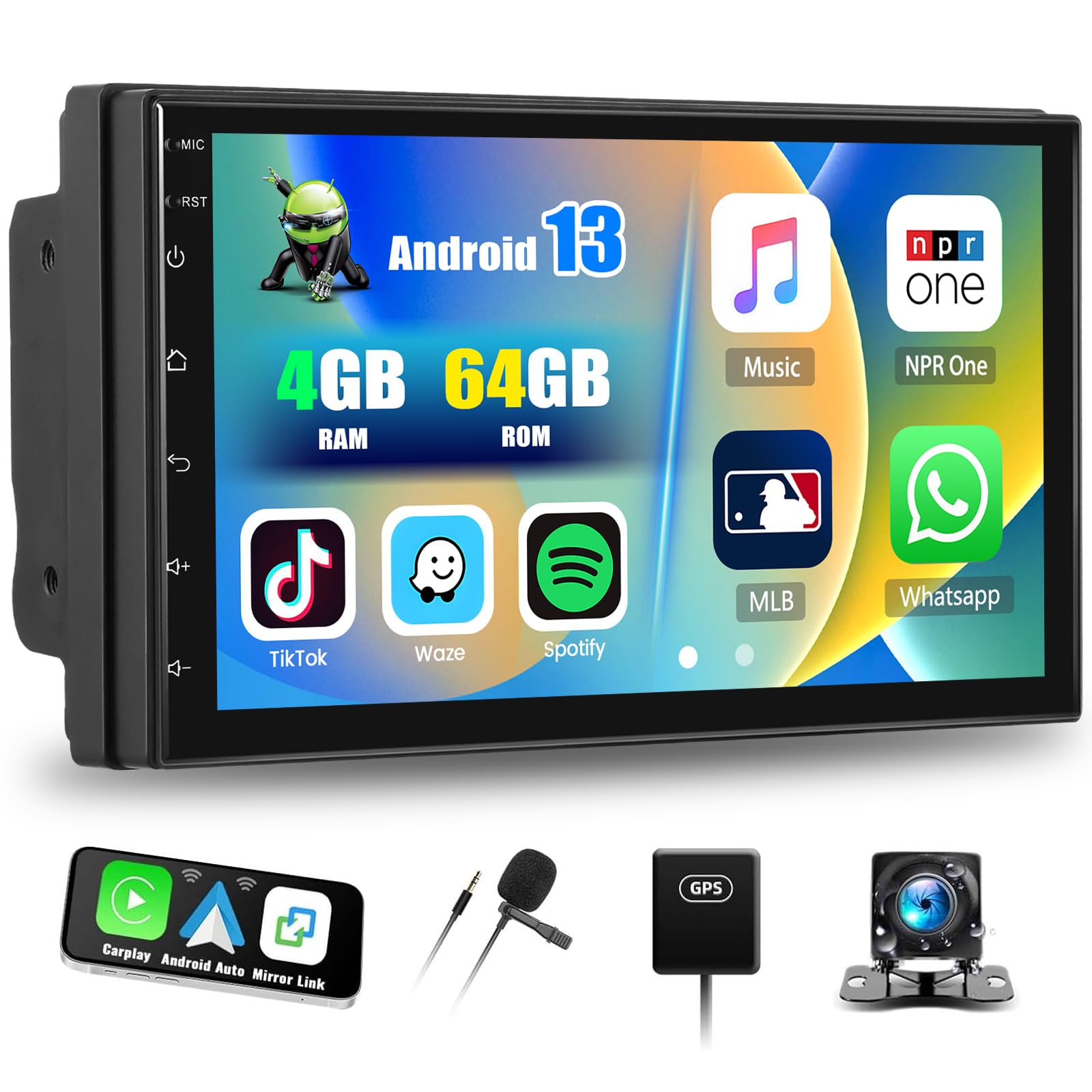
Main unit of the SIXTOP Android 13 Double DIN Car Radio, showcasing its 9-inch touchscreen display.
Persediaan dan Pemasangan
This section provides general guidelines for setting up your SIXTOP Android 13 Double DIN Car Radio. Professional installation is recommended for optimal performance and safety.
Kandungan Pakej
Before installation, verify that all components are present in the package. The standard package includes:
- Main Head Unit (9-inch touchscreen)
- Power Cable (ISO interface)
- RCA kabel
- Kabel USB (Dua port USB)
- Antena GPS
- Kabel Input Kamera Belakang
- Kurung Pemasangan
- Mikrofon Luaran
- Kamera Belakang AHD
- Manual Pengguna

Illustration of the various components included in the product package, such as the main unit, cables, antennas, and camera.
Sambungan Pendawaian
- Sambungan Kuasa: Connect the provided power cable to your vehicle's wiring harness. Ensure correct polarity for constant power (B+), accessory power (ACC), and ground (GND).
- Sambungan Pembesar Suara: Connect the speaker wires from the head unit to your vehicle's speakers. Ensure each speaker is connected to the correct channel (Front Left, Front Right, Rear Left, Rear Right).
- Antena GPS: Pasang antena GPS di lokasi yang jelas view of the sky, typically on the dashboard or under the windshield. Connect it to the GPS input on the head unit.
- Port USB: Connect the dual USB cables to the corresponding ports on the head unit. Route them to a convenient location for connecting USB devices.
- Kamera Belakang: Connect the rear camera input cable to the head unit. Install the AHD rear camera at the back of your vehicle and connect its video output to the input cable. Ensure the camera's power is connected to the reverse light circuit for automatic activation.
- Mikrofon Luaran: Connect the external microphone to the dedicated input for improved call quality. Position it near the driver for optimal voice capture.
- Kabel RCA: Use RCA cables for connecting external amplifiers or subwoofers if desired.
- Kawalan Roda Stereng: Connect the steering wheel control wires (Key1, Key2) to your vehicle's steering wheel control interface, if applicable. Refer to your vehicle's wiring diagram for specific connections.
Kuasa Awal Hidup
After all connections are made, turn on your vehicle's ignition. The unit should power on automatically. Follow any on-screen prompts for initial setup, such as language selection and time zone.
Arahan Operasi
1. CarPlay Tanpa Wayar dan Android Auto
Connect your iPhone or Android phone wirelessly to access CarPlay or Android Auto features. This allows you to use phone applications for navigation, music, calls, and messages directly on the car radio's screen.
- Pastikan Bluetooth dan Wi-Fi didayakan pada telefon pintar anda.
- On the car radio, navigate to the CarPlay/Android Auto application.
- Select your phone from the list of available devices to establish a connection.
- Follow any on-screen prompts on both the car radio and your phone to complete the pairing process.

The car radio display showing the CarPlay and Android Auto interfaces, allowing seamless smartphone integration.
2. Mirror Link (Wireless)
Mirror Link allows you to cast your smartphone's screen onto the car radio display via Wi-Fi. This feature is compatible with both iOS (AirPlay) and Android devices.
- Ensure your phone and the car radio are connected to the same Wi-Fi network.
- Open the Mirror Link application on the car radio.
- On your smartphone, activate screen mirroring (e.g., AirPlay for iOS, Smart View/Hantar untuk Android).
- Select the car radio from the list of available devices to begin mirroring.
3. Bluetooth Connectivity (Version 5.0)
The integrated Bluetooth 5.0 module enables hands-free calling and wireless music streaming.
- Berpasangan: Go to the Bluetooth settings on the car radio and your phone. Cari untuk and select the car radio's Bluetooth name (e.g., "SIXTOP Car Radio") to pair.
- Panggilan Bebas Tangan: Once paired, you can make and receive calls directly through the car radio. The external microphone ensures clear audio.
- Main Balik Muzik: Stream audio from your phone to the car radio. Controls for play, pause, skip are available on the touchscreen.
- Penyegerakan Kenalan: The unit supports automatic loading of your phone's contact book.

Screenshots illustrating Bluetooth hands-free calling and music playback features on the car radio.
4. Wi-Fi and GPS Navigation
Connect to Wi-Fi to download applications, stream online content, and utilize online navigation services. The built-in GPS module supports both online and offline navigation.
- Sambungan Wi-Fi: Pergi ke Tetapan > Wi-Fi, pilih rangkaian anda dan masukkan kata laluan.
- Navigasi GPS: The unit is compatible with popular navigation apps like Waze, Navfree, and Google Maps. You can download offline maps from the Play Store for navigation without an internet connection.

The car radio screen displaying Wi-Fi connection status and a GPS navigation map with route information.
5. Radio FM/RDS
Access FM radio stations with clear sound quality. The RDS (Radio Data System) feature provides additional information like station name and traffic announcements.
- tuning: Use the touchscreen to manually tune or scan for available FM stations.
- Pratetap: Simpan sehingga 18 stesen kegemaran anda untuk akses pantas.
- RDS: When available, RDS will display station information and can provide traffic updates.
6. Reversing Display and Camera
The unit automatically displays the rear camera feed when the vehicle is in reverse gear, aiding in safe parking and maneuvering.
- Pengaktifan Automatik: The display switches to the camera view apabila gear undur dihidupkan.
- Kamera AHD: The included AHD camera provides clear, high-definition video, including night vision capabilities.
- Guide Lines: Parking guide lines are displayed on the screen and can be adjusted for accuracy.

The car radio screen showing the reversing camera view with dynamic parking guide lines, enhancing safety during parking maneuvers.
7. Kawalan Roda Stereng
Control essential functions of the car radio directly from your vehicle's steering wheel buttons, allowing you to keep your hands on the wheel and focus on driving.
- Penyesuaian: Map your steering wheel buttons to control functions like volume, track change, mode selection, and answering calls.
- Keselamatan: Reduces distractions by providing convenient access to common controls.
8. Split Screen and EQ Sound
The split-screen function allows you to run two applications simultaneously, while the built-in equalizer provides extensive audio customization.
- Skrin Pisah: Drag an app icon to one side of the screen to activate split-screen mode. You can adjust the size and position of each application.
- Penyamaan (EQ): The 32-frequency equalizer allows for precise audio tuning, including panoramic surround sound adjustments, to match your preferences and vehicle acoustics.

The car radio display showing the split-screen functionality, allowing two applications to run side-by-side, and the detailed equalizer settings for audio customization.
Penyelenggaraan
Penyelenggaraan yang betul memastikan jangka hayat dan prestasi optimum radio kereta anda.
- Pembersihan Skrin: Gunakan kain lembut dan tidak berbulu untuk mengelap skrin sentuh dengan lembut. Untuk calitan degil, sedikit dampen kain dengan air atau pembersih selamat skrin. Elakkan bahan kimia yang keras atau bahan yang melelas.
- Kemas Kini Perisian: Periodically check for software updates via the Wi-Fi connection to ensure you have the latest features and security patches.
- Pengudaraan: Pastikan bukaan pengudaraan unit tidak tersumbat untuk mengelakkan terlalu panas.
- Sambungan Kabel: Sekali-sekala periksa semua sambungan kabel untuk memastikan ia selamat dan bebas daripada kerosakan.
Menyelesaikan masalah
Bahagian ini menangani isu biasa yang mungkin anda hadapi. Untuk masalah yang lebih kompleks, hubungi sokongan pelanggan.
Tiada Kuasa
- Check the vehicle's fuse box for blown fuses related to the car radio.
- Verify that the power cables (B+, ACC, GND) are correctly and securely connected.
- Pastikan penyalaan kenderaan dihidupkan.
Tiada Bunyi
- Periksa tahap kelantangan dan pastikan unit tidak disenyapkan.
- Sahkan semua sambungan wayar pembesar suara selamat.
- Pastikan sumber audio yang betul dipilih.
Kehilangan Isyarat GPS
- Pastikan antena GPS disambungkan dengan betul dan dipasang di lokasi yang jelas view dari langit.
- Alihkan kenderaan ke kawasan terbuka yang jauh dari bangunan tinggi atau dedaun yang lebat.
Isu Sambungan Bluetooth
- Pastikan Bluetooth didayakan pada kedua-dua radio kereta dan telefon pintar anda.
- Padamkan gandingan sebelumnya pada kedua-dua peranti dan cuba pasangkan semula.
- Mulakan semula radio kereta dan telefon pintar anda.
CarPlay/Android Auto Tidak Bersambung
- Verify that Wi-Fi is enabled on both devices.
- Pastikan sistem pengendalian telefon anda dikemas kini.
- Try restarting the car radio and your phone.
Skrin sentuh Tidak Responsif
- Lakukan tetapan semula lembut dengan menekan butang tetap semula (jika ada) atau dengan mematikan pencucuhan kenderaan dan menghidupkan semula.
- Pastikan skrin bersih dan bebas daripada serpihan.
Spesifikasi Teknikal
| Sistem | Android 13 |
| Pemproses | RK3326S (4 Cores) |
| RAM | 4 GB |
| ROM | 64 GB |
| Saiz Skrin | 9 inci |
| Resolusi Skrin | 1024 x 600 |
| Cip Radio | UMW2652 |
| Kuasa Keluaran | 4 x 45 W (Max 180 Watts) |
| Versi Bluetooth | 5.0 |
| Suhu Operasi | -20 °C hingga 75 °C |
| Ampcip penguat | YD7388 |
| Jalur Radio | FM/RDS (18 memory functions) |
| Input Terbalik | AHD/CVBS |
| Mikrofon Luaran | Disokong |
| Skrin Pisah | Disokong |
| Peta | Peta luar talian terbina dalam (memerlukan internet untuk muat turun data) |
| Wi-Fi | Disokong |
| CarPlay/Android Auto | Sambungan tanpa wayar sahaja |
| Pautan Cermin | Sambungan tanpa wayar sahaja |
| Port USB | Dual USB |
| Format Audio | APE/FLAC/WAV/MP3/WMA, dsb. |
| Format Video | MKV/RMVB/AVI/MP4/MDV, dsb. |
| Format Imej | PNG/JPEG/JPG/GIF/WBMP/BNP, dsb. |
| Factory Settings Keyword | 8317 |
| Bahasa yang Disokong | Chinese, English, French, Italian, Korean, Japanese, Arabic, Spanish, Portuguese, Russian, Turkish, Vietnamese, Hebrew, Polish, German. |
| Berat Barang | 1100 Gram |
Waranti dan Sokongan
SIXTOP provides comprehensive support for your product.
- Waranti: This product includes a one-year warranty from the date of purchase.
- Pulangan: Returns are supported within one month of purchase.
- Sokongan Teknikal: For any questions or issues before or after purchase, please contact customer service. Responses are typically provided within 24 hours.
- Hubungi: For support, please refer to the contact information provided with your purchase or on the official SIXTOP webtapak.