
KONSIVY OPZM-10
KONSIVY 4K 10X Optical Zoom Video Camera Camcorder User Manual
Model: OPZM-10
pengenalan
Thank you for choosing the KONSIVY 4K 10X Optical Zoom Video Camera Camcorder. This manual provides detailed instructions on how to set up, operate, and maintain your new camcorder. Please read this manual thoroughly before using the device to ensure proper operation and to maximize its performance. Keep this manual for future reference.
Apa yang ada dalam Kotak
Carefully unpack your camcorder and check that all the following items are included:
- 1 x KONSIVY Camcorder
- 2 x Bateri Boleh Dicas Semula
- 1 x Alat Kawalan Jauh
- 1 x Kabel USB
- 1 x HD Cable (HDMI)
- Kad SD 1 x 32GB

Image: The KONSIVY camcorder shown with its included accessories: two batteries, a 32GB SD card, and a remote control.
Produk Selesaiview
The KONSIVY 4K 10X Optical Zoom Video Camera Camcorder is a versatile digital video camera designed for capturing high-quality videos and photos. It features a 3.0-inch IPS touch screen, 10X optical zoom, 12X digital zoom, and supports 4K UHD video recording and 30MP still image capture. With built-in Wi-Fi and a 2.4G remote control, it offers flexible operation and easy content sharing.
Persediaan
1. Pemasangan Bateri
- Open the battery compartment cover located at the bottom of the camcorder.
- Insert one of the included C batteries, ensuring the correct polarity (+/-) aligns with the markings inside the compartment.
- Tutup penutup petak bateri dengan selamat.
2. Pemasangan Kad SD
- Locate the SD card slot, typically on the side or bottom of the camcorder.
- Insert the included 32GB SD card (or another compatible SD card, up to 256GB, Class 10 or higher recommended) into the slot until it clicks into place. Ensure the card is inserted in the correct orientation.
- To remove, gently push the card inward until it clicks, then release, and it will eject.
3. Mengecas Bateri
Before first use, fully charge the battery. Connect the camcorder to a power source using the provided USB cable. The charging indicator light will illuminate during charging and turn off when fully charged.
4. Kuasa Awal Hidup
Press and hold the Power button (usually located near the display or on top) for a few seconds until the screen illuminates. Follow any on-screen prompts for initial setup, such as setting the date and time.
Arahan Operasi
Fungsi Asas
- Hidupkan/Mati Kuasa: Tekan dan tahan butang KUASA butang.
- Rakaman Video: In video mode, press the REC/BERHENTI button to start recording. Press again to stop. The camcorder captures stunning 4K UHD videos.
- Mengambil gambar: Switch to photo mode (if applicable, via a mode button or screen icon). Press the FOTO button to capture 30MP still images.
- Main balik: Masukkan mod main balik untukview your recorded videos and photos. Use the navigation buttons or touch screen to browse.

Image: Demonstrates the camcorder's capability to record 4K/30FPS video and capture 30MP photos, showcasing vibrant colors and sharp details.
Ciri Lanjutan
- Fungsi Zum: The camcorder features a 10x optical zoom for clear magnification of distant subjects without loss of quality, and a 12x digital zoom for further enlargement. Use the zoom lever/buttons to adjust.
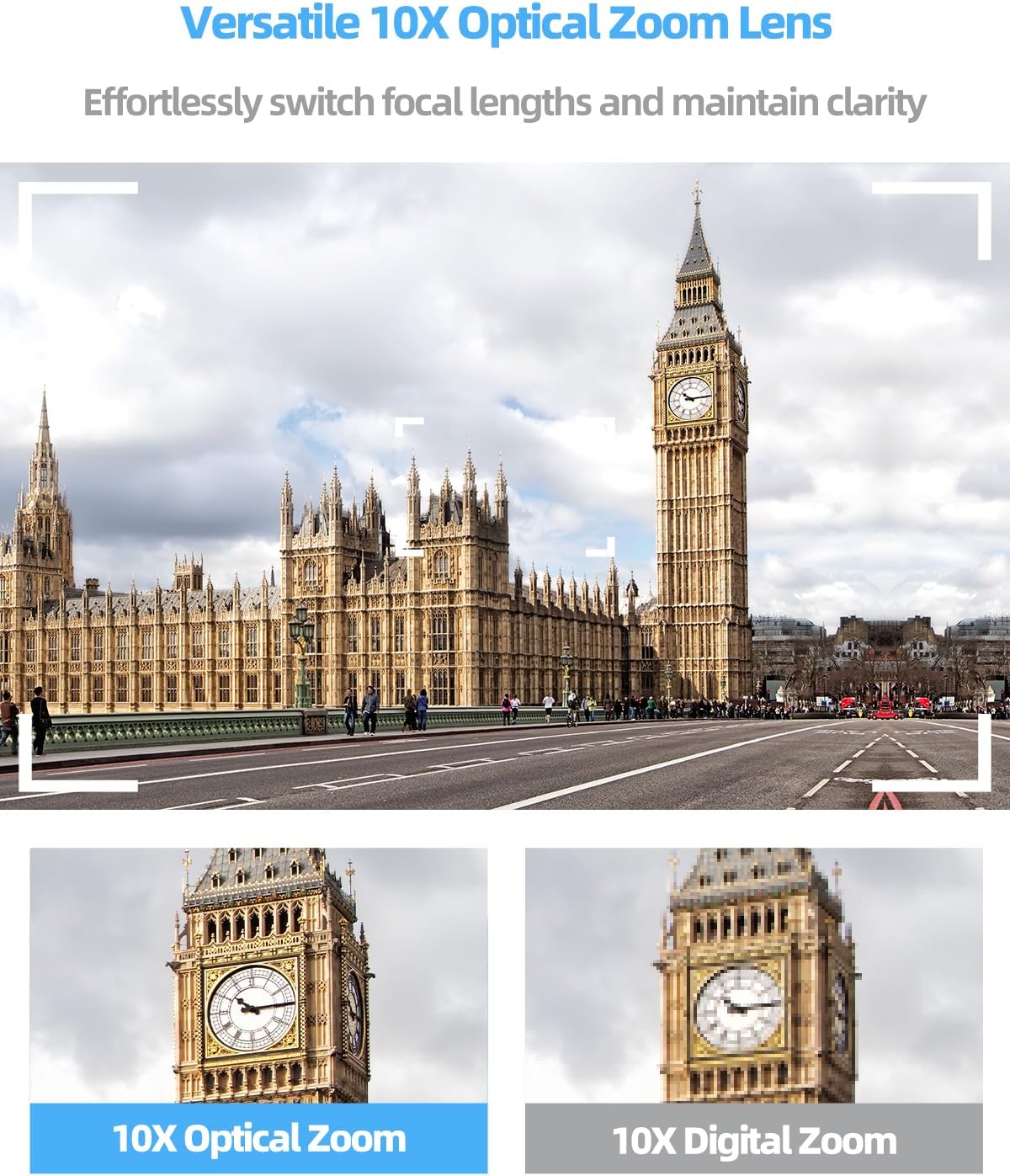
Image: Illustrates the difference between 10X optical zoom, which maintains clarity, and 10X digital zoom, which can result in pixelation at higher magnifications.
- Autofocus & Macro Shooting: The quick autofocus system ensures sharp and clear images for both close-ups and distant shots. Half-press the PHOTO button to engage autofocus before fully pressing to capture.

Image: Shows the camcorder's ability to auto-focus on a small subject like a ladybug, demonstrating its macro shooting capabilities.
- 3.0" IPS Touch Screen Operation: Navigate menus, adjust settings, and review content directly on the responsive touch screen. The screen can also flip 270 degrees for various shooting angles and self-recording.
- Kesambungan Wi-Fi & Kawalan Apl: Connect the camcorder to your smartphone via Wi-Fi using the dedicated app. This allows for remote control of recording, viewdalam hidup footage, and transferring files ke peranti anda.
- Kawalan Jauh 2.4G: Use the included 2.4G wireless remote control for convenient operation from up to 32 feet away, ideal for group shots or stable recording.

Image: Illustrates the camcorder's features including viewing content on a smartphone app, 360-degree remote control functionality, and the 270-degree rotatable touchscreen.
- Penstriman Langsung: Connect the camcorder to a computer via USB to use it as a webcam for live streaming on platforms like Facebook and YouTube.
- Fungsi Jeda: Pause and resume recording within the same video file, useful for editing on the fly.
- Slow-motion & Time-lapse: Explore creative shooting modes like slow-motion for dramatic effects and time-lapse for condensing long events into short videos.

Image: Shows examples of the camcorder's pause function, slow-motion video capture, and time-lapse photography capabilities.
- Penggambaran berterusan: Capture a rapid sequence of photos.
- Anti gegaran: Digital image stabilization helps reduce blur caused by camera movement.
- Pemasa kendiri: Set a delay before taking a photo, allowing you to be in the shot.
- Pengesanan Muka: Mengesan dan mengoptimumkan fokus dan pendedahan secara automatik untuk wajah dalam bingkai.

Image: Depicts the camcorder's continuous shooting mode, anti-shake function, self-timer options, and face detection capability.
- WebFungsi cam: Connect to a computer via USB to use the camcorder as a high-quality webcam.
- Keluaran HD: Connect the camcorder to an HDTV or monitor using the included HDMI cable to view your content on a larger screen.
- Merakam Semasa Mengecas: The camcorder supports recording video even while connected to a power source, ensuring uninterrupted shooting for longer events.

Image: Shows the camcorder being used as a webcam, connected for HD output to a television, and recording while plugged in for charging.
Penyelenggaraan
Pembersihan
- Kanta: Use a soft, lint-free cloth specifically designed for camera lenses. Gently wipe the lens in a circular motion. Avoid using harsh chemicals or abrasive materials.
- Skrin: Wipe the touch screen with a soft, dry microfiber cloth. For stubborn smudges, slightly dampen kain dengan air atau pembersih skrin.
- Badan: Use a soft, dry cloth to wipe the camcorder body. Do not use solvents or alcohol.
Penjagaan Bateri
- Simpan bateri di tempat yang sejuk dan kering apabila tidak digunakan.
- Elakkan menyahcas sepenuhnya bateri dengan kerap untuk memanjangkan jangka hayatnya.
- If storing for extended periods, charge batteries to about 50% capacity.
Penyimpanan
When not in use, store the camcorder in a dry, dust-free environment, away from extreme temperatures and direct sunlight. Consider using a protective case to prevent scratches and impacts.
Menyelesaikan masalah
| Masalah | Kemungkinan Punca | Penyelesaian |
|---|---|---|
| Camcorder tidak dihidupkan. | Bateri mati atau salah dimasukkan. | Ensure battery is fully charged and inserted with correct polarity. Try the second battery. |
| Tidak boleh merakam video/mengambil gambar. | Kad SD penuh, dikunci atau tidak dimasukkan. | Check SD card status. Ensure it's unlocked, has sufficient space, and is properly inserted. Format the card if necessary (this will erase all data). |
| Image/Video quality is poor. | Lens is dirty; lighting conditions are poor; incorrect settings. | Clean the lens. Ensure adequate lighting. Check resolution settings (e.g., 4K for video, 30MP for photos). |
| Sambungan Wi-Fi gagal. | Incorrect password; camcorder too far from device; app issue. | Ensure correct Wi-Fi password. Move closer to the camcorder. Restart the camcorder and your smart device. Reinstall the app if needed. |
| Alat kawalan jauh tidak berfungsi. | Remote battery is dead; line of sight blocked. | Replace the remote control battery. Ensure no obstructions between the remote and the camcorder's IR receiver. |
Spesifikasi
| Jenama | KONSIVY |
| Nombor Model | OPZM-10 |
| Berat Barang | 1.46 paun |
| Dimensi Produk | 4.96 x 2.24 x 2.28 inci |
| Bateri | Bateri 1 C diperlukan (termasuk) |
| warna | Hitam |
| Ciri Khas | Face Detection, Optical Zoom, Slow Motion, Time Lapse, Touchscreen |
| Teknologi Penderia Foto | CMOS |
| Resolusi Tangkapan Video | 1080p, 4K |
| Panjang Fokus Maksimum | 49.5 Milimeter |
| Apertur Maksimum | 3.1 f |
| Jenis Memori Denyar | SD (Supports up to 256GB) |
| Format Tangkapan Video | MP4 |
| Saiz Skrin | 3 Inci (Skrin Sentuh IPS) |
| Teknologi Ketersambungan | HDMI, USB, Wi-Fi |
Waranti dan Sokongan
KONSIVY products are designed for reliability and performance. For specific warranty details, please refer to the warranty card included with your product or visit the official KONSIVY website. If you encounter any issues or have questions not covered in this manual, please contact KONSIVY customer support through the contact information provided on their official webtapak atau melalui platform pembelian anda.
Sila ambil perhatian bahawa pembaikan atau pengubahsuaian yang tidak dibenarkan boleh membatalkan jaminan anda.
Ask a question about this manual
Ask about setup, troubleshooting, compatibility, parts, safety, or missing instructions. Manuals+ will review the question and use this page’s manual context to help answer it.