
pengenalan
Thank you for choosing the Westinghouse 27 Inch Flat Gaming Monitor. This manual provides essential information for setting up, operating, and maintaining your monitor. Please read it thoroughly before use to ensure proper functionality and to maximize your gaming and viewing experience. This monitor is designed to deliver superior visual clarity with a 1080p Full HD IPS display, a high 180Hz refresh rate, and a rapid 1ms response time, complemented by AMD FreeSync technology for smooth, tear-free gameplay.
Maklumat Keselamatan
Please observe the following safety precautions to prevent damage to the monitor and ensure your safety:
- Jangan dedahkan monitor kepada hujan atau kelembapan untuk mengelakkan bahaya kebakaran atau renjatan elektrik.
- Jangan buka monitor casing. Tiada bahagian yang boleh diservis pengguna di dalamnya. Rujuk semua servis kepada kakitangan perkhidmatan yang berkelayakan.
- Letakkan monitor pada permukaan yang stabil dan rata untuk mengelakkannya daripada jatuh.
- Pastikan pengudaraan yang betul di sekeliling monitor. Jangan sekat bukaan pengudaraan.
- Gunakan hanya penyesuai kuasa yang dibekalkan bersama monitor.
- Cabut palam kuasa dari soket jika monitor tidak akan digunakan untuk tempoh yang lama.
Kandungan Pakej
Sahkan bahawa semua item terdapat dalam pakej anda:
- Monitor Permainan
- DisplayPort Cable
- Pendirian (Tapak dan Leher)
- Penyesuai Kuasa
- Owners Manual & Quick Start Guide

Imej: Selesaiview of the monitor's dimensions, included accessories, and connection ports.
Persediaan
1. Memasang Pendirian
- Carefully remove the monitor from its packaging, keeping it protected.
- Pasangkan leher penyangga pada panel monitor.
- Attach the stand base to the stand neck. Secure with the provided screws if necessary.
- Letakkan monitor yang telah dipasang di atas meja atau permukaan yang stabil.
2. Menyambung ke Peranti
The monitor supports DisplayPort and HDMI connections.
- Sambungan DisplayPort: Connect one end of the included DisplayPort cable to the DisplayPort output on your computer and the other end to the DisplayPort input on the monitor.
- Sambungan HDMI: Connect one end of an HDMI cable (not included) to the HDMI output on your computer or console and the other end to one of the HDMI inputs on the monitor.
- Output Audio: For external audio, connect headphones or external speakers to the 3.5mm headphone output jack on the monitor.
3. Sambungan Kuasa
- Connect the power adapter to the monitor's power inlet.
- Palamkan penyesuai kuasa ke salur keluar dinding.
Arahan Operasi
Hidupkan/Mati Kuasa
Tekan butang kuasa yang terletak pada monitor untuk menghidupkan atau mematikannya. Lampu penunjuk kuasa akan menyala apabila monitor dihidupkan.
Menu Paparan Pada Skrin (OSD).
The OSD menu allows you to adjust various monitor settings. Use the control buttons (usually located on the back or bottom right of the monitor) to navigate the menu.
- Press a control button to activate the OSD menu.
- Gunakan butang arah untuk menavigasi pilihan menu.
- Tekan butang pilih untuk memasuki sub-menu atau mengesahkan tetapan.
- Press the exit button to go back or exit the OSD menu.
Ciri dan Tetapan Utama
- Paparan IPS HD Penuh: Nikmati warna-warna terang dan luas viewing angles with the 1080p IPS panel. Adjust brightness, contrast, and color temperature through the OSD menu for optimal visual quality.

Image: The monitor's Full HD IPS panel delivers sharp, detailed visuals.
- Kadar Refresh 180Hz: Experience ultra-smooth motion. Ensure your graphics card settings are configured to output 180Hz for compatible games and applications.

Image: Visual comparison of 180Hz with AMD FreeSync On versus 60Hz with FreeSync Off, demonstrating reduced motion blur and stutter.
- 1ms Masa Tindak Balas: Minimizes ghosting and motion blur for clear, fast-paced action. This setting is typically active by default.

Image: Demonstrates the clarity provided by the 1ms response time compared to a slower response time.
- AMD FreeSync: Synchronizes the monitor's refresh rate with your GPU's frame rate to eliminate screen tearing and stuttering. Ensure FreeSync is enabled in both the monitor's OSD and your AMD graphics card settings.

Image: Illustrates the benefit of AMD FreeSync in reducing screen tearing and stuttering during gameplay.
- Mod Permainan: Optimize your visual experience for different game genres. Access these modes through the OSD menu.
- 1st-Person Shooter Mode: Enhances visibility in dark areas for a competitive edge.
- Real-Time Strategy Mode: Optimizes color and clarity for strategic overview.
- Crosshair View Mod: Provides an on-screen crosshair for improved target accuracy.

Imej: Cthamples of various gaming modes available on the monitor.
- EyeRest Technology: Reduces blue light emission and flicker to minimize eye strain during long viewing sessions. Enable this feature in the OSD menu.
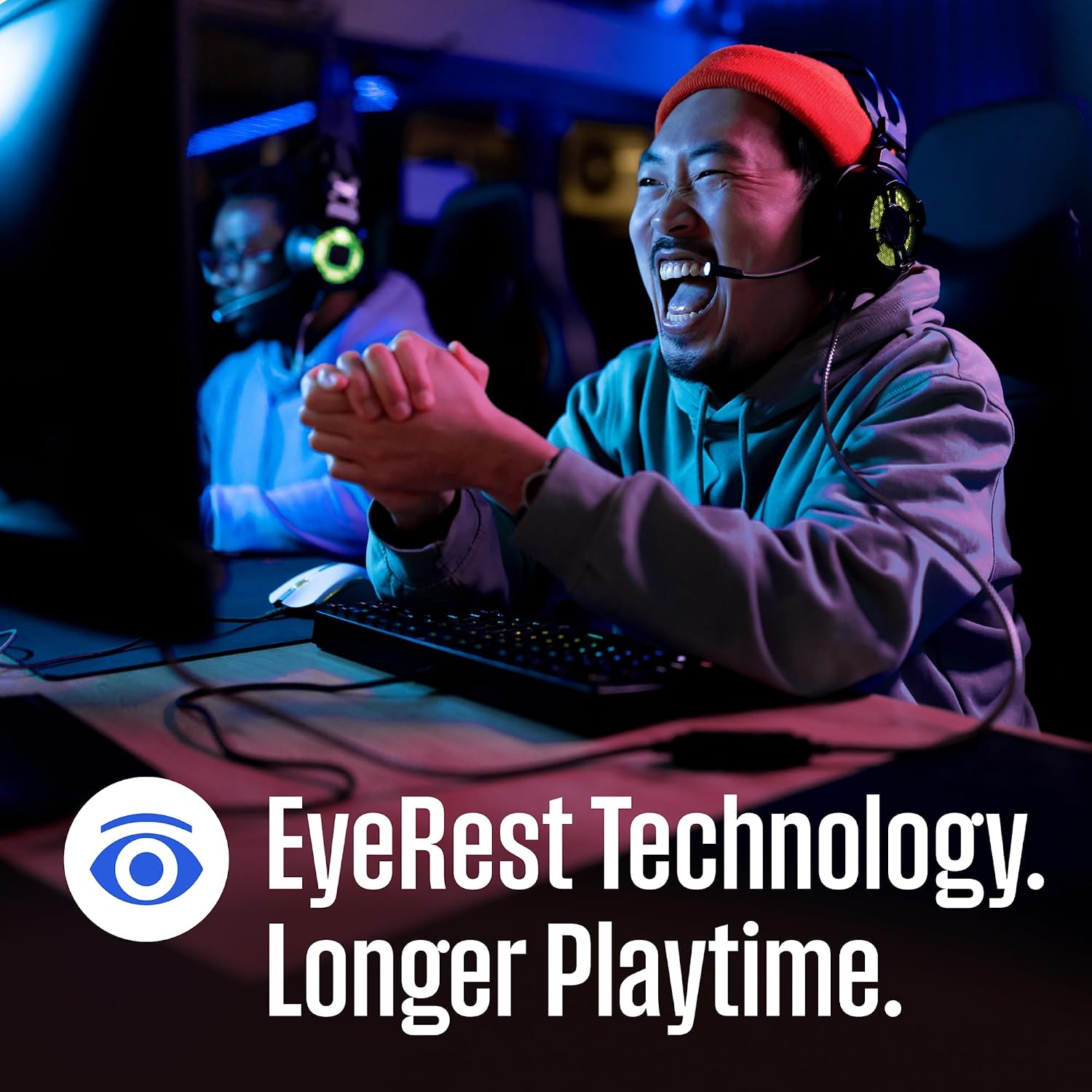
Image: EyeRest Technology helps reduce eye strain for extended use.
- Pembesar Suara Terbina dalam: The monitor includes integrated speakers for audio output. Adjust volume through the OSD menu or your connected device.
Penyelenggaraan
Membersihkan Monitor
- Sentiasa cabut plag monitor dari salur keluar kuasa sebelum membersihkan.
- Gunakan kain lembut dan tidak berbulu sedikit dampdisapu dengan air atau pembersih skrin yang lembut dan tidak melelas.
- Jangan sembur pembersih terus ke skrin. Sapukan pada kain terlebih dahulu.
- Avoid using harsh chemicals, abrasive pads, or solvents as they can damage the screen or casing.
Penyimpanan
Jika menyimpan monitor untuk tempoh yang lama, cabut semua kabel dan simpan di tempat yang sejuk dan kering, sebaik-baiknya dalam pembungkusan asalnya untuk melindunginya daripada habuk dan kerosakan fizikal.
Menyelesaikan masalah
Jika anda menghadapi masalah dengan monitor anda, rujuk kepada masalah dan penyelesaian biasa berikut:
| Masalah | Kemungkinan Punca | Penyelesaian |
|---|---|---|
| Tiada kuasa | Power cable not connected; Power outlet not working; Monitor off. | Pastikan kabel kuasa disambungkan dengan selamat ke monitor dan soket. Uji soket dengan peranti lain. Tekan butang kuasa monitor. |
| Tiada isyarat / Skrin kosong | Video cable not connected; Incorrect input source selected; Computer/device off or in sleep mode. | Check video cable connections (DisplayPort/HDMI). Select correct input source via OSD menu. Wake up or restart computer/device. |
| Kelipan atau herotan imej | Loose video cable; Incorrect resolution/refresh rate; Graphics card driver issues. | Secure video cable. Set display resolution and refresh rate to recommended values (1920x1080, 180Hz). Update graphics card drivers. |
| Tiada bunyi daripada pembesar suara terbina dalam | Volume too low/muted; Incorrect audio output selected on device; Monitor audio settings. | Increase monitor volume via OSD. Check computer/device audio settings to ensure monitor is selected as output. Unmute monitor. |
| AMD FreeSync tidak berfungsi | FreeSync not enabled on monitor/GPU; Incompatible cable; Game not running in full-screen mode. | Enable FreeSync in monitor OSD and AMD Radeon Software. Use DisplayPort cable. Ensure game is in full-screen mode. |
Spesifikasi
| Ciri | Perincian |
|---|---|
| Nombor Model | 813784023581 |
| Saiz Skrin | 27 Inci |
| Jenis Panel | IPS |
| Resolusi | 1920 x 1080 (FHD 1080p) |
| Kadar Segar Semula | 180Hz |
| Masa Tindak Balas | 1ms |
| Nisbah Aspek | 16:9 |
| Kecerahan Imej | 300 Candela setiap Meter Persegi |
| Nisbah Kontras Imej | 10,000,000:1 |
| Ketersambungan | 1x DisplayPort, 2x HDMI |
| Audio | Built-in Speakers, Headphone Output |
| Dimensi Produk (LxWxH) | 7.4 x 24.13 x 17.73 inci |
| Berat Barang | 12.32 paun |
| Pengeluar | Westinghouse |
Waranti dan Sokongan
For warranty information, technical support, or service inquiries, please refer to the warranty card included with your product or visit the official Westinghouse website. You may also contact Westinghouse customer support directly for assistance.
Sokongan dalam talian: www.westinghouseelectronics.com/support