
pengenalan
This manual provides detailed instructions for the operation and maintenance of your SMARTKLIK DC06 Digital Camera. Please read this manual thoroughly before using the camera to ensure proper function and to maximize your photography experience. This camera is designed for ease of use, offering 4K FHD video recording and 44MP still image capture with 16X digital zoom and autofocus capabilities.
Kandungan Pakej
Sahkan bahawa semua item yang disenaraikan di bawah disertakan dalam pakej anda:
- 1 x SMARTKLIK DC06 Digital Camera
- 2 x Rechargeable Li-ion Batteries (1200mAh each)
- Kad SD 1 x 64GB
- 1 x Kabel USB (Jenis-C)
- 1 x Manual Pengguna
- 1 x Kain Pembersih
- 1 x Beg Kain Kamera
- 2 x Lanyard

Rajah 1: Contents of the SMARTKLIK DC06 Digital Camera package, including the camera, batteries, SD card, cables, and accessories.
Kamera Lebihview
Familiarize yourself with the camera's buttons and ports for efficient operation.

Rajah 2: Depan dan belakang view of the camera with labeled buttons and indicators.
- Butang Kuasa: Long press to turn the camera on or off.
- Butang Pengatup: Half-press to focus, fully press to take a picture.
- Zoom Out / Zoom In: Melaraskan tahap zum digital.
- Pintu Bateri: Access for battery and SD card.
- Penunjuk Pengecasan: Light indicates charging status.
- Penunjuk Kerja: Light indicates camera operation.
- Butang Mod: Cycles through different camera modes.
- UP (Flash Light): Activates or adjusts the flash.
- LEFT (Timer): Sets the self-timer function.
- RIGHT (Continuous Shoot): Enables continuous shooting mode.
- TURUN: Butang navigasi.
- Butang OK: Mengesahkan pilihan.
- Parameters Display / Menu / Settings: Accesses camera settings and menu.
- Butang Padam: Memadamkan yang dipilih files.
Persediaan
1. Pemasangan Bateri dan Kad SD
Proper installation of the battery and SD card is crucial for camera operation.
- Push down the side button to open the battery compartment cover.
- Toggle the battery clasp downward.
- Insert the SD card along the side of the camera until it clicks into place. Ensure the metal contacts face the correct direction.
- Insert the battery into the battery compartment, ensuring the correct orientation. Press down so that the battery clasp locks the battery in place.
- After installing the battery and SD card, lock the battery compartment button by flicking it upward, then close the cover.

Rajah 3: Visual guide for battery and SD card installation.
2. Mengecas Bateri
Use the provided USB cable to charge the camera. The charging indicator light will show the charging status.
- Connect the camera to a power source (e.g., computer USB port, USB wall adapter) using the USB Type-C cable.
- Penunjuk pengecasan akan menyala semasa pengecasan.
- Charging is complete when the indicator light changes or turns off (refer to the camera's display for exact status).
Mengendalikan Kamera
1. Hidupkan/Mati Kuasa
Tekan dan tahan butang Butang Kuasa selama beberapa saat untuk menghidupkan atau mematikan kamera.
2. Mengambil Foto
Untuk menangkap imej pegun:
- Bingkai tangkapan anda menggunakan skrin LCD.
- Tekan separuh Butang Pengatup to activate autofocus. The focus frame will appear on the screen.
- Once focused, fully press the Butang Pengatup untuk mengambil gambar.
3. Merakam Video
Untuk merakam video:
- Tekan ke Butang Mod to switch to video recording mode.
- Tekan ke Butang Pengatup to start recording. A recording indicator will appear on the screen.
- Tekan ke Butang Pengatup sekali lagi untuk menghentikan rakaman.
4. Fungsi Zum
Kamera ini menyokong zum digital 16X.
- Gunakan Zum Masuk button to magnify the subject.
- Gunakan Zum Keluar button to widen the view.
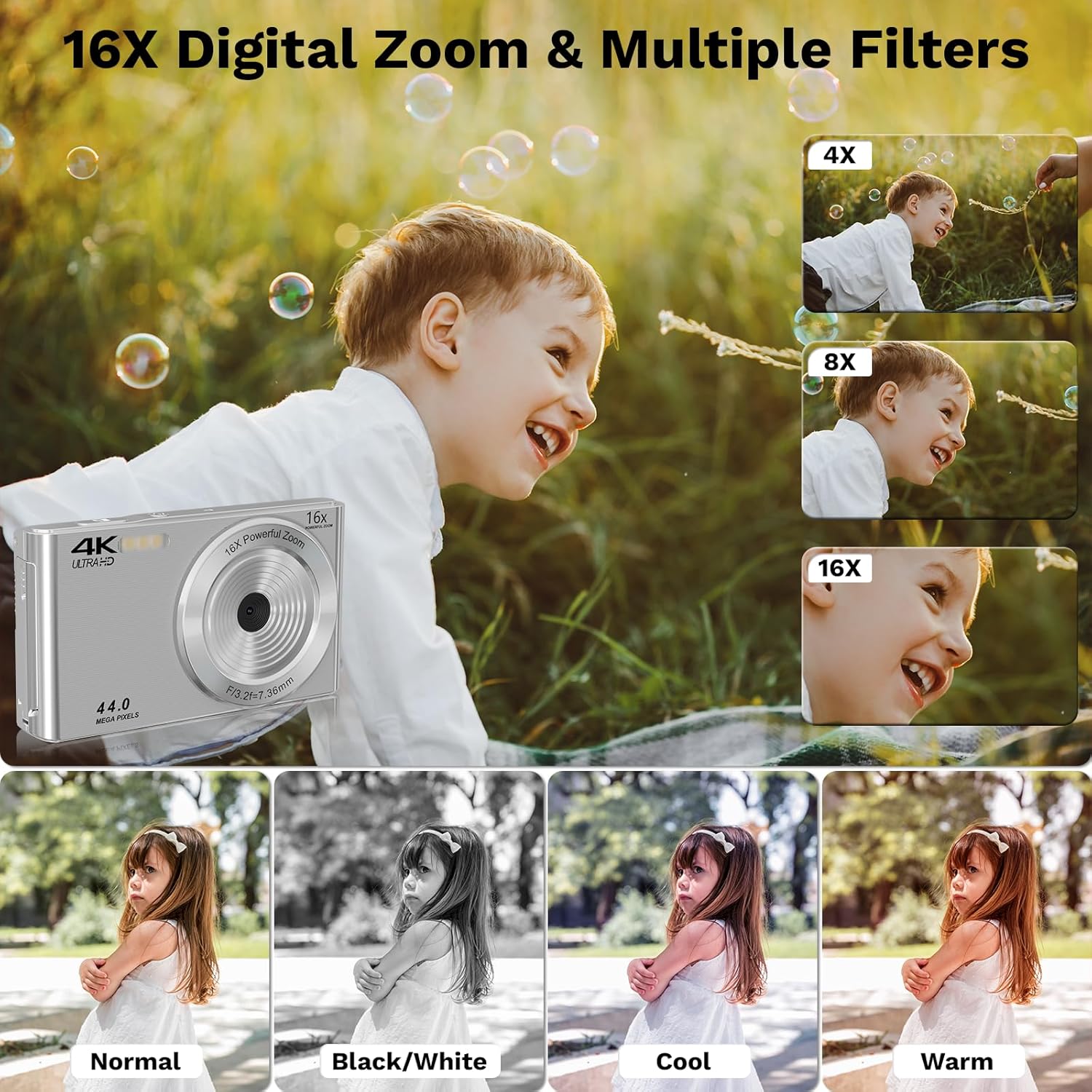
Rajah 4: Digital zoom levels and creative filters.
5. Using Filters and Special Modes
The camera offers various filters and shooting modes to enhance your photos and videos.
- Penapis: Access multiple filters (e.g., Normal, Black/White, Cool, Warm) through the camera's menu to apply different visual styles.
- Timed Photos (Self-timer): Gunakan LEFT (Timer) button to set a delay (e.g., 3s, 5s, 10s) before a photo is taken, allowing you to be in the shot.
- Penggambaran berterusan: Activate this mode via the RIGHT (Continuous Shoot) button to capture a rapid sequence of photos.
- Video Gerak Perlahan: Select this option in the video settings to record videos at a slower playback speed.
- Jeda Video: Pause and resume video recording without creating multiple files.
- Triple Shot: Capture three consecutive images with a single press of the shutter.

Rajah 5: Continuous shooting and self-timer in action.
Ciri Lanjutan
1. WebMod cam
The camera can function as a webcam for video calls or live streaming.
- Sambungkan kamera ke komputer anda menggunakan kabel USB.
- Select "PC Camera" mode on the camera's screen when prompted.
- Your computer should recognize the camera as a webcam.
2. Connecting to a Computer (Data Transfer)
Transfer photos and videos to your computer for viewing, editing, or backup.
- Sambungkan kamera ke komputer anda menggunakan kabel USB.
- Select "USB Mode" on the camera's screen when prompted.
- The camera's storage (SD card) will appear as a removable drive on your computer, allowing you to copy files.

Rajah 6: Camera multifunctions, including USB mode for data transfer and PC camera mode.
Penyelenggaraan
1. Membersihkan Kamera
Keep your camera clean for optimal performance.
- Use the provided cleaning cloth to gently wipe the camera body and screen.
- For the lens, use a specialized lens cleaning solution and cloth to avoid scratches.
- Jangan gunakan bahan kimia yang keras atau bahan yang melelas.
2. Penjagaan dan Penyimpanan Bateri
Proper battery care extends battery life.
- Always use the original or certified replacement batteries.
- Cas bateri sepenuhnya sebelum penggunaan pertama.
- Simpan bateri di tempat yang sejuk dan kering apabila tidak digunakan.
- If storing for extended periods, charge batteries periodically to prevent deep discharge.
Menyelesaikan masalah
Bahagian ini menangani isu biasa yang mungkin anda hadapi.

Rajah 7: Common troubleshooting scenarios and solutions.
Q: Why do camera pictures look blurry?
A: Blurry images can be caused by several factors:
- Tetapan Resolusi: When taking photos or recording, the default resolution might not be the highest. Select 44MP in the settings menu for photos to ensure maximum clarity. For videos, ensure you are recording in FHD 4K for best quality.
- Fokus automatik: Always half-press the shutter button to allow the camera to focus before fully pressing to capture the image. If recording video, ensure the subject is in focus.
- Viewing Quality: The image quality on the camera's small screen may appear lower. Transfer images to a computer or phone for a true representation of their quality.
Q: Why does the camera only work when plugged in, or why doesn't it work at all?
A: This issue typically stems from battery-related problems:
- No Battery Installed: If no battery is installed, the camera will only operate when connected via USB for charging. Ensure a battery is correctly inserted for portable use.
- Incorrect Battery Installation: The battery might be inserted incorrectly, preventing contact with the camera's terminals. Check that the battery is inserted with the correct polarity and that the metal contact points are aligned.
- Bateri Habis: Due to long transportation or storage, the battery might be completely discharged. Use the included second battery to test if the issue persists, or fully charge the primary battery.
Spesifikasi
Detailed technical specifications for the SMARTKLIK DC06 Digital Camera:
| Ciri | Spesifikasi |
|---|---|
| Nama Model | N-DC06 |
| Resolusi Penderia Foto | 44 MP |
| Resolusi Video | 2160p (4K FHD) |
| Zum Digital | 16 x |
| Autofokus | Ya (Pengesanan Kontras) |
| Saiz Skrin | 2.8 Inci (LCD) |
| Disokong File Format | JPEG (Foto), MP4 (Video) |
| Kapasiti Penyimpanan Memori | 64 GB (SD Card included) |
| Jenis Bateri | Lithium Ion (2 x 1200 mAh) |
| Teknologi Ketersambungan | HDMI, USB |
| Ciri Khas | Auto-focus, Self Timer, Flashing Light, WebFungsi cam |
| Berat Barang | 3.68 Auns |
| warna | Perak |
Maklumat Waranti
SMARTKLIK products are manufactured to high quality standards. For specific warranty details, including coverage period and terms, please refer to the warranty card included in your product packaging or visit the official SMARTKLIK webtapak. Simpan resit pembelian anda sebagai bukti pembelian untuk sebarang tuntutan waranti.
Sokongan Pelanggan
If you encounter any issues or have questions not covered in this manual, please contact SMARTKLIK customer support. Contact information can typically be found on the product packaging, the official SMARTKLIK webtapak, atau melalui peruncit anda.
For online resources, visit the SMARTKLIK Store on Amazon.