
1. Pengenalan
This manual provides comprehensive instructions for the setup, operation, and maintenance of your BL X88PRO 13 Android TV Box. Please read this manual carefully before using the device to ensure optimal performance and longevity.
The BL X88PRO 13 is a high-performance Android TV Box designed to enhance your home entertainment experience. It features the Android 13.0 operating system, a powerful RK3528 Quad-Core processor, 4GB RAM, and 64GB ROM, supporting advanced connectivity options like Wi-Fi 6 and Bluetooth 5.0, and delivering up to 8K video resolution.
2. Kandungan Pakej
Sahkan bahawa semua item yang disenaraikan di bawah disertakan dalam pakej anda:
- BL X88PRO 13 Android TV Box
- US Power Adapter
- Kabel HD (Kabel HDMI)
- Alat Kawalan Jauh
- Manual Pengguna (dokumen ini)

Rajah 2.1: Package Contents. This image displays the BL X88PRO 13 Android TV Box along with its standard accessories, including the power adapter, HDMI cable, remote control, and user manual.
3. Panduan Persediaan
Follow these steps to set up your BL X88PRO 13 Android TV Box:
- Sambungkan Kabel HDMI: Connect one end of the provided HD cable (HDMI) to the HDMI port on the TV Box and the other end to an available HDMI input on your television.
- Sambungkan Penyesuai Kuasa: Plug the US power adapter into the DC port on the TV Box, then plug the adapter into a wall outlet.
- Sambungkan ke Rangkaian: Once the device powers on, navigate to the network settings to connect to your Wi-Fi network or connect an Ethernet cable to the LAN port for a wired connection.

Rajah 3.1: Easy Setup Steps. This image visually guides users through connecting the HDMI cable, power adapter, and network to the TV Box.
4. Arahan Operasi
4.1 Menghidupkan/Mematikan
After connecting all cables, the device should power on automatically. If not, press the power button on the remote control. To power off, press the power button on the remote control and select the shutdown option.
4.2 Menavigasi Antara Muka
Use the included remote control to navigate the Android 13.0 interface. The directional buttons allow you to move between icons and menus, while the 'OK' button confirms selections. The 'Back' button returns to the previous screen, and the 'Home' button takes you to the main screen.

Rajah 4.1: BL X88PRO 13 Android TV Box and Remote. This image shows the main unit of the TV box alongside its remote control, highlighting the device's design and primary input method.
4.3 Sistem Pengoperasian Android 13.0
The TV Box runs on Android 13.0, offering improved compatibility with applications, channels, and programs. This version also includes enhanced security features to protect user privacy and data.
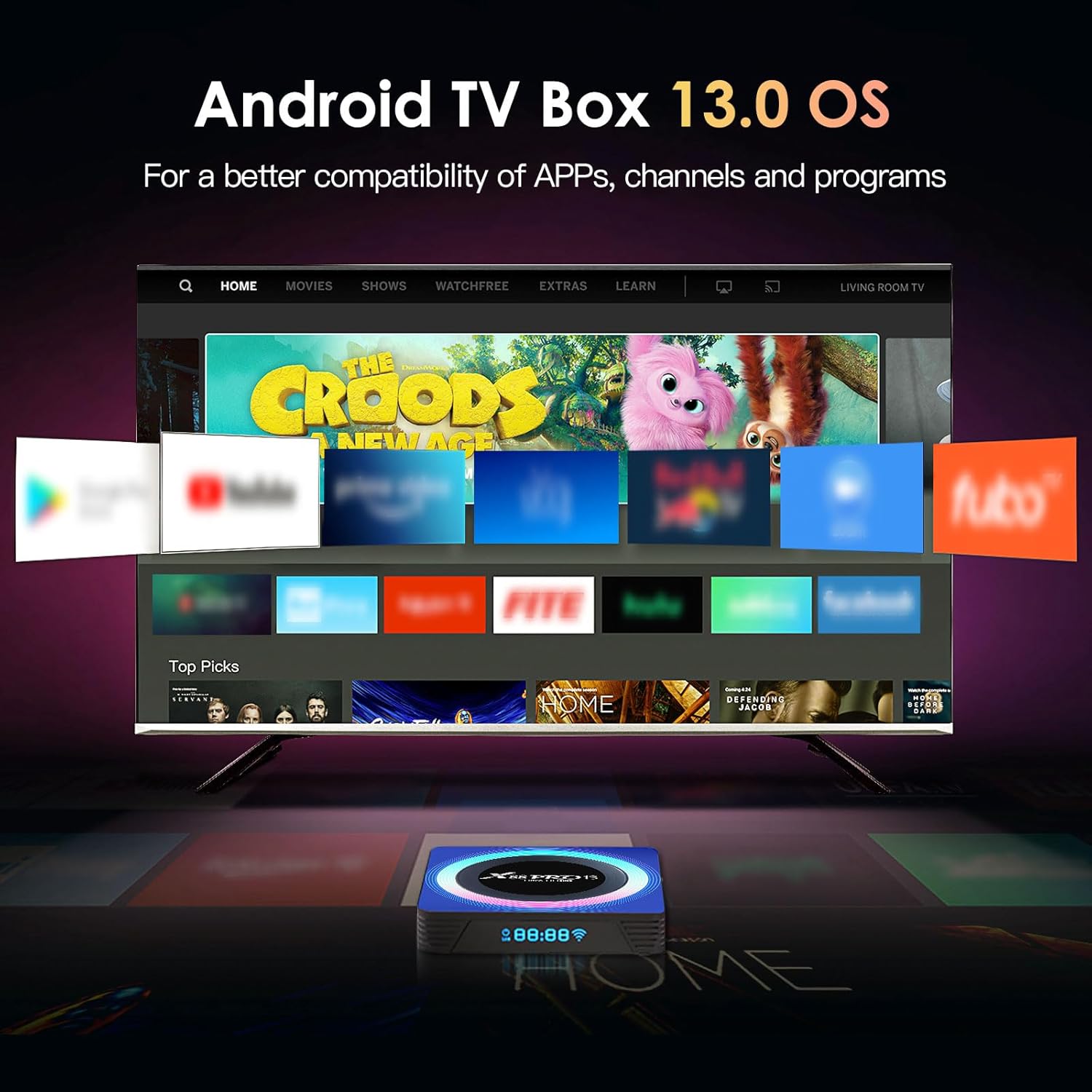
Rajah 4.2: Android 13.0 OS Interface. This image displays the user interface of the Android 13.0 operating system as seen on a television, featuring various application icons.
4.4 Penyimpanan dan Prestasi
Equipped with 4GB RAM and 64GB ROM, the device ensures faster operation and ample storage capacity. Storage can be expanded via a 128GB TF card or a 2TB external hard drive.

Rajah 4.3: Internal Components. This image illustrates the RK3528 chip, Cortex-A53 CPU, and Mali 450 MP2 GPU, which contribute to the device's performance.
4.5 Main balik Video
The TV Box supports H.265 decoding and HDR10 for high picture quality, with support for up to 8K@30fps decoding and real 4K video with 3D graphics acceleration.

Rajah 4.4: 8K Video Support. This image demonstrates the device's capability to support up to 8K Ultra HD video resolution.
4.6 Ketersambungan
The device features Wi-Fi 6 for faster and more stable wireless connections, supporting dual-band 2.4G/5G Wi-Fi. It also includes a 100M Ethernet port for stable wired network access and Bluetooth 5.0 for connecting wireless peripherals.

Rajah 4.5: Wi-Fi 6 Advantage. This image illustrates the improved speed and stability offered by Wi-Fi 6 compared to Wi-Fi 5.

Rajah 4.6: Network Connectivity Options. This image highlights both Wi-Fi 6 and Ethernet as available network connection methods for the device.
4.7 Screen Sharing and Bluetooth
Utilize Bluetooth 5.0 to connect wireless headphones, speakers, or game controllers. The device also supports screen sharing/mirroring, allowing you to cast content from your phone to the TV screen.

Rajah 4.7: Screen Sharing and Bluetooth Connectivity. This image demonstrates the ability to share a phone screen to the TV and connect various Bluetooth devices to the TV box.
5. Penyelenggaraan
To ensure the longevity and optimal performance of your BL X88PRO 13 Android TV Box, follow these maintenance guidelines:
- Pembersihan: Gunakan kain lembut dan kering untuk membersihkan bahagian luar peranti. Elakkan menggunakan pembersih cecair atau bahan yang melelas.
- Pengudaraan: Pastikan Kotak TV diletakkan di kawasan yang mempunyai pengudaraan yang baik untuk mengelakkan terlalu panas. Jangan tutup bukaan pengudaraan.
- Bekalan Kuasa: Always use the original power adapter provided with the device. Disconnect the power adapter during electrical storms or when the device will be unused for extended periods.
- Kemas Kini Perisian: Periodically check for and install available software updates to ensure system stability and access to the latest features.
6. Penyelesaian masalah
If you encounter issues with your BL X88PRO 13 Android TV Box, refer to the following common problems and solutions:
| Masalah | Kemungkinan Punca | Penyelesaian |
|---|---|---|
| Tiada kuasa | Penyesuai kuasa tidak disambungkan atau alur keluar rosak. | Check power connections. Try a different power outlet. |
| Tiada gambar di TV | HDMI cable loose or incorrect TV input selected. | Ensure HDMI cable is securely connected. Select the correct HDMI input on your TV. |
| Alat kawalan jauh tidak berfungsi | Bateri lemah atau halangan. | Replace remote control batteries. Ensure no obstructions between remote and TV Box. |
| Isu sambungan Wi-Fi | Kata laluan salah, isyarat lemah atau masalah penghala. | Verify Wi-Fi password. Move TV Box closer to router. Restart your router. |
| Aplikasi membeku atau ranap | Insufficient memory or outdated app version. | Close background applications. Clear app cache. Update the application or the system software. |
7. Spesifikasi
| Ciri | Perincian |
|---|---|
| Jenama | BL |
| Nama Model | X88PRO 13 |
| Sistem Operasi | Android 13.0 |
| Pemproses | RK3528 Quad-Core |
| RAM | 4GB |
| ROM | 64GB |
| Wi-Fi | Wi-Fi 6, Dual-band 2.4G/5G |
| Bluetooth | Bluetooth 5.0 |
| Ethernet | 100M |
| Resolusi Video | Up to 8K@30fps, 4K, 6K |
| Penyahkodan Video | H.265, HDR10 |
| Port USB | USB 3.0, USB 2.0 |
| Pelabuhan Lain | HDMI, SPDIF (Audio), AV, DC Power |
| Dimensi | 4 x 4 x 0.2 inci |
| Berat Barang | 11.3 auns |
8. Waranti dan Sokongan
For warranty information, please refer to the purchase documentation or contact your retailer. For technical support or further assistance, please contact the BL customer service team through the contact information provided with your purchase or on the official BL webtapak.