
SMARTKLIK IPC167
SMARTKLIK IPC167 1080P Indoor Security Camera User Manual
Model: IPC167 | Brand: SMARTKLIK
1. Pengenalan
This manual provides detailed instructions for the installation, operation, and maintenance of your SMARTKLIK IPC167 1080P Indoor Security Camera. Please read this manual thoroughly before using the product to ensure proper functionality and safety. Keep this manual for future reference.
2. Produk Lebihview
The SMARTKLIK IPC167 is a 1080P indoor security camera designed for monitoring various indoor environments, including nurseries, pet areas, and general home security. It features 360-degree pan and 180-degree tilt capabilities, two-way audio, night vision, motion tracking, and sound detection.
2.1 Ciri-ciri Utama
- Video HD Penuh 1080P: Provides clear and detailed video resolution.
- Sorot 355° & Condong 180°: Offers extensive coverage of your indoor space.
- Audio Dua hala: Enables communication through the camera.
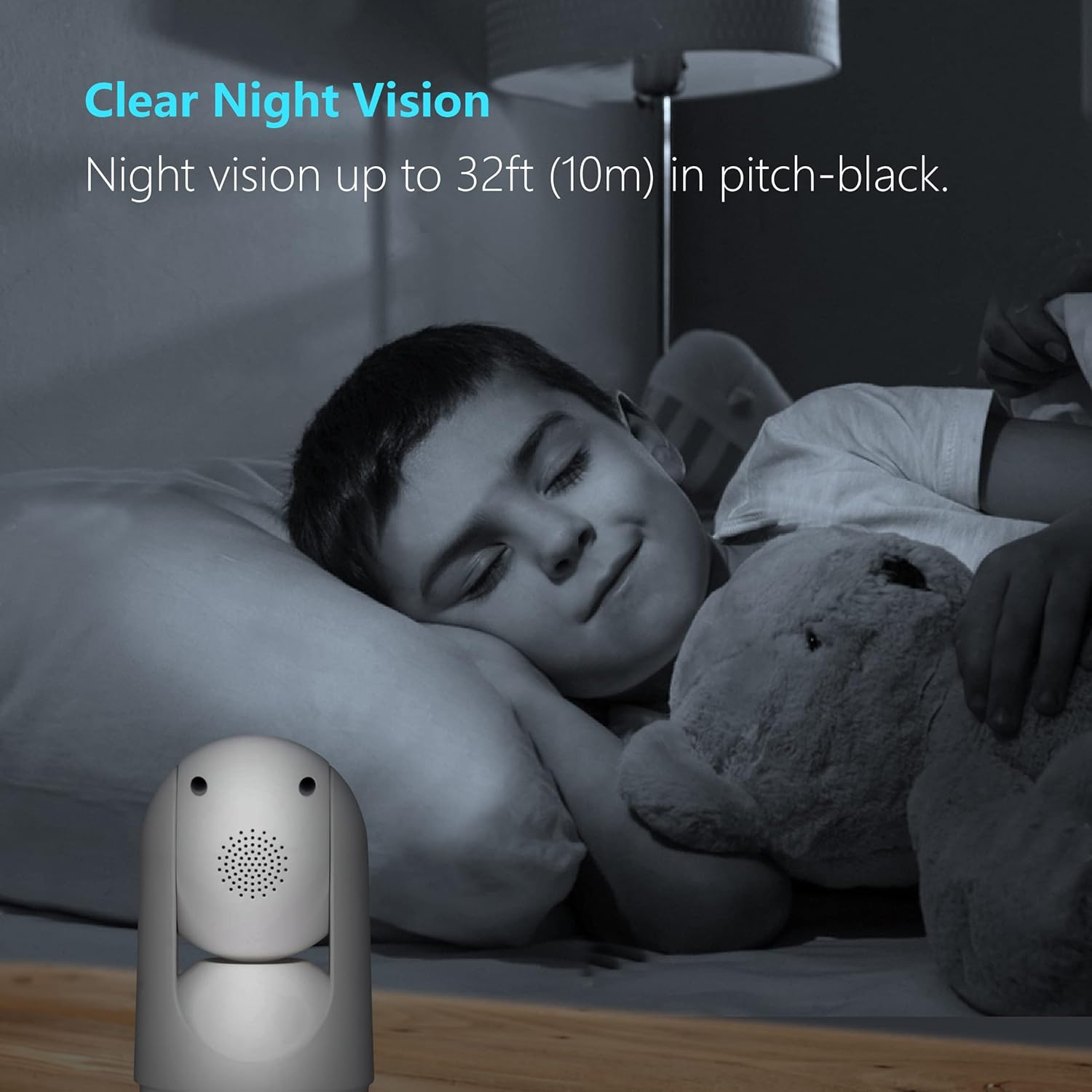
- Penglihatan Malam: Clear visibility up to 32 feet (10 meters) in low-light conditions.
- Pengesanan Gerakan & Bunyi: Alerts you to detected activity.
- Penjejakan Motion: Mengikuti pergerakan yang dikesan secara automatik.
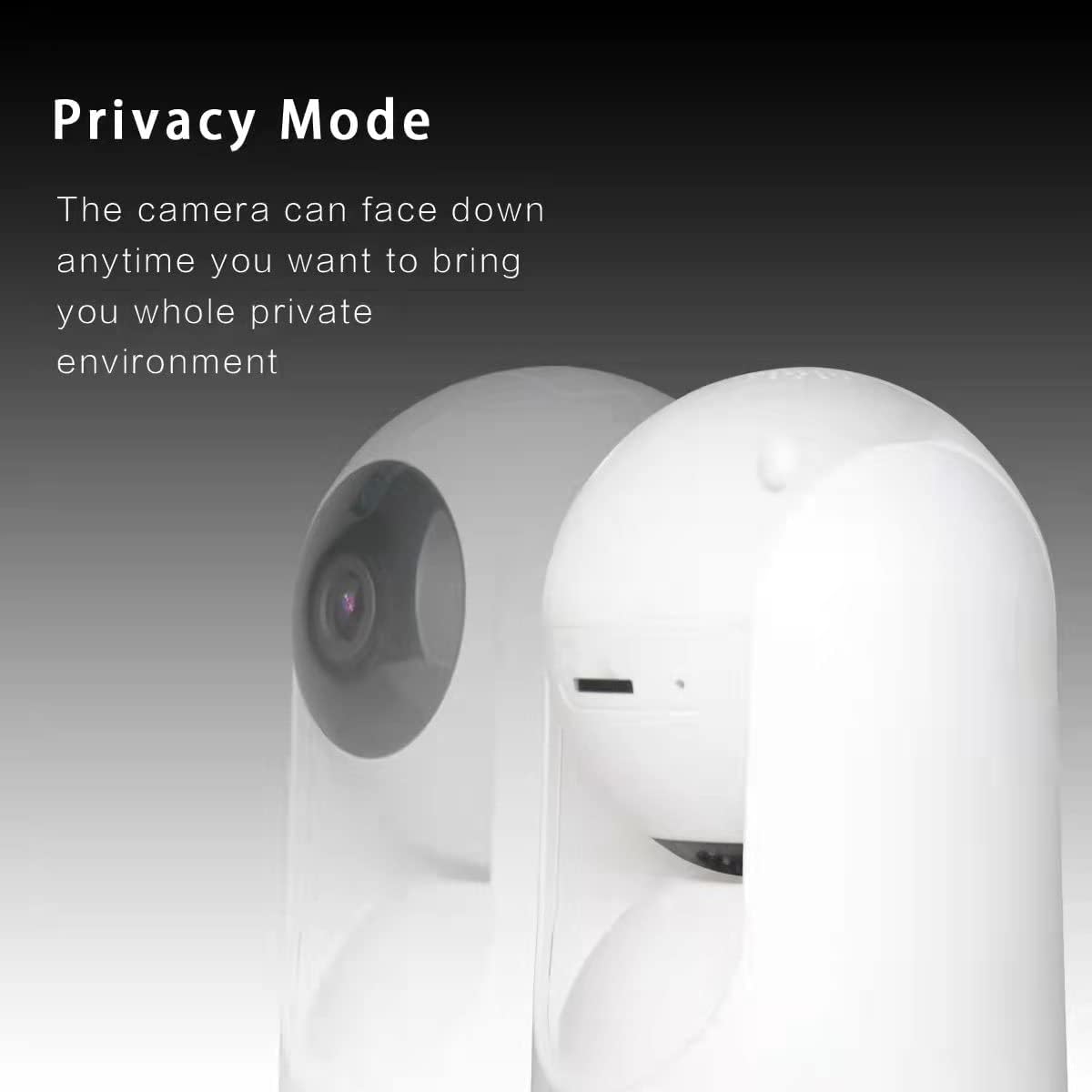
- Mod Privasi: Allows the camera lens to be obscured for privacy.
- Kesambungan Wi-Fi: Supports 2.4GHz Wi-Fi for wireless connection.
2.2 Komponen Kamera
Biasakan diri anda dengan komponen utama kamera anda:
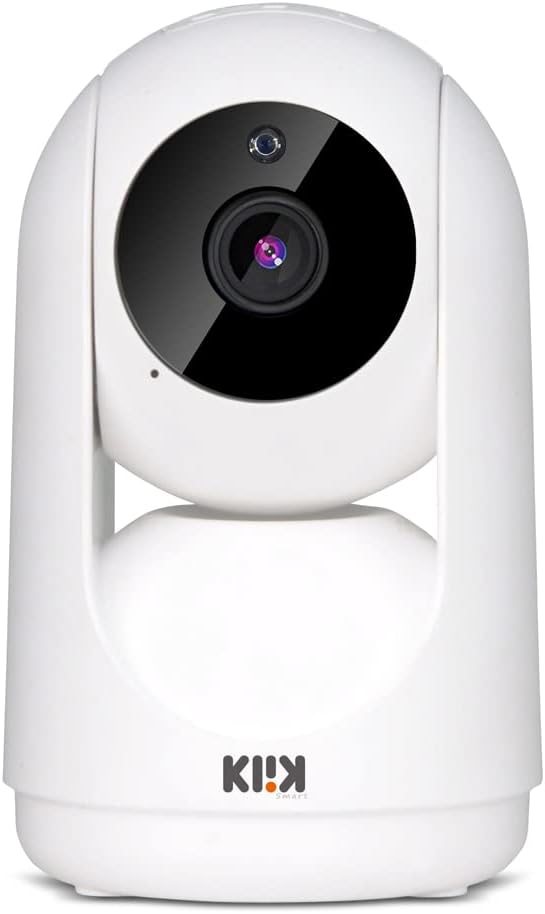
Imej 2.2.1: Depan view of the SMARTKLIK IPC167 camera, showing the lens and indicator light.
Imej 2.2.2: belakang view of the SMARTKLIK IPC167 camera, highlighting the speaker grille and Type-C power port at the base.
3. Panduan Persediaan
3.1 Membuka Kotak dan Pemeriksaan Awal
- Keluarkan semua komponen dari pembungkusan dengan berhati-hati.
- Verify that all items are present: camera unit, power adapter, USB cable, mounting accessories (if included).
- Inspect the camera for any signs of damage. If damaged, do not proceed with setup and contact customer support.
3.2 Menghidupkan Kamera
- Connect the USB cable to the Type-C port on the back of the camera.
- Palamkan penyesuai kuasa ke soket elektrik standard.
- The camera will power on, and an indicator light will illuminate, typically blinking to indicate readiness for pairing.
3.3 Muat Turun Apl dan Pendaftaran Akaun
- Download the recommended smart home application (e.g., Tuya Smart) from your mobile device's app store (App Store for iOS, Google Play Store for Android).
- Buka aplikasi dan daftar untuk akaun baharu atau log masuk jika anda sudah memilikinya.
3.4 Menyambungkan Kamera ke Wi-Fi
Ensure your mobile device is connected to a 2.4GHz Wi-Fi network. The camera does not support 5GHz Wi-Fi.
- Dalam aplikasi, ketik 'Tambah Peranti' atau ikon '+'.
- Select 'Security & Video Surveillance' and then 'Smart Camera' or similar.
- Follow the on-screen instructions to put the camera into pairing mode (usually indicated by a blinking light).
- Enter your 2.4GHz Wi-Fi network name and password when prompted.
- The app will generate a QR code. Position your phone screen in front of the camera lens (approximately 6-8 inches away) until the camera beeps or indicates successful scanning.
- Wait for the camera to connect to the Wi-Fi network. Once connected, the indicator light will typically turn solid, and the app will confirm successful pairing.

Imej 3.4.1: Illustration of flexible installation options, including vertical placement, wall mounting, and ceiling mounting.
3.5 Memasang Kamera
The camera can be placed on a flat surface or mounted to a wall or ceiling. Use the provided mounting accessories if applicable.
- Peletakan Atas Meja: Letakkan sahaja kamera di atas permukaan yang stabil dan rata.
- Pemasangan Dinding/Siling: Secure the mounting bracket to the desired location using screws. Attach the camera to the bracket, ensuring it is locked securely. Adjust the camera's orientation in the app if necessary.
4. Arahan Operasi
4.1 Langsung View
Once connected, open the app and select your camera from the device list to access the live video feed.
4.2 Kawalan Pan dan Condongkan
Imej 4.2.1: Visual representation of the camera's 355-degree horizontal pan and 180-degree vertical tilt capabilities.
Pada siaran langsung view screen, use the directional controls (often a joystick or arrow icons) to remotely adjust the camera's viewsudut ing. Kamera ini menyokong kecondongan mendatar 355° dan kecondongan menegak 180°.
4.3 Audio Dua Hala

Imej 4.3.1: An image illustrating the two-way audio feature, showing a person speaking to a dog through the camera.
Tap the microphone icon in the app to speak through the camera's speaker. Tap the speaker icon to listen to audio from the camera's microphone.
4.4 Pengesanan Gerakan dan Bunyi
Access the camera settings in the app to enable and configure motion and sound detection. You can set sensitivity levels and define detection zones. When an event is detected, you will receive push notifications on your mobile device.
4.5 Motion Tracking
Enable motion tracking in the camera settings. When motion is detected, the camera will automatically pan and tilt to follow the moving object within its field of view.
4.6 Penglihatan Malam
The camera automatically switches to night vision mode in low-light conditions, providing clear black and white video. Night vision range is up to 32 feet (10 meters).
4.7 Mod Privasi

Imej 4.7.1: The camera shown with its lens rotated downwards, indicating activation of privacy mode.
Activate Privacy Mode through the app settings. In this mode, the camera lens will physically rotate downwards, preventing video recording and live viewing for enhanced privacy.
4.8 Rakaman dan Penyimpanan Video
The camera supports local storage via a MicroSD card (not included) and cloud storage (subscription may be required). Configure recording settings (continuous, event-based) and playback options within the app.
5. Penyelenggaraan
5.1 Membersihkan Kamera
Use a soft, dry cloth to clean the camera lens and body. Do not use liquid cleaners or abrasive materials, as they may damage the camera.
5.2 Kemas Kini Perisian Tegar
Periodically check the app for available firmware updates. Keeping your camera's firmware up-to-date ensures optimal performance, security, and access to new features. Follow the in-app instructions for firmware updates.
5.3 Pengurusan Storan
If using a MicroSD card, regularly check its storage capacity and format it as needed through the app to maintain recording functionality. For cloud storage, manage your subscription and recordings via the app.
6. Penyelesaian masalah
- Kamera tidak dihidupkan: Ensure the power adapter and USB cable are securely connected and the outlet is functional.
- Tidak dapat menyambung ke Wi-Fi:
- Confirm your Wi-Fi network is 2.4GHz. The camera does not support 5GHz.
- Semak kata laluan Wi-Fi anda untuk ketepatannya.
- Pastikan kamera berada dalam julat penghala Wi-Fi anda.
- Restart your router and the camera, then attempt pairing again.
- No live video feed: Check your internet connection. If the camera is connected to Wi-Fi, try restarting the camera and the app.
- Audio dua hala tidak berfungsi: Ensure microphone and speaker permissions are granted to the app on your phone. Check the volume settings in the app.
- Motion/Sound detection not sending alerts: Verify that detection is enabled in the app settings and notification permissions are granted for the app on your phone. Check sensitivity settings.
- Kamera di luar talian: This usually indicates a loss of Wi-Fi connection. Follow the steps for 'Unable to connect to Wi-Fi'.
7. Spesifikasi
| Ciri | Spesifikasi |
|---|---|
| Nombor Model | CPI167 |
| Resolusi Tangkapan Video | 1080p, 720p |
| Protokol Ketersambungan | Wi-Fi (2.4GHz sahaja) |
| Pan Range | 355 darjah |
| Julat Kecondongan | 180 darjah |
| Julat Penglihatan Malam | Sehingga 32 kaki (10 meter) |
| Jenis Makluman | Audio dan Pergerakan |
| Audio Dua Hala | Disokong |
| Jenis Pemasangan | Wall Mount, Tabletop, Ceiling |
| Penggunaan Dalaman/Luar | Dalaman |
| Input Kuasa | USB Jenis-C |
| Dimensi Produk | 5.91 x 2.76 x 2.76 inci |
| Berat Barang | 9.9 auns |
8. Waranti dan Sokongan
For warranty information and technical support, please refer to the documentation included with your product or visit the official SMARTKLIK webtapak. Simpan resit pembelian anda sebagai bukti pembelian untuk tuntutan waranti.
For further assistance, you may contact SMARTKLIK customer service through their official channels.
Ask a question about this manual
Ask about setup, troubleshooting, compatibility, parts, safety, or missing instructions. Manuals+ will review the question and use this page’s manual context to help answer it.