
pengenalan
This manual provides comprehensive instructions for the Symcode 3300DW 2D Fixed USB Barcode Scanner. It covers product features, setup procedures, operating guidelines, maintenance tips, troubleshooting solutions, and detailed technical specifications. Please read this manual carefully before using the device to ensure proper operation and to maximize its lifespan.
Ciri-ciri Produk
- Super Decoding Capability: The Symcode 3300DW barcode scanner efficiently and accurately captures both 1D and 2D barcodes from various surfaces, including labels, paper, mobile phone screens, and computer displays. It supports a wide range of barcode types.
- Automatic Infrared Detection: Equipped with an automatic detection function, the scanner initiates scanning when a barcode approaches its window, even if the device is in sleep mode. This hands-free operation enhances efficiency by allowing users to handle items without needing to manually activate the scanner.
- Kesambungan Pasang dan Main: This scanner requires no driver installation, additional software, or applications. Simply connect it to your device via the provided USB cable. It is compatible with Windows XP/7/8/10, Mac OS, and Linux operating systems.
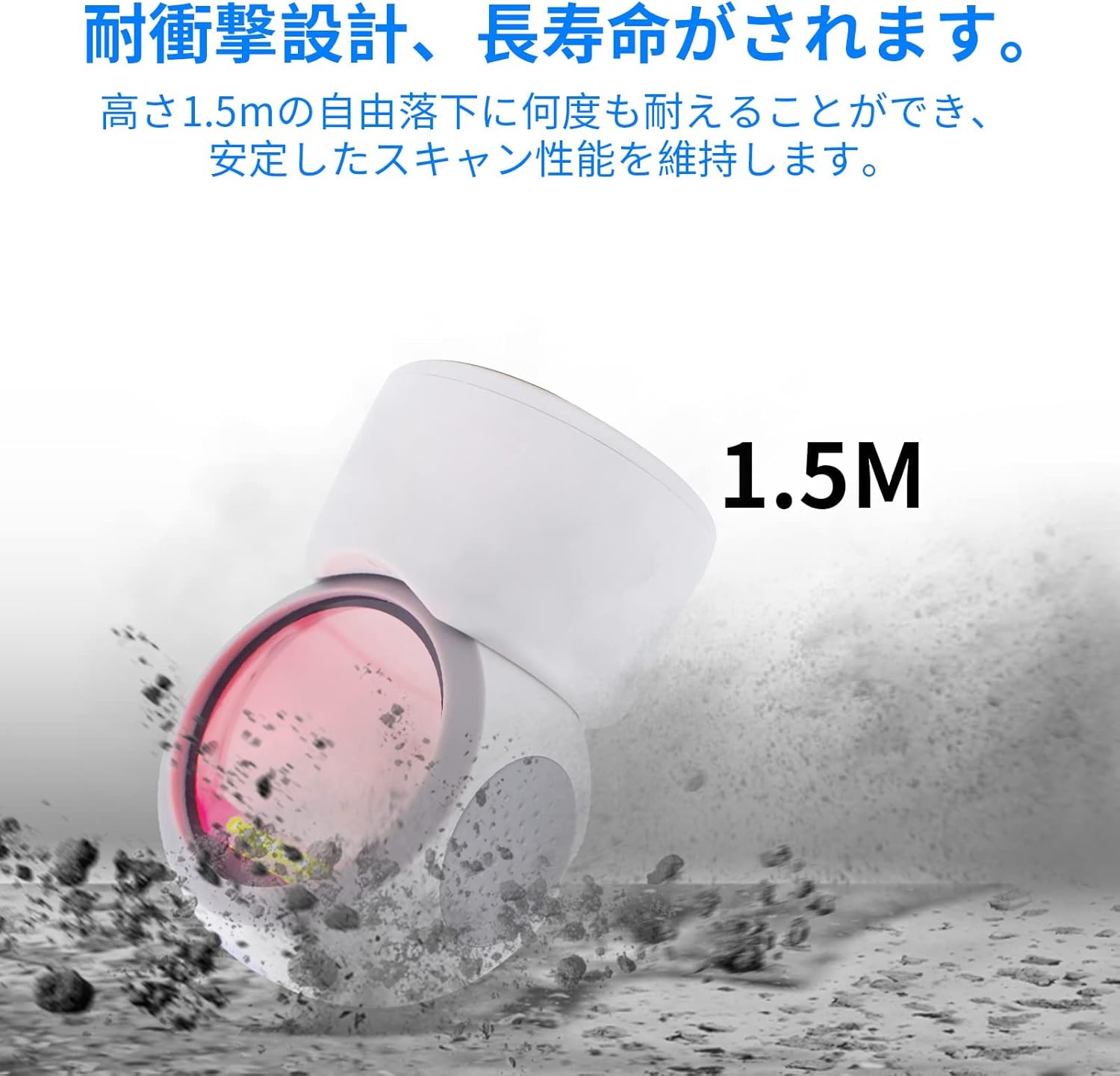
- Reka Bentuk Teguh: Engineered for durability, the scanner can withstand drops from a height of up to 1.5 meters, ensuring reliable performance in demanding environments.
- Pengimbasan Omnidirectional: The scanner is designed to read 1D and 2D codes from various angles, providing flexibility and ease of use.
- Sudut boleh laras: The scanning head can be adjusted by 30 degrees, allowing for convenient positioning to suit different scanning needs.
- Reka bentuk anti-gelincir: Features anti-slip pads on both sides and the base to prevent movement and protect desktop surfaces.
Persediaan
- Buka Pengimbas: Carefully remove the Symcode 3300DW barcode scanner and its USB cable from the packaging.
- Sambung ke Peranti Hos: Insert the RJ45-like connector of the USB cable into the port on the back of the scanner. Then, plug the USB Type-A end of the cable into an available USB port on your computer or host device.
- Pengecaman Sistem: The scanner is plug-and-play. Your operating system (Windows, Mac OS, Linux) should automatically detect and install the necessary drivers. This process usually takes a few seconds.
- Sahkan Sambungan: Once connected, the scanner will enter standby mode. You can test the connection by opening a text editor (like Notepad or Word) and scanning a barcode. The barcode data should appear in the text editor.

Arahan Operasi
Pengimbasan Asas
The Symcode 3300DW scanner operates in an automatic detection mode. To scan a barcode:
- Ensure the scanner is connected to your host device and powered on.
- Letakkan kod bar dalam medan pengimbas view. The scanner will automatically detect the barcode and emit a light to read it.
- A successful scan is typically indicated by an audible beep and/or a visual confirmation light. The scanned data will be transmitted to your active application (e.g., a text editor, POS software).

Omnidirectional Scanning
The scanner is designed to read barcodes regardless of their orientation. Simply present the barcode to the scanning window, and the device will decode it.

Adjusting the Scan Angle
The scanner head can be tilted up to 30 degrees to optimize the scanning angle for different items or setups. Gently adjust the head to the desired position.

Jenis Kod Bar yang Disokong
The Symcode 3300DW supports a comprehensive range of 1D and 2D barcode symbologies:
- Kod Bar 1D: EAN-8, EAN-13, Codabar, CODE 39, CODE 93, CODE 128, China Post, GS1-128, UPC-A, UPC-E, ISBN/ISSN, ISBT, Interleaved 2 of 5, Standard 2 of 5, Matrix 2 of 5, Industrial 2 of 5, MSI, RSS, ITF14, Telepen.
- Kod Bar 2D: QR Code, Micro QR Code, Data Matrix, PDF417, Micro PDF417, Maxicode, Aztec, Hanxin.

Penyelenggaraan
To ensure the longevity and optimal performance of your Symcode 3300DW barcode scanner, follow these maintenance guidelines:
- Membersihkan Tetingkap Imbasan: Regularly clean the scan window with a soft, lint-free cloth. If necessary, use a mild, non-abrasive cleaning solution. Avoid harsh chemicals or abrasive materials that could scratch the window.
- Pembersihan Am: Lap bahagian luar pengimbas dengan kain lembut,amp cloth. Do not immerse the scanner in water or any cleaning liquid.
- Penjagaan Kabel: Inspect the USB cable periodically for any signs of damage. Avoid bending or twisting the cable excessively.
- Storan: Apabila tidak digunakan, simpan pengimbas di persekitaran yang bersih dan kering, jauh daripada cahaya matahari langsung dan suhu yang melampau.
- Pad Anti-gelincir: Ensure the anti-slip pads on the base and sides are clean and intact to maintain stability and prevent desktop scratches.
Menyelesaikan masalah
If you encounter issues with your Symcode 3300DW barcode scanner, refer to the following common problems and solutions:
- Scanner Not Responding:
- Check if the USB cable is securely connected to both the scanner and the host device.
- Cuba sambungkan pengimbas ke port USB lain pada komputer anda.
- Restart your computer and reconnect the scanner.
- No Data Output After Scanning:
- Ensure that an application (e.g., text editor, spreadsheet, POS software) is open and has focus to receive the scanned data.
- Verify that the barcode is not damaged or poorly printed.
- Check if the scanner's light is activating when a barcode is presented. If not, ensure the scanner is properly powered.
- Output Data Salah:
- Ensure the correct keyboard layout is selected on your computer (e.g., US English).
- Some barcodes may require specific settings. Refer to the product's advanced configuration guide (if available) for specific barcode type settings.
- Scanner Beeps Continuously or Emits Error Sounds:
- This may indicate a configuration error or a hardware issue. Try resetting the scanner to factory defaults (if a reset barcode is provided in a separate guide).
- Jika masalah berterusan, hubungi sokongan pelanggan.
Spesifikasi
| Ciri | Spesifikasi |
|---|---|
| Model | 3300DW |
| taip | 2D CMOS Fixed Barcode Scanner |
| Ketersambungan | USB Wired (USB Cable) |
| Berat badan | 480g |
| Dimensions (Scanner) | 71.5mm x 108mm x 150mm |
| bahan | ABS |
| Sumber Cahaya | 617nm LED, 6500K Illumination |
| Penderia Imej | 640*480 CMOS |
| Pemproses | ARM32-bit |
| Kadar Imbasan | 200 imbasan/saat |
| Input Kuasa | DC5V |
| semasa | 400mA±5% |
| Rintangan Jatuh | Withstands drops from 1.5m |
| OS yang disokong | Windows XP/7/8/10, Mac OS, Linux |
| UPC | 762027975166 |
| warna | putih |
Maklumat Keselamatan
Sila patuhi langkah berjaga-jaga keselamatan berikut:
- Jangan melihat terus ke sumber cahaya pengimbas.
- Jauhkan peranti daripada air dan cecair lain.
- Avoid dropping or subjecting the scanner to severe impacts, despite its robust design.
- Jangan cuba membuka atau membaiki pengimbas sendiri. Rujuk semua servis kepada kakitangan yang berkelayakan.
- Gunakan hanya kabel USB yang disediakan untuk sambungan.
Waranti dan Sokongan
For warranty information, technical support, or service inquiries regarding your Symcode 3300DW barcode scanner, please refer to the documentation included with your purchase or contact the seller directly. Keep your purchase receipt as proof of purchase for warranty claims.