
pengenalan
This manual provides essential information for the proper setup, operation, and maintenance of your Philips 346B1C Curved Monitor. This 34-inch WQHD (3440 x 1440) display features a 100 Hz refresh rate, 5ms response time, and a curved VA panel for an immersive viewing experience. Key features include USB-C docking, MultiView functionality, FreeSync technology, LowBlue Mode, and FlickerFree technology for enhanced user comfort and productivity.

Imej: Depan view of the Philips 346B1C curved monitor, showcasing its ultrawide display and key features like WQHD, USB-C Docking, and MultiView.
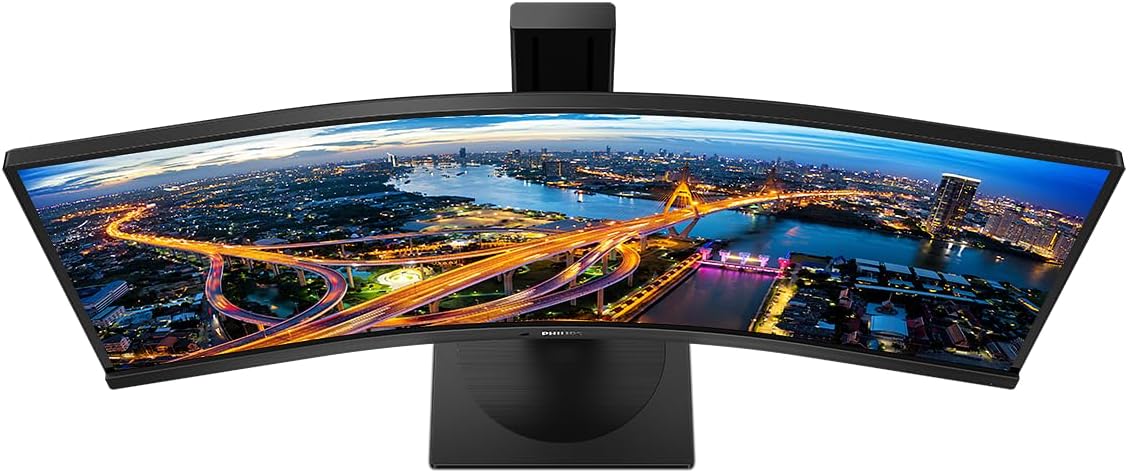
Imej: Atas ke bawah view of the Philips 346B1C curved monitor, emphasizing the curvature of the screen.
Apa yang ada dalam Kotak
Sahkan bahawa semua komponen hadir sebelum meneruskan dengan persediaan.
- Philips 346B1C Curved Monitor
- Stand Monitor (Asas dan Leher)
- Kabel Kuasa
- Kabel HDMI
- DisplayPort Cable
- Kabel USB-C ke USB-C
- Kabel USB-A ke USB-B (Huluan)
- Documentation (Quick Start Guide, User Manual CD)
Arahan Persediaan
1. Memasang Pendirian
- Letakkan monitor menghadap ke bawah pada permukaan yang lembut dan bersih untuk mengelakkan calar.
- Pasangkan leher pendirian pada panel monitor. Pastikan ia klik dengan selamat pada tempatnya atau diikat dengan skru jika disediakan.
- Attach the stand base to the stand neck. Tighten the thumb screw or screws from the bottom of the base.

Imej: Belakang view of the Philips 346B1C monitor, showing the stand attachment point and VESA mounting holes.
2. Menyambung ke Komputer Anda
Sambungkan monitor ke komputer anda menggunakan salah satu kaedah berikut:
- Sambungan HDMI: Sambungkan satu hujung kabel HDMI ke port HDMI monitor dan hujung yang satu lagi ke output HDMI komputer anda.
- Sambungan DisplayPort: Connect one end of the DisplayPort cable to the monitor's DisplayPort and the other end to your computer's DisplayPort output.
- Sambungan USB-C: Connect one end of the USB-C cable to the monitor's USB-C port and the other end to your computer's USB-C port. This connection supports video, data, and power delivery (up to 90W) to your laptop.
For USB hub functionality, connect the USB-A to USB-B upstream cable from your computer to the monitor's USB-B upstream port.
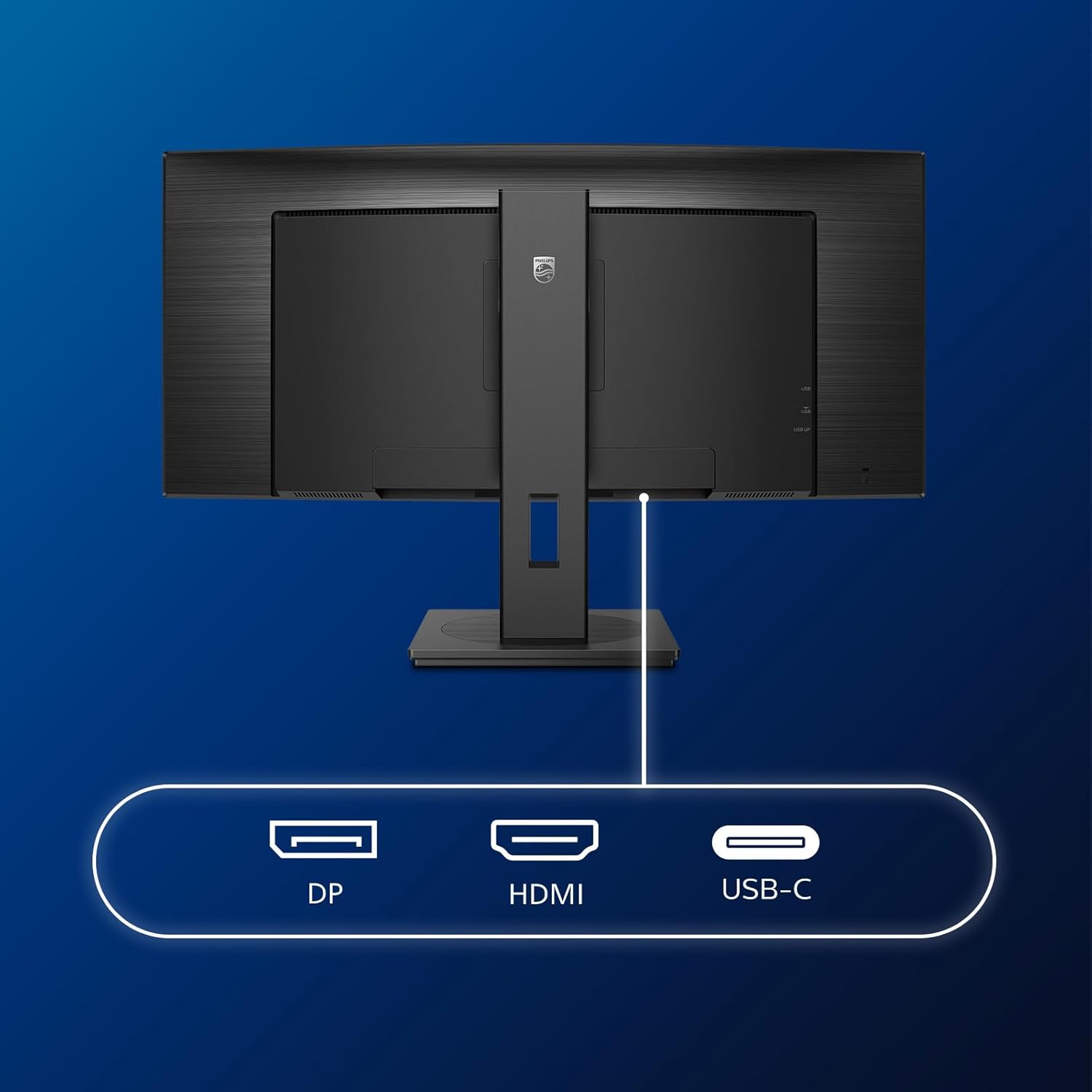
Imej: Terperinci view of the monitor's input ports, including DisplayPort (DP), HDMI, and USB-C, for connecting to various devices.
3. Sambungan Kuasa
Sambungkan kabel kuasa ke input kuasa monitor dan kemudian ke salur keluar elektrik yang dibumikan.
4. Kuasa Awal Hidup
Press the power button located on the monitor to turn it on. The monitor should automatically detect the input signal. If not, use the On-Screen Display (OSD) menu to select the correct input source.
Arahan Operasi
Menu Paparan Pada Skrin (OSD).
The OSD menu allows you to adjust various monitor settings. Use the joystick control located on the back or bottom of the monitor to navigate the menu.
- Kecerahan/Kontras: Laraskan kecerahan dan kontras keseluruhan paparan.
- Tetapan Warna: Fine-tune color temperature, gamma, and color space.
- Pilihan Input: Beralih secara manual antara input HDMI, DisplayPort dan USB-C.
- Audio: Adjust volume or mute the built-in speakers.
- Mod Gambar: Select from preset picture modes (e.g., Standard, Gaming, Text).
BerbilangView Kefungsian
PelbagaiView feature allows you to connect and view content from two different sources simultaneously on the screen. Access this feature through the OSD menu to select Picture-by-Picture (PbP) or Picture-in-Picture (PiP) modes and configure input sources.
Pelabuhan USB-C
When connected via USB-C, the monitor acts as a docking station, providing video, data transfer through its integrated USB hub, and power delivery to charge your connected laptop (up to 90W).
SmartErgoBase and Adjustability
The monitor's SmartErgoBase allows for ergonomic adjustments including height, swivel, and tilt to optimize your viewkeselesaan.

Image: Illustrations demonstrating the monitor's adjustable features, including height adjustment, tilt, and swivel capabilities for ergonomic positioning.
Ciri Keselesaan Mata
- Mod Biru Rendah: Reduces harmful shortwave blue light emissions to prevent eye strain. Activate this mode via the OSD menu.
- FlickerFree Technology: Mengawal kecerahan dan mengurangkan kelipan untuk lebih selesa viewCiri ini sentiasa aktif.
- PowerSensor & LightSensor: These sensors automatically adjust monitor brightness based on ambient light conditions and user presence, saving energy and reducing eye strain.
Penyelenggaraan
Membersihkan Monitor
- Sentiasa cabut plag monitor sebelum membersihkan.
- Gunakan kain lembut yang tidak berbulu dampdisapu dengan air atau pembersih skrin yang lembut dan tidak melelas.
- Do not use alcohol, solvents, or ammonia-based cleaners, as these can damage the screen surface.
- Lap skrin dengan lembut untuk menghilangkan habuk dan kotoran.
- Clean the monitor casing dengan kain lembut dan kering.
Penjagaan Am
- Elakkan meletakkan objek berat pada monitor atau kabelnya.
- Jangan dedahkan monitor kepada cahaya matahari langsung, haba berlebihan atau kesejukan yang melampau.
- Pastikan pengudaraan yang betul di sekeliling monitor.
Menyelesaikan masalah
Jika anda menghadapi masalah dengan monitor anda, rujuk langkah penyelesaian masalah biasa berikut:
| Masalah | Kemungkinan Punca | Penyelesaian |
|---|---|---|
| Tiada gambar di skrin | Kabel kuasa diputuskan; Kabel video diputuskan; Sumber input salah dipilih. | Ensure power cable is securely connected; Check video cable connections (HDMI, DP, USB-C); Select correct input source via OSD menu. |
| Imej kabur atau herot | Resolusi yang salah; Isu pemacu grafik. | Set display resolution to 3440 x 1440; Update graphics card drivers. |
| Tiada suara dari pembesar suara | Volume muted or too low; Incorrect audio output selected on computer. | Adjust monitor volume via OSD; Check computer's audio output settings. |
| Port USB tidak berfungsi | USB upstream cable not connected. | Ensure the USB-A to USB-B upstream cable is connected from the monitor to your computer. |
For further assistance, please refer to the support section or contact Philips customer service.
Spesifikasi
| Ciri | Perincian |
|---|---|
| Jenama | Philips |
| Nombor Model | 346B1C |
| Saiz Skrin | 34 Inci (86 cm) |
| Resolusi | 3440 x 1440 (WQHD) |
| Nisbah Aspek | 21:9 |
| Permukaan Skrin | Curved VA Panel |
| Kadar Segar Semula | 100 Hz |
| Masa Tindak Balas | 5 Milliseconds (GtG) |
| Nisbah Kontras | 3000:1 (Lazim) |
| Kecerahan | 300 cd/m² |
| Viewsudut | 178° (H) / 178° (V) |
| Ketersambungan | 1x HDMI 2.0, 1x DisplayPort 1.2, 1x USB-C 3.2 Gen 1 (upstream, power up to 90W), 1x USB-B (upstream), 4x USB 3.2 (downstream), RJ45 (Ethernet) |
| Penyegerakan Adaptif | FreeSync |
| Pembesar Suara Terbina dalam | 2x 5W |
| Penggunaan Kuasa | 5 Watts (Eco mode) |
| Berat badan | 7.8 Kilograms (with stand) |
Waranti dan Sokongan
Maklumat Waranti
This Philips monitor comes with a Waranti pengilang selama 2 tahun. The specific terms and conditions of the warranty can be found in the detailed documentation provided with your product or on the official Philips support website. Your statutory rights as a consumer are not affected by this warranty.
Sokongan Pelanggan
For technical assistance, product inquiries, or warranty claims, please visit the official Philips support website or contact their customer service department. You may need your monitor's model number (346B1C) and serial number (found on the back of the monitor) when contacting support.
Sokongan Philips Webtapak: www.philips.com/support